by Felicien | Jan 7, 2019 | Education
Downtime, compromised data, security breaches, and slow-running technology cause big headaches for today’s accountants. After all, you need your technology, and when it’s not working, every hour that goes by costs your firm money.
You can’t afford to sit idle—when your technology doesn’t work, neither do you. If your competitors use more efficient IT solutions, they’ll blow right past you and take your clients away. Or worse, your reputation will suffer.
Technology helps you carry out essential tasks, exercise professional judgment, engage with clients, provide advice, and settle tax issues. If you view technology as an opportunity rather than a threat, your firm will prosper and reap the rewards of your efforts. If you don’t, you’ll fall behind the competition.
You use technology now more than ever—at least, you should. Today’s technology is invaluable, and with time it will become even more so. In the past, the accounting profession lagged behind others in the adoption of new technology. They relied on paper-based filing and printed accounting forms that were time-consuming to process.
Accounting firms like yours have now embraced new technology. Just like other businesses, you need to streamline your services to save time and process accounting information. With modern technology like cloud-hosted accounting software, you and your clients can access data directly and simultaneously. The days of shuffling papers back and forth are over.
However, along with technology-provided benefits come some challenges.
Failed backups, slow-running email, application problems, and operating-system crashes create headaches that set up barriers to your success.
Downtime is a threat—it results in a significant loss of productivity. You can’t afford to be faced with server failures, poor systems performance, accidental file deletions, or software application crashes. Without access to your data, you and your employees can’t do your jobs. Money goes out the window, and you can’t meet your filing deadlines.
Data security is another issue that can cause significant headaches. Client confidentiality is your most important duty. But with hackers and intruders who want to infiltrate your technology for their own financial gain, your technology landscape is like a minefield unless it’s adequately protected.
As a Chartered Accountant, you are governed by Rules of Professional Conduct that always have and will continue to guarantee the privacy and confidentiality of your clients’ personal information. If their financial data is stolen, you’ll face penalties, fines, and possibly civil prosecution. You can’t take that chance.
THE ANSWER IS TO CONTRACT WITH THE RIGHT IT SERVICES PROVIDER.
To prevent IT headaches, you need service and support from an IT provider who understands the Line of Business (LOB) applications you use including your financial preparation and planning software and billing systems that keep your operations efficient.
The right provider can ensure these seamlessly incorporate with other applications you use like Microsoft Office or Office 365. When you have access to expertise from an IT Service Provider who truly understands your needs, you can effectively leverage these powerful tools.
Look for an IT Service Provider who has been serving the needs of accounting firms and corporate accounting departments for years. The best choice is one who can cover a broad range of technology requirements through both professional services and Managed IT Services and who can grasp the complexities your accounting firm faces.
They should be able to help you avoid IT headaches when automating routine accounting processes, sharing financial files, deploying mobility solutions, and capitalizing on tools like electronic filing.
Your accounting practice requires a complete technology management solution including data protection and proactive monitoring of all critical functions on your network, servers, and workstations. Plus, you should insist upon a fixed-cost solution with predictable budgeting. Just as your accountants are committed to your clients’ success, your IT Service Provider must be dedicated to making you successful and view themselves as an extension of your practice.
Your IT Service Provider should be adept with:
Cloud Technologies that improve your productivity, efficiency, and security
With cloud solutions, you can eliminate the cost of paper and the hassle of sifting through files, store massive amounts of information (Big Data), share important files in real time and secure your clients’ information offsite in high-security data centres.
Accounting Practice Management Software that helps you run day-to-day operations including the centralization of client data, tracking due dates, staffing, workflow management, automated billing, and time tracking
Tax Preparation and Filing Software designed explicitly for accounting firms, so you can analyze different income tax scenarios and have access to the reporting tools you need for fast, easy reconciliation
THE WORST HEADACHES RESULT FROM IT SECURITY BREACHES.
Data breaches are increasing exponentially. Cyber mafias have set up in towns like yours, operating from legitimate-looking offices. Hackers are no longer kids in their parents’ basements working on a few computers. Cybercrime is an international and sophisticated business with cartels operating around the globe.
Your data is valuable, and your accounting firm is a target. You need the expertise of an IT Service Provider who stays up to date on the latest threats. It’s imperative that you protect client information. But IT security best practices change so rapidly that accounting firms often find themselves falling behind the curve. If you do, your firm is at risk of viruses, network vulnerabilities, and data breaches. This results in more than a headache; now, you’re looking at a migraine.
Criminals have many ways of stealing your data.
Internet Exploits
Your employees use connected devices to interact with, track, monitor, and simplify just about every area of their work and personal lives. However, these technologies also provide access to sensitive, confidential information and present a wide variety of new security issues for attackers to exploit.
Third-Party Attacks
Cybercriminals have learned that contractors and other third-party providers aren’t as secure as large vendors, and lower security provides a pathway into otherwise-secure networks. Examine who can connect to your network and access confidential information, even if you believe appropriate security measures are in place.
Social Media Attacks
Social media presents two main security headaches:
A website you visit or service you use can be infected with malware that spreads until your network is ripe for a data breach. Malicious social media content is expected to grow 400 percent as attackers continue to distribute their malware and steal client data.
A determined hacker or team can scrape social media sites to assemble a surprising amount of personal data very quickly. This data can be used to engineer an attack.
Social Engineering Attacks
Human nature is easily the weakest link in any security chain. Was that really a utility-company employee you held the door for this morning? Are your office painters propping open a secure entrance to make their task more manageable? Did your receptionist just give all your passwords and hers to someone who called claiming to be from tech support on another floor? Will your colleague’s curiosity causes him or her to insert the USB key “found” in the parking lot into a computer connected to your systems?
Mobile Malware Threats
Security experts have been warning us about mobile malware threats for a long time, and users have grown immune to these warnings. Mobile-device use is increasing, as is the sophistication of attacks. At the risk of being the boy who cried, “Wolf,” every year a major mobile malware attack is more likely to occur. Attackers typically select the most significant number of potential victims. So, they will target mobile devices, specifically Android and jailbroken iOS devices.
Sophisticated DDoS Attacks
Distributed Denial-of-Service attacks don’t directly steal your information. Instead, they overwhelm your site or service with so much traffic that it prevents legitimate users from connecting. These attacks have evolved beyond simple flooding of traffic. They probe and then morph, based on the defences in place on your network. Such advanced and sophisticated attacks can seriously impair your accounting firm’s operations.
TO PREVENT THESE SECURITY HEADACHES, YOU NEED A SECURITY PLATFORM WITH REMOTE-ACCESS MONITORING AND RELIABLE BACKUP AND DISASTER-RECOVERY SOLUTIONS.
Be sure your IT Service Provider implements innovative, up-to-date security measures to protect your accounting firm against intruders, malware threats, and disasters. And ensure they can do the following things
Ensure:
You comply with accounting and confidentiality requirements when using technology.
You use appropriate technical means to minimize the risks of disclosure, discovery, or interception of communications.
Data and email are encrypted to protect your sensitive information.
You adopt management practices that offer protection against disclosure or discovery of electronically transmitted messages.
Prevent:
Unauthorized access to your electronic data
Computer viruses from damaging your data
Natural or manmade disasters from affecting your IT operations
Confirm:
Your files are reliably backed up and recoverable.
Both offsite and onsite data backups are maintained.
Data is restorable by performing ongoing testing.
Provide:
Systems Analysis
Mobile Device Management
Up-to-Date Security Solutions
User Support and Training
Your IT Service Provider should implement a security platform with multiple layers of protection, with 24/7 remote monitoring to detect infections and intrusions, and block them before they get in and steal or hold your data hostage. Many accounting firms are unaware that this goes on. Your IT provider will keep you informed and train your staff to recognize threats, so you know what to do if one comes across your computer screen.
Your very most basic security solution should include barriers with virus and malware detection at the firewall level and DNS (Domain Name Server) controls to ensure your users don’t visit hijacked websites. Your employees should also utilize two-factor authentication access practices to prevent criminals from getting into your network.
Nothing is more important than protecting the information on your network and the peace of mind that comes from knowing you can fully recover if a disaster hits your firm. Your IT provider must ensure your business continuity and disaster recovery solutions will meet your objectives and must implement a robust backup and secure off-site replication solution.
While computer systems can easily be replaced, the intellectual property and sensitive information stored on those systems cannot. Computer hard drives can fail, laptops can be stolen or lost, and data can be erased due to human error or viruses. It’s important for your accounting firm to have a backup system to keep data safe and avoid data loss.
Ask your IT Service Provider if they employ system virtualization and a private cloud with a fully redundant system that can be replicated across multiple data centres. If your data is compromised or damaged, a new clone of your system and data can be spun up with a new, fresh image in a manner of seconds.
Be sure your IT provider uses an Intrusion Detection System. This will catch anything that may have bypassed your firewall. They can either be used to find a break-in attempt in progress or detect one after the fact. In the latter case, it’s too late to prevent any damage, but at least you’ll be aware of the problem.
If an intruder gets into your system, the first thing they typically do is install a “rootkit.” A rootkit is a script or set of scripts that can make changes to your IT system and hide in common system utilities. They function in the background without your knowing they are there. Criminals can easily obtain these on the Internet. This is one reason you must have reliable backups of your entire IT system. If rootkits are discovered, you’ll need to re-install your system and data and start over from scratch.
Your mobile devices also require monitoring and management. If a phone or laptop is stolen, you must be able to remotely wipe your confidential data. Mobile Device Management also prevents disgruntled employees from leaving with your confidential or proprietary data.
Your IT Service Provider should also employ encryption to protect your confidential data. They should encrypt both your emails and data files to ensure the security of information. Encryption can protect your data at rest, such as on laptops or portable servers, as well as data in motion, such as over wireless networks or the Internet.
One of the most overlooked security aspects in accounting firms is their creating and retaining policies regarding email and data. You are accountable for instituting and employing a strategy that details the duration over which your client data and emails will be stored and deleted. Ensure your IT provider can implement automated solutions to handle this.
IN CONCLUSION
You understand the unique challenges and technology demands your accounting firm faces. Whether your IT headaches come from the security risks of handling and storing confidential information or the difficulties of keeping up with new, innovative Line of Business Solutions, you need an IT Service Provider who can ease your struggles and your IT headaches.
by Felicien | Jan 6, 2019 | Education
If there’s a will there’s a way when it comes to scammers, especially with gift cards. Everyone loves gift cards. Consumers love how easy it is to purchase gift cards, use gift cards and even give gift cards. It’s as simple as buying a card at a brick and mortar store or clicking a few buttons and almost instantly having the funds needed to play. Scammers love gift cards too. Gift cards can immediately be activated and spent by these scammers even before the owner of the card knows what happened.
Google Play gift cards are targets right now. Scammers love how easy they are to steal so consumers need to stay one step ahead of these online crooks. Here’s one of the latest Google Play Gift Card Scam that is scouring the internet.
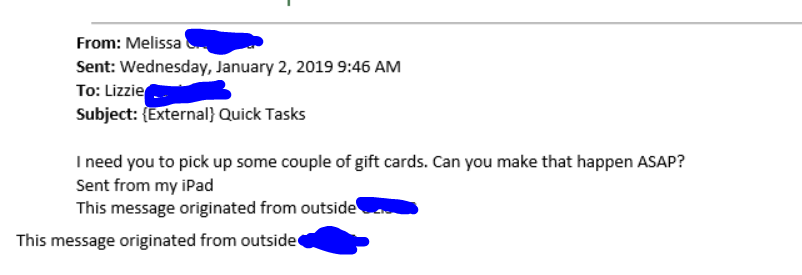
Scam Alert: Currently there is an email scam occurring where thieves, posing as someone the recipient knows and are phishing for personal, financial, and other private information. This includes requests for Google Play Gift Cards. For example, the message will read, “I need you to pick up a couple of gift cards. Can you make this happen? The type of gift card I need is Google Play gift cards. I need 4 cards in $500 denominations…scratch the back of the card to reveal the card codes and email me the gift card codes.”
Take away: Never provide any personal information including gift card codes like Google Play in an email. What seems like the information is going to a trusted source, it could be a scam.

by Felicien | Jan 4, 2019 | Education
On January 4th, 1809, Louis Braille was born. Louis Braille was a child who lost his vision in an incident involving a sharp tool at the age of 3. During his early life, Louis had an interest in “night writing”, a military code used by the French Army in the 1800s. This “night writing” was a way for soldiers to silently communicate in the dark. At 15 years old, Louis Braille simplified the French soldiers’ code so that it was easier to use and understand. This was the beginning of the Braille System that is still used today.
Braille is a system of raised dots that are felt with fingertips to give blind people a way to read the words around them. The raised dots are arranged in a way that represents letters, numbers, and other characters. There are two different versions of Braille. The first is uncontracted, where each word is spelled out. The second is contracted, similar to shorthand. There is also a type of Braille, the Nemeth Code, that is for working with mathematics.
World Braille day reminds us of the impact that Braille has on the daily lives of people living with blindness. Braille is a key factor in obtaining literacy equality. Without braille, people with blindness or vision loss wouldn’t be able to read anything on their own. Braille helps people to live more independently.
On World Braille Day, further, educate yourself on braille. Learn about all the ways that it makes life easier for those who are blind. You could even join groups that help incorporate Braille into more parts of everyday life.
by Felicien | Jan 4, 2019 | Education
You are driving along and you glance down at your smartwatch. Imagine the horror of it when you hear the sirens wail directly afterward — but you think that can’t be for you: you were not driving over the speed limit. But it can be for you. The police saw you glance at your smartphone, and now you are facing potential license suspension.
It’s here: stricter distracted driving rules in Ontario have the potential to be quite devastating. Here’s what you should know about the new law that took effect on January 1, 2019.
What is the new distracted driving law in Ontario?
The new distracted driving law in Ontario is not necessarily new in the sense of what is considered distracted driving, but new in terms of beefed up penalties. If an officer suspects that you are driving while distracted, then you can be pulled over and cited. The police, however, cannot seize your driver’s license on the roadside. Your case will go before a judge, and upon conviction, you will have your license suspended as well as be subject to fines and demerit points.
What actions are considered distractions according to the new law in Ontario?
When we think of distractions associated with a distracted driving law, we most often think of our smartphones, but there are many other distractions that can result in a conviction. In fact, anything that causes a driver to be less focused on the road is a distraction to driving. The list of distractions according to Ontario’s Ministry of Transportation include the following activities:
Holding an electronic device — like a smartphone, iPad, tablet, iPod, or another device;
Using an electronic device to text, talk, send posts on social media outlets, type in addresses into the GPS or look at maps or control playlists;
Eating; and/or
Reading books or documents.
Further, if you think you can be safe using your electronics at a traffic light or any other time while in stopped traffic, you are wrong. It is not permitted according to this law to use your electronic devices while stopped. You can, however, use the following:
A hands-free electronic device that utilizes technology like Bluetooth and requires you to only turn it on or off; or
A mounted electronic device — whether it’s a phone or GPS system — so long as it is secure and does not move while you are driving.
The only exception to the new law is if you need to contact emergency personnel, like the police, fire department, or medical professionals.
What are the new penalties for distracted driving in Ontario?
Distracted driving has already been an offense in Ontario, but the new law strengthens the penalties to make it more of a deterrent than what it had been. Penalties vary according to the conviction: whether or not you have any prior distracted driving offenses. Plus, aside from the penalties, you can expect your auto insurance rates to increase dramatically. The stakes, therefore, have just multiplied with this new law.
First Distracted Driving Conviction Penalties
For a first distracted driving offense, you can expect the following penalties:
A fine of up to $1,000
Three (3) demerit points
A three (3) day driver’s license suspension, unless you have a graduated license, like a G1- or G2, then the license suspension is for 30 days.
Second Distracted Driving Conviction Penalties
For a second distracted driving offense within five years, you can expect the penalties to double:
A fine of up to $2,000
Six (6) demerit points
A seven (7) day license suspension, unless you are a G1- or G2-license holder, then the license suspension is for 90 days.
Third Distracted Driving Conviction Penalties
For a third distracted driving offense within five years, the penalties increase progressively, and include:
A fine of up to $3,000
Six (6) demerit points
A thirty (30) day driver’s license suspension, unless you are a G1- or G2-license holder, then your license could be canceled — and it can be difficult to get the license back.
Subsequent Distracted Driving Conviction Penalties
For each new conviction, fines and driver’s license suspension increases. You could potentially — if you become a repeat offender — be looking at driver’s license suspension up to two (2) years and fines of up to $50,000.
What to Do When Driving on the Roads in Ontario
There is a reason behind the new law and that is safety. The following are some statistics provided by CAA that you should keep in mind:
“Drivers engaged in visual-manual interactions with cell phones (e.g., texting) are up to eight times as likely to be involved in a crash.” (AAA, 2017)
Twenty-seven percent “of fatal crashes in BC was due to distraction. Police across Canada say that distracted driving has caused more collisions than impaired drivers.” (ICBC, 2016)
Thirty-three percent “of Canadians admit they have texted while stopped at a red light, despite believing it is unacceptable.” (CAA, 2016)
These are serious statistics. The obvious way to prevent the above from happening and from you obtaining a distracted driving citation and subsequent conviction in Ontario is simple: don’t use your electronic devices while driving, but also, don’t eat, read, or write, or even groom yourself by putting on makeup or brushing your hair. Refraining from these activities can help bring down the above statistics and can help make our roads safer.
by Felicien | Jan 4, 2019 | Education
There was something of a cultural shift in the technology sector during 2018 that will undoubtedly impact 2019. Up until last year, cybersecurity issues seemed to predominately plague significant corporations and organizations. The Democratic National Committee hack fallout and Russian bots on Facebook were coupled with big-time breaches at Equifax and others that garnered headlines. Even the recent reports coming out of U.S. intelligence agencies point to enemy states such as China and Iran stealing American intellectual property.
Cyber threats ramped up in 2018 and the World Economic Forum ranked technology breaches as a top risk to economies worldwide.
“Attacks are increasing, both in prevalence and disruptive potential. Cyber breaches recorded by businesses have almost doubled in five years, from 68 per business in 2012 to 130 per business in 2017,” the Forum reported.
Consider for a moment that climate change and severe weather events such as hurricanes and tsunamis were also listed. That should put the danger in context for any business leader. And that’s why the mainstream perception about breaches has shifted significantly.
These days, small and mid-sized companies recognize that their personal information and critical data are targeted at a much higher rate than Fortune 500 outfits and national-level organizations. Ransomware has emerged as an almost routine method to extort money, and now fraud from crypto-mining is trending high. Business owners and decision-makers are prioritizing cybersecurity because the stakes are just too high. Cyber threats are likely to escalate during 2019, and these are some dire predictions.
1: Strict Data Breach Fines
Last year, regulations such as the California Consumer Privacy Act implemented harsh penalties for companies that fail to protect personal employee data. The conventional wisdom is that businesses and non-profit organizations alike have a responsibility to safeguard the information they ask of team members.
Cyber attacks that penetrated Uber, for example, reportedly resulted in the transportation organization settling out of court to the tune of $148 million as a result of a 2016 breach. Leading online companies such as Facebook and Equifax have been under fire and they both reportedly were fined a maximum penalty of £500,000 in the UK.
Currently, Google, British Airways and Facebook once again are under government scrutiny for cybersecurity failures and hefty fines could be coming. While this may not seem like a direct and discernible danger to small and mid-level outfits, think again. Although household-name organizations make headlines, everyday companies can expect to get hit with penalties for lack of cybersecurity as well. The moment a company asks employees to provide personal information, that organization becomes responsible for protecting it.
2: Rise of the Machines
The days of a rogue hacker halfway around the world infiltrating a system are expected to evolve in to (artificial intelligence) AI cyber attacks. If this sounds a lot like the sci-fi “Terminator” movie franchise, that’s not far from the truth.
Hackers are expected to deploy machines under their control to more rapidly and covertly penetrate business systems and cull valuable information. But beyond mining, these human-controlled devices will increasingly have the ability to impact the lives of everyday people.
Consider that the IoT continues to create an accessible matrix that can be manipulated. Autonomous vehicles, smart-home technology, and even friendly Alexa are being weaved into the fabric of human lives. This opens the door for hacker-driven AI to penetrate lives outside of the workplace. The necessity of cybersecurity in our personal lives is expected to grow exponentially going forward.
3: Governments Expected to Ramp Up Cyber Weapons
The mainstream media has been brushing up against the subject of enemy states attacking infrastructure such as power grids. It goes without saying that governments across the world are not sitting idly by as others hone their hacking talents.
From voting booths to water supplies, governments around the world are expected to meddle more and more in each other’s affairs. When someone loses, expect malware, ransomware and debilitating viruses to be unleashed.
While your small or mid-sized company may not be the target of a rogue state attack, it could end up being collateral damage. Don’t be taken by surprise, secure your company and personal data before the first wave hits.
4: Email Expected to Remain Top Data Breach Vehicle
Criminal hackers view email as the gift that keeps on giving. New hires tend to need time to understand the protection protocols around email usage. And, too many outfits lack adequate policies or fail to update usernames and passwords effectively. Employee email has ranked among the most vulnerable backdoors into an organization’s sensitive data and the best way to deploy ransomware.
Even though cybersecurity and IT teams warn decision-makers about the dangers of sub-par email protections, it is expected to remain a primary threat in 2019. Every day companies cannot take email security seriously enough in 2019.
5: Tougher Laws and Regulations Expected
The 2018 U.S. congressional hearings that involved Facebook, Google and others demonstrated that lawmakers recognize that cyber threats are prevalent and current regulations appear inadequate. Intellectual property and critical data are now outpacing oil regarding value.
In the U.S., states are creating more stringent laws to deal with hacking. The federal government and countries abroad are also wrestling with policies to manage cyber threats. It’s essential for small and mid-sized outfits to follow the trend and communicate with lawmakers at the local, state and federal level. The laws that come out of cybersecurity hearings are likely to impact the business community in a significant fashion.
