by Felicien | Nov 8, 2017 | Education
There’s a running joke for modern times. If you were to die unexpectedly, you should have a close friend on notice to clear your internet’s browser history to destroy your most embarrassing and private online footprints. However, as the technology landscape continues to change, data that was once considered private now exists in an ambiguous territory. Basically, we’ve reached a point where internet users can never be really sure that what they type into search engines is completely private.
More and more, advertisers and consumer researchers are making use of data trails – and Internet providers are helping them on this mission. In fact, for many internet providers, it’s become common practice to put user’s internet histories up for grabs by selling them to advertising and market research agencies. This makes it easier for marketers to target individuals with products and services that match their specific interests.
Browser Histories for Sale: Trump Passes Rolls Back Internet Privacy Rules
Earlier this year, President Trump signed a measure to reverse cybersecurity rules that would have required internet providers to get consent before selling consumer browser histories. The rules had not yet taken effect, but internet providers now officially have the freedom to collect and sell user data – including browser search histories.
Data collection by internet providers isn’t new. For some time, providers have already been collecting data to maintain their networks. While many providers claim they won’t use or sell personal data – like children’s information, medical records or banking details – without consent, it’s becoming clear that little bits of this sensitive information is available in browser histories.
Take for example a person who googles health symptoms they may be experiencing or an individual who googles the address and transit number of their personal bank. With browser histories up for grabs, there are serious concerns about the possibility of identifying people based on these little pieces of detailed information. Not to mention, if the information is sold to the wrong buyer, these data trails increase the risk of cyber hacks and identity theft as well.
Business Considerations: Understanding Browser History Implications for a Team of Employees
The risks that data trails pose for businesses are even more dangerous. A team of employees in a modern business office probably relies on internet searches daily. Perhaps their searching work-related things like competitor and client data or maybe their searching for personal things during downtime. Regardless of what they’re searching, every word that gets typed into a search engine is connected to a business’s online data trail.
This means that if an employee uses google to get more information about a confidential company project or to try and track down contact information for a client, these search details are stored and ready to be sold. Even worse? Relying on employee’s personal searches can make it easier for cybercriminals to create data portraits of employees. This significantly heightens the risk of identity and phishing scams, where criminals convincingly impersonate company representatives to gain further data access or steal company resources.
Quick Case Study: How a Fake German Marketing Company Scored Employer Data Trails for Free
The Guardian recently published an expose on the browser history issue and it unveiled shocking results. Journalist Svea Eckert and data scientist Andreas Dewes, both from Germany, wanted to find out just how easy it was to collect browser history data in the attempt to identify users.
The pair underwent an experiment, posing as a phony marketing company to acquire the data they were looking for. They even created a fake company website and a bogus LinkedIn profile for the company’s “CEO”. They claimed to have developed a machine learning algorithm that could improve marketing tactics but told internet providers that they needed to ‘train’ the algorithm on a large collection of data – a common request by research firms worldwide.
The pair were successful in acquiring the data and didn’t even have to pay for access as they claimed they were doing research. The team presented their findings at the annual Def Con Hacker Conference in Las Vegas. A summary of their findings is listed below:
After contacting several internet providers, Eckert and Dewes were able to easily acquire a database holding more than 3 million visited web addresses. That data, in turn, comprised about 9 million unique sites visited by roughly 3 million German internet users.
The data clearly demonstrated different groups of internet users. First, the light users who visited only a few dozen sites over a 30-day span and second, the heavy users – some of which had tens of thousands of data points waiting to be examined.
Though the data was of course ‘anonymized’, the pair had little trouble reassembling it to create identifiable ‘data portraits’ once they dug in.
Identifying some users was incredibly easy simply by checking out their uniquely identified URLS’s like social media profiles or analytics searches on personal Twitter pages. This made it easy to connect certain browser histories with a specific identity right away.
However, even for users who didn’t have unique URL histories to tip off their identity right away, Dewes and Eckert claimed that using the data to come up with digital fingerprints made educated guesswork easy.
The data portraits are built using the process of elimination. Take for example an employee visiting the company’s website and then quickly checking out their bank’s website for personal finance info. If an employer has 500 employees, but only 50 of those employee’s use the bank in question, it makes it easier to shrink the pool of possible identities that could be linked to this browser history.
Then, the pair worked to shrink the identity pool even more. By checking out medical conditions, hobby interests and school websites that employees may visit during the workday, it becomes easier and easier to match specific browser histories with specific employees. The more data points that are available, the better the chances of dwindling down overlaps and the more quickly a single person can be linked to a specific history.
While the process may seem time-consuming and complex, it really isn’t as hard as it seems. Eckert and Dewes claim that it only takes about 10 URLs in total to be able to uniquely identify a user.
Managing Your Businesses Online Footprint: How to Strategically Protect Your Business
So, how can businesses and individuals alike better manage their browser history to avoid having sensitive and/or identifiable information sold to the highest bidder? We’ll break down how it works and explores strategies for protection below.
Breaking down the browser history file:
When you visit a Web site, your browser automatically saves the Web site address, or URL, and saves it on your hard drive in a history file or folder. This file/folder allows you to view a list of previously visited Web pages, without having to type the address again.
The size of your history file will grow as you browse until it meets the limit set by your browser. However, it should be noted that these limits, for most providers, are quite large. When this happens, your browser will delete some URLs, starting with the oldest. This means, no matter how big your browser history file becomes, it continually replenishes itself with the latest data you’ve searched.
These files – full of personal and identifiable information, are owned by internet providers who can then sell the data archives to marketers, advertisers, and researchers. As noted in the case study, buyers are then able to use a process of elimination to link browser histories with actual people.
Head spinning? Check out these strategies for reducing browser history risks:
Set Regular Browser History Purge Dates
Even though your browser replenishes itself automatically, clearing your history manually on a regular basis is a smart strategy. Not only does this keep browser history files small and harder to identify, regular browser history purges may help speed up your system as well.
Set regular dates – perhaps bi-weekly or monthly – where employees are expected to purge their search data and keep history files small. This will not only help avoid identification, but it will empower your employees to be more vigilant with their online searches at work.
Make Sure Personal and Work Devices Aren’t Syncing
In a modern business world, many employees use a combination of company and personal devices to get work done. On some devices, the browsing data can be synced from one machine to another, which can result in browser history files becoming larger and jam-packed with personal search data.
To make sure your team’s personal devices don’t sync with company devices, check out these tips and tricks for Google Chrome: www.appuals.com/how-to-stop-google-chrome-from-syncing.
Explain the Dangers
The best way for employers to minimize the sale of browser history gold mines is to inform employees. Explain the risks to your staff members and help them understand that while internet searches may seem quick and anonymous, digital footprints are always recorded and can be used against them.
Arming your team with the knowledge they need will not only help reduce risk, it will also encourage team members to avoid making personal searches at work. This results in higher productivity, more informed team players and safe company data. Win-win.
The internet is becoming a massive and prosperous place to do business and get work done quicker. However, at the same time, the internet is becoming an increasingly public and non-private space, filled with marketers and cybercriminals, eager to get their hands on valuable data. Keeping these strategies in mind to protect your business is absolutely critical in a modern business environment. Don’t let the information highway drive your business into crisis.

by Felicien | Nov 7, 2017 | Education
It’s a thorn in the side of every modern business. Emails seem to come in faster and faster every day. Even when spam and unnecessary communications are moved to the trash can, inboxes are still jam-packed with important attachments, electronic pay stubs, and critical communication histories.
When employee inboxes get full, business communication can get muddled and backed up. Emails are missed or lost among a crowded sea of old but important communications. For businesses who rely on quick and efficient lines of communication, crowded inboxes can result in the disappearance of critical info and in worst cases, missed business opportunities.
Benefits of Inbox Archiving: How Outlook’s AutoArchive Feature Drives Unparalleled Organization and Productivity
Luckily, businesses who use Microsoft Outlook as their email platform have the ability to archive emails and keep them stored away out of sight. Archives keep old but important communications safely stored away to be easily pulled up when needed. Even better? Outlook has an AutoArchive feature which allows employees to automatically archive their inboxes at regularly scheduled times.
Outlook’s Auto-Archive feature offers a variety of business benefits including:
Keeps Inboxes Light
First and foremost, Outlook’s AutoArchive feature helps keep inboxes light and organized. This makes searching for information and important communications easier on a day-to-day basis and avoids disorganized employee communication.
Streamlined Automation
Implementing technology is supposed to help businesses complete tasks quicker and more efficiently. Outlook’s AutoArchive works quietly in the background, archiving and organizing company communications without hindering an employee’s workday with tedious tasks.
Customizability
Perhaps the best part about Outlook’s AutoArchive feature is that it’s not a one-size-fits-all solution. The feature offers a variety of customizing options including choosing the time and date for archives and organizing custom archive storage folders for easy search and access.
Managing AutoArchive: Security and Management Considerations to Keep in Mind
Like with all technology tools there are some drawbacks to keep in mind when using Outlook’s Auto-Archive feature. Keeping the following considerations top of mind will make sure your businesses take advantage of Outlook’s AutoArchive feature effectively and securely.
Manage Archive Size
One drawback of the AutoArchive feature is that over time, as emails are stored automatically, the sheer size of inbox archives can get huge fast. This can make searching for stored information more difficult and time-consuming.
It can also make the job of anti-virus scans harder. Setting semi-annual dates to clean out archives and clear out unnecessary communications is a great strategy to make sure archives sizes don’t become unmanageable.
PST File Corruption Issues
Another challenge with large archive sizes is the potential for PST File corruptions to occur. PST file corruptions make certain email files impossible to access and open.
PST file corruptions can also occur from power-outages as well as faulty networking or hard drive issues. In light of this risk, business owners should keep PST repair applications in their back pocket.
Archives are NOT a Back-Up Solution
This final consideration is possibly the most important. Having email data automatically archived and stored can make professionals think their email data is safe from cyber attacks or network failures. It must be made clear: AutoArchive is not a data-backup solution.
Archived emails are susceptible to technical flaws and do not include current inbox contents. Additionally, in the case of a crash or attack, restoring archives may not always be possible. This reinforces the critical importance of having external back-up and business continuity solutions in place for email data.
Business Implementation: Setting Up AutoArchive in Outlook
Keeping the previously mentioned challenges in mind, businesses can easily take advantage of the benefits of Outlook’s AutoArchive feature. The feature is available for versions of Outlook dating from 2007 and beyond and offers custom options for how AutoArchive runs, where it stores archived items and how long Outlook keeps items before archiving them.
Follow these step-by-step instructions in your employee inboxes to get AutoArchive up and running:
Click File> Options > Advanced.
Under AutoArchive, click AutoArchive Settings.
Click the Run AutoArchive every # days box and specify how often to run AutoArchive.
Choose any other options you want, such as having Outlook delete old items instead of archiving them.
Change the AutoArchive settings for an individual folder
In the Navigation Pane’s folder list, right-click the folder you want to change, and click Properties.
On the AutoArchivetab, choose the options you want.
HEADS UP: Archive and AutoArchive might not be available if a mail profile connects to an Exchange Server. It’s also possible that some companies may have a mail retention policy that overrides AutoArchive. Determine how your email network is set up ahead of time to avoid these obstacles.
For full details about AutoArchive settings, see AutoArchive settings explained.
Don’t Let Overflowing Mailboxes Bog Your Business Down: Take Advantage of Outlook’s AutoArchive Feature Now
No matter your industry, employee inboxes are susceptible to overcrowding. Email can fill your Outlook Inbox quickly with new messages, replies, and forwards. Before you know it, thousands of messages could be weighing down individual mailboxes. Keep your Outlook inbox and its folders under control seamlessly by setting up the AutoArchive feature.
Outlook is jam packed with hidden gems that are designed specifically to drive organization and productivity for businesses. Understanding how to best implement such a large tool-kit of resources can be overwhelming for the busiest of business leaders. Reach out to local tech experts if you need guidance and make sure your company is making the most out of Microsoft tech tools.
by Felicien | Nov 7, 2017 | Education
Every business has some sort of system for reserving company equipment and booking rooms for company meetings and events. However, these systems are usually disorganized and leave employees groaning. Whether the system involves an on-paper sign out sheet or basic word-of-mouth reserve requests, an unorganized approach can lead to wasted business hours and miscommunications over company resources and office space.
Often, employers are looking for a better and easier way for team members to access equipment or book office space for important meetings or training events. Like with other areas of business optimization, many business owners are looking to technology to help streamline these processes to drive productivity and increased management capacity.
Bye-Bye Booking Nightmares: Setting Up Room Mailboxes for Meeting Optimization
In Microsoft Outlook, a room mailbox is a resource mailbox that can be assigned to a specific physical location in a company’s office. This could include presentation spaces like auditoriums, conference and meeting rooms or rooms designated for training and employee education.
The room mailbox feature in Outlook allows users to easily reserve and organize the use of these rooms by including room mailboxes in meeting requests and event invites. When the feature is used, options can be configured to decide whether invites should be accepted or denied.
Furthermore, certain employees can be granted access to a room mailbox so they’re able to directly manage its calendar. This makes it easier than ever for administrators to make room for last-minute executive meetings and keep track of what rooms are being used and for what purpose.
Resource Management Optimized: Setting Up Equipment Mailboxes for Fool-Proof Device & Equipment Sharing
Like the room mailbox feature, an equipment mailbox helps to streamline company resources and drive organizational efficiency. An equipment mailbox is a resource mailbox that can be assigned to a company resource that is not location specific. This could include portable computers and tablets, audio-visual equipment like projectors and microphones or even company vehicles.
Once an administrator has created an equipment mailbox, users are able to easily and efficiently reserve various company equipment by including the corresponding equipment mailboxes in a meeting request. This makes it easier than ever to keep track of company resources, connect employees with the things they need and avoid double-booking of critical devices and equipment.
Business Implementation: A Step-by-Step Guide for Setting Up Equipment & Room Mailboxes
Setting up Room and Equipment mailboxes is available for all Outlook users including Office for Business and Office 365 Small Business among others. This makes it possible for users to take advantage of room and equipment mailboxes in Outlook platforms on and off the Cloud.
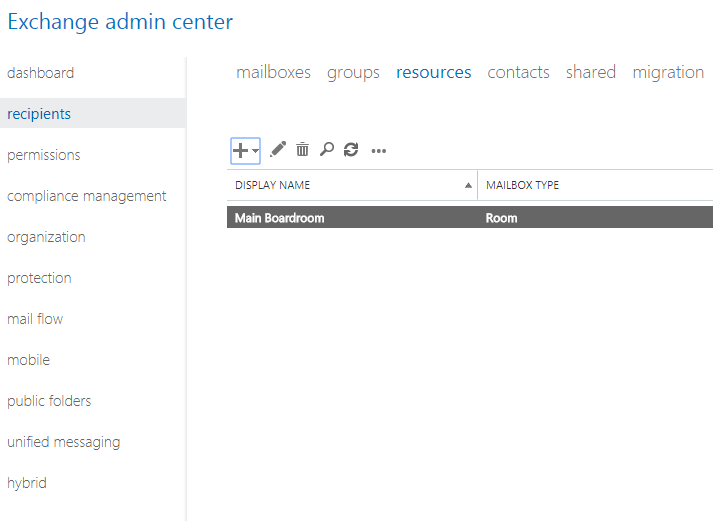
For cloud-based Office 365 platforms, room and equipment mailboxes are set up in the Office 365 Admin Center. Keep in mind, that to create the mailboxes, users must be granted administrative privileges. Check out the step-by-step process below for creating and managing room & equipment mailboxes:
Sign in to Office 365 with your business account.
Access the Office 365 Admin Center.
Use the search feature to locate rooms or equipment or navigate Outlook to find Resources > Rooms & equipment.
Click Add.
Fill out the room or equipment fields:
Select Room or Equipment: set the type of mailbox you’d like to create.
Give the Mailbox a Name: give the mailbox a relevant name or even a short description.
Set a Mailbox Email: set the email alias of the room or equipment. This is necessary to send a meeting request for the room or equipment.
Outline Mailbox Capacity: set the number of people who can fit in the room or use the equipment at the same time.
Location: list the room number or location of the room in a building or region. For equipment, list where the equipment is stored.
Phone number: for room mailboxes list the number of the room itself. For equipment that has an associated number, list it here as well. Note that this is different from the meeting phone number generated when using Skype for Business.
Choose Add.
Choose View details to see the room or equipment mailbox you’ve created.
Set scheduling options to change the allowed meeting times, booking windows, and so on.
Then, Save and Close.
Other important process points to keep in mind:
To create and manage resource mailboxes, users need administrative privileges and must be a member of the Organization Management or Recipient Management role groups in Outlook. Individual access permissions can be granted by following the steps in the Manage Permissions for Recipients feature in Outlook.
Once a user has been granted permissions to access a room mailbox, they can then open and organize the mailbox as needed. Full details and user instructions can be found under the Open and Use a Shared Mailbox tab in Outlook versions 2013-2016.
For server-based outlook and exchange programs, creating, managing and modifying equipment mailboxes can be done easily using the Exchange Admin Center feature in Outlook. To learn about the different types of recipient privileges for room mailboxes that are available in Exchange 2016, check out the Recipients tab.
Optimization in Every Industry: Let Outlook Drive Efficiency and Optimization in Your Office
No matter what industry you’re in, using the tech tools built into Microsoft Outlook to make your employee’s lives easier is a no-brainer. Even better? Using room and equipment mailboxes makes it easier for you, as a business leader, to keep track of company time and resources. In a competitive, fast-paced business world, there’s nothing better than having fail-proof ways to manage resources and streamlining opportunities for connection.
Outlook is jam-packed with hidden gems that are designed specifically to help a business run smoother and more efficiently. Understanding how to best implement such a large tool-kit of resources can be overwhelming for the busiest of business leaders. Reach out to local tech experts if you need guidance and make sure your company is making the most out of Microsoft tech tools.

by Felicien | Nov 7, 2017 | Education
Mandated by Presidents Obama and Trump alongside the National Institute of Standards Technology (NIST), The Cybersecurity Framework is required for all Federal organizations and is becoming the baseline security standard for commercial organizations at all levels.
Background & Basics: What Is the Cybersecurity Framework?
The NIST Cybersecurity Framework is a policy framework of computer security guidelines for private sector organizations. The Cybersecurity Framework allows organizations to assess and improve their ability to prevent, detect and respond to cyber attacks.
The policy provides high-level analysis tools for cybersecurity outcomes and a procedure to best examine and manage those outcomes. Version 1.0 of the Cybersecurity Framework was published by NIST in 2014, originally directed toward operators of critical infrastructure.
The Cybersecurity Framework is currently used by a wide range of business organizations to assist them in proactivity, risk management, and overall cybersecurity strategy. The Framework was designed to help business leaders better examine the risks they face to guide the use of cybersecurity tools in a cost-effective way.
Breaking Down the Cybersecurity Framework: Core, Tiers, and Profile
The Framework was initially designed for federal organizations that are part of the nation’s critical infrastructure. However, NIST strongly encourages other business organizations to review and consider the Framework as a helpful tool for managing cyber risks. The Framework was developed strategically, for use by organizations that span enterprise conglomerates to the smallest of SMBs.
The Cybersecurity Framework is divided into three parts: Core, Tiers, and Profile
CORE
The Framework Core includes a multitude of activities, outcomes, and references that analyze approaches cybersecurity events and help business leaders make more strategic decisions and implementations regarding tech security.
TIERS
The Framework Implementation Tiers are included to help organizations clarify perceptions of specific internal and external cyber security risks. Additionally, the tiers offer standards of sophistication for developing cybersecurity strategies.
PROFILE
The Framework Profile is a list of outcomes that allows an organization to select specific cybersecurity categories and subcategories, based on its unique security needs and individual risk assessments.
The Framework Profile is also broken into two parts:
Organizations typically begin using the framework to develop a current profile that describes the organization’s current cybersecurity activities and what outcomes it is hoping to achieve.
Once that is determined, the organization can then establish a target profile, or adopt a baseline profile, that is customized to more accurately match its critical infrastructure.
After both profiles have been developed, the organization can then take steps to close the gaps between its current profile and its target profile.
Constantly Evolving: The 2017 Cybersecurity Framework Update
NIST’s Cybersecurity Framework was initially developed and released in 2014 under the Obama administration. Early this year, however, NIST issued a draft update to the Cybersecurity Framework. The update included new details on managing cyber supply chain risks, clarifying key terms, and introducing strategic measurement methods for cybersecurity.
The updated Cybersecurity Framework aims to optimize NIST guidance and help organizations continually reduce cyber risks. The Cybersecurity Framework update incorporates user-feedback and integrates comments from countless user organizations from the past few years.
The 2017 update specifically optimizes tools for cyber supply chain risk management.
For example, a small business selecting a cloud service provider may want guidance to make a strategic decision. With the Cybersecurity Framework update, the renamed and revised “Identity Management and Access Control” category, clarifies and expands upon the definitions of the terms “authentication” and “authorization.”
NIST also added and defines the related concept of “identity proofing.” All of these tools are designed specifically to help businesses make smarter cybersecurity decisions, across their service base, based on industry best-practices.
Reaping the Benefits: How Can Organizations Access and Best Use the Cybersecurity Framework
So, how can a business like yours take advantage of this strategic and nationwide Cybersecurity Framework? It’s simple. You can access the complete and updated Framework and all its supporting documentation here: www.nist.gov/cyberframework.
You might also be wondering some of the key requirements of the Cybersecurity Framework that help organizations stay vigilant, strategic and protected. Check out some of the central requirements of the Framework below:
Cybersecurity Framework Risk Assessment and Gap Assessment
As part of the Cybersecurity Framework, organizations are required to have a formal risk assessment completed, from a qualified 3rd party firm to ensure nothing has been overlooked.
Cybersecurity Framework Penetration Test
The Framework also requires organizations undergo regular advanced penetration testing services for all web applications, databases and internal infrastructures needed to protect sensitive cardholder data.
Cybersecurity Framework Vendor Management Compliance
The Cybersecurity Framework outlines the critical importance of communicating cybersecurity standards and policies to all external service providers in the service supply chain.
No matter what business you’re in, the Cybersecurity Framework from NIST serves as an organized and effective backdrop for improving your organization’s approach to cybersecurity. The cybercrime climate is only going to get worse, and having a framework of industry best-practices that can be used and applied nationwide is a huge asset for business leaders in all industries.
Having trouble getting through the 41-page Cybersecurity Framework? Does the policy talk leave your head spinning? Don’t miss out on taking advantage of the Cybersecurity Framework because you’re feeling overwhelmed.
Reach out to a team of local IT experts. They can help your team break down the Framework and determine the best steps for implementation. The Cybersecurity Framework is quickly becoming the national standard – don’t fall behind the pack.

by Felicien | Nov 6, 2017 | Education
We are issuing a warning to businesses that there is a major internet outage being reported across the United States today. The issue is being reported by several major outlets including Comcast, Verizon, and AT&T. Comcast is calling it an “external network issue”.
This comes shortly after the one-year anniversary of a major DDOS attack on Dyn last year that crippled the internet for an entire day back in October 2016. There are no firm reports of a cause as of yet. According to DownDetector, a site that tracks outages, Comcast customers are experiencing problems in “Mountain View, Denver, Portland, Chicago, Seattle, New York, San Francisco, Houston, Minneapolis, and Boston.”
The story remains ongoing.
It is vital that we properly educate our clients on how to handle outages and provide the right tools to minimize the serious risk at hand.
While antivirus and firewalls are incredibly effective in reducing risk from ransomware and hackers, but you need a more robust security solution in place to defend against the increasingly dangerous threat landscape. To be fully protected, companies will need a proper, reliable backup and disaster recovery (BDR) solution with online and offline backup solutions as the ultimate failsafe against successful attacks.
