
by Felicien | Nov 2, 2018 | Education
As a business owner, executive or manager, you may use a lawyer for many different reasons. You may need a lawyer to look over your business contracts, to help when you buy or sell a business, to help you with any tax issues that may arise or to help with any personal injury lawsuits that may arise within your business. Friday, November 2, 2018, is Love Your Lawyer Day. This is a day that is set aside to honor lawyers and all that they do for individuals and businesses. On this special day, you may be looking to celebrate your lawyer, but you may not be sure how. Here are a few of the different ways you can recognize and celebrate your attorney on Love Your Lawyer Day.
Give Them a Phone Call
One of the simplest ways that you can celebrate Love Your Lawyer Day is by giving your lawyer a phone call on this day. The phone call does not have to be long and the conversation does not have to be in depth. Simply let them know that you appreciate the work that they are doing for you and you are grateful for the services they provide. A simple compliment and nice words can go a long way in brightening someone’s day and making them feel appreciated.
Send Them a Card
If you do not like to talk on the phone or you want to send something to your lawyer, you can send them a card. A thank you card or other similar note that lets them know that you are thankful for their hard work has the same impact as a phone call that praises them. If you want to do something a bit more than a card, you can always include a gift card to their favorite coffee shop or restaurant, or you can send flowers along with the card.
Post a Positive Review Online
Online reviews are important to businesses. When someone is seeking out a lawyer, they may do a Google search to see feedback on an attorney or law firm. You can help the lawyer who helps you by leaving a positive online review for the attorney this Love Your Lawyer Day. Unless we are mad or upset, many of us do not leave online reviews. Take the time to let other people know just how wonderful your attorney is and all of the positive things they do for your business.
Order Something for Their Business
Another gesture you can make when you are looking to celebrate Love Your Lawyer Day is to order something for their business. Have you ever spent time with your lawyer and noticed that they don’t have something that could help them get a little more organized? Or have they complained that they recently lost or misplaced something? It can be as simple as a business card holder or a Bluetooth speaker for their work desk. Personalized gifts that you put thought into are always appreciated.
Have Lunch Delivered
Speaking of items that are always appreciated, the last way you can celebrate Love Your Lawyer Day is by having lunch delivered to your lawyer. Who doesn’t love food being delivered right to their desk? If you know what kind of food your lawyer enjoys, consider ordering them a meal and having it delivered. Give them a heads up that you have a treat arriving and at what time to make sure they will be in the office though before you place the order.
This Friday, November 2, 2018 is Love Your Lawyer Day. This is the perfect day to recognize all of the hard work that your lawyer is doing for you or your business. There are many way you can recognize your lawyer, including giving them a phone call, sending a card, posting a positive review online, ordering something for their business or having lunch delivered. No matter how big or small, take the time to recognize your lawyer and let them know how appreciated they are this Love Your Lawyer Day.
by Felicien | Nov 1, 2018 | Education
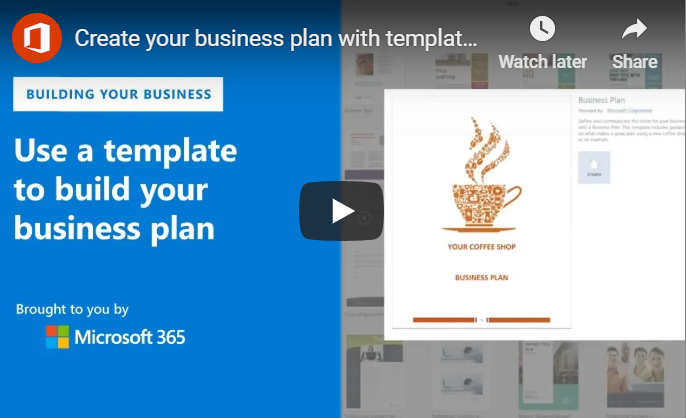
Creating a comprehensive business plan is an important step for any blossoming business. Whether you’re hoping to attract new investors or qualify for a bank loan, you’ll likely need to present a documented plan to help clarify the ins and outs of your business for interested parties.
In a bid to woo the business crowd, Microsoft Word has developed a way to make the process of compiling a business proposal easier than ever. Microsoft Office offers more than a dozen business and marketing plan templates to help you create a coordinated, professional looking business plan with the potential to impress investors and other stakeholders.
If you’re using an older version of Word, you may need to visit the Microsoft website and download your business plan template from there.
But before you can begin compiling your business plan, you’ll need to sort out three important details about your business:
What are your expenses?
Do you have enough start-up capital?
What are your sales projections during your first year?
Answering these can be one of the most difficult parts of writing a business plan, but doing so is necessary to ensure your business has the potential to sustain itself. Determining a clear, concise game plan for how your business will be run can set the tone for success early on.
Every business is unique with regard to tone and style. Because of this, the program comes equipped with a variety of templates to choose from. Once you’ve got a clear picture of what your business is, where it is and where you’d like it to go, you can then begin to develop a solid strategy to help your plans come to fruition.
Choose A Template
First, you’ll need to begin a new Word document. You can use the suggested search options to find your desired template. The template will contain step-by-step instructions to help you build your plan.
While all business plans are unique in their content, they should still follow the same formula in order to cover all the bases of your business.
An effective business plan will contain key highlights such as your business concept, market summary, competition, goals, opportunities, financial plans and others.
Compile An Executive Summary
Every legitimate business plan will contain an executive summary that paints a clear picture of your business. This will contain the “meat and potatoes” of your idea, meaning it’s where you will offer details about what you do, your goals, your mission statement and how you plan to become a success. This is likely the first section your potential investors will see, and therefore, it’s important to invest time in accurately capturing your idea so you can organize it properly.
Describe Your Business
This is where you will begin to explain crucial details of your business. You’ll be asked to describe your company’s ownership, your location, products and services and hours of operation, among other things. Here you will also go in-depth about how you plan to carry out your goals, including listing your suppliers, services, manufacturing and financial management.
Lay Out Your Marketing
Marketing is an important aspect of any business, regardless of industry. It’s a topic all business owners must consider, and it can be of great use when included within a business plan. It can help determine how much of your funds should be allocated for attracting new business.
Just like rent, payroll and materials are all large factors for a new business, marketing is one area that requires due diligence. A thorough business plan may contain things like market analysis, reports on market segmentation, competition and pricing. These are all key to understanding how well your business will do within your industry.
Address Financials In The Appendix
The last section of your business plan will be the appendix. Your business plan’s appendix will contain further details about the finances surrounding your operations. You’ll need to list things like your start-up expenses, for instance. How much will it take to launch your business off the ground? Cash flow and income projections are also vital for your business plan, as are other items like balance sheets and sales forecasts. You may even include things like tax returns in this section.
Sharing Your Business Plan
Once you’re done, share the file with your team via OneDrive. This will ensure your team members are able to view and make edits as needed. With Microsoft, team members can even see each other’s changes in real time.
If you are using Microsoft Team for communication, you can create a file folder and share your business plan there. This allows for a focused discussion about changes that may be needed, even if part of your team is working remotely. It’s important to gather the insight of those who know your business best, which can help your plan convey the most significant aspects of your business.
Owning a company is hard, and creating an all-inclusive business plan is one of the many difficult tasks business owners are faced with. Microsoft Word is only one of the many tools at your disposal to create a business plan that paves the way for success.

by Felicien | Nov 1, 2018 | Education
We’ve read the hype about algorithms before. Now we’re reading the hype about artificial intelligence. Much of the real-world work falls under the umbrella of trade secrets, so we have very few examples of either making a difference. A health system in Wisconsin gives us a glimpse into a real-world application with some very positive results.
How Prevea Health Used Algorithms
Prevea Health is a large multispecialty practice with a rural patient population. It has 350 primary care physicians and specialists, 46 health centers, and it runs 26 employer-based clinics.
Many of its patients do not have an established relationship with one provider. Prevea Health was looking for a way to allow patients to schedule appointments 24/7/365. What it wanted was one solution that handled patient-driven appointment scheduling and directed the patient to the right provider. It also wanted the solution to produce enough data to allow redesigning patient and provider flows to eliminate inefficiencies and reduce costs.
Prevea worked with DocASAP to develop a system which allows patients to schedule appointments after querying them about their health needs. DocASAP handles a number of different scenarios.
Prevea found that in one of these, patients were coming to their providers through a Google search. If they click on the link (provided by DocASAP) for the individual provider’s booking, they are taken directly to the scheduling module. If not, they are queried about their health needs. This allows DocASAP’s algorithm to pick a set of providers and locations for them. It takes the patient to that provider’s scheduling page once they have selected one. Depending on the patient’s initial responses and provider preferences, the patient may be asked to provide additional information.
The database that is produced as a result of this scheduling process allows Prevea’s analysts to looks at the patient flows that are generated so they can continuously refine the algorithms to get the patient to the right provider. Once the appointment is booked, the patient gets appointment reminders as well.
Is the algorithm working? Prevea’s no-show rate has been driven down to four percent, which is very low and compares to a national average of 18 percent. Thirty-eight percent of appointments are booked after hours. While other metrics are still under development, it certainly looks like the effort is producing results.
What Can We Learn From The Prevea Experience?
“Information engineering” refers to the process of asking what information is flowing into an organization, who is getting it, what is being done with it, what the results are, and how the process can be improved. In this case, information is flowing into the system.
The patient needs an appointment for problem X – and flowing out – here are the providers best suited to treat him/her. The available appointment times are presented. The results of those two information flows generate data that Prevea can use to fine-tune the process and to provide further services, such as reminders. One of the lessons learned is that patients, when provided with the right information, will usually pick providers who are the appropriate ones to treat their problems.
The fact that a patient does not need to interact with the provider’s office staff is another advantage. Office staff may or may not be qualified to assess things like:
Whether the reason the patient wants to see the provider is appropriate
Whether the provider handles that sort of problem
Who to refer the patient to
The algorithm, in contrast, knows all of this, and provides the right information without bother. If there are problems in the algorithm, they can be detected in the data generated, and the algorithm can be refined. Try doing that with a medical office staff and dozens of physicians.
The one possibly problematic link in the whole setup is the integration with Google. That makes a lot of sense if Prevea knows that a majority of its patients will use the system. But it has to rely on DocASAP to create and place the appropriate links to its scheduling system on its Google page. What about Bing or Facebook? Apparently, they are not integrated with the system the way Google is.
Conclusions
Scheduling is a major time-consuming operation in physicians’ offices. When the patient is in the wrong location, the office staff has very little ability to get them to the right one. Prevea and DocASAP have solved that problem by building the referral process into an algorithm. Judging by the no-show rate, it works. The weak point is its reliance on Google.

by Felicien | Oct 31, 2018 | Education
Pregnant women often suffer with blood pressure problems. One of the responses to this is to have the patient return to their primary care physician or OB-GYN after birth for at least one blood pressure check. High blood pressure is common after pregnancy and is a frequent reason for readmission after delivery.
How Can We Change The Way We Handle This?
The University of Pittsburgh Medical Center (UPMC) and its affiliated Magee Women’s Hospital have found a solution. Send every patient who has had blood pressure problems home with a blood pressure monitor and text them on their smartphones, prompting them to measure their pressure and report it.
The information goes to a team of nurses who triage the problem and let the women know if they should keep monitoring it. They can also let them know if they should see their physician or go to the emergency room. This information is fed to the EHR system so that medical staff always knows what the results of the home monitoring were.
UPMC saw this as an opportunity to expand their existing chronic disease monitoring programs, which use similar concepts for those with chronic obstructive pulmonary disease (COPD). The period of monitoring for postpartum patients with blood pressure problems is about six weeks.
It is well integrated with the nurse call center and the electronic health record system. It is noteworthy that UPMC-Magee has achieved success through the use of futuristic wearable or implantable monitors and automatic telemetry with a simple blood pressure cuff and a smartphone. The ingenuity went into the parts of the system that had to work together, not just the technology. The pilot phase of the program, which involved 60 patients, was judged a success.
Both unnecessary visits to providers and visits to the emergency room were reduced from the baseline. The same framework is being considered for patients with gestational diabetes. Slightly more than half of the women were able to avoid their scheduled one-week visit for a blood pressure check, and 80 percent showed up for their scheduled six-week postpartum visit, compared to 30-40 percent nationally. The program not only reduces needless encounters but also appears to have a very positive effect on compliance.
What Are The Lessons Learned?
The UPMC-Magee personnel involved in creating the program stress most of all that such approaches have to be a team effort. Everyone at every level has to be involved in the planning and efforts. It is also important that, as the program is rolled out, everyone involved feels free to report when things are not going well.
Particularly with programs in development, it is important not to let dismissal of concerns “bake in” methods and approaches that are just not functional.
The other prominent lesson is that one can get high-tech results with low-tech means. Rather than waiting for the development of wearable or implantable automatic monitors, the team decided that the current generation of automatic blood pressure cuffs was more than good enough to give them the information they needed.
Text messages on smartphones and their already-existing patient portals were more than good enough to allow for effective communication. So a program that is futuristic in its results got implemented now, rather than twenty years from now.
Information Engineering: A New Way To Think About Processes and Procedures
Generally, this effort is another attempt to apply “information engineering” to the daily operations of a healthcare provider, admittedly in a limited area. The team realized that a large number of visits were being done for no reason other than to obtain information (the blood pressure), and that this was a very inefficient way to do it. It required a high level of patient effort and compliance.
They also saw that existing technology was sufficient to get them the same information at a much lower cost. What was done under the old system once the information was obtained? If the results were normal, nothing. If they were abnormal, it depended on the provider.
UPMC-Magee replaced this with an algorithm, developed specifically for nurses in their call center, to tell patients to do nothing, see their provider, or go to the emergency room, depending on the information gathered. This led to information dictating actions in a clinically relevant, evidence-based way. Finally, the team made sure that the information was not lost; they interfaced it directly with the existing EHR.
Conclusions
To sum up, the lessons from this project can be characterized as these:
Ask what you’re doing with the information. Why are you collecting it? Who is acting on it, and why?
What happens when they act? Is what happens what you want to happen?
If not, how can you change the information flow to produce the outcomes you want?
Applying these questions to the fields within medical care is likely to produce a number of positive changes. We have the technology today to provide better medical care at lower costs, but many organizations seem stuck doing things “the way they’ve always done them.” This results in poor efficiency and inflated healthcare costs.
by Felicien | Oct 31, 2018 | Education
Microsoft Outlook makes it easy. If you are in an email, then click on the Message tab and Reply With Meeting. Then go ahead and update the invitation like you would any other meeting. Don’t forget about adding the attendees, time, location, then Send. It’s as simple as that. But wait! There’s more to meeting requests then reply and send.
What we’ve done is scoured our archives and brought you 13 quick question and answered tips most Outlook users want to know. Our list is not exhaustive. But what we’ve put together for you and your team are the most common meeting requests we hear, and we’d like to share them with you today and test them for yourself.
1) How can I respond to a new meeting request in Outlook?
Open the meeting request and click Accept. Click Send the response now if you wish to respond or select Do not send a response. Then click OK. You may want to choose Edit the answer before sending to include a comment such as: “I will be arriving late.”
2) How can I see who has accepted a meeting in Outlook?
When you need to review, who accepted or declined your meeting invite, in Microsoft Outlook here’s what you do:
Choose the “Calendar” icon in the “Navigation Pane“
Double-click the meeting you want to review
Under the “Meeting Occurrence” tab, select the “Tracking” button
3) How do I accept a declined meeting in Outlook?
This is for Outlook 2016 for Mac or Outlook 2016/2013 for Windows
Open the meeting request from the Deleted Items folder, and then click Accept or Tentative. If the Deleted Items folder got emptied, this option is not available.
Request the meeting organizer resend you a new meeting request update.
4) How do you send a meeting update without response required?
When you initially send the meeting request, if you didn’t turn off the response option, you can change the option at any time.
Open the meeting
On the Meeting Ribbon
In the Attendees group, click Responses
Uncheck Request Responses
5) How do I accept a meeting in Outlook that I declined?
Go ahead and open the Deleted Items folder and find the declined meeting request you refused.
Now go ahead and double-click to open the meeting request. Next, click the Accept button in the Respond group under the Meeting tab.
When the prompt box pops up, choose an option you want, and then click the OK button.
6) How do I accept a meeting in Outlook?
Here you will double-click the meeting request to open. Now click one of the buttons in the “Respond” button group, on the “Meeting” tab on the Ribbon. You can click either the Decline, Tentative or Accept or if allowed by your meeting organizer, “Propose New Time” buttons.
7) How do I see who is not attending a meeting in Outlook?
If you want to review who declined your meeting invite in Outlook, here’s what to do.
Choose the “Calendar” icon in the “Navigation Pane“
Double-click the meeting you want to check
Under the “Meeting Occurrence” tab, select the “Tracking” button
Can you recall meeting invite outlook?
When you want to cancel your meeting, open Outlook, then locate the event in your calendar. Choose the meeting, but do not open the meeting details. Choose the “Meeting” icon in the top navigation ribbon, then click the “Cancel Meeting” option. Type an optional message, then click “Send Cancellation.”
8) Can you un-decline a meeting in Outlook?
Show a declined meeting on my calendar. If a meeting request gets refused, the session does not get saved to your schedule, and the meeting request message gets moved to the Deleted Items folder. You can only show accepted or tentative meetings on your calendar. To request this feature, go to Outlook UserVoice.
9) How do I view Cancelled meetings in Outlook?
To hide or don’t show canceled meetings in your Calendar in Outlook, do this:
Step 1: Move to the Calendar view, and open the Calendar that you want to hide canceled meetings Step 2: Click the View Settings button on the View tab
Step 3: In the popping up dialog box, please click the Filter button
Step 4: Then the Filter dialog box comes out. Please go to the Advanced tab, and:
(a) Click the Field > All Appointment fields > Subject;
(b) Click the Condition box and select the doesn’t contain from the drop-down list
(c) Enter the text of “Canceled:” in the Value box;
(d) Click the Add to List button
Step 5: Click both OK buttons in two dialog boxes.
10) How do I send a meeting update in Outlook?
Update a recurring meeting is easy
Go ahead and double-click the meeting on your calendar. It will open. To update all instances of a recurring meeting, on the Organizer Meeting or Meeting Series tab, click Edit Series.
Change the options that you want.
On the Organizer Meeting or Meeting tab, click Send Update.
11) How do you delete a meeting in Outlook without sending a cancellation?
Option 2
Choose the “Send/Receive” tab
Now the “Work Offline” button
Make your changes or delete your calendar appointment
Now choose to Send cancellation
Head over to the “Outbox” and delete all of the cancellation messages
Now go back to “Send/Receive” and choose “Work Offline” again to turn it off
12. How do you change a meeting response in Outlook?
Change meeting request: Outlook 2010 and 2013
In your calendar double click on the meeting to open the Meeting dialogue window. Note: You have two options of opening: one occurrence or the entire series if you are changing a recurring meeting.
In the main Meeting dialogue window, make your meeting changes. When you get finished, click on the Send Update icon.
13. How do I recover a deleted meeting in Outlook?
Recovering deleted mail items: Outlook 2010 and 2013
Choose the folder where you want to retrieve the missing item.
Click on the Folder tab, and then click Recover Deleted Items.
In the Recover Deleted Items dialog box, select the item(s) you would like to restore.
Click Recover Selected Items.
Did you find this article informative? If you liked this one, check out our other content we think you’ll find interesting.
