by Felicien | Dec 14, 2017 | Education
Personal safety is something we all take very seriously. No one likes to be in a situation where they feel threatened or unsafe, no matter how pertinent the fear may seem. This is something many of us deal with. Walking alone late at night, in a parking garage with just one or two other people, situations such as these can make you feel unsafe and hyper-aware of your surroundings. This is especially true for women of all ages, as more and more stories of kidnapping and missing girls are seen in the news. Apple has decided to address their users concerns about personal safety by adding a new emergency feature in the iOS 11 update.
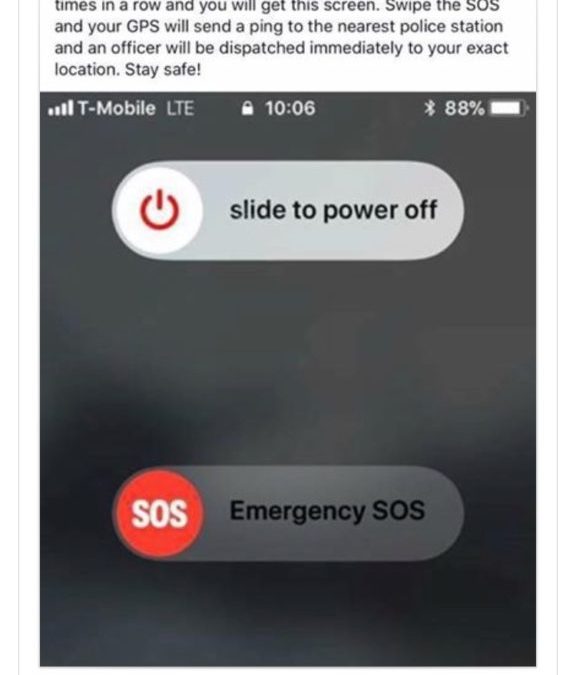
The update features emergency SOS activation that is simpler to use and provides a quicker response in the case of an emergency. To activate the feature there are two possible methods depending on which iPhone you have. For the iPhone 7, 7 Plus, and other older models the emergency feature is activated by rapidly pressing the lock button 5 times in a row. For those with the iPhone 8, 8 Plus or iPhone X this feature can be accessed by pressing and holding the side button along with one of the volume buttons at the same time. Performing either of these actions based on your iPhone model will bring you to the power down screen, where the option of Medical ID and Emergency SOS are displayed. This screen displays these options in a manner which allows the user to choose what they would like to do. This is in place so that you do not accidently call emergency services by leaving your phone in your pocket or by giving your phone to a small child. This iPhone update also has an Auto Call option which you can enable to call as soon as you do the required action.
To enable Auto Call you first must go into the setting application on your phone. From here you scroll down the list until you reach the “Emergency SOS” option. Select this option and then swipe the Auto Call toggle to be on. It should be all the way to the right. To turn the Auto Call off simple slide the switch back to the left. When Auto Call is enabled your phone will automatically dial 911 or other emergency services if you are in another country. This feature would be useful if you are in a situation that would stop you from sliding the appropriate option on your screen. Don’t worry though, if you enable and make an auto call accidentally, there is an option to set a three second timer that would allow you to stop the call before it is made.
The iOS 11 emergency setting also has a feature which allows users to list emergency contacts in the case that one is needed. Emergency contacts are set up in the health app. You must choose the medical ID option and then select edit which is located in the top right corner. Scroll down to the emergency contacts section and select the “+” button to add a contact. You can add multiple contacts and even choose what relation they are to you. It can be useful to add an emergency contact in case you find yourself in a situation where you are unconscious or incoherent and are unable to make decisions for yourself. The emergency contact feature further takes iPhone users safety into consideration, and can be a comfort to individuals.
If you ever find yourself in a situation where you need to help another person, you can use their iPhone to not only alert authorities and the correct personnel, but to also let their listed emergency contact know what has happened to them. This is useful so that you may gain any important information on the person such as health or medical concerns and risks. This makes the Medical ID tool useful in more ways than one.
One side effect from enabling the emergency SOS or Medical ID services is that your phone will be temporarily locked. This means that you will not be able to unlock your phone with your finger print or facial scanners, and instead you must input your passcode. This keeps the information you have on your phone safe, even if you may not be in a very safe situation or location.
Something that makes this feature notable is that it is compatible with emergency services you may not even know exist. This means that with the new iOS 11 software update iPhone users can remain safe while traveling at home or abroad. With the ability to place emergency calls so quickly, iPhone users can rest assured in knowing that they will be able to reach the right people in a timely fashion. This new development in personal safety shows people that they are cared for, and they can rely on Apple products even more.
by Felicien | Dec 14, 2017 | Education
Exploring business continuity best practices for testing data and application back-ups
Data protection is a central element of the data management strategy for all modern business owners. A proactive and well-thought-out business continuity plan is something that all system and data administrators must embrace. A layered and proactive data protection strategy really can mean the difference between disaster and recovery.
When it comes to creating a strategic business continuity plan, data and application backups are one of the most important elements. The reasons for implementing reliable backup solutions are endless – software bugs, failed hardware and user mistakes are just some of the ways business data can be unintentionally altered or deleted. Furthermore, there’s also the persistent risk of malicious activity and attempts to destroy, steal or encrypt business data by cybercriminals or disgruntled former employees.
Data Protection Insurance: Don’t Just Backup, Test!
Here’s the thing when it comes to backups for business: if you don’t test them regularly to ensure their working in all the ways they’re supposed to, you’re only doing half the job. The last thing any business owner wants is to implement backups and wait until there’s an actual data disaster to see if they work. That’s why regular testing of backups for software, hardware and everything in between is absolutely critical.
When a data disaster hits, it can be overwhelming and stressful for business owners. Worrying about whether or not backups are going to work should be the last thing that professionals have to worry about in a crisis situation. Backups are designed to offer peace of mind, and – if implemented correctly and tested regularly – they can make all the difference in a data crisis.
Server vs. Virtualization: The Evolution of Backup Testing
The key to testing backups is to run a sort of drill and see if the backups successfully restore data. For a long time, this process was limited, tedious and time-consuming. When there was a physical server for each application a business used, data restoration had to occur on additional hardware. Furthermore, the environment could only be restored in a very limited way, meaning a full restore of an entire business network rarely happened.
However, as virtualization continues to dominate the business technology market, backup testing and restore processes have become much easier to deploy. Virtualization allows for company data and applications to be centralized and organized in a more streamlined way. For the many businesses who operate using this kind of centralized, virtual machine (VM), recovery from backup is easier to execute.
Why Test Your Back-Ups?
Here are the top three reasons for testing your backups:
You’ll validate that the restore processes you’ve put in place work – peace of mind is priceless.
You’ll create a benchmark to ensure that the recovery process can be completed as intended – this will help you develop recovery time objectives (RTO) for future reference.
Regular testing process and results can be shared with business teams to show that application recovery targets can be met, or perhaps reviewed if the process uncovered imperfections.
Testing Backups: What Programs and Hardware Should I be Testing?
Now that we understand the importance of testing business backups, let’s dive into the specifics. When it comes to testing backups, there are a variety of different levels of recovery to consider. Let’s explore the key areas where your business should be implementing and testing backup and recovery processes:
File Recovery
This is likely the most common concern for business owners – will I be able to recover individual files from my backup? The reality is, file backup processes are easy to deploy on both physical and virtual servers in addition to backups of file servers. It really just comes down to recovering data by file type. There are plenty of tools to automate this process, which we’ll explore in more detail later on.
VM Recovery
For businesses who rely on virtual machines, implementing and testing backups is critical. This one is obviously specific to virtual environments as opposed to physical ones. Recovering a virtual machine is relatively easy because everything is centralized. However, there must be consideration made for where the VM will be powered back on to be recovered.
Attempting to recover the VM in the same production environment creates technical issues like network IP conflicts and SID conflicts in Windows systems. The best strategy is to restart the VM in an isolated environment using the subnet on the hypervisor. Also, it’s important to keep in mind that recovering VMs with new IDs can have impacts on applications and licensing – be proactive and consult with your software providers for terms and conditions.
Physical Recovery
As noted, physical server recovery is more complex and testing will vary based on the how different platforms are configured. Furthermore, recovering applications to the running hardware requires an outage – meaning businesses carry out these tests less frequently. Though daunting, if you’re on a physical set up, it’s critical to schedule the time for testing to ensure hardware can be recovered effectively in the case of a disaster.
Data Recovery
Depending on the backup tools that business owner deploy, specific data recovery can be an option and should be tested for efficiency as well. For example, if a user has data backed up at the application level (rather than the entire VM), that data can be restored and accessed in an isolated environment as well.
Application Recovery
Software applications are the core of a company’s digital operations. However, testing application backups can be challenging – especially for larger business teams. Application backup testing requires an understanding of the relationships between individual VMs and physical servers. However, it can be done, and as with some of the previous recovery types, it’s best done in an isolated environment and on a separate network.
It’s no secret that the more extensive the testing, the higher level of risk – however, testing data backups can be an amazing tool for providing reassuring, measurable results. Determining the right test scenario depends on the backup and restore tools that have been put in place. Having a strong understanding of what you want your backups to do in the case of an emergency will make the testing process more efficient.
Setting a Schedule: How Often Should You Test Your Business Backups?
We get this question from our clients all the time – now that we have backup solutions in place, how often should we be testing them? If we’re being honest, in an ideal world, testing should occur after every backup to ensure that the latest data has been successfully secured.
However, we know for busy professionals like our clients, this isn’t the most time-effective or reasonable option. So, business owners must strike a balance between the potential impacts of losing data and the effort required to feel consistently confident in their backups.
At the very least, here are some really important times to test backups:
As part of a regular routine – say monthly or bimonthly. Choose a frequency, set a schedule and deploy backup tests for all hardware and applications on a regular interval.
Whenever there are a major application or hardware changes. This includes any kind of software update or patch as well as new or different devices. These tests should be more complex to account for a major application or device changes. Use updates and patches as reminders for strategic backup testing.
Whenever there is a significant change to application data. If any business application has a regularly scheduled import of data from an external source, schedule a test restore to occur after the data has been transmitted.
Whenever you’ve restored data. It may seem excessive or redundant to run a backup test on a VM, device or application that you’ve just recovered, but it will ensure that the newly restored program is properly backed up moving forward.
How to Test: Utilizing Automation to Improve Backup Testing
Restore testing can be made much easier using automation tools. At a base level, this can include scripting the restore for individual files. However, there are software tools available that aid in more complex and comprehensive testing procedures. Many of these tools are built directly into backup & disaster recovery software.
Many of these tools completely automate the testing process and allow restores to occur without affecting the production environment. There are countless ways for business owners to take advantage of backup and data recovery tools – the key is researching the best tools to suit the individual backup needs of each business. Taking the time to understand the backup needs for the entire business network is the first step – then businesses can invest in applications or support to optimize backup testing procedures.
The Ongoing Evolution of Data Backup & Recovery Testing
In an increasingly Cloud-based business environment, with more and more companies making use of containers, backup testing will continue to evolve. Using the public Cloud to backup, test and recover applications is a huge plus when it comes to cutting on-premise costs. This represents an entirely new domain for backup testing that will no doubt reveal new challenges and opportunities.
However, no matter what the future brings the premise remains the same. Setting up backups and testing them regularly should be understood as a responsibility, not an option. Ensuring that recovery processes are implemented correctly and run according to a schedule will always be your secret weapon against unexpected data disasters.

by Felicien | Dec 14, 2017 | Education
We like tech, it’s what we do. As the holiday shopping season kicks into overdrive, we are bringing you 12 of the most requested, most wanted tech gifts for 2017. Check back each business day between now and December 19th for another must-have tech item and why you should check it out.
The Samsung Galaxy Tab S3 has an all-glass design with four speakers and a High Dynamic Range (HDR) ready display. HDR offers better contrast and a better color range than regular HD does, making this the tablet of choice for all your streaming needs. The speakers are positioned in the corners and the sound moves accordingly when the device is rotated.
The tablet also comes packaged with a revamped Samsung S-Pen stylus. If you are one who enjoys taking notes on your tablet or prefer doing a lot with a pen, this stylus writes smoothly and never has to be synced or charged. Besides writing, the S-Pen adds precision to coloring, drawing, and more. There’s also an add-on keyboard for those who want to use theirs as a word processor or for using the internet.
The Tab S3 uses a USB-C connection for fast charging, has a fingerprint sensor on the home button, and uses an all-glass design, rather than aluminum like most tablets do. Unlike your iPhone, this tablet is equipped with a standard headphone jack, so that you can use your current headphones with it.
The Tab S3 really shines when playing video. The screen is crisp and sharp, and the sound is loud and clear thanks to the four-speaker setup. It is the first and so far, the only, HDR-ready tablet on the market. If the sticker price doesn’t give you pause ($699), then the Galaxy Tab S3 is the tablet to get this Christmas.
Happy Holidays and good luck on the tech hunt from all of us here at {company}!

by Felicien | Dec 13, 2017 | Education
We like tech, it’s what we do. As the holiday shopping season kicks into overdrive, we are bringing you 12 of the most requested, most wanted tech gifts for 2017. Check back each business day between now and December 19th for another must-have tech item and why you should check it out.
Microsoft’s thin laptop/tablet hybrid two-in-one PC arrived on the market a couple of years ago and became an instant must-have item. This year’s models are no different. The 13-inch model comes in several variations of hard drive space and RAM and starts at $1999. Joining the fray is a 15-inch version with just as many memory options, but starts out at a hefty $2649.
The biggest difference between the two (aside from screen size) is the video graphics card in each one. The 15-inch is equipped with a more powerful video memory card, allowing it to act as a mobile gaming machine. Whether you’re playing Gears of War 4 or Cup Head, the machine isn’t likely to lag or slow down.
Both models come with a detachable screen, USB-C port, 17 hours of battery life, SD card reader, and offer touch screen with surface pen support. The pen allows you to sketch, write, and compose easily with virtually no lag.
Part tablet, part PC, and part gaming machine, the Surface Book 2 stands atop the laptop landscape this Holiday Season.
Happy Holidays and good luck on the tech hunt from all of us here at {company}!

by Felicien | Dec 13, 2017 | Education
Many of us have been working with Microsoft Word for years. Whether that be at home, school, or work, Microsoft Word has proven to be a useful tool for both personal and business ventures. Since it was first installed in the early 80’s under the name “Multi-Tool Word” there have been many changes to the word processor software. When one compares the older versions of Microsoft Word to the newest version changes are obvious. However, many people question if the upgrade is really worth it. How much difference could there be between the newest and older versions of this familiar Microsoft software?
Real-Time Collaborations
With this new feature, multiple people are allowed to share their input on the document in real time. This puts Microsoft Word on the same playing field as online word processors like Google Docs. This means that instead of emailing back and forth, which we all know is a waste of time that could be spent doing other things, edits and comments are delivered in real time. Multiple people have the option of working on a document together, meaning that this update makes Word perfect for group work or projects. Word includes a small Skype window in the bottom corner of the screen as well, for those who need to physically see the ones they are working with. This could also be useful in cases that images need to be seen by all, as it changes the need for email and instead allows everyone working on the document to view the same thing at the same time. The Skype feature also allows for conversations between collaborators. Being able to discuss rather than having to email saves time for all involved.
To take advantage of real-time collaborations, one must only select the ‘Share’ option from the top navigation tab. Then, inviting the people who need to work on the document is as easy as sending the invite. An interesting factor here is that the person who sent the invite can limit the editing abilities of those they invite. Messages are shared in a form similar to comments, and you need only click the ‘share’ option for your message to be received by those working on the document.
‘Tell Me’ Function
The Tell Me function is something that proves infinitely useful to both new and old users of Word. This function uses colloquial language to help you do whatever it is your heart desires. Users only need to have knowledge of what they want to do, and the Tell Me option will guide them towards accomplishing their task. With the Tell Me function users can work quickly and efficiently.
Tell Me is a function that proves itself very useful as technology gets more and more complicated. Something that sets the Tell Me function apart from the regular ‘help’ option is that it uses regular language to find what you need. No more racking your brain for the appropriate jargon, instead, you can search for things the same way you would say them. Rather than spending your time searching for what you need, you are given the tools to do just about anything. The Tell Me option sits in the middle of the ribbon and identifies itself with the phrase “Tell me what you want to do” waiting to assist you in whatever it is you need at the moment.
Same Interface with New Capabilities
Word 2016 comes with the same look we’ve all grown used to. There aren’t new flashing lights or bobbles, just the addition of some white text offering to help you do whatever you want to do. This makes it familiar, something we have all seen before. However, this recognizable interface hides the many developments that have taken place in Word. Not only are there new and easier options for collaboration, as well as the helpful, Tell Me function, there are also new security measures being taken.
Microsoft has given people the ability to implement two-factor authentication to their desktops suites, making information more secure than ever. This means that the work you do in collaboration with partners will be safe and you can rest assured that no one will be able to ruin or negate the work you’ve done. Keeping your Word documents safe and accessible is something that is important to all of us. This importance grows each day with the increase in data theft and people’s desire to keep their work safe. Word will not only keep your information safe through Microsoft’s updates, but it will help you do more, be more productive and work with ease in a way that you never have before.
Register for our upcoming Microsoft Word training webinar on December 14 by clicking here.

by Felicien | Dec 13, 2017 | Education
Understanding how business owners can take advantage of the Section 179 tax break on new telecom systems
In an increasingly competitive market, business professionals across all industries are always looking for ways to cut overhead costs and taking advantage of tax deductions is a huge part of that. Recently, conversations about the Section 179 tax deduction have been dominating the American business environment.
Many business owners are wondering what’s covered under the equipment deduction mandate and what’s not. Specifically, we’ve been getting lots of questions from clients about whether or not business telecommunications systems are eligible for deduction under the Section 179.
The short answer is, yes! Business telecommunication systems are considered deductible equipment under the Section 179 mandate. But since we’ve been getting so many questions about the deduction, let’s review the key things business owners should know about taking advantage of Section 179.
Breaking Down the Tax Code: Why was Section 179 Created?
Section 179 is an IRS tax code specifically designed to help business owners cut overhead costs. Specifically, the code allows for increased savings for business owners come tax season. Section 179 allows business owners to deduct the full amount of business equipment purchases within a calendar year.
The IRS Section 179 deduction was enacted to help small businesses take a depreciation deduction for certain assets in one year, rather than depreciating them over a longer period of time (typically over a 5 to 6 years).
Why You Should Care: Understanding the Strategic Benefits of Section 179 for Business Owners
The benefits of Section 179 for SMBs are twofold. First, and most obviously, the tax break allows business owners to save valuable dollars at tax time. This alone is great for a company’s bottom line. It allows business owners to make an outright deduction, equal to the full purchase price of a qualifying piece of equipment. This helps businesses reduce taxable income, and ultimately alleviate business tax burdens.
Second, it offers a great incentive for business owners to finance or invest in a wide variety of business equipment and resources. With the ability to deduct the full purchase price, businesses are able to more strategically implement company equipment and resources to address needs.
Defining Business Equipment: What Equipment Qualifies and What Doesn’t under Section 179
Before business owners hop on the Section 179 bandwagon, it’s critical to have a baseline knowledge of what’s deductible and what’s not. The last thing any business owner wants is to make a huge investment only to find out it’s not deductible under Section 179.
Let’s look at what business equipment is deductible and what’s not covered:
QUALIFIES:
Servers
Networking Equipment / Switches
Phone & Telecommunications Systems
Routers & Firewalls
Computers
Laptops
Monitors
Wireless Internet
Copiers
Printers
Scanners
Storage Devices
Battery Backups
Non-customized, off-the-shelf software
DOESN’T QUALIFY:
Real Estate
Permanent Structures / Buildings
International Property
Gifted or inherited equipment
Used equipment
Is Your Business Telecom System Covered Under 179?
As has been seen, yes business telecommunications systems are covered equipment under Section 179. Basically, qualified equipment is any tangible, depreciable, personal property which is acquired for use in the active conduct of a trade or business. This means, if your business has been thinking about finally upgrading your telecommunications system, Section 179 offers huge incentive to pull the trigger.
Any material, long-term property that is used more than 50% of the time for business purposes can qualify for this incentive, regardless of whether the property is bought or leased. However, the IRS must deem the property as fit for the incentive by confirming that the property will last more than one year.
When it comes to telecommunications, such qualifying properties include:
Business phone systems
Unified Communications systems
Voice solutions
So, long story short, telecom system purchases can be deducted under Section 179, so long as the solutions you’ve purchased are investments for the long term. Really, it’s all about making it easier for business owners to invest in reliable, long-lasting equipment to enrich business operations. Investing in a new, permanent telecom system to optimize business communication, is definitely deductible under Section 179.
What Are the Limitations?
As amazing as Section 179 is, it does have some key limitations. Businesses cannot utilize this tax incentive if their deductions are greater than their net taxable business income for the year in question. This sounds like a lot of financial jargon but determining if your eligible isn’t that difficult. To find the magic number, simply use the following equation:
Business income – Business deductions = net taxable business income
Do not factor in the deduction for 50% of self-employment tax or any net operating losses.
If the above equation shows that you have a net loss for the year, you are not eligible for the Section 179 tax deduction.
Doing the Math: How Section 179 Saves Taxable Income for Business Owners
In order to get a better idea of how the savings actually work, it’s helpful to compare the traditional cost relief system (MACRS) with the new deduction parameters under Section 179.
Here’s how the traditional Modified Accelerated Cost Recovery System (MACRS) works:
Say a business with a gross income of $100,000, buys out a $1 phone system valued at $20,000.
The MACRS method of depreciation only allows you to deduct 20% in the first year ($100,000 x 20% = $20,000 in depreciation).
This reduces a company’s taxable income to $80,000.
However, under the Section 179 Depreciation:
Say a business has a gross income of $100,000, and you buy out a $1 phone system valued at $100,000.
The Section 179 Deduction depreciation method allows businesses to depreciate the full amount in one year ($100,000).
This reduces a company’s taxable income to $0.
This is simply a hypothetical example. However, there are a variety of tools online to help business owners calculate their deduction potential. To get an estimate, check out this Section 179 tax deduction calculator online.
The Clock is Ticking: The 2017 Tax Year is Almost Up!
Depending on the equipment purchases your company has made this year or has planned, there are huge benefits to be taken advantage of with Section 179. Getting to know the code is the first step. Also, it’s important to remember that for Section 179 deductions in 2017, equipment must be purchased and in place by midnight on December 31st, 2017.
However, even if you don’t make the deadline this year, Section 179 should be in the back of your mind as you plan for next year’s equipment purchases and upgrades. If you’ve been considering replacing your current business phone system and upgrading to a unified communications system, now is the time. You can deduct the entire cost of that new system under Section 179. A brand-new telecom system that’s entirely tax deductible? In an increasingly busy and competitive business market, that’s a no-brainer.
For business who may have been considering a new telecom system this year, you have LESS THAN A MONTH to take advantage of equipment deductions in the upcoming tax season. Don’t waste time if you want to reap the benefits of the upcoming tax season.
