by Felicien | Mar 21, 2018 | Education
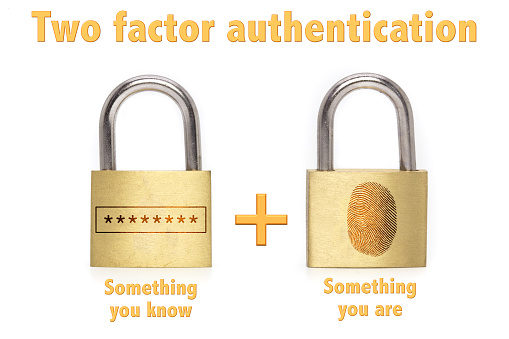
We noticed that some people are having problems using Microsoft Office 365 with two-factor authentication (2FA) (also known as multi-factor authentication).
We have a few tips for you here.
First: It’s important to know that when your admin sets up 2FA for your Office 365 users, they must enable Modern Authentication (MA) for Exchange Online if users are accessing Exchange using Outlook 2016. (The versions of Microsoft Outlook before 2013 don’t support Modern Authentication.) For details on how to enable MA for Exchange Online tenants, see Enable Modern Authentication in Exchange Online.
Second: You shouldn’t have any problem using 2FA with Microsoft’s mobile Office apps, Outlook Groups, Office 2016 desktop apps, and OneDrive for Business in Windows 10. However, other applications may be incompatible, so make sure you test all the apps in your organization before enabling 2FA.
How to Connect to Office 365 Security & Compliance Center PowerShell Using 2FA.
If you set up 2FA for tenant administrator accounts, they can’t sign in to Office 365 using PowerShell. Instead, you must set up a specialized account for administrators. To do this, you must install the Exchange Online Remote PowerShell Module and use the Connect-IPPSSession cmdlet to connect to Security & Compliance Center PowerShell.
Important note from Microsoft: You can’t use the Exchange Online Remote PowerShell Module to connect to Exchange Online PowerShell and Security & Compliance Center PowerShell in the same session (window). You need to use separate sessions of the Exchange Online Remote PowerShell Module.
This is what Microsoft recommends you do:
Open the Exchange admin center (EAC) for your Exchange Online. See Exchange admin center in Exchange Online.
In the EAC, go to Hybrid> Setup and click the appropriate Configure button to download the Exchange Online Remote PowerShell Module for multi-factor authentication.
In the Application Install window that opens, click Install.
Windows Remote Management (WinRM) on your computer should allow authentication by default. If basic authentication is disabled, you’ll get an error message. Now you should be able to sign into the Security & Compliance Center PowerShell by using 2FA.
After you sign in, the Security & Compliance Center cmdlets will be imported into your Exchange Online Remote PowerShell Module session and tracked by a progress bar. If you don’t receive any errors, you’ve done this successfully.
If not, and you receive errors, check the following requirements:
Limit your open remote PowerShell connections to three. This prevents denial-of-service (DoS) attacks.
Make sure the account you connect to the Security & Compliance Center is enabled for remote PowerShell. For more information, see Enable or disable access to Exchange Online PowerShell.
The TCP port 80 traffic must be open between your local computer and Office 365. It may not be if your organization has a restrictive Internet access policy.
How to Enable 2FA in the Office 365 Admin Portal
Two-factor authentication (multi-factor authentication) can be enabled for individual users or in bulk. Before continuing, be sure to install Microsoft Authenticator on your user’s mobile devices, (not Authenticator, a similar app from Microsoft but without support for push notifications). Here’s what Microsoft says to do to enable 2FA one user at a time:
Log in to the Office 365 admin portal using an administrator account.
In the menu on the left of the portal, expand Users and Active users.
In the list of users, click the user for which you want to enable 2FA. Note that only licensed users can use 2FA.
In the user’s pane, click Manage multi-factor authentication under More settings.
On the multi-factor authentication screen, select the user account to enable, and then click Enable under quick steps on the right.
In the About enabling multi-factor auth dialog box, click enable multi-factor auth.
The MULTI-FACTOR AUTH STATUS should change to Enabled. Close the browser window and sign out of the admin portal.
How to Enroll an Account for 2FA
Once the feature is enabled, the user must now enroll for 2FA, and sign into Office 365 with their username and password, and then click Set it up now on the sign in screen and follow Microsoft’s instructions below:
On the Additional security verification screen, select Mobile app
Select Receive notifications for verification
Click Set up
Open the Microsoft Authenticator app on your phone and click Scan Barcode.
Use the camera on your phone to scan the barcode in the Configure mobile app You’ll then need to wait a couple of seconds while the app activates the new account.
Click Finished in the browser window.
Back on the Additional security verification screen, click Contact me.
The user will receive a notification on their phone. They should open it, and they’ll be taken to the Microsoft Authenticator app.
Click Verify to complete the sign-in process.
Click Close in the Microsoft Authentication app.
In the browser window, they must enter a number to receive verification codes in case they lose access to the Microsoft Authenticator app and click Next.
Web-based and mobile apps can use Microsoft Authenticator app verifications for 2FA logins, but Office desktop apps require an app password.
This final step provides the user with an app password for these apps.
They should copy the app password by clicking the copy icon to the right of the password and paste it somewhere safe. Click Finished.
They’ll be prompted to sign in again, this time by verifying the login using the Microsoft Authenticator app.
Important note from Microsoft: If you want to use only Multi-Factor Authentication for Office 365, don’t create a Multi-Factor Authentication provider in the Azure Management Portal and link it to a directory. Doing so will take you from Multi-Factor Authentication for Office 365 to the paid version of Multi-Factor Authentication.
We hope this helps. It can be complicated to implement the proper settings for two-factor authentication in Microsoft Office 365. If you have any problems doing this, feel free to contact our Microsoft Experts.

by Felicien | Mar 21, 2018 | Education
Make no mistake – if you show the slightest bit of weakness around a bully, they will pounce. The Internet is no different, with hackers just waiting for a cybersecurity vulnerability to seize their opportunity.
The latest form of cyberterrorism to take root and have explosive growth is incredibly dangerous. Forget about Trojan horse viruses and identity theft — well, not really, those are still a threat — but the hot topic today is cryptocurrency mining. This phrase is used in reports and articles all over the Internet, but what it means can vary.
Cryptocurrency is an alternative currency in a digital format that is uncontrolled by a financial authority where the authority determines the supply and value. The most widely-known type of cryptocurrency is bitcoin. The decentralized nature of cryptocurrencies is what makes them so appealing to cybercriminals, but also what makes the industry minimally regulated.
Have you ever had a virus on your computer or smartphone? We know that pain. They range from annoying to debilitating and are time-consuming to eradicate. What’s worse is when we connect our smartphones via charging cable to a computer, and we allow access to our smartphone, we run the risk of inadvertently allowing the virus to transfer. Can we ever win?
In 2017, a version of malware for cryptocurrency mining targeting Android devices was discovered and proved its effectiveness of physically damage a mobile device.
Why are we talking about cryptocurrencies and viruses at the same time? Because you’d be amazed at what lengths cybercriminals — hackers — will go to accomplish their goal. Have you ever heard of ransomware? It’s a type of malicious software, “malware”, and sometimes more advanced malware is involved where the victim’s files are encrypted using code deployed by the hacker, called cryptoviral extortion. These all function the same as a basic virus, where an executable program is planted on a user’s computer with the intention of restricting user access in some way. With ransomware, to remove this restriction and regain access, the user is prompted to pay whatever fee the hacker demands — their “ransom” — otherwise the user’s data is blocked entirely and permanently. This type of extortion is being used more commonly in cryptocurrency mining.
Cryptocurrency mining uses specialized software programs to automate the process of solving complex math problems in exchange for a small amount of cryptocurrency.
How is this possible? We mentioned that the beauty of cryptocurrency mining is in automation. A cybercriminal gains access to a computer — without the knowledge or permission of the computer’s owner — and installs the software that runs the mining file(s). Has this ever happened to you? But…would you even realize it?
How do cybercriminals access a computer to fulfill their devious plan? Through dark and devious means in a dimly-lit basement at a desk filled with candy wrappers and empty cans of energy drinks? This isn’t a Hollywood film – it’s much more likely the cybercriminal is at a coffee shop or somewhere benign. They could be next door, across town, or around the globe from the computer that they’re hacking. While proximity isn’t meaningless, it’s far less necessary than it once was. The Internet has made consumers that much more vulnerable, and that much more valuable to a hacker. The sad reality is that the devices most consumers use to access the Internet — either wireless routers or networks lacking sophisticated means of protection — are the most common culprit. Most consumers don’t realize how important it is to established layered levels of cybersecurity protection at their home, nor do they understand how to go about protecting themselves adequately. This is something best left to the experts – especially if you need to establish this protection in your office, and it’s your business!
Still wondering why a hacker targets a personal computer for cryptocurrency mining? The answer is money. We can look at this from a few different perspectives.
Using someone else’s computer, a hacker doesn’t need to worry about overhead, like:
Reliable power and resulting power bill.
The purchase and maintenance of the expensive hardware needed to process the thousands of complex problems that generate the cryptocurrency, though fractional portions with each solution.
Hacking into many computers offers the chance to increase the amount of cryptocurrency generated in the same time frame from multiple sources.
When one option is eliminated, another option replaces it quickly, so a hacker avoids “downtime”.
The goal of any hacker varies, but when it comes to cryptocurrency mining, the goal is to make money. The next step in a natural progressing — one born of greed — is to hold the hacked device hostage for ransom.
The terms “cyberterrorism” and “cyberespionage” are just fancy ways of redefining a hacking situation that is getting uglier each year. The more sophisticated any cybersecurity network is, personal or professional, the more sophisticated hackers need to become in response. Adversely, the more vulnerable a network is, the more attractive the victim is to a hacker, and the more expensive the situation the victim is likely to find themselves in – repeatedly.
The value of cryptocurrencies keeps increasing, as well. Bitcoin is valued around $9,000, meaning that the cost to buy one Bitcoin is $9,000. A newer cryptocurrency, Monero, has increased exponentially in its first year. The value of Monero is lower than that of Bitcoin, closer to $250, but its newness also makes it more discreet. There is also value in mining early. Consider the price of an ounce of gold; the weight does not change, but the value of an ounce does, so buying one ounce for $500 and keeping that ounce until the value of an ounce reaches $1,000 gives a greater return on investment It’s ironic to be reading about legal investments in the same spot as cryptoviral extortion – but it helps law-abiding citizens understand the mindset of the cybercriminal. More importantly, the process to mine these isn’t the point: where there is money to be made by little effort, those with a serious lack of ethics seize the moment. Cybercriminals are evolving with cryptocurrency paradigm shifts, including fileless miners.
Fileless cryptocurrency-mining malware is a newer mining method and involves deploying code into the victim’s system memory. This code is what activates the computer’s mining processes.
Yes, cybercriminals can now use wireless networks to access your computer and use your computer to mine cryptocurrencies without files. If a hacker can take over your computer entirely and require you to pay them real money to get your computer — and everything on that computer — back, how can you protect yourself?
Cybersecurity and protecting yourself isn’t just a case of setting a “really strong” password anymore. Some programs and platforms encourage — or even require — two-step verification processes for each login. The greatest advantage you can give yourself is teaming with the best cybersecurity partner and making all staff members aware of the risks. Let your trusted partner do what they do best — cybersecurity — and you can focus on what you do best: running your day-to-day operations.

by Felicien | Mar 20, 2018 | Education
Selecting a company to maintain your technology is one of the most important decisions you can make for your business. You must find the most competent and reliable IT support provider in your area.
How do you know if the IT company you’re considering is right for your business?
Some technology companies call themselves the best, but they haven’t kept up their certifications. This is important because the latest certifications validate the skills that their techs learned in their training. With all the cyber threats and new IT solutions today, it’s critical that your IT provider is up to date on their skills.
Don’t just pick a company off the Internet because they’re the closest one to you. Do your research to find out if they are truly qualified to protect your data and meet your organization’s unique IT needs.
The following are some key questions that you should ask any IT provider you’re considering for your business.
What are your staff’s qualifications and certifications?
The right IT company should be able to provide you with information regarding the certifications held by their staff and relay how these will meet your needs.
How long have you been providing technology services? They should have a minimum of three years of experience in the service, support, and solutions you require.
What Partner Certifications and Technical Specialties do you hold? Ask, for example, if they are certified on Apple devices and Microsoft solutions. Also, ask if they can provide you the latest hardware and software products at the best price.
Do you require continuous training of your IT techs? This is the only way to ensure technicians have the most recent certifications.
What industries have you worked in?
Find out if they’ve worked in industries similar to yours. If not, determine if the work they’ve performed for others aligns with your needs.
How well do you understand the business applications we use?
Your business may have specially-built applications to handle needed workflows. Your IT provider should understand how your business technology works and be able to support it.
How large is your IT company?
If they are a small company, you’re more likely to be high on their priority list. However, larger IT companies typically offer a broad knowledge base and capabilities. Plus, their available resources may be more expansive. You must weigh the benefits of each and decide which is best for your business.
What kind of customer service can we expect? Do they offer 24/7 service with a live person on the other end of your call, chat or email? Is their help desk staff qualified to address your issues immediately? If they can’t resolve your problems over the phone or online, how long will it take for a tech to visit your business?
Is your onsite service response time backed by a written Service Level Agreement (SLA)? A certified, professional IT company will put what they offer in writing. They should offer managed services with service-level guarantees. What is their “on-time” guarantee? Their SLA should include this as well as information about how you’ll be compensated if they continually show up late, or if they don’t meet the standards detailed in the SLA.
What is and isn’t covered by your service contract?In addition to what they do provide, find out what they don’t. Do they provide fixed-fee services? Are there extra costs, and if so, what are they? Avoid using IT companies that are only interested in fixing what breaks and selling you equipment. You deserve an IT partner who will work diligently to give you and your employees an IT infrastructure that is secure, reliable, and enhances productivity.
Do you offer outsourced CIO Services? Having an Outsourced CIO means your technology will meet your business needs now and into the future. Their CIO should be able to:
Develop an understanding of your business and technology infrastructure.
Provide recommendations for IT solutions that will promote your success and grow with your business.
Construct a Strategic Plan that aligns with your budget.
Conduct ongoing evaluations and provide IT performance metrics on a monthly basis.
Will you monitor our IT system around the clock? This prevents downtime because they will detect problems early before anything fails.
What security services do you offer? How will you protect my interests?Cybercrime is on the rise, and your data must be safeguarded. They must provide up-to-date cybersecurity solutions to protect your computers and network from unauthorized access, malware, phishing, viruses and other forms of cybercrime.
Can you monitor our network for cyber intrusions and threats? With all the security incidents today, 24/7 security monitoring is essential.
Do you provide Mobile Device Management? When you or your employees use your laptops, tablets or smartphones for business outside of your workplace, they are vulnerable to theft and malware from public Wi-Fi and more. You need the assurance that your data can be remotely wiped from any device if necessary.
Do you perform Risk Analyses and Vulnerability Assessments? Your business may require this to stay compliant with government or industry regulations. Plus, this will detect any “holes” in your computer and network security that hackers can take advantage of.
Do you provide Backup and Recovery Solutions? You need both an onsite removable backup solution and an offsite one (in the Cloud) to ensure you will have access to your data if it’s stolen, corrupted, accidentally deleted, or damaged due to a flood, fire or another emergency.
What’s included in your Disaster Recovery Plan?
This is extremely important. Be sure to ask about site visits and audits to estimate the recovery time and the impact of a potential failure. Do they have a reliable process in place? How often do they test the disaster recovery plan? Is their staff knowledgeable and ready to react under the worst possible conditions? Also, make sure they can regularly provide the results of disaster recovery tests.
Will you provide ongoing Security Awareness Training for our employees? Cybercriminals are constantly developing new techniques to trick your users into downloading malware or releasing confidential information and credentials. It’s critical to conduct recurring and updated security training to ensure your employees recognize these threats and know what to do to prevent exposing your data.
Will your IT professionals communicate with our staff in “plain English?” They should be able to relay information in a way you and your employees can comprehend.
How do you stay informed about evolving technologies? Do they attend industry events to update their skillsets?
Will you migrate us to the Cloud and help us understand how to use cloud solutions? Make sure your IT provider can help you and your employees understand the Cloud, it’s benefits and risks. They should be able to help you find the right cloud services for your unique business needs.
Can you offer us different types of cloud solutions? Do they provide:
A Public Cloud, so you can securely share space with other clients?
A Private Cloud that is dedicated only to your use?
A Hybrid Cloud which is a combination of a private and public cloud?
How much will cloud migration cost? Migrating your workflows and data to the cloud can provide many benefits, including cost savings, and increased productivity. However, you should ask how much cloud migration will cost, including associated expenses such as maintenance and support.
Do you have any case studies or testimonials from existing clients that I can read? Can I contact them? Would you hire a new employee without checking their references? Of course not. So, you should do so with your IT provider. Contact some of their existing clients to find out what you need to know.

by Felicien | Mar 20, 2018 | Education
It’s never easy to terminate an employee. The skill of firing with flair is a sensitive but necessary process that everyone should learn!
It happens to the best of us. We post an advertisement for an available position on job boards across the Internet. We scour through the thousands (and thousands) of submitted resumes. We painstakingly choose the best candidates (on paper) to bring in for an interview, and we try to pose the questions that should result in the most thought-provoking and inspired responses, giving us the deepest insight into their soul – in about 30 minutes or less. We thank each interviewee dutifully for their time, wonder if we’ll get the perfunctory thank-you note or if their manners will go remiss, and try to decide who makes the cut and gets the job offer. Fast forward to the day we discover the candidate doesn’t stack up to the promises made during the hiring and onboarding process – and it’s time for the HR team to tactfully terminate.
We’ve all been there. The goal is always to build a team that is dedicated, loyal, and earnest – but too many times we encounter flaws with one of these characteristics, and the relationship is no longer, as the saying goes, mutually beneficial. Is your termination process thorough? What steps do you need to take to protect yourself and your business from retaliation in preparation before a potentially hostile departure? Read on to cover all your bases, but leave the exit details to the HR team.
First Things First
Once you have a full grasp of the outstanding projects and deadlines that still need to be met, you can move on to the most pressing matters.
Access: All login credentials
For global enterprises, there are large IT teams that oversee just logins and passwords alone – but since you’re reading this, you don’t work for IBM or Apple with a department of staff dedicated solely to current credential maintenance.
Network
Most organizations require a username and password to access anything related to the organization itself: email, file storage, etc. and this is the first of many credentials that should be addressed to ensure swift and secure measures to protect the company after a termination.
Email
First, change the password. The terminated party likely has their work email on their smartphone and thus can access their email immediately upon departure from the office. This offers the chance for damage or sabotage, such as deleting emails from their inbox or sending damaging emails to contacts.
Maintain the email account by having another party monitor incoming messages. Consider setting up an auto-reply feature to notify senders to the recipient that further communications should be directed to another email address for attention in the future.
One task that tends to be overlooked in the immediacy of a departure is the removal of the terminated party from internal distribution lists and notifications.
Lastly, if the individual has suspected termination was imminent, they may have deleted emails before the action taking place. There is a brief window when email recovery is still possible, but the standard time frame is 30 days.
VPN or remote access
If your company allows remote network access, likely through a Virtual Private Network (VPN) or a service like LogMeIn, a team member likely only needs to have this access set up one time and store their login and password at the remote point of access. The simplest way to prevent future access with this is by changing the affected password. If a platform like LogMeIn is the primary connection method, the administrator will need to be the one to change the user’s access settings.
Intranet
Typically, an organization uses an Intranet portal to store internal communications or Human Resources information like health insurance details, company directories, staff handbooks, forms and processes, office calendars and holiday schedules, and any other pertinent documentation related to operations. Access removal or password change to a network will often serve to prevent further access to this area, but a quick verification of settings here is still wise.
Cloud Storage
To prevent anyone from accessing files after termination, and for similar reasons as above – sabotage or deletion – change any access passwords for this portal. It’s very likely that proprietary information on projects, clients, or other sensitive information is stored here.
If termination is pending for an individual, it’s wise to preemptively make a back-up of these files and store them elsewhere for later access.
If your company uses cloud providers like Dropbox for Business, Microsoft OneNote or SharePoint, your administrator will need to lock the account for security, likely by resetting the password.
Data Recovery
Files
If after the termination and departure is complete you notice files are missing and suspect deletion, time is critical for data recovery.
What else can you do?
Aside from the items listed above, any organization should take every precaution possible to protect themselves in any situation. At some point, a termination is inevitable, and proper handling of the process can be what defines the outcome.
Enact security protocols that limit or prevent the use of external devices like hard drives or thumb drives.
Prevent team members from removing any proprietary data from the premises. This is almost impossible in the case of a distributed workforce, but you can require all files to be stored in a central repository to minimize risk.
It’s worth taking the time to review the terminated party’s outgoing email in “Sent Items” to verify if any messages were forwarded to a personal email address.
It’s always challenging to decide if a note to other team members is a good idea, alerting staff to the departure of an individual. Privacy policies typically protect the terminated party, and a perfunctory statement of “Sally Smith is no longer with the company as of April 1, 2018. We wish her well in future endeavors. Any questions, concerns, or communications may be directed to her supervisor, Billy Boss, moving forward” or something very similar, so long as it’s kept generic.
Handling a termination is never easy. The most important aspect of any termination is to protect the company – it sounds harsh, but it’s a fact. Preventing someone who is being fired from stealing information and using it to damage a company or sabotage a brand or person is a challenging task.
With the proper processes in place, anyone can minimize the risk to the company, ensuring survival after saying sayonara!
by Felicien | Mar 20, 2018 | Education
Short answer? No. Despite what you may have been led to believe, there’s a big difference between compliance and security.
IT compliance and security are not the same. IT Security refers to the best practices and IT solutions used to protect your technology assets, information, and data. It’s the process of implementing specific measures and systems that are designed to protect and safeguard your information. The right IT Security Plan utilizes various forms of technology based on your business’ unique needs to store and exchange data while preventing unauthorized access or improper disclosure.
Compliance refers to regulations imposed by a government, industry or regulatory entity to protect users’ confidential, private information. Examples of these standards include HIPAA, PCI, FINRA, and SOX.
Your IT can be compliant but not secure. “Why is this?” Compliance is a point-in-time snapshot assessment of your technology proving that you meet a minimum standard of security. You can be compliant one day, and not the next (although, you wouldn’t want this to happen).
Plus, IT compliance standards change predictably and slowly over time. These standards provide minimum guidelines for the amount and type of data protection required. IT security, on the other hand, is in a constant state of flux due to the ever-evolving, and more sophisticated cyber threats that appear on the IT landscape. Hackers are innovative and skilled at developing ways to steal your data. What happens is that compliance regulations don’t always keep up with these threats. Some require security protections and others don’t.
The main difference between compliance and security is that IT compliance is measured against prescribed controls, where IT security is defined by the ability to respond to and protect against cyber threats. IT security measures and techniques protect your data, users, networks, and assets from cybercriminals, hackers or other malicious threats.
Unfortunately, some businesses function with the bare minimum of IT security solutions they need to remain compliant. They check to make sure they meet the specific IT compliance requirements and think their data is secure when it’s not. This is a recipe for disaster. Cybercrime is growing at an explosive pace. If you restrict your defenses to only what you need to be compliant, your data and business could be at risk. To ensure IT security, your business needs a comprehensive approach to protection. The good news is that if your IT is secure, you’ll likely be compliant.
“How do I ensure IT Security?” It’s always best to consult with an IT Managed Services Provider who can assess your unique requirements and establish an IT Security Plan with a holistic, layered approach. Make sure that your provider includes the following in your IT Security Plan:
24/7 Remote IT Management and Monitoring to detect threats and block them before they affect your security posture. This includes applying patches via the cloud in real time.
A Firewall Solution that continuously mitigates cyber-threat intrusions. This will filter the data in transit (data that comes in and leaves your network) by checking packets of information for malicious threats like Trojan viruses and worms, and other forms of malware that can steal or lock up your data. It’s best to use GEO IP Filtering whenever possible, and use a next-generation firewall with perimeter malware protection.
An Up-to-Date Antivirus Solution. Even though firewalls are an excellent source of protection from viruses, they can’t do everything. You also need an antivirus solution that constantly scans your computers to detect suspicious files, isolate and delete them before they infect your system.
A Data Encryption Solution that obfuscates data that’s stored or in transit to prevent others from accessing or reading it. The proliferation of cyber espionage has led to the need for encryption to protect your sensitive data and intellectual property from prying eyes.
A Web-Filtering Solution. This routes web traffic and applies security-filtering policies to protect your computers, laptops, and tablets from malware, botnets, and phishing.
Regular Backups Make sure you always have reliable backups of your data both onsite in a device you can unplug and take with you in case of a disaster, and offsite in a secure cloud so you can retrieve your data remotely if necessary.
Ensure Your Mobile Devices Are Secure. With the proliferation of Bring Your Own Device (BYOD) policies, your business requires secure mobile device solutions that protect your data whether it’s deployed across multiple mobile service providers or on a variety of mobile operating systems. Mobile Device Management provides for remote wiping of data if your mobile devices are lost or stolen.
Security Awareness Training for Your Employees. This should be a formalized training on the latest threats and how to mitigate them. Security Awareness Training for your employees will reduce the risk to your organization’s data and IT systems and limit the chance of a data breach. Some compliance regulations specify the need for Security Awareness Training including HIPAA, PCI DSS, SOX, and FISMA.
Vulnerability Audits to identify security gaps in your computers, network, or communications infrastructure and develop appropriate mitigation countermeasures to protect them.
Penetration Testing. This is an analysis that focuses on where security resources are needed most. When accompanied with Vulnerability Audits they locate the weakest links in your network, identify and document weaknesses in your security, and remove them. Independent Penetration Testing and Vulnerability Audits will help you meet regulatory compliance standards like HIPAA, FINRA and PCI DSS.
Ongoing Updates to your Operating Systems and Software. Whenever there’s an opportunity to update, it’s important to do so. Rather than worrying about this yourself, your IT Managed Services Provider can include this responsibility in your overall IT Security Plan. This will safeguard your system from debilitating cyber attacks and keep your IT system running at peak performance.
There will always be overlaps between compliance and security guidelines but remember that IT security provides a more extensive assurance than IT compliance alone. For help with the unique IT security requirements your business faces, contact a certified IT Managed Service Provider in your area and ask for an assessment of your entire IT network.
by Felicien | Mar 19, 2018 | Education
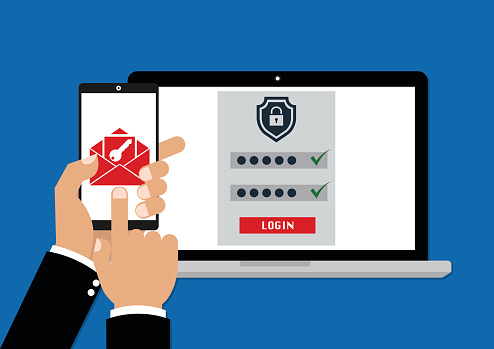
We noticed that some people are having problems using Microsoft Office 365 with two-factor authentication (2FA) (also known as multi-factor authentication).
We have a few tips for you here.
First: It’s important to know that when your admin sets up 2FA for your Office 365 users, they must enable Modern Authentication (MA) for Exchange Online if users are accessing Exchange using Outlook 2016. (The versions of Microsoft Outlook before 2013 don’t support Modern Authentication.) For details on how to enable MA for Exchange Online tenants, see Enable Modern Authentication in Exchange Online.
Second: You shouldn’t have any problem using 2FA with Microsoft’s mobile Office apps, Outlook Groups, Office 2016 desktop apps, and OneDrive for Business in Windows 10. However, other applications may be incompatible, so make sure you test all the apps in your organization before enabling 2FA.
How to Connect to Office 365 Security & Compliance Center PowerShell Using 2FA.
If you set up 2FA for tenant administrator accounts, they can’t sign in to Office 365 using PowerShell. Instead, you must set up a specialized account for administrators. To do this, you must install the Exchange Online Remote PowerShell Module and use the Connect-IPPSSession cmdlet to connect to Security & Compliance Center PowerShell.
Important note from Microsoft: You can’t use the Exchange Online Remote PowerShell Module to connect to Exchange Online PowerShell and Security & Compliance Center PowerShell in the same session (window). You need to use separate sessions of the Exchange Online Remote PowerShell Module.
This is what Microsoft recommends you do:
Open the Exchange admin center (EAC) for your Exchange Online. See Exchange admin center in Exchange Online.
In the EAC, go to Hybrid> Setup and click the appropriate Configure button to download the Exchange Online Remote PowerShell Module for multi-factor authentication.
In the Application Install window that opens, click Install.
Windows Remote Management (WinRM) on your computer should allow authentication by default. If basic authentication is disabled, you’ll get an error message. Now you should be able to sign into the Security & Compliance Center PowerShell by using 2FA.
After you sign in, the Security & Compliance Center cmdlets will be imported into your Exchange Online Remote PowerShell Module session and tracked by a progress bar. If you don’t receive any errors, you’ve done this successfully.
If not, and you receive errors, check the following requirements:
Limit your open remote PowerShell connections to three. This prevents denial-of-service (DoS) attacks.
Make sure the account you connect to the Security & Compliance Center is enabled for remote PowerShell. For more information, see Enable or disable access to Exchange Online PowerShell.
The TCP port 80 traffic must be open between your local computer and Office 365. It may not be if your organization has a restrictive Internet access policy.
How to Enable 2FA in the Office 365 Admin Portal
Two-factor authentication (multi-factor authentication) can be enabled for individual users or in bulk. Before continuing, be sure to install Microsoft Authenticator on your user’s mobile devices, (not Authenticator, a similar app from Microsoft but without support for push notifications). Here’s what Microsoft says to do to enable 2FA one user at a time:
Log in to the Office 365 admin portal using an administrator account.
In the menu on the left of the portal, expand Users and Active users.
In the list of users, click the user for which you want to enable 2FA. Note that only licensed users can use 2FA.
In the user’s pane, click Manage multi-factor authentication under More settings.
On the multi-factor authentication screen, select the user account to enable, and then click Enable under quick steps on the right.
In the About enabling multi-factor auth dialog box, click enable multi-factor auth.
The MULTI-FACTOR AUTH STATUS should change to Enabled. Close the browser window and sign out of the admin portal.
How to Enroll an Account for 2FA
Once the feature is enabled, the user must now enroll for 2FA, and sign into Office 365 with their username and password, and then click Set it up now on the sign in screen and follow Microsoft’s instructions below:
On the Additional security verification screen, select Mobile app
Select Receive notifications for verification
Click Set up
Open the Microsoft Authenticator app on your phone and click Scan Barcode.
Use the camera on your phone to scan the barcode in the Configure mobile app You’ll then need to wait a couple of seconds while the app activates the new account.
Click Finished in the browser window.
Back on the Additional security verification screen, click Contact me.
The user will receive a notification on their phone. They should open it, and they’ll be taken to the Microsoft Authenticator app.
Click Verify to complete the sign-in process.
Click Close in the Microsoft Authentication app.
In the browser window, they must enter a number to receive verification codes in case they lose access to the Microsoft Authenticator app and click Next.
Web-based and mobile apps can use Microsoft Authenticator app verifications for 2FA logins, but Office desktop apps require an app password.
This final step provides the user with an app password for these apps.
They should copy the app password by clicking the copy icon to the right of the password and paste it somewhere safe. Click Finished.
They’ll be prompted to sign in again, this time by verifying the login using the Microsoft Authenticator app.
Important note from Microsoft: If you want to use only Multi-Factor Authentication for Office 365, don’t create a Multi-Factor Authentication provider in the Azure Management Portal and link it to a directory. Doing so will take you from Multi-Factor Authentication for Office 365 to the paid version of Multi-Factor Authentication.
We hope this helps. It can be complicated to implement the proper settings for two-factor authentication in Microsoft Office 365. If you have any problems doing this, feel free to contact the Microsoft Experts at Alltek Services in Central Florida at http://www.alltekservices.com or call 863.709.0709.
