
by Felicien | May 11, 2018 | Education
The legal industry is facing its most challenging obstacle to date and it’s not from judges, court cases, the mafia, felons or any of those things you might guess. Instead, these attacks against law firms are coming from hackers. Once viewed as impenetrable to hackers, today’s law firm is just about as likely to be hacked as any other business.
John Sweeney of LogicForce explains: “Law firms are the subject of targeted attacks for one simple reason,” he recently said. “Their servers hold incredibly valuable information. That includes businesses’ IP, medical records, bank information, even government secrets. For hackers looking for information they can monetize, there is no better place to start.”
His comment highlights a growing problem for the legal industry. Each day, they are faced with new and practically unstoppable cyber-crimes. One of the most startling aspects of this troubling trend is that many times, the law firm doesn’t even know it’s been hacked. A 2016 study done on this topic showed that 40 percent of the law firms that were breached had no idea that a crime had been committed. This is disturbing on several levels.
If you’ve recently done business with a law firm, there is a possibility that your business, personal and/or financial information could already be in the hands of hackers on the other side of the world.
A global problem for law firms
The fourth largest law firm in the world, Mossack Fonseca lost 11.5 million files from its database. The information was eventually shared with journalists, the BBC and newspapers. This offshore law firm specializes in helping wealthy clients hide their money. The documents that were leaked contained highly sensitive information about wealthy clients and their offshore tax schemes.
Mossack Fonseca’s client base also included national leaders and well-known politicians. The documents that were leaked held clear evidence of how and where large amounts of money were hidden by illustrious leaders like Vladimir Putin. Embarrassing revelations were made public such as how British prime minister, David Cameron’s father, had been avoiding paying taxes in Britain for many years. Any law firm would find it difficult to recover from such a devastating breach of security.
Solving the problem
For most companies who are breached by cyber thieves, the recovery process begins with contacting those who were affected while stopping any other data leaks. With law firms, this process usually begins with helping the firm to find out whether they’ve already been a victim of a cyber-crime. This requires experts in cybersecurity who will run a series of tests looking for specific anomalies. Once they find out whether data has been lost, the experts will recommend a course of action. This typically includes securing the data so that no other intrusions will occur, while notifying those who were affected.
Law firm hacking on the rise
In spite of all the hype about hacking and cyber-security, a new report says that 14 million businesses were, in some way, affected by cyber-crimes last year. The experts believe that the reason the number is so high is that most small business owners do not believe they are at risk. This is also true of most law firms. They simply think they are exempt from data breaches. This leaves them even more at risk because they are unprepared.
Senior attorneys don’t fully understand how hacking is done and what types of weaknesses a hacker looks for. The principles at a law firm are often not up to date on the latest techniques that hackers are using. This leaves them defenseless. If you want to defeat an enemy, you must first learn everything you can about that enemy. Very few people including attorneys, understand the science behind hacking.
In addition, lawyers use a wide range of devices from smartphones to laptops and desktop computers. Each device is a potential gateway for cyber-thieves to enter and steal information. With the Internet of Things (IoT) now growing, even appliances in the break room can be hacked.
The recent rise in law firm breaches proves that professionals are still not fully aware of the dangers lurking around us on the internet. Attorneys may be reluctant to spend the money and time on a security team that will come in and create the proper security protocols. But waiting to see will place all customer data at risk. People often tell their attorney sensitive information that could harm their clients in many ways. A data breach is embarrassing and hard to explain to those clients who have entrusted you with personal information.
Preparing for data breaches
A good place to start for a law firm that does not have proper security in place is the American Bar Association’s guide. This comprehensive document includes a great deal of information about preventing cyber-attacks. It also addresses ways to respond once an attack has occurred. Employees should be trained about phishing attacks and this training must be ongoing because the method that hackers use evolves with each new attack.
The managers at a law firm can begin by engaging an outside IT security expert that specializes in legal data. The team of security experts will assess your current level of protection against intruders, then recommend new initiatives. They should institute a regular training program that teaches employees how to spot phishing attacks in emails. Even trained employees may get careless, but continual training helps everyone to remember how important it is not to click on suspicious links or give away passwords.
What a law firm can do today
Many law firms are also writing their own policies about password protection, log-in credentials, and web-surfing. Once you have policies in place that your employees are aware of, you can begin to enforce them and this will help to eliminate threats. Your onsite IT people should be checking weekly for patches and updates to software. New updates should be downloaded as soon as possible.
Regardless of the time and expense of these security initiatives, the alternative could be devastating. One of the most important assets a law firm has is its reputation. Once a data leak has occurred, it’s too late. Legal professionals must do everything possible to prepare and prevent these leaks.
There’s every reason to believe that this digital age will continue to expand across the world. Businesses and the legal industry are facing unprecedented challenges for the future, but there are solid remedies that work. It all begins with realizing how vulnerable you are and how important it is to protect your client’s information. Regardless of the cost, the alternative is just too costly.

by Felicien | May 11, 2018 | Education
Microsoft Office 365 now has over 60 million active users each month and has become a favorite of large and small business owners. Just about every task that business people complete each day can be accomplished using Office 365. From Excel spreadsheets to professional word processing, users say they get more done with Office 365.
Their flagship email program is Outlook and this program can handle much more than your average email tasks. It integrates perfectly with the other Office 365 programs and it features a similar look and feel. The “Ribbon” that everyone has become so accustomed to has many of the same commands as you might see in Word. That makes it much easier to learn how to become an expert user.
Outlook 2016 features so many good shortcuts and handy tricks to make every project go smoother. However, sometimes users simply want to sort through their emails, answer them and move on to something else. For those times, you can follow a few easy steps to create a much more streamlined Outlook experience.
Simplifying the Home Page
The home page of Outlook 2016 contains six major areas. The ribbon runs across the top, then across the middle are four sections. On the far left is the folder pane, next is the Inbox and then the wider section is your reading pane. On the far right is the calendar. Here’s where you can set appointments. Down below, across the bottom is a new area that Microsoft has recently incorporated in the design called the Navigation Pane. This area contains links for your Mail, Calendar, People, Tasks, and More.
This new area replicates some of the other areas on the page. Therefore, you can just close the whole right-hand section where the traditional calendar is located. To do this, simply click on the small “X” in the upper right-hand corner. This makes the Calendar area disappear. When you’re ready to restore that area, simply click that X again and the pane reappears.
In addition, you can minimize the whole Navigation Pane by clicking on More (represented by dots). Select “Navigation Options” from the drop-down list. A small dialog box appears where you can check the box that says, “Compact Navigation.” This reduces the Navigation Pane to small icons that are barely noticeable. They will still work the same as the original, only now they’re inconspicuous.
Following along that same concept, you can also remove the left-hand pane which contains your folders. Now, you’ve effectively reduced the Home Page from six sections to three. This is a good idea for anyone who just wants to comb through their emails, see what is important and respond. Your attention is no longer drawn away by a busy-looking page. Now things appear much simpler. If you need to look at any of the sections you’ve removed, it’s very easy to restore each section. For the folders, you can click on the word “folders” and they will appear until you click the word again. In many Microsoft programs, hovering over a word or section causes additional information to appear. This is a good way to learn more about a section or get a quick look at what is contained in an area. These pop-outs usually appear when you hover over them and then disappear once you move your cursor.
Working with the Ribbon
The Ribbon in Outlook 2016 contains four major tabs with various tools available. It’s easy to remove the Ribbon if it seems distracting. Simply click on the arrow on the far right side and this collapses the Ribbon. The keyboard shortcut for this action is Control+F1. If you need to quickly show the Ribbon, then click on the View tab and it will appear until you click away. It’s often just that easy to make a section appear or disappear. This makes it fast to remove areas you might not need and it’s a good method of personalizing your Outlook program.
If you’d like to just completely get rid of the Ribbon, there’s an icon in the upper right-hand area next to the question mark. Click on that and you’ll see that they are three options for the Ribbon. You can Auto-Hide, Show Tabs or Show Tabs and Commands. The last one is the most commonly used. The other two allow you to have as much of the Ribbon at the top as you need. If you click on Auto-Hide, the whole Ribbon disappears leaving you with a very clean looking page that deals only with your Inbox and Reading Pane. You can quickly move through emails or read over longer emails that require more attention. When you need to temporarily view the Ribbon, just place your cursor over the colored bar at the very top and the Ribbon will reappear.
Personalizing your Program
Once you get the hang of how easy it is to close and open areas, you can adjust your Outlook email program so that it displays only those things that you work with most often. Microsoft purposely builds software programs that can be easily modified by the user to give each person their own personalized experience.
One thing that many users probably know but may forget is that all Microsoft programs have one thing in common: you can right-click in whatever area you’re working and get a list of options. Often, on this list, you’ll see the action you want to take, thus preventing you from having to completely restore an area of the page. This is a quick, easy way to accomplish almost any task.
Reading Emails
The new Outlook also allows you to click on “Reply” and then start typing your email. There’s no longer a new window that appears. This has proven to be a huge time-saver. Let’s say you’ve clicked reply but you want to add some bolding to your typing or use a larger font. Highlight the text and the font section appears next to your typing. This works exactly the same as it does in Word. You can quickly change fonts, colors, add underlines or bolding, highlight text or even add indenting to your paragraph. If you right-click the Inbox, you’ll see a different set of commands that pertain only to the Inbox.
Attachments can be viewed just by clicking on them. If you’re reading an email that has a Word doc attached, just click it once and it opens in the Outlook program. If you double-click on the attachment, it will open up in Word. This is also true for PDF attachments. This can save lots of time if you only need to take a quick look at an attachment someone sent with their email.
Keyboard Shortcuts
One of the big time savers in all Office 365 programs involves learning the keyboard shortcuts. People who use these daily say that it improves their speed and prevents them from losing focus. If you print them out and keep them handy, you’ll quickly learn the most commonly used ones. Below are a few that everyone uses in Outlook, but there are many more that you could learn if you want to be an over-achiever:
Alt+S: send email
Ctrl+R: reply to email
Ctrl+M: or F9 to Send/Receive all
Alt+R: reply to all in email or switch to work week calendar view
Ctrl+G: open the “Go to date” dialog and jump to any date in the calendar
Alt+W: forward email or switch to weekly calendar view
More Shortcuts
Press Ctrl + [the place number of the item] to switch between email, contacts, calendar and other items in Outlook. This is a quick way to move from one task to the next. Create a reminder by pressing Ctrl + Shift + N. This creates a virtual sticky note that you can drag anywhere on the screen.
When setting appointments go to your calendar and just type a phrase like, “next Thursday” or “one week from now” and your calendar will automatically open there.
You can block annoying emails that you don’t want to receive by going to Home>Junk email options and selecting the sender you wish to block. View long emails as a conversation by clicking on the message and then selecting View>Show as Conversation. Flag a message for further inquiry by pressing the Insert key to toggle the flag off and on.
Learn to Make Outlook Work for You
Outlook 2016 includes so many great time-savers like these. If this is a program you use daily, it’s a good idea to become a pro at using them. You can cut precious minutes from your busy day simply by learning how to streamline and personalize Outlook. As Microsoft continues to update its Office 365 programs, they will build in many more shortcuts. They’re easy to learn and the company offers a number of great video tutorials and training videos to help even a novice learn all the helpful features.

by Felicien | May 10, 2018 | Education
Your manufacturing company is in the crosshairs of hackers. Cyber-spies are using backdoor viruses to steal intellectual property from businesses like yours.
According to Verizon’s 2017 Data Breach Investigations Report, these cyber-spies are supported by nation states.
620 of data breaches hit the manufacturing sector last year, and 94% were committed by state-affiliated actors.
91% of the intellectual property (IP) that was stolen was proprietary data owned by manufacturing businesses.
China in particular expanded their state-sanctioned hacking of US manufacturers in 2017. It’s expensive to do the R&D necessary to design and build a product. It’s a lot less costly just to steal it. Nation-state cyber-espionage is the predominant cause of breaches in the manufacturing industry.
In February 2018 the Worldwide Threat Assessment of the U.S. Intelligence Community confirmed that some nation-state actors are continuing to use cyber attacks to “acquire U.S. intellectual property and proprietary information to advance their own economic and national security objectives.” They say that advances in manufacturing, particularly the development of 3D printing, almost certainly will become even more accessible to a variety of state and nonstate actors and be used in ways contrary to our interests.
The problem is that while manufacturing increasingly involves high-tech processes, in many cases manufacturing businesses don’t have the right IT security in place.
40% of manufacturing security professionals say they don’t have a formal IT security strategy in place. And 37% say they don’t have an incident response plan. This makes manufacturing businesses a prime target for hackers who want to steal IP.
A Backdoor Could Be Secretly Leaking Your IP
The Verizon report reveals that most computer intrusions in the manufacturing industry began with a spear-phishing email that was sent to a company employee and which contained a malicious link or attachment. The malware comes in the form of a backdoor that gives the hacker secret remote access to the computer.
A backdoor is an undetectable technique where a technology system’s security is bypassed without anyone knowing so a thief can steal data. Hackers use backdoors to install malware to modify a code or detect files and gain system and data access. Any connected device in the manufacturing process is at risk.
Social engineering and malware-based cyberattacks combined for a whopping 73 percent of all data breaches in the manufacturing sector last year. Spies favor email phishing techniques with malware to compromise victims.
A recent article in the CIO Journal stated: “Almost any connected device, whether on the shop floor in an automated system or remotely located at a third-party contract manufacturer, should be considered a risk.”
Manufacturers aren’t asking their Technology Service Providers to perform cyber risk assessments on technology they use on the factory floor. If they did, these backdoors could be detected and “closed.”
This is a nightmare that will only get worse if manufacturing companies don’t perform their due diligence where IT security is concerned. If this doesn’t scare you, these statistics should. In 2017:
21 percent of manufacturers lost intellectual property to hackers.
Four of the top ten cyberthreats facing manufacturing organizations are caused by their employees.
28 percent of manufacturing organizations lost revenue due to cyber threats.
Over 35% of manufacturing executives believe IP theft was the primary motive for the cyber attacks in their businesses.
To change this paradigm requires buy-in from leadership. However, although the manufacturing industry is focused on innovation, updating and enhancing technologies on the factory floor is a cumbersome, slow process. Hackers know this.
It’s time to protect your intellectual property. Develop a cyber-risk management program with the help of your Technology Solutions Provider. They can do a complete IT risk assessment and detect if there are any backdoors installed on your systems.
The right Technology Solutions Provider (TSP) will customize an IT strategy for you that includes protection for your intellectual property.
Data Security: With ever-increasing threats from cybercrime, your manufacturing business requires risk assessments, data protection, data recovery, staff awareness training, and maximum security of your critical data. You must be able to backup, protect and recover your proprietary and confidential information. To do this, you should outsource your disaster recovery and backup solutions to an expert TSP who will analyze your current state of preparedness and offer guidance on potential courses of action.
Disaster Recovery/Business Continuity: You must be able to recover data after a power outage, disaster, or when IT services are compromised. This requires backing up data to a secure, offsite location so it can be retrieved anywhere you have an internet connection. This way, your employees can continue working.
The right TSP will:
Develop and deploy a complete Business Continuity and Disaster Recovery Plan, a customized program to integrate the policies and procedures into your corporate culture, and conduct training sessions to ensure all employees are comfortable with procedures.
Maintain an on-going program designed to ensure the validity of the Business Continuity and Disaster Recovery Plan and keep the plan up to date and communicated to all key personnel.
Security Enhancement Via Continuous Monitoring and Maintenance: The right TSP provides continuous monitoring to remotely view your technology network, identify risks and halt IT attacks and breaches. They will address IT issues before they cause downtime or data loss.
Identity and Access Management: They will help you comply with security and regulatory requirements, allowing only authorized individuals to access confidential information.
Virtualization—Servers, Desktop, Storage, Applications, Data Center: Virtualization in information technology refers to the use of virtual servers, desktops, storage devices, applications, and computer network resources. It allows you to virtualize your entire IT infrastructure or specific aspects of it. Virtualization simplifies technology to promote security and efficiencies and reduce costs for your manufacturing business.
The right Technology Solution Provider will ensure the security of your intellectual property. They will also be available 24/7 to provide the specialized and customized IT Service and Support you need to succeed.
by Felicien | May 10, 2018 | Education
7 Steps To Protect Yourself
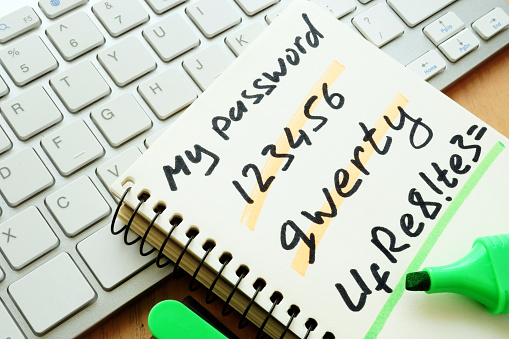
You probably use a number of personal identification numbers (PINs), passwords, and passphrases to get money from ATMs, to use your debit card when shopping, or to log in to your personal or business email. Hackers represent a real threat to both your personal and business password security and confidential information. Now, these criminals are using a technique called Password Spraying to steal your information.
According to information derived from FBI investigations, malicious cyber actors are increasingly using password spraying against organizations in the United States and abroad. In February 2018, the Department of Justice in the Southern District of New York indicted nine Iranian nationals, who were associated with the Mabna Institute, for computer intrusion offenses. However, password spraying isn’t limited to this group. Other hackers are using it to gain access to both personal and business confidential information.
Manhattan U.S. Attorney Geoffrey S. Berman said: “Today, in one of the largest state-sponsored hacking campaigns ever prosecuted by the Department of Justice, we have unmasked criminals who normally hide behind the ones and zeros of computer code. As alleged, this massive and brazen cyber-assault on the computer systems of hundreds of universities in 22 countries, including the United States, and dozens of private sector companies and governmental organizations was conducted on behalf of Iran’s Islamic Revolutionary Guard. The hackers targeted innovations and intellectual property from our country’s greatest minds. These defendants are now fugitives from American justice, no longer free to travel outside Iran without risk of arrest. The only way they will see the outside world is through their computer screens, but stripped of their greatest asset – anonymity.”
How Does Password Spraying Work?
Password spraying is a type of brute force attack where hackers use a username with multiple passwords to gain access to your IT system. With traditional brute force attacks, the criminal uses one username with multiple passwords. Employing a lockout functionality, which locks the criminal out after a set number of login attempts, is an effective means of dealing with traditional brute force attacks.
However, with a password-spray attack (also known as the “low-and-slow” method), the malicious cyber actors use a single password against many accounts before moving on to another password. They continue this process until they find one that works. This strategy works for them because they can avoid account lockouts. It circumvents lockout functionality by using the most common passwords against multiple user accounts until they find one that works.
Password spraying targets single sign-on (SSO) and cloud-based applications using federated authentication. A federated authentication identity provides single access to multiple systems across different enterprises. Criminals target federated authentication protocols because it disguises their activities and ensures their anonymity.
Attackers use password spraying in environments that don’t use multi-factor authentication (MFA), rely on easy-to-guess passwords, or use SSO with a federated authentication method.
Your Email Is Also At Risk
Hackers also prey on email accounts that use inbox synchronization (which pulls emails from the Cloud to inboxes on remote devices). Malicious actors use inbox synchronization to obtain unauthorized access to your organization’s email directly from the Cloud. Then they download email to locally stored files, identify your company’s email address list, and secretly apply inbox rules to forward your sent and received messages to them.
The United States Computer Emergency Readiness Team (US-CERT) details how hackers use password spraying, what you should watch out for, who is at risk, and the impact this type of attack can have on your organization.
Your Technology Service Provider can explain this to you and your employees in plain language, and help you protect your organization against password spraying and other attacks.
Traditional Tactics Techniques & Procedures
Using social engineering tactics to perform online research (i.e., Google search, LinkedIn, etc.) to identify target organizations and specific user accounts for initial password spray
Using easy-to-guess passwords (e.g., “Winter2018”, “Password123!”) and publicly available tools, execute a password spray attack against targeted accounts by utilizing the identified SSO or web-based application and federated authentication method
Leveraging the initial group of compromised accounts, downloading the Global Address List (GAL) from a target’s email client, and performing a larger password spray against legitimate accounts
Using the compromised access, attempting to expand laterally (e.g., via Remote Desktop Protocol) within the network, and performing mass data exfiltration using File Transfer Protocol tools such as FileZilla
Indicators That You’ve Been Attacked
A massive spike in attempted logins against the enterprise SSO portal or web-based application;
Using automated tools, malicious actors attempt thousands of logons, in rapid succession, against multiple user accounts at a victim enterprise, originating from a single IP address and computer (e.g., a common User Agent String).
Attacks have been seen to run for over two hours.
Employee logins from IP addresses resolving to locations inconsistent with their normal locations.
Typical Victim Environment
The vast majority of known password spray victims share some of the following characteristics:
Use SSO or web-based applications with the federated authentication method
Lack multifactor authentication (MFA)
Allow easy-to-guess passwords (e.g., “Winter2018”, “Password123!”)
Use inbox synchronization, allowing email to be pulled from cloud environments to remote devices
Allow email forwarding to be set up at the user level
Limited logging setup creating difficulty during post-event investigations
The Impact
A successful network intrusion can have severe impacts, particularly if the compromise becomes public and sensitive information is exposed. Possible impacts include:
Temporary or permanent loss of sensitive or proprietary information;
Disruption of regular operations;
Financial losses incurred to restore systems and files; and
Potential harm to an organization’s reputation.
7 Steps You Can Take To Mitigate Password Spraying Attacks
Enable MFA and review MFA settings to ensure coverage overall active, internet facing protocols.
Review password policies to ensure they align with the latest NIST guidelines and deter the use of easy-to-guess passwords.
Review IT helpdesk password management related to initial passwords, password resets for user lockouts, and shared accounts. IT helpdesk password procedures may not align with company policy, creating an exploitable security gap.
Many companies offer additional assistance and tools that can help detect and prevent password spray attacks, such as the
Make sure your employees change their corporate passwords every 60 days.
Establish a password policy that prohibits easy-to-guess passwords. Enable multi-factor authentication (MFA) for all web-based applications. If MFA practice is already in place, review current protocols thoroughly to ensure it is maintained well
Ask your Technology Solutions Provider to conduct Security Awareness Training for your employees at all levels.
The FBI Reporting Notice
The FBI would like you to report any suspicious or criminal activity to your FBI field office or the FBI’s 24/7 Cyber Watch (CyWatch). Field office contacts can be identified at www.fbi.gov/contact-us/field. CyWatch can be contacted by phone at (855) 292-3937 or by e-mail at CyWatch@ic.fbi.gov.
Your report should include:
The date,
Time,
Location,
Type of activity,
Number of people affected,
Type of equipment used for the activity,
The name of your company or organization, and
A designated point of contact.

by Felicien | May 9, 2018 | Education
The question of the hour for attorneys and law offices is clear: What do law firms need to do to make sure they aren’t making headlines with a security breach? A good follow-up to this question is, who provides security in the cloud that keeps law firms free of security breaches that can cause reputation damage and even liability?
For {company}, that’s an easy one to answer.
We provide all the security in the cloud for law firms who want to stay free of data breaches.
How do we do this?
Well, it begins and ends with a strategic IT manager like {company} who can successfully guide you to Total Data Security in the Cloud that provides round-the-clock data protection.
What Do Law Firms Need to Know About Cloud Computing?
Cloud computing, broadly defined, is a category of software and services delivered over the Internet rather than installed locally on a user’s computer. The cloud offers a variety of potential advantages including:
Low upfront costs.
Easy mobile access.
Simple setup and configuration.
Built-in disaster preparedness.
Because of cloud computing places data–particularly client data–on remote servers outside of the lawyer’s direct control, it also causes for some concern regarding client confidentiality and the applicable rules of professional conduct.
We’ve collected a variety of excellent resources from the ABA Legal Technology Resource Center and the ABA Law Practice Management Section to help you address the questions and concerns you may have regarding cloud computing.
Why Do Law Firms Need Security in the Cloud?
Every law firm has two major challenges. One of them is the storage of the sheer volume of data their business creates and the other one is the protection of that data, via security in the cloud and other systems. The last few decades’ have seen a rise in technology which has presented very solid solutions to these challenges (if you know where to find them).
A small computer disk, for instance, can hold terabytes of data inside an enclosed drive. If that seems like too much, the cloud has offered an off-site solution to the problem that eliminates hardware maintenance. Before these solutions came along, information could only be saved on paper that filled boxes and boxes.
Security in the cloud is a much more complex challenge. Before, you could lock those boxes of papers in an office, turn on the burglar alarm and go home. Someone would have to physically go there and break into your office to steal that information, and it would be noticeable when they walked out carrying boxes.
Now, all that’s required is some knowledge of computers and software, and someone can hack into that material from afar. They don’t even have to be in the same country, much less in the same city or neighborhood. Therefore, the unintended consequence of a solution for one problem has resulted in the creation of another, yet much more serious problem: the loss of data security.
Now the technology must be managed systematically and monitored very closely. That is why law firms need security in the cloud – and, we propose, managed IT services via a trusted IT partner.
Security in the Cloud Advantages for Law Firms
Here are some advantages of having a Managed Service Provider or MSP handle your IT and cloud security needs:
Given the nature of the information that law firms are entrusted with, security can’t be overemphasized. Breach of that information can ruin lives, sometimes irreparably. That means damage to your professional reputation as well as the bottom line. So how can managed services for law firms prevent that from happening? By being proactive. Your core business is to provide legal services to your clients.
Worries about security in the cloud and in your IT systems should be the last thing on your mind. That’s why we’re there to prevent viruses and any other suspicious activity that might bring your systems down. Their software applications are capable of alerts whenever something unusual is taking place inside your networks.
With secure cloud computing, you also get:
Accessibility: As an attorney, you need to have the ability to access your files anytime and from anywhere. Let’s say you are in a court and suddenly you discover that an important document is needed. You should be able to retrieve that on-demand from any device you carry. Managed IT could have all the files available to you through in-cloud storage.
Compliance Regulations: Law firms deal with a lot of client information that is protected by law. For example, HIPAA has very stringent regulations protecting medical records. Laws provide for stiff penalties and fines if the security of those records is breached (by Covered Entities and Business Associates alike). Outdated software and hardware may expose those records to hackers because your in-house IT team is behind with updates.
Multiple Offices: Many law firms operate from more than one location. IT managed services can bring uniformity and the necessary coordination between multiple sites. Your in-house IT team may not have the ability to do that or the budget to maintain it. Also, some firms that work in coordination with other organizations may allow access to some of their systems. Your IT management company should be able to ensure that other firm’s systems don’t create risks for your network because of lack of compatibility or security flaws.
Outsourced Technical Experience: You may know the law, but you can’t be expected to also keep up with ever-evolving technology, can you? With new complexities emerging, such as Bring Your Own Device (BYOD) to work, must be implemented if businesses want to survive in a very competitive environment. It is also important for revenue growth due to the efficiencies it brings to your environment. As a law firm, it is in your best interest that you let an MSP take care of your IT needs.
Better Growth Management: Your law firm probably started with a couple of computers, printers, copiers and a fax machine. It was easy to take care of all your hardware. Also, during those good old days, nobody was trying to hack into your computers. Your business is now growing. You have a staff of dozens and many desktops, servers, and software packages. Every day it gets increasingly difficult to keep track of new technologies. So, having managed services with cloud security services is not negotiable, really. It has become a necessity for the revenue growth and business continuity of law firms nationwide.
Monitoring: One way for your law firm to avoid critical breakdowns and security breaches is through 24/7 monitoring. This is the surefire way to avoid and control security breaches, viruses and hacker attacks, but it isn’t something a small firm can do on its own. It requires the presence of 24/7 labor plus investment in exceptionally sophisticated software and as well as hardware. This sort of investment is not practical for smaller firms.
Business Continuity: In the long run it makes good financial sense to have someone who is proactively monitoring your systems day and night, preventing system breakdowns, especially with extremely sensitive information on your computers and servers. You do not want to wait for disaster to strike to fix the problem. Some of the damage may be irreparable. In addition, breakdowns are costly in terms of lost productivity and business disruption. MSPs like ours specialize in BDR (Backup & Disaster Recovery), which is important for minimizing downtime and maintaining business continuity.
In short, the peace of mind that an MSP can provide will not come from the “break-fix” computer services guys – it’ll come from seasoned experts who can objectively assess and remedy all IT contingencies, long-term.
Get Your Law Firm Security in the Cloud It Can Trust.

by Felicien | May 9, 2018 | Education
Microsoft Office 365 offers a number of useful tools for today’s busy professionals including some new shortcuts for Outlook 2016. With so many companies now using Outlook as their major email program, Microsoft works to improve its operation with each annual update. A number of the great features in this program are also found in other MS Office programs. For instance, if you’re familiar with Word, then learning how to use Outlook will be much simpler.
New Changes for Outlook 2016
Using Outlook 2016, you can do a lot more than send and receive emails. You can also manage your calendar, set appointments, schedule meetings, and create/manage groups. In addition to being able to set up various types of groups, you can set up groups in Yammer. Yammer has become a central place where teams can exchange files, get updates and have conversations with others.
In Outlook 2016, distribution lists are now known as contact groups. Though the instructions for setting up each type of group vary a bit, they’re very similar. Users can find the instructions for setting up each type of group online or by using the F1 key in Outlook. The new Outlook has many helpful features like this to make your workday go smoother and help you improve efficiency. Below are our top 9 Tips and Tricks for getting the most out of Outlook.
One-Turn Off Notifications
There are several ways to turn off notifications in Outlook. This is an easy way to stop all those interruptions that prevent you from getting your work done each day. Go to the taskbar and click on the triangle. The programs that are already available will show up. Right-click the Outlook icon and you will get a list of things you can do. One of them is turn off notifications. Uncheck the box that says “Show New Mail Desktop Alert”. If you have Outlook open, you can also go to File>Options>Mail. Here, there are many options. Click on, “Turn off notifications”. You can also personalize your mail client here. Most workers report that they’re a great deal more efficient with notifications turned off.
Two-Setting up Meetings Automatically
One of the favorite shortcuts in Outlook 2016 is the one for setting up a meeting. There are actually several good ways to do this. Drag an email from your Inbox to the Calendar icon at the bottom of Outlook. This will automatically set up a meeting. You can turn any email into a meeting by doing this. Another effective method, with your email open, click on “Reply with meeting”. This is found on the ribbon in the “Respond” group. Clicking on “Reply with meeting” will send out an invitation to everyone who was addressed in the email.
Three-Blocking off Some Private Time
We all need private time each day to get special projects finished or just take a breather from a busy day. An easy way to do this is to pull an email into your calendar to block off some time, perhaps an hour or so. You might need to read a proposal or document sent by someone. You might simply want a few moments of peace and quiet. The blocked off time appears as a meeting in your calendar so that coworkers can see that you are busy and will not disturb you.
Note that you can now set the time simply by typing the numbers. You don’t have to type the colon and a.m. or p.m. Type a number, such as “11” and the program fills in the time as 11 a.m. This can be a real time-saver. You can also enter time using military times. For instance, type 800 for 8 a.m. and 1600 for 4 p.m. No matter how you type it, time will automatically update so that it looks correct.
Four-Ignore Button
We all get emails that are not important but they still take valuable time to look over and they can clog up your Inbox with correspondence that isn’t relevant to what you’re doing. Let’s say you’ve been getting emails and reminders about an upcoming luncheon for your department, but you know you will not be able to go on that particular day. So open one of these emails and click on the “Ignore” button. From then on, you will not see any emails about that topic.
Five-Quick Access Toolbar
Customize this toolbar located at the very top left portion of Outlook. You can add the commands that you most often use so that they’re handy. This can be done in any Microsoft Office program. Go up to the very top left portion of the screen where you’ll find the quick access icons. Click on the triangle at the end. This opens a drop-down list. One of the options is “more commands.” Once at this dialog box you can filter commands by clicking on:
Popular commands
Command not in the ribbon
All commands
Macros
Choose whatever commands you most frequently use and add them to your Quick Access Tool Bar. For instance, work offline allows you to work without the constant interruption of emails and notifications from team members. This can be helpful if you are up against a tight deadline and every moment counts. Experiment with various ones and you’ll soon find your favorites.
Six-Instant Messaging a Group
This is a good way to get a fast answer from team members who may be involved in an important project with a fast-arriving due date. Open your last email about this topic or from one of the members of the email. Next, click on IM>Reply All. This will send out a response as an instant message. Team members who are online will get notified immediately via instant message.
Seven-Quick step
Quickstep is a handy way to set up an email message so that several actions are taken in one step. The message can be marked as read, flagged and then moved to a specific folder. Quickstep can be used to set up one or more emails and you can set it up with any combination of steps that you want to be completed with one click.
You can set up certain emails to go into specific folders. You can also set up a folder for a special project and then designate which emails will automatically go into that folder. This is an easy way to organize emails by project title or by the supervisor who is in charge of the project. There are many ways to arrange them.
Begin by clicking on “More”, found in the Ribbon, then “Manage Quick Steps”. You can do this for existing or new emails. To create a new Quick Step, go to the Quick Steps portion of the Ribbon (found in the middle area) and click on “Create New”. In “Edit Quick Steps” you can choose a category and then create a new action. There is almost an endless number of steps you can accomplish with one quick step and that’s the goal of this timesaver. It allows you to take multiple actions with just one click. For instance, copy an email, pre-populate the “Send to” line, and include information that’s constant throughout similar emails. With daily use, you’ll become a whiz at making this timesaver work well for you.
Eight-Set Automatic Replies
Did you ever go on vacation and forget to set up your automatic email for your vacation? This happens to everyone. To avoid this happening, go ahead and set up your Vacation Out of Office email weeks ahead of time. Go to the file menu and click on send automatic replies, then fill in the dates and times when you will be leaving and when you will return. You can set up a message for both external and internal emails. By setting this up in advance so that it’s ready to go when you are, you won’t have to worry about forgetting or having to do it at the last minute.
Nine-Search Mailbox
All email programs now have a search box that allows you to search through your emails using a single word or phrase. It’s much easier to find all your emails pertaining to any name or topic. Once you click on “Search”, this opens a whole menu of Search tools that can be helpful if you know certain things about the email. You may be looking only for emails with an attachment; specify that in search tools. If you know a name and that the email had an attachment, this can filter your results even more.
Getting Help
These are just a few of the many ways that Microsoft Outlook 2016 will help you get all your work done without too much extra labor and stress. Learning these shortcuts, tips, and tricks can help you modify Outlook so that it’s customized just for you. If you take a little extra time each day to learn one Time Saving Tip, you’ll get the most out of the program. In addition to the articles and tutorials found at Microsoft, you can also find hundreds of YouTube videos that will show you exactly how to do something.
Of course, within Outlook or any Microsoft program, you can get help by pressing F1 or clicking on the question mark in the upper right-hand corner. Type a few words about what topic you need to get instructions for, such as how to use Quick Steps and a whole list of helpful instructions will come up. Once you get Outlook 2016 set up and organized especially for your workflow, you’ll find that Outlook can be a great tool to help you get more done each day.
