
by Felicien | Jan 24, 2019 | Education
Use Windows 7? Do you love your Windows 7? Will your need or desire to continue to use Windows 7 surpass this year? If so, you should be aware that in just under one year — January 14, 2020, specifically — Windows 7 Extended Support ends for most users. As such, there are things you need to know and decisions you may have to make. This is your guide to understanding what the expiration of Windows 7 Support may mean for you in one year.
What is the Current Status of Windows 7?
Windows 7 is a reliable desktop OS for Microsoft users. When Windows 8 came out, the differences were so stark that most users preferred to stick to Windows 7. Why would they stay with an outdated system? Here’s what Windows 7 offers:
A straightforward interface that is well-designed and laid out;
A start menu that combines the old with the new;
A clutter-free and clean look that is familiar to you;
Thumbnail previews that allow you to automatically open an item;
Jump lists that allow you to quickly access files or documents you frequently use;
Performance that allows the system to boot up comparatively quickly;
A new calculator to convert units, figure out fuel economy, etc.;
A new WordPad that offers more formatting features; and — among many other features —
Upgraded and improved media player and center.
These are just a few of the reasons that so many PC users love their Windows 7 and do not want to particularly give it up, especially when they found Windows 8 a disappointment. In fact, StatCounter suggests that 41.86% of PC users — who according to Statista makes up nearly 84% of the market share for desktop PCs — use Windows 7 still while another 42.78% use Windows 10 and a sad 8.72% use Windows 8. Those statistics say a lot about Windows 7 and suggest that a lot of people are going to need to figure out what they are going to do before January 2020, if they want their systems to be secure and updated.
Why is Microsoft ending support for Windows 7?
There is no specific reason why Microsoft is ending support for Windows 7 come January 14, 2020, except that this date is the date provided in Window 7’s lifecycle.
Windows 7 Lifecycle
October 22, 2009
Date of general availability for:
Windows 7 Professional
Home Basic
Home Premium
Ultimate
October 31, 2013
Retail software end of sales for:
Windows 7 Professional
Home Basic
Home Premium
Ultimate
October 31, 2014
End of sales for PCs with Windows preinstalled with:
Home Basic
Home Premium
Ultimate
October 31, 2016
End of sales for PCs with Windows 7 Professional preinstalled
January 13, 2015
End of mainstream support for Windows 7
January 14, 2020
End of extended support for Windows 7
As indicated in the above table, if you did not extend support for Windows 7, then the problem of extended support expiring on January 14, 2020, does not apply to you. If you had purchased that extended support, then you need to pay attention and determine what you want to do because a year will be over before you know it.
What will happen after extended support for Windows 7 expires on January 14, 2020?
Come January 14, 2020, if you are still using Windows 7, rest assured your desktop will still work; Windows 7 will continue to work beyond 2020. The issue here is your extended support.
Come January 14, 2020, extended support expires and with that expiration ends any updates to your PC. That means your system is vulnerable because the latest, most advanced security updates will not be available to you.
Who will be affected by Microsoft’s decision to end support for Windows 7?
It is important to be clear that not all Windows 7 users will be affected by the January 14, 2020 extended support expiration date. In fact, in September 2018, Microsoft announced that some business users can pay for an additional three years of security updates. Unfortunately, this does not extend to home versions.
In other words, if your windows license type is an original equipment manufacturer or a full package product, there will be no extended security updates for you, and this includes all home versions. However, if you purchased a volume license (i.e., Enterprise or Open Value) for Windows 7 Pro or Enterprise, then you can purchase the additional three years of security updates — so primarily only business users can receive the updates at a cost.
What are your options after Microsoft Windows 7 support expires?
If you absolutely must keep Microsoft Windows 7, then you have options, though they may not be optimal options. These options include:
Playing with the idea of purchasing an upgrade to Windows 10 and then downgrading your rights to Window 7;
Continuing to run Windows 7 without security updates, but this is not a good option because as computer desktops and software advance, so do the hackers capabilities (home users if careful, can consider it, but it is probably not an option for business users due to legal and liability risks);
Disconnecting any Windows 7 PC from the internet, but this means disconnecting you to the very thing that keeps you connected to the world, so it may not be your best option either.
Migrating from Windows 7 to another operating system, e.g. Windows 8 or preferably Windows 10.
What does Windows 10 offer you?
Some PC users are hesitant to switch to Windows 10 because it does have its drawbacks. Some specific Windows 10 drawbacks include:
The increased sense that Microsoft is invading our privacy with its default settings. Most of these setting can be changed but you must go in and manually make these changes.
The ability to control your updates is limited when compared to Windows 7. Plus, these updates are made without user knowledge — which only entrenches the sense that PC users are being spied on when something happens to their system without their knowledge, even if it is for their own security.
The interface is less customizable (e.g., can’t change colors) — and this is unfortunate in an age where we celebrate our differences, including how we set up our interface system.
Older programs do not run well on Windows 10, so if you have older programs, you may be in need of identifying additional and newer products or software.
That said, it is good to be reminded that even though you love your Windows 7 whether it’s because you simply love it or love it because it’s what you are familiar with, Windows 7 has its own drawbacks, too. Windows 7 drawbacks include:
Windows 7 was released in 2009. This was a time when iPad was a rumor and mobile phones were not as advanced. Today you want software that works across all your platforms. Windows 7 can’t do this most likely, but Windows 10 can.
If you ever needed to use a virtual desktop then you know this feature is not available in Windows 7 unless you use Desktops v2.0 software. Virtual desktops allow you to organize your space better and have become an essential tool for modern-day users. Windows 7 does not offer this capability easily but Windows 10 does.
We all know Apple’s Siri and Google Now. These are convenient built-in assistants to help us do anything from scheduling tasks or appointments, dictating notes, playing music, adding reminders, and much more. Windows 7 does not have a built-in assistant but Windows 10 does: Cortana.
Ever been in your Windows 7 and want to search the web from your desktop and then realize you can’t. To search the web, you have to navigate to the right tab and then look something up. Windows 7 does not offer a convenient search feature for the internet, but Windows 10 does: the search bar allows you to search anything from your folders, apps, files, Windows store, and the Internet.
Gaming is another thing so many of us like to do today aside from work. Windows 7 has always been a trusted gaming platform — so this is not a drawback except for the fact that Windows 10 has built on Windows 7 gaming capabilities to make it even better. So, if you like gaming, whether it’s DirectX 12, PC Game DVR, or Xbox one game streaming, among others that you like to use for gaming purposes, then Windows 10 offers the best performance for you.
How to determine what you should do about your Windows 7 come January 14, 2020?
If you are one of those PC users to be affected by the end of extended support for Windows 7 in January 2020, then you have to determine what you will do. The last section implicitly directs you in which way you may consider, but if you are not yet confident in Windows 10, ask yourself the below two sets of questions:
Do you use your computer to access the internet? If so, do you keep private information online or conduct private matters online, i.e., financial information, tax information, banking, consumer purchasing via Amazon or other outlets, etc.?
Do you like Microsoft’s operating system Windows? Do you want to stay with Windows (but not Windows 8)? If so, would you like something similar to Windows 7 but operates better?
If you answer yes to these questions, then it is safe to say you should consider Windows 10. A free upgrade to Windows 10 expired in 2016, but the price you pay today can save you in the long run.
So, now you have it. There’s a lot to consider if you use Windows 7 and like using it. If you are an owner of a volume license for business users, then you do have a viable and reasonable solution to the deadline: you can purchase another three years of security updates. This option provides you ample time to consider other options and train personnel on new desktop operating systems.
But if you are not a volume license holder, then you really need to consider what you intend to do. Security is highly important today in our virtual worlds and without it, you risk impacting your so-called “real” world. A hacker can destroy what you have built up over the years, from finances to projects to just about anything that is maintained or kept on your computer, in the cloud, or online. The issue of the January 14, 2020 expiration for Windows 7 extended support is indeed a serious one.

by Felicien | Jan 24, 2019 | Education
Do you regularly send sensitive documents via email? If so, you are probably careful to double check that you have included the right recipient; you might even go one step further by adding a read receipt to the email. The next step that you could take when sending sensitive documents via email, is to use an encrypted email. However, if you truly want to protect sensitive documents that contain either personal or business assets, then you should consider the benefits of using Microsoft Word’s latest password protection feature.
Protect The Documents You Need To
The beauty of Microsoft Word’s password protection feature is that you can use it to protect the documents you need to. In other words, you don’t have to password protect the memo about days off or the daily office joke that brings a bit of cheer in the morning. Instead, you can pick and choose what documents you protect with a password. In this vein, it should go without saying that you need to send the password via a secure measure. In other words, it doesn’t do you any good to protect a document and then simply send the password via the same email as the document. Additionally, remember that passwords are case-sensitive and cannot be easily recovered if they are lost. With these tips in mind, there are three simply steps that you can take to add a password to any Microsoft Word document that contains sensitive information.
3 Steps To Add A Password To Microsoft Word Documents
To add a password to a Microsoft Word document you will need to complete the following three steps in order.
Select the File tab and scroll down to Info.
Once you have selected Info, click on the Protect Document button. You will then select the Encrypt with Password option, which can be found from the drop-down menu.
Click Encrypt It and type in the password that you want to use for the document. Keep in mind that each password will be case-sensitive, unique, and cannot be easily recovered if it is accidentally forgotten. Once you have selected the password that you want to use, click OK.
Through the above three easy to implement steps your Microsoft Word document will be securely locked behind your carefully chosen password. It is important to note that this process can be completed in Microsoft Office 365 and Microsoft Word 2016. Finally, you can always remove the password by simply following the above three steps and their prompts. Whether you need to protect your personal or business files, the Microsoft Word password protection feature is an easy way to bolster security as you write, edit, and send sensitive documents.
by Felicien | Jan 24, 2019 | Education
Microsoft 365 and its suite of office productivity tools, has some new features for 2019. Microsoft 365, formerly Office 365, is the collection of business software for publishing, communication, mail, presentation, and accounting. The suite of programs including Microsoft Word, Excel, Publisher, Outlook, and PowerPoint have been designed to make work simpler and provide a way for greater collaboration and sharing to take place between internal and external work teams.
Many of these new features should be available to users in Q1 of 2019. These include enhancements to PowerPoint, Word, Outlook, and Teams, to name a few of the offerings available to Microsoft 365 users. Each of these new features is discussed in further detail below. This is an overview of what’s new, how the feature works and what you as a business user should expect.
Microsoft PowerPoint Editor and Forms Updates
Intelligent proofing has come to Microsoft PowerPoint. It is similar to the functionality users have known in Microsoft Word and that has also been available in Microsoft Outlook since the last part of 2018. It takes the machine learning capabilities and natural language process that exists in the program to proof, edit, and make recommendations to users based on the content of the presentation being created.
Things like wrong word choices, misspelled words, and improper grammar are detected in this feature added to PowerPoint. Office Insider users should have access to this enhanced feature with Microsoft 365 users coming online shortly in Q1 of 2019. To determine its availability, a user simply can click on SELECT FILE > OPTIONS > PROOFING. The boxes, “Frequently confused words” and “Mark grammar errors as you type,” should be checked, indicating the availability of the feature.
An additional feature that should be a welcome enhancement for users is the availability of forms in PowerPoint. Feedback, surveys, and questionnaires can be administered simply and easily with the adding of forms to this software program. Forms has been a standard within Word and have now come to PowerPoint. Users interacting with students or in a training environment looking to administer quizzes, or questionnaires with participants now have the facility to do so within PowerPoint.
Microsoft Word Collaboration Enhancements
Writing with Microsoft Word has become even easier in 2019. A new feature allows users to bookmark, or rather, create notes within a document as a reminder to return to that spot in a document. The feature is called inline TODO and it is as simple as typing the word “TODO” (all CAPS) as a placeholder in a document. The user will then have the ability to type a note as a reminder of some thought or action they wish to insert and can choose to continue writing or exit. The TODO placeholder is perfect for those times when a user loses their train of thought and needs to look up additional information or seek the advice or opinions of other members of the team for clarification.
These entries are tracked as To-Dos in the To-Do app, which can be viewed online or on a mobile basis. Every time a user returns to the document, the to-dos that have been coded in the document appear instantly as a reminder. A user (logged into SharePoint or creating a document shared in OneDrive) can also use the “@mention” feature to direct a message to another user within the team to look at the TODO denotation in the document. Office Insider users have immediate access to feature (in preview mode) while Microsoft 365 users will have access to TODO soon in 2019.
Creating and Managing Tasks in Microsoft Outlook
Task features that used to be available only in the desktop version of Microsoft Outlook have been released to web-based users. It allows for greater mobility and less dependency on the desktop for managing important tasks and project workflow. The ability to drop emails into the task icon previously has been limited to desktop users. New for 2019 is the ability of web-based Outlook users to also drop related emails into the task icon in order to properly manage and stay informed on any changes, updates, and any other important communications that may impact a given task.
The same goes for the ability to schedule tasks on a calendar. Where before a user would have been dependent on the desktop version of Outlook to perform scheduling, the new web-based enhancement allows users to perform the same function online. Once scheduling of a task takes place on the user’s calendar, it will be carried over to a mobile user’s To-Do app. Note that this capability is only available to those business customers opted-in the new Outlook.
Migrating from Skype for Business to Microsoft Teams
Skype has been a standard established for years for bringing teams together. This is especially true of those teams that are remote or located in different places. It has been an integral part of Microsoft’s collaboration approach, that is, until the advent of Microsoft Teams. The Microsoft developers have taken their newer approach to team collaboration further by enabling iOS (Apple-based users) and Android (Google-based users and others) mobile functionality to stay connected to their teams.
A meetings icon allows for the easy scheduling of meetings, while “Quiet Hours” gives users the ability to limit push notifications during those important moments of a user’s life (i.e. family time, dinner, vacation, etc.). Finding other team members directly from mobile devices is made easier too with enhancements made to the Teams app.
Stay on top of the enhancements and changes made to Microsoft 365. As the software package evolves to meet the needs of its users, it’s important to educate those users within your various workgroups and keep them up-to-date. An educated user is a powerful one; understanding how Microsoft is making business work better helps you do better business.
by Felicien | Jan 24, 2019 | Education
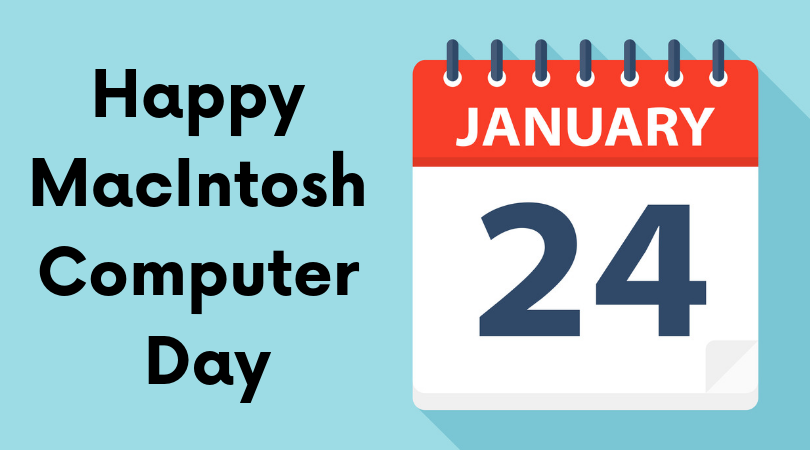
January 24th is Macintosh Computer Day. On this day we celebrate the innovation, skill and can-do spirit that shaped the future of computing. We recognize the history of Apple. Back in 1984, its creators with Steve Jobs at the helm introduced the first Macintosh computer, now known as Apple or Mac to the world would never be the same.
A Proper Introduction
The first Macintosh made an epic entrance during the Superbowl, with an iconic commercial directed by Ridley Scott, of Alien and Bladerunner fame. It depicted a gray dystopian world in which everyone was controlled by the state, a direct homage to George Orwell’s beloved novel 1984.
Macintosh was there to free humanity from the mind control and usher in a new age of freedom and creativity. Looking back it may not seem like much with two programs, MacWrite and MacPaint. But this was the beginning of a company that defined and has continued to redefine not just technology but culture itself.
The First Personal Computers
As with any technology, innovations build on what has come before. But every once in a while we take a great leap forward. In the late ’70s, early ’80s, we’d already been introduced to the Apple II and IBM’s PC, which had begun to shape how we do business.
In the late ’70s, Apple became the fastest growing company in U.S. history, reaching a 300 million valuation (over $1B in today’s money) almost overnight. With over 50 companies trying to get in on the action, one company stood above them, IBM and so began one of the most brutal rivalries in history as many would-be competitors fell by the wayside to be largely forgotten by history.
Upon its release, the Macintosh became the first commercially successful personal computer that included a mouse and a graphical user interface (instead of lines of command), two very unpopular features at the time, because — you know — change is hard.
A Bitter Rivalry: Apple Vs. IBM
In 1983, before the arrival of the Macintosh, IBM stood poised to take over the world of personal computers, making deals with other companies to solidify its stronghold in the industry. And within three short years, IBM had sold over 2 million computers. That’s a great feat in a time when a very basic personal computer cost over $2000 (~$7000 in today’s money).
The 1984 Macintosh release became humanity’s last hope to prevent IBM’s world domination as was reflected in their choice of commercials. Apple spared no expense, spending over $15 million on its Superbowl campaign, which actually ended up raising the price of the Macintosh by an additional $500.
That war would rage on for the next decade as IBM cemented deals with Intel and Microsoft that would shape how people perceived its products. Many 3rd party companies would be forced to choose between IBM and Mac compatibility.
“It’s How It Works”
Steve Jobs notably said, “Design is not just what it looks like and feels like. Design is how it works.” This quote exemplifies Macintosh from the beginning. While IBM continued to create systems that were hard for the average person to use or understand, Apple was focused on creating intuitive hardware and software that took virtually no training to use because it just made sense. Did they always live up to this goal? No. But it drove them to continually improve their product.
The Macintosh project had actually been many years in the making. In the late ’70s, Apple employee Jef Raskin looked beyond what had gone before and into the future where computers were easy to use and so affordable that almost everyone could have one. He had initially wanted name the computer after his favorite apple, the McIntosh, but was forced to change the name for copyright reasons. Jef recruited a team of top minds like Bill Atkinson and Burrell Smith.
Smith designed the first Macintosh board that contained an astounding 64 Kb (Yes, Kb!) of RAM and used a Motorola 6809E microprocessor. This monster of a machine could support a 256×256 pixel B&W bitmap display. But through continued ingenuity, Smith persevered until the system could support a 384×256 pixel display. Smith’s design used less RAM than Apple predecessors, making it much more cost efficient.
The final design for 1984 release had a QuickDraw picture language with 64 Kb of ROM and 129 Kb of RAM. The system did not yet have memory slots to expand capacity, but it was designed to incorporate 256 Kb RAM through soldering for those willing to take that on. The monitor was 9 inches of 512×342 monochrome pixels.
At this time, Steve Jobs, co-founder of Apple, shifted his attention to the Macintosh project, foreseeing it becoming their crowning achievement. Raskin, who up until this point, had spearheaded the Macintosh project left the project when Jobs entered because of personality conflicts.
Upon its release, the Macintosh suffered a serious setback in the fact that 3rd party software manufacturers did not want to take on the time and expense to re-write software that had been designed for IBM.
Macintosh continued in an uphill battle to retake market share once taken from them by IBM. But it would be decades with before Apple would again take over the industry with the Advent of iPhones and iMacs in one of the biggest and longest in the making comebacks in the history of any industry.
And for this, we celebrate, January 24th, Macintosh Computer Day.

by Felicien | Jan 23, 2019 | Education
Ever since Microsoft incorporated as a company in April 1975, it has led the way in releasing innovative computing products for home and business users. From the release of its first operating system to the computer mouse to Microsoft Office, the company has always been one step ahead of the competition in changing the way people in the United States, Canada, Australia, and England manage their home lives. This year will be no exception. With 2019 being just days old, Microsoft has already indicated it will make three significant changes to the personal computing landscape.
Microsoft Edge to Become Chrome Engine
For as successful as Microsoft has been with its software programs and operating systems, the same cannot be said for each of the browsers it has released. It seems that every browser from Explorer 1.0 for Windows 95 to Microsoft Edge has struggled with spotty performance and security issues that did not win the confidence of users.
The introduction of Google Chrome and Mozilla Firefox gave consumers more options and caused a steep decline in the number of people who still used Microsoft Explorer, Edge, or other Microsoft browsers. To counteract its lost market share and inspire consumer confidence, Microsoft is rebuilding Edge using open-source software. It is the same software that currently allows Google Chrome to operate. Microsoft even plans to make the upgraded browser available to Mac users.
People who currently use Microsoft Edge will not have it disappear on them. Instead, they will notice greater consistency in website displays and overall improved performance. Current Chrome users will have a better experience while surfing the web on a Windows operating system. The goal is to improve the Internet for all who use it, not just those who choose to use a Microsoft product.
Skype for Business Changed to Microsoft Teams
Skype, the application that allows users to see and talk to one another through a video application, has long been a staple of the business world in developed nations around the globe. It has allowed companies to forgo expenses associated with sending people out of state or to another country to attend meetings and hold them remotely instead.
However, Microsoft recognized that the application required some tweaking to be more user-friendly for teams with people working remotely all across the world. This led to the creation of Microsoft Teams along with the announcement that Skype for Business would no longer be part of the Microsoft Office bundle for customers with fewer than 500 seats.
In development for several years, 2019 is the year that Microsoft Teams officially launches. Its designers considered the corporate and remote user and included several features that would make file sharing and team collaboration much easier.
The new communication system is a single platform that draws largely from cloud computing. This includes a chat application, inclusion of the popular cloud collaboration program Slack, and all features that users currently enjoy with Microsoft Office 365. Perhaps the biggest benefit of Microsoft Teams over Skype for Business is that it includes all features on a single platform.
The Introduction of Microsoft Office 2019
In the three decades since its 1989 launch, Microsoft Office has consistently been the productivity tool of choice for businesses and private users alike. People use programs such as Word, Excel, PowerPoint, Outlook, Publisher, Visio, and Project every day to create, manage, and communicate on the job and at home.
Its current version, Office 365, connects people to the cloud to make it easier than ever for collaborative teams to get their work done without sharing the same office space. Coupled with the increased ability to store files on the go, Office 365 shares much of the credit for making it possible for growing numbers of people to log in and work from anywhere.
The release of Microsoft Office 2019 is one of the three major changes the company will make this year. The new program shares many features with Office 365, including the availability of each of the seven productivity applications. It also has several key differences, including the following:
Developers planned Microsoft Office 2019 as a one-time release, which means it will not receive any future updates
More mobile application features that enable users to create a higher volume of content in less time
Zoom features on PowerPoint for an enhanced viewing experience
New Excel spreadsheet features that make it easier to create charts and analyze data
Outlook email program automatically sorts emails and pushes the most important ones to the top
The major decision facing Microsoft Office business users is whether to remain with the subscription-based 365 program or upgrade to the one-time 2019 release.
What Next?
It is too early in the year to determine how these changes will affect users and whether Microsoft will ultimately profit from them. The only thing any computer user or an IT department can say for sure is that change is constant. The most successful people accept that nothing stays the same in the world of personal computers. They welcome the opportunity to change and to reap the benefits of someone else’s innovation.

by Felicien | Jan 21, 2019 | Education
With organizations working increasingly advanced technology into most aspects of their daily operation, it only follows that employees and customers may occasionally need help using those technologies and fixing problems they encounter. Help desks have emerged as the primary method for giving IT users the support they require to work effectively with technology as they complete their tasks and contribute to their organization’s success.
What is a help desk?
Help desks, or managed operation centers, provide consistent, critical support services to the employees within an organization, and in some cases, their clients. Help desks are run by personnel with extensive technical knowledge who are well-versed in managing, troubleshooting, maintaining and upgrading the various technological tools used by companies across industries.
While some businesses have in-house IT support through designated staff members, that option is often not tenable for many smaller organizations with limited employees and resources. Outsourced technology support allows them to focus their energy on more integral aspects of their practice. Even mid-size and large businesses, however, benefit by partnering with third-party entities that offer expert help desk support and gaining access to an additional resource for their internal IT staff.
What are the benefits of outsourcing help desk support?
Outsourcing IT support provides a number of advantages, particularly for small- to medium-sized businesses (SMBs). Here is a quick look at 10 ways your operation can benefit through outsourcing IT:
1. Cost-savings
Maintaining an in-house help desk can factor as a hefty expense into an organization’s annual budget, especially when benefit packages and other perks are taken into consideration. By entering into a contract with an outsourced help desk, you can tailor the services to fit your specific needs and financial position.
2. Increased Flexibility
Working with an outside provider for your IT support gives your employees flexibility, allowing them to work a broader range of hours without having to worry about not having support should they encounter a problem. Even when working remotely or outside peak hours, they can access a live representative for support.
3. Immediate Response
Help desk specialists are only a phone call, email, or support ticket away. As third-party providers manage IT support for multiple organizations, they will have several technicians on-call to address issues on demand. With a consolidated pool of employees, their efforts can be spread more effectively across the businesses they serve. If the technicians cannot fix the issue remotely, they will respond in person to fix the issue on-site.
4. Diverting Management Responsibilities
Working with a third-party service provider means they will handle their own IT team, relieving you and your human resources department of that responsibility. The firm will oversee the management of their own employees—from recruitment and hiring to training and retention—and take care of tracking their hours and performance, as well as addressing any personnel issues.
5. Access to More Resources
Most companies do not have the financial freedom to acquire the latest IT equipment or jump on emerging technological solutions. Providers whose sole purpose is managing technology, however, will have not only the most current but also a wider variety of resources. This helps even the playing field, especially for small businesses, allowing them to take advantage of advanced technologies without bearing the entire financial burden of procuring them.
6. Support from Highly Trained Specialists
Much like with resources, third-party IT firms can offer a wealth of expertise. Their tech specialists come equipped with a wide range of credentials, training and prior experience with businesses similar to yours, which gives you a strategic advantage. When your organization encounters an IT issue, one of their team members likely will have specialized knowledge and skill-set to troubleshoot that problem.
7. A Preventative Mindset
Help desk engineers are generally in the business of providing maintenance, as well as incident management to prevent problems before they occur. They can offer advice on upgrading old systems and software and suggest other technical solutions to address the root cause of recurring problems. Help desks also track important performance indicators and metrics via remote software, to compile data on average time for technician to accept ticket, average time to resolve problem (or close ticket), average number of tickets per day/user, issues occurring after business hours, communication pertaining to a ticket, and other areas. This statistical reporting is then used for continuous quality improvement.
8. Priority on Partnership
Third-party firms are invested in fulfilling their contract and building a long-term relationship with the organizations they serve, so they will approach help desk support with a cooperative attitude. One of their goals will be to make communicating and collaborating on tasks with the employees, or end users, smoother and less frustrating. The tools they recommend will be designed to bolster this partnership and help employees feel empowered when it comes to using technology, which in turn augments company morale and productivity.
9. Increased Customer Satisfaction
Many companies use outsourced help desk services, such as call flow support, to take care of their clients’ needs or give them technical support when they are using the organization’s website, purchasing products online, or making inquiries into services. Sharing the burden of this task with an external provider frees up employees to focus on their core competencies and daily responsibilities. Additionally, customers benefit by having their problems immediately addressed, which increases customer satisfaction and helps the business both attract and retain clients.
10. Peace of Mind
For many organizations, experiencing excessive downtime because an IT system is experiencing issues can be detrimental. With a team of industry-leading experts in your corner, you can rest at ease that your IT is being taken care of. You won’t have to use your internal employees and their valuable time to fix a problem that resides outside their area of expertise. Your trusty help desk will have the issue under control.
Help desks are aimed at helping the relationship between your business and its technology flourish. They understand the importance of keeping your systems functioning and available to the employees who rely on them to do their job. External providers can provide effective IT management and support at an affordable cost.
