by Felicien | Dec 21, 2017 | Education
The new year is right around the corner. Thinning your inbox before next year may seem like a daunting task. It doesn’t have to be when you use our 8 easy steps and the tools we recommend. You will have that streamlined inbox of your dreams and a happy mail administrator going into 2018.
If you don’t mind me asking, “Which email user have you become?” The studious empty inbox practitioner or the depressed email junkie with 35,000 email squatters taking up residence in your inbox, dormant and unread?
If you are the junkie and collecting countless unread emails doesn’t alarm you, what about having to wait for a 12-hour download of your entire inbox? Because a restore was required for your off-site backup, and you won’t have access to those important client emails, that require immediate attention.
Would that get your attention? Then let me ask you, “How full is your inbox with dead or unread emails, that are sitting there, collecting dust?” Don’t know? That’s okay. Here are your 8 Easy Steps To Thin Your Bloated Inbox For The New Year.
Step 1: Empty These 3 Folders and Rid Yourself of Email Squatters.
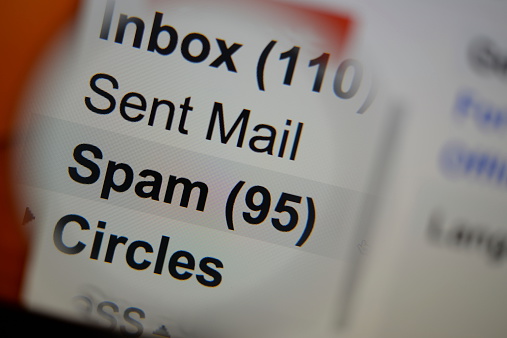
This is the easiest step, to begin with. Start with your Spam, Junk and Trash folders. Nothing important will sit in these folders. Everything in these folders must be removed daily. If your email server has an option to, “delete it forever” then use it. A word of caution: Some whitelisted emails will find their way into these folders, due to email filters continually updating. So, check before deleting.
Step 2: Delete Html Newsletters You Never Read.
If you have unread HTML newsletters, older than a week, read them or delete them.
Html newsletters:
Are larger files
Take longer to load due to images downloading
Are Time sensitive and update weekly
They become outdated when the next issue arrives
If a particular issue has content worth keeping, print it out or save it to your computer. Then delete it from your inbox to free up needed space.
Step 3: Unsubscribe From Newsletters You Stopped Reading.
When unsubscribing from a text or Html newsletter, you have 2 options. Typically, at the bottom of an email newsletter, you should see an “Unsubscribe me” link. You click it. Next, you are instantly unsubscribed or taken to an unsubscribe page to finish the process.
If you subscribe to multiple newsletters, there is a faster way to unsubscribe and get off their lists. It’s called Unroll.me. It is a free tool that lets you unsubscribe from multiple newsletters all at once. You can also pick only certain newsletters to unsubscribe. As a bonus, Unroll.me will also catch any newsletters coming into your inbox and ask you if you want to unsubscribe.
Step 4: Make Folders For The Newsletters You Do Want to Keep
If you have newsletters you read on a regular basis and don’t want to delete them, make a folder and label it, “Subscriptions” or “Newsletters”. This keeps your newsletters separate from your higher priority emails.
Then inside the subscription folder create subfolders. These folders will be individually labeled by the newsletter title. For example – Huffington Post, Forbes, National Geographic and so on.
Step 5: Delete All Emails That Are Outdated and Irrelevant.
If you have emails, with outdated information no longer useful, then delete them. The only exception is a series of conversation emails. These serve as your paper trail dialogue you had with an individual about a project. Should a problem or questions arise, just refer back to the thread.
With these email threads, create a folder and label it “Past Projects”. In that folder create subfolders and label them per project name i.e. “Conversation – Smith Satellite Upgrade” or “Conversation – Rivera Panel Install”.
Step 6: Create Separate Email Accounts For Work and Personal.
Having work and personal emails on one account is distracting. You become unproductive and slows your momentum down. In some instances, you will be violating your company’s email policies having work and personal emails on your company’s computer. To avoid this, set up a separate account and forward all personal emails to your new account.
Applying, “Work emails at work and personal emails at home” principle, your inbox will see a significant reduction in email traffic and unread messages.
Step 7: Make Folders and Utilize Them.
This step is to create a folder system that seamlessly sorts your emails for you. How you sort your emails into folders depends on several factors or your preferences.
Such as:
Types of emails
How quickly you must respond
Subject
Sender
Or a mixture from the list above
Example: Me and a client are always emailing back and forth. I don’t always have time to read their response. So, I set up their folder and create a filter that sends their emails automatically into their folder. Now when I get a chance I can click on their folder and review their email.
With your folder system in place, it cuts down the time you spend sorting emails and keeps your inbox bloat free.
Step 8: Clear Out Your Deleted Folder.
Now, you have gone through and deleted everything you can possibly delete, it’s time for our final step. This step will be done once a month. Open your email’s “Deleted” folder and clear it out. This will serve 2 purposes.
Should your email system crash and a recovery are needed, an empty “Deleted” folder cuts down on restore time.
It speeds up your email’s load time.
In addition to these 8 steps, there are tools and plugins to curb your inbox’s appetite for unwanted emails.
Tools for the Job
Boomerang– if you are using Gmail Inbox, use this app for an email, when you don’t have time to respond. That email will come back up in your inbox later when time to respond is convenient.
MailDrop– this is a helpful tool when you need an email address for an online form, but are concerned of the spam email you may receive later. This website gives you a temporary email. You can use it for giving out information, without having to worry about receiving any junk mail later.
AwayFind– This app allows you to receive a text message of any, “Emergency emails” from your work email. And you don’t have to integrate it fully, onto your mobile device. This solves the problem of keeping your work email separate from your personal life. You will no longer miss anything important or that needs immediate attention.
IFTTT– “If This Than That”, is a great tool for setting certain tasks to automate themselves.
For example:
You can have a text sent to you when certain people email you
You can have attachments in all emails automatically uploaded to Dropbox
Schedule reminders for starred emails, and much more.
Sortd– this tool will automatically sort your incoming emails into separate categories depending on the requirements you set. It is one of the most highly used and in demand tool available currently.
All these tools are free or low-cost, making incoming emails a breeze to handle, once these tools are set in place. When your inbox is thinned, your productivity and focus will increase. You can prioritize, and email manage, easier than before.
Finally, you will feel much better after thinning your bloated email. Hopefully, our 8 easy steps and tools help you accomplish all your new year’s resolutions in 2018 and make your mail administrator happy!

by Felicien | Dec 21, 2017 | Education
Using Word more efficiently is as easy as figuring out the tricks, shortcuts, and features that can make simple tasks even simpler.
Microsoft Word is not exactly a new programme. having been on the market since the early days of home PCs. However, new versions have come out over the years, each adding something a little different into the mix. Despite the ways the programme has changed, most users are still relying on the handful of basic keyboard shortcuts and little style and format tricks they picked up ages ago, not realising just how much they don’t know.
Stop doing things the hard way. Check out these 10 time-saving Microsoft Word tips, and start putting them to work for you.
Cut Down On Your Keystrokes With AutoText
The AutoText function not only saves you time, but it reduces the potential for embarrassing typos. Frequently used text or graphics can be made into AutoText entries, and shared across your entire organisation. All you have to do is type or insert the text or graphic into your Word document, then select the content and hit Alt+F3. Give your AutoText entry a shorthand you’ll remember easily (if it’s a client’s name, make the shorthand ‘rgc’ instead of ‘Really Great Company,’ etc.) and Word will store the AutoText in your Normal template. To use an AutoText shortcut, type the shorthand and hit F3, and Word will automatically insert the correct text or graphic.
Make Use Of The AutoCorrect Function
This feature can automatically fix little mistakes for you, like switching ‘adn’ to ‘and,’ but it can be even more useful when you take advantage of the custom dictionary. You can set AutoCorrect to correct words you frequently mistype by clicking the File tab and choosing Options. Choose Proofing from the left pane, then click AutoCorrect Options. There, you can add the words you want to have automatically replaced. The misspelling under Replace, and the correct spelling under With, and you’re all set. Add as many words as you need to.
Customise You Paste Defaults
The whole point of using copy and paste is to save you time, so when pasting text from another source into a Word document means you need to fix the formatting to match the rest of your document? Not exactly a time saver. You can fix that, however, by using the Keep Text Only feature in the Paste drop-down – meaning you’ll need to right-click on the highlighted text instead of using the keyboard shortcut. If you keep forgetting to use this trick, you can also change Word’s default settings by clicking Options under the File Tab. Select Advanced, and under the Cut, Copy, And Paste section choose to Keep Text Only from the Pasting From Other programmes dropdown.
Undo Styles
There are other ways to remove source formatting if you can’t change your paste default by changing the copied text itself. Highlight the text you want to paste and either hit Ctrl+Spacebar or click Normal in the Styles gallery to leave yourself with plain text.
Use Real-Time Collaboration
If you’re using a version of Office 365 or Office 2016, there are a whole host of great collaborative features available to you. By saving a Word document to OneDrive, OneDrive for Business, or SharePoint, you can simply click Share in the upper right-hand corner and either enter or choose the people you want to collaborate with. They’ll be granted access to the document, and can then read and edit said document along with you in real-time. You’ll be able to see who is doing what so there won’t be any confusion. This can save a ton of time since you won’t need to email documents back and forth or hope that everyone is still using the correct version along the way.
Pose Your Questions To Tell Me
This new help tool keeps things simple by letting you ask questions in plain language, offering responses that best fit with what you’ve typed in. Sometime you’ll get a link to a feature, other times you’ll get a block of text. Either way, it’s quick and easy.
Use Templates For Consistency And Design Help
There are a large number of free templates available for download, but if you can’t find what you need, you can easily tweak an existing template to get what you want. It’s much faster than starting from scratch and does a lot of the hard work for you. Any time you start a new project, remember this option exists and take a look at what your options are by searching for Office Templates and Themes online.
Use The Word Mobile App
Mobile apps come with some Office 365 subscriptions, and the word app lets you view, edit, and create documents on the go from a mobile device. While it doesn’t have many of the features that the online or desktop versions do, it’s a good starting point since it allows for formatting consistency. More importantly, it’s easy and convenient.
Customise Your Table Format Default
If you frequently use the same custom table format, make it your default to save yourself a little time. If it’s a format that already exists, right-click on it in the Table Styles gallery in the Design tab and choose Set As Default. If it’s a style you created yourself, create it again and set it as the default.
Write Anywhere On The Document
Double-click anywhere on the Word page, and just start typing. It really is that easy to make use of the vast amounts of white space in a document.
Want to learn more about how you can get the most out of your Microsoft programmes and tools? Contact {company} at {email} or {phone}. We’re the Microsoft experts businesses in {city} trust.

by Felicien | Dec 20, 2017 | Education
We like tech, it’s what we do. As the holiday shopping season kicks into overdrive, we are bringing you 12 of the most requested, most wanted tech gifts for 2017. Check back each business day between now and December 19th for another must-have tech item and why you should check it out.
In 2015 Sphero released their app-connected robot, BB-8, to tie-in with Star Wars The Force Awakens. Now, with this year’s release of The Last Jedi, Sphero has done it again with two new droids, R2-D2 and BB-9E. R2, of course, moves on treads and can move sideways if wanted or he can bring out his third leg and use it to lean back and navigate tougher terrain like carpeting.
R2’s head turns, and he has plenty of lights and sounds from built-in speakers, something BB-8 didn’t have. You can draw a path with your finger on the app and R2 will follow it. There’s also a button to have R2 “flip out” so to speak, where he shakes and makes noise before falling over.
Like its droid brothers, the BB-9E droid uses the same app as the other two and can be controlled via app or voice commands. The three droids are in scale with each other and 12-inch action figures.
Sphero is planning to add new ways for the droids to interact with each other and their surroundings. Right now, you can have them watch Rogue One or The Force Awakens, and the droids will react at certain points thanks to scripted points in the movies and the app listens for these cues to cause the droids reactions.
If you’ve got a Star Wars fan on your list this holiday, no doubt they’ve already got these little guys on their list. At just $250 for R2-D2 and $200 for BB-9E, they are just about affordable enough to get both…assuming you can find one. As is the case with most items on our list of Top 12 Tech Gifts, these droids are in short supply but revered by Star Wars fans all over.
Happy Holidays and good luck on the tech hunt from all of us here at {company}!
by Felicien | Dec 20, 2017 | Education
With the approaching new year, it might be time to start thinking about ways that you can improve your life. Some common resolutions include losing weight, exercising more and spending less.
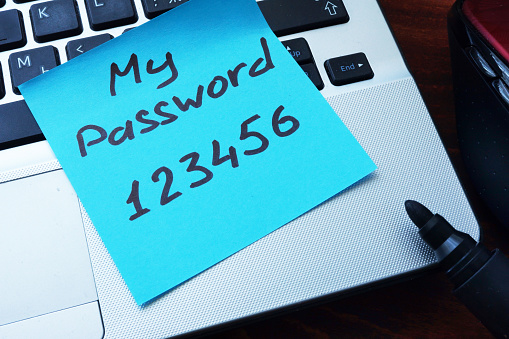
Have you considered bettering your digital life as well? Why not take steps to make it more secure? One of the easiest ways to do this is by using strong and complex passwords and change them often.
Update Passwords Regularly.
When was the last time you updated your passwords? If the answer to this question is more than 30 days ago, it’s time for a change.
Some people use passwords for years or until a system requires they update them. This could have serious consequences to your privacy. For this reason, it’s essential that you update your passwords frequently. It’s much easier to break a password that’s remained unchanged than it is to crack a password that’s changed each month.
It’s also important that you use different passwords for each one of your accounts. Using the same password for everything is like inviting hackers to steal your information. If you do this, and someone hacks into one of your accounts by figuring out your password, they would also have the password for your email, other social media accounts, online shopping sites, and perhaps even your bank account. By changing passwords across platforms, you’re further protecting your confidential information.
Invest in a Password Bank.
I know—I can hear you now: “I’m too busy to constantly change passwords and keep track of them.” This is no excuse – especially because there are applications you can use called password banks. A password bank, like LastPass or DashLane can help you keep track of the passwords you use and what accounts they’re associated with. Both free and upgraded versions are available.
You simply access your password bank with a master password that you create, or with a fingerprint on your smartphone. The password bank automatically keeps track of your passwords and ensures they’re stored securely so they can’t be hacked. Even if a criminal cracks one of your passwords, they won’t be able to break them all.
According to Verizon’s 2016 Data Breach Investigations Report, weak passwords are the cause 63% of all data breaches.
Carefully Craft Your Passwords.
If your passwords are simple they’re more likely to be discovered. It’s important that you create long and complex passwords, with a mix of upper and lower-case letters, numbers, and symbols when permitted.
Avoid using names or places in your passwords, as people who come to know you may be able to guess them. Don’t use common phrases like “iloveyou” or “1234.” A good password might be a string of numbers and letters or some other combination of information like a sentence acronym that’s specific to yourself. For example: My favorite place to eat is La Cucina Italian Restaurant – (MfpteiLCIR)
Use Two-Factor Authentication.
Two-factor authentication also referred to as multi-factor authentication, uses verification in two forms to prevent unauthorized individuals from accessing your private information. With two-factor authentication, you use an initial password login and a secondary one. In addition to entering your username and password, you must enter a designated code that’s been sent as a text to your phone.
A token or keycard can also be used for the second authentication. A token might be a device such as a USB drive. The drive generates a one-time password, and after entering the initial password as well as the one-time password, access is granted.
And remember, securing passwords is something you should do year-round, not just for the new year. Phoenix Technology can help. If you are interested in learning more about password security, contact us today at 1-800-677-7305, or click here to fill out a quick form so we can better assist you.

by Felicien | Dec 19, 2017 | Education
Getting more out of your business data is quickly becoming an industry all its own, and there are some exciting things on the horizon to help you do more, learn more, and grow more.
Data has long been your business’ most valuable and essential asset, and Business Intelligence (BI) solutions are changing the way you use that data. A modern BI approach is a sure-fire way to lift your business above your competitors, using savvy analytics to make better data-driven decisions. There are a ton of fantastic and innovative BI technologies and strategies available to today’s businesses, and these 10 trends are projected to lead the pack heading into 2018.
Artificial Intelligence and Machine Learning
Science Fiction paints a pretty terrifying picture of what advancements in AI will mean for humankind, but in reality, this technology is already proving to be a huge asset to analysts. As machine learning technology continues to improve, it’s becoming easier to automate tasks that would otherwise be labour-intensive time sucks for your staff. With the tedious work done for them, analysts can instead focus on thinking strategically about the implications of their results, and start planning next steps for your business. Unlike some other technological advancements, machine learning isn’t meant to replace human employees. Rather, its goal is to enhance the work your staff is already doing.
Natural Language Processing (NLP)
It’s estimated that half of all analytical queries will be generated using voice, search, or NLP by 2020. The power of NLP will allow staff to pose more nuanced questions of your data, and get more accurate and helpful responses as a result. While this is exciting enough on its own, the real gains where analytics are concerned will come from what developers and engineers alike are able to learn from looking closer at how people are using NLP. That way, we can make sure NLP is being applied to the types of workflows where it can have maximum impact.
Crowdsourced Data Governance
Self-service analytics are gaining popularity, granting users access to new perspectives and new information that is inspiring more innovative ways to implement governance. More than just using the wisdom of the crowd to get your hand on the right data, governance is about making sure the wrong data stays out of your system. BI solutions and analytics will be making use of this modern governance model in 2018, giving IT departments and data engineers the ability to cultivate trusted data sources.
Multi-Cloud Strategies
There has been an ongoing debate about multi-cloud solutions as more and more businesses sour on the idea of being tied to a single cloud solution. Multi-cloud strategies allow for business to work with multiple providers, finding the right vendor for a specific project or need. This increased flexibility comes with a higher overhead cost and requires your IT personnel to become familiar with multiple platforms. However, with 70 % of businesses expected to have a multi-cloud strategy in place by 2019, it’s a good idea to start looking seriously at how best to make this strategy work for your business.
The Chief Data Officer
Chief Information Officers (CIO) are nothing new, but as data and analytics become more critical to your operations, the need to strike a better balance between security and innovation has lead to a new C-level position – the Chief Data Officer (CDO). Adding a CDO or even a CAO (Chief Analytics Officer) to spearhead business process changes allows your business have a firm grasp on analytic strategy, making sure it’s part of the conversation from the get-go.
A Rise In Data Insurance
Several recent high-profile data breaches serve as a reminder of the risks and costs associated with these types of security incidents. Data is now a commodity, which means it’s only going to continue to become a bigger target for theft in the future. Quite often, there is no real consequence to the perpetrator when data theft happens, so there’s not much to deter a cybercriminal from setting their sights on your data. For that reason, more companies are expected to invest in cybersecurity insurance to protect their valuable data assets in the coming year.
The Location of Things
A subcategory of the increasingly popular Internet of Things (IoT), the “location of things” refers to devices that are able to sense and share their geographic location. The ability to capture this data can help users to add the context of location to data when assessing usage patterns. This technology can be used to track both assets and people, and can even interact with devices like smartwatches for a more personalised experience. This extra layer of typical usage data can help better inform your business strategies moving forward.
Increased Role For Data Engineers
The movement to use data to make better business decisions necessitates a larger role for data engineers in today’s businesses. With over 3500 open positions currently listed on LinkedIn, the demand for this specialty is obvious. As the need to leverage data in new and innovative ways becomes more essential, having someone on staff with a deep technical knowledge of your systems and architecture, and the ability to understand your business’ wants and needs becomes crucial.
Universities Offering More Data Science and Analytics Programs
By 2021, its estimated that 69 % of businesses will be favouring job candidates with data science and analytics skills, with jobs like Data Insights Miners and Bionic Interface Designers emerging by 2030 thanks to advancements in AI and analytics. A number of universities, including the University of Sydney and Victoria University, began adding data science courses to their offerings back in 2015, with more and more institutions adding these types of courses now and in the near future.
Liberal Arts in the Analytics Industry
The need for technology specialties is decreasing as technology platforms become easier to use. As a result, businesses are looking to other specialties such as the liberal arts to bring new perspectives into the mix. Not only can these individuals fill vacant positions within your data analytics team, but they can help you better use your data to create a vision for the future of your business that goes beyond just technical or scientific insights.
Want to learn more about the value Business Intelligence solutions can offer your business? Contact {company} at {email} or {phone}. We’re the IT professionals businesses in {city} trust.
