
by Felicien | Jul 12, 2018 | Education
If you are a fan of smart devices, then you may already have an Echo device – Amazon’s line of smart speakers that connect to other devices using Amazon’s voice-controlled personal assistant Alexa.
These Alexa-powered speakers from Amazon hit the market first before the likes of Google, Lenovo, and Apple followed suit with their own smart personal assistants. The top products in this space include:
Google Home Smart Assistant
Lenovo’s Smart Assistant
Apple’s HomePod
The Echo from Amazon
These products are taking the market by storm through Amazon’s Alexa-powered Echo, the pioneer in this world of smart speakers, remains in command of the largest market share.
Amazon Alexa supports a large number of streaming services – both free and subscription-based on Amazon devices. The voice-controlled app lets you customize practically all the voice commands you use with your speakers and intelligently keeps track of these commands for you.
With Alexa, you can enjoy convenient playback control in your home as you stream music and other media through any number of your Alexa devices. Registering your Alexa device to an Amazon account also allows you to access your Audible library and Amazon Music library automatically, taking your home entertainment to another level of convenience.
What if you have an iPhone home?
Apple devices and services are extremely selective when it comes to pairing and connecting to non-Apple services or devices. So, you may realize that Apple iTunes and Amazon Alexa do not play well together, which begs the question: is my iPhone able to connect with an Amazon Echo device?
The answer is a big YES! So pull up a chair, sit down and we’ll show you how it’s done.
Echo devices are Bluetooth enabled, which means you can control the audio playback on your device by speaking to Alexa. This is to say that you will be able to play and control your Apple music service on Amazon’s smart speakers if iPhone is what you use for your home entertainment.
Using Bluetooth to connect your iPhone to Alexa
You can connect an iPhone to the Amazon product via Bluetooth, giving you the ability to start streaming and control the audio with the following products:
1st or 2nd generation Amazon Echo
2nd gen Echo Dot
Echo Spot
Echo Show
Echo Plus
Initial pairing
The first thing you’ll have to do is get the two devices (your iPhone and the Amazon Echo device) connected.
This entails pairing the iPhone with your Echo device via Bluetooth. To do this, take your iPhone near the Alexa device that you want to pair. On your iPhone, open the Settings app. Navigate to Bluetooth and open it.
Say, “Alexa, pair” to put the Amazon Echo device in Bluetooth Pairing mode. With that command, Alexa should give you an audible acknowledgment that it is searching and confirm when your Echo device is in pairing mode.
Next, you’ll get a notification on your iPhone screen asking if you want to pair or giving you the ability to cancel the pairing request. Tap “Pair” to connect the two devices via Bluetooth.
Alexa should also give you an audible confirmation that it has just connected to [name of your iPhone], adding that now that you’re paired, you should just say “connect my phone” next time you want to reestablish the pairing.
On your Bluetooth screen, the Echo will now show as connected. You can see this by scrolling to Other Devices at the bottom where the particular Echo device appears.
Streaming music and more
Once you have paired your iPhone with Alexa, you can open the Apple Music app and select the specific song or playlist that you want to stream. You should then hear this selection play through your Echo speaker.
You can stream audio from iTunes, Apple Music, Podcasts, and even the Apple TV. You also have the option to play music from any third-party app that has audio, such as AudioBox or Pandora.
Controlling playback and more
Alexa is a voice-controlled app so you will be able to control your playback by simply speaking to it once it is playing.
You can tell the intelligent personal assistant to play, pause, raise and lower the volume, resume, and even skip ahead and back to the contents on that playlist.
You won’t be able, however, to ask Alexa to identify a song for you, nor can you make it play specific songs or other content from your iPhone. If you try asking your Alexa to play specific songs, it will simply break the connection to your iPhone and instead play music from the Amazon music source that you have set as your default choice, such as Amazon Music.
For that kind of command, Apple prefers that you use its own personal assistant Siri, so you’ll need to say “Hey Siri” for that.
Wrap Up
If you’re an iPhone owner and an Echo diehard at the same time, Bluetooth pairing is a great way to start using these amazing devices together. Though it does have its limitations, it still makes listening to your favorite music fun and easy.

by Felicien | Jul 11, 2018 | Education
Why Private Infrastructure Is Better Than Multi-Tenant
Whenever you want to choose an appropriate cloud infrastructure, begin by asking yourself a number of questions. One of the most obvious questions is:
Which is better? Private or public cloud infrastructure?
You definitely need an option that assures you of good performance, affordable costs, strong data security, and flexibility. There are two main options to choose from: a multi-tenant infrastructure and a private infrastructure.
While cost, flexibility, data security, and great performance are important requirements for both options, the big question here is: Do you want to share a cloud infrastructure with others? There are advantages and disadvantages to whichever option you go for.
Multi-tenant cloud infrastructure
Multi-tenant infrastructure is a cloud computing facility that allows a number of customers (tenants) to host their data at the same facility and share computing tools and resources. Two of the most popular multi-tenant cloud infrastructures are Amazon EC2 and Microsoft Azure. Multi-tenant cloud infrastructure is good for the development of web servers or management of security and compliance needs for big data centers.
Benefits of multi-tenant infrastructure
A pay-as-you-go utility model. This model is designed to ensure that you pay for the resources you use by the hour. This utility model is very convenient and economical especially if you are re-working your development servers frequently.
A self-managed system. The multi-tenant cloud infrastructure is a self-managed system, which means you can manage and store your data in a way that best suits your business. You can also use this infrastructure to set up and manage the details of your server(s).
Shared hardware. Multi-tenant infrastructure is a public cloud, which means that you will be sharing hardware, a network device, and a storage facility with fellow tenants in the infrastructure.
No contracts limiting you to the use of cloud infrastructure. The utility model adopted by multi-tenant clouds charges you by the hour. You only pay for your time on the infrastructure so if you want to shut your server down after an hour or two of use, there’s no contract limiting you from doing so.
Single-tenant Cloud Infrastructure
By definition, a private cloud infrastructure is a cloud hosting service that accommodates a single tenant. The infrastructure has hardware, storage equipment, and a network system dedicated to serving the needs of one tenant. A well-known example of a single tenant hosting service is the Virtual Private Cloud hosting. This is a facility which lets companies access a network on their platform by renting independent hardware slices and establishing a private subnet on the slice.
Unlike public or multi-tenant cloud hosting, private cloud hosting infrastructure does not have utility models that let you pay-as-you-go as you work on their platforms. However, there’s a version of private cloud hosting, Virtual Private Clouds, which have adopted the utility model.
Single-tenant clouds are generally suitable for mid- and large-size organizations because they have advanced flexibility and have attained compliance requirements preferred by large organizations.
Benefits of private cloud infrastructure
Better security: Single tenant clouds enjoy better security and privacy because the whole facility is dedicated to one client. The hardware, storage, and network device can be customized to ensure uttermost performance for the client. There are no risks of another tenant accessing the client’s server data or sharing their data computing tools.
Customizable infrastructure: There’s only one client using the facility so customizing the infrastructure will not affect any party. The hardware, storage, and network device can be customized to give the customer utmost satisfaction.
Hybrid deployments: Hybrid deployments are tweaks that improve a client’s server performance. If the client’s server is required to operate at optimal speeds or run a high-speed application, a custom peripheral hardware can be integrated into the single-tenant cloud to hybrid the dedicated server with a virtual server for increased data processing speeds.
Security compliance: Security compliance is a big deal for large organizations. Sarbanes Oxley, PCI, and HIPAA compliance can be initiated using private cloud deployment because private cloud hosting has a sufficient data storage device, stronger network system, better security and better hardware, all dedicated to one client.
Why private infrastructure is better than multi-tenant cloud infrastructure
Private and shared cloud infrastructure both serve the same general purpose but private infrastructure gives you more independence and more control over the facility and resources. Many organizations, especially large organizations with big data centers don’t fully trust multi-tenant cloud hosting services.
Even though shared cloud hosting has some benefits over private hosting, private hosting is simply viewed as safer and more efficient. Here are general reasons why a private infrastructure would serve your needs better than a multi-tenant cloud infrastructure:
Gives you better security
Allows you uttermost privacy
All resources dedicated to one client
Makes deployment of security compliance easier
Allows for hybrid deployments
Ease of product upgrades
More convenience
Both private and multi-tenant cloud infrastructure has numerous potential advantages for your business, but not all models will give you the same level of satisfaction. The different infrastructure allows for various deployment options with diverse impacts on your organization. When choosing a cloud hosting infrastructure, go for an option that will keep your data safe and secure. Make sure it’s flexible, fast, and affordable. Insist on the level of service your business needs to excel in the marketplace.
If you enjoyed this article, please check these out:
Cybersecurity Risks (Problems/Fixes)
There’s A New Ransomware That Can Access Your Emails In The Cloud!
Is Your Small Business Vulnerable To A Malware Attack?

by Felicien | Jul 11, 2018 | Education
Recently healthcare providers have moved toward Cloud services to assist them with better service delivery. The fact is that the Cloud has gained popularity in healthcare. Some organizations that provide healthcare services are still not convinced that the Cloud is the way to go, but those that want to remain relevant have already made the worthy investment. There are different ways in which providers in healthcare depend on the Cloud in order to provide good medical services.
To start off, there is the data storage. Data is backed up in the Cloud and retrieved easily. Second, there is the Cloud app service where providers and patients can connect and have real-time conversations and consultations. These apps can be installed in different devices such as computers and phones that are powered by iOS, Android, and Windows. Lastly, the Cloud provides a platform where providers can post useful resources for reference. These resources could be researched by other physicians. They might include statistics in a given field of medicine, information explaining certain medical conditions, or maybe just simple medical articles.
What are the Benefits in Utilizing the Healthcare Cloud?
Storage
Healthcare organizations collect so much data from their patients for different reasons. The Cloud is the most efficient way of storing data because the information is not only stored in a computer but also backed up with an option of uploading it anytime anywhere. Data stored in the Cloud can be accessed from any device and if the primary computer system is compromised, the same data can be retrieved easily. The best part is that this kind of storage option helps to offload some data from the primary storage in computers and also ensure data security.
Storing and sending large files is now possible through the Cloud. Previously, files such as those containing patient genomic data could not be shared due to their size, which made it very expensive. The launch of Collaborative Cancer Cloud (CCC) has made it possible for the genomic data to be analyzed without necessarily risking health data privacy. Furthermore, CCC is aiming to improve data sharing while maintaining control of the data as explained by Eric Dishman, the Intel Fellow and General Manager of Intel Health &Life Sciences Group for HealthITSecurity.com.
Increased Security
The Cloud offers offsite storage and thus reduces the likelihood of someone stealing or interfering with sensitive data as it is not kept on a computer.
There are different ways of installing and managing Cloud services. There is the private cloud, public cloud, and also a hybrid of the two. These three kinds of Clouds offer varying security options. Private clouds can be hosted in an organization’s data center, or have the private cloud on a remote server which can be hosted by a Cloud service provider.
An on-premises private Cloud has the best security options mainly because control over the network is retained by the organization. It is a preferred option for those large organizations with IT departments equipped with staff that is well trained on cyber-security measures.
Public clouds, on the other hand, are an online platform for storage.
A hybrid of both would be a situation where there is a combination of the on-premises private cloud and third-party public services.
The Barriers to Utilizing Healthcare Cloud
Security and Privacy
Security is a legitimate concern when it comes to Cloud storage and more especially when it is patient data. Before an organization embarks on securing Cloud networks, they should ensure that security concerns are addressed from the onset. Basic data security options should be installed along with the Cloud computing. For starters, health entities can enter into some kind of agreement between them and the Cloud service providers setting out the limits of liability. Employees must also be trained in basic cybersecurity Dos and Don’ts.
Data Control
Organizations worry that with the implementation of the Cloud, they will lose control over their own data. The only way to counter this kind of fear is to create a trust relationship between the organization and managed IT service provider. This can be achieved by entering into legally binding contracts such as the Business Associate Agreement.
Organizations can still manage their own data remotely and exclude outsiders from accessing data by requiring data encryption and also using managing keys. They also have the option of deciding where they want to store specific data if they want it on only one network, several networks, or even a link.
Wrap Up
The Cloud offers great solutions with a number of benefits. At the same time, there are red lights which cannot be ignored. Most of these pitfalls have been mitigated as this technology has developed. What healthcare organizations should do is conduct thorough research before they decide to install Cloud network services. It’s important to get these services tailored to suit the specific needs of the organization.
by Felicien | Jul 11, 2018 | Education
Microsoft Office 2016 is now using artificial intelligence to make your life easier. MS has added AI to their platforms with their new Smart Lookup feature. This makes fact-finding much easier as you can look up what you need right from within the document you’re working on.
Do you know how to use the Smart Lookup Feature Office 2016? You don’t? Well, we’re going to change that right now. And, by the way, feel free to share these “secrets” with your co-workers.
What Is Smart Lookup?
It’s a cool new feature in the Office 2016 Suite that lets you look up information quickly from the document you’re working on using the Bing Search Engine. Smart Lookup automatically finds the information you need.
To get going, open a document in your Office 2016 program of choice (Word, Excel, or PowerPoint).
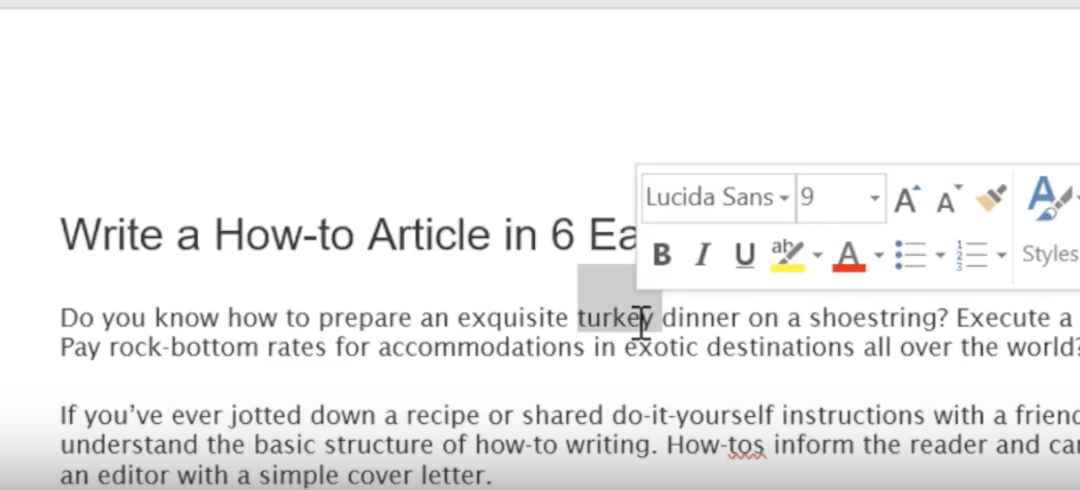
Then, highlight a term or phrase in the document that you’d like to search for.
Here we’ve selected “turkey.”
Leaving the word highlighted, go to the Ribbon at the top of the window and select REVIEW > SMART LOOKUP.
Note: You can only do this once you’ve read through and acknowledged the Privacy Policy.
Microsoft will post the Privacy Policy on the right side of your screen. Read it and click “Got It” and you can proceed. You’ll only need to do this one time to activate Smart Lookup throughout your entire Office Suite of tools.
Since Microsoft sends your data to Bing, it doesn’t turn Smart Lookup on by default. You may need to contact your IT department for assistance.
If you use a Mac as I do, it’s a bit different. Instead, go to Tools at the top of your screen, and you’ll find Smart Lookup here.
The Bing search results will appear in the panel to the right. (The Insights Task Pane)
Now, take a close look at the Insight Task Pane. You’ll see two options: Explore and Define
Explore contains search results like photos and articles. Define provides a definition of the word.
Easy right? I hope this helped!
Would You Like To Learn More Office 2016 Tips?
Keep reading!
Do You Know How To Customize The Ribbon And Quick Access Toolbar?
Doing this can save you tons of time. You’ll have your favorite tools lined up in your Ribbon for easy access.
To get going, right-click on the ribbon itself and select “Customize the Ribbon.” (You can also do this from your Quick Access Toolbar which you can find in the upper left corner of your computer screen.)
Click the View Menu to open the Ribbon.
Most of the commands you’ll want to add can be found under Insert Menu. Choose the Layout tab and click the command you want for your Page Setup.
Do You Know About The “Tell Me What You Want to Do” Feature?
Actually, Word 2016 will do the work for you. In the past, you had to type in an entire phrase like: “How do I add a hyperlink?” Now, all you have to do is type the word “link” and Word will bring up options for you. Word is much smarter than it used to be!
As a matter of fact, this feature works in all of Microsoft’s solutions.
Are You Familiar With Quick Parts?
These are much like miniature macros that save content you use often (like your company’s information).
It’s easy to create a Quick Part.
Key in the phrase, sentence, or word you want to save. Highlight it and click the Insert tab in the Text group, then click Quick Parts.
Now save it to the Auto Text Gallery.
Next, you’ll need to create a New Building Block. The data is stored for you to use in the future.
Create building block names that are unique, or they won’t show up when you type the text. If you create a lot of building blocks, you can organize them in Galleries and Categories.
When you need to use your text, put your cursor where you want to insert the text and go to Quick Part>AutoText. Your text will appear.
The Building Block Organizer stores Quick Parts Auto Texts in alphabetical order. If you want to change this, go to Edit Properties. Here you’ll find pre-designed blocks of text you can insert into your document.
These Building Block galleries can be found throughout Word. They have preformatted:
Page Numbers
Text Boxes
Cover Pages
Headers
Footers
Quick Tables
Tables of Contents
Watermarks
Bibliographies
Equations
You can customize each Building Block to suit your needs. And, as mentioned, you can create custom Building Blocks and add them to their relevant galleries.
We’ve revealed quite a few Office 2016 secrets now. But there are plenty more that we’ll share in future articles.

by Felicien | Jul 10, 2018 | Education
Are You Prepared for Windows 7 End of Life?
Windows 7 has been one of the most successful operating systems developed by Microsoft. Its resilience has been boosted by many conspiracies and controversies surrounding Windows 8. In fact, millions of organizations skipped the Windows 8 upgrade and stuck with Window 7. Many businesses are still not convinced that Windows 10 is any better than Windows 8. Even though there are numerous valid reasons to stay with Windows 7, it’s time to start preparing for the inevitable upgrade.
January 2020 will be the end of the road for Windows 7. This means that Microsoft will put an end to Windows 7 security updates, bug fixes, and all support, thereby implementing its end of life. Until then, you can enjoy the operating system’s extended support as Microsoft works on phasing it out. As of now, the manufacturer is still offering paid support for the operating system but has terminated all the complimentary updates that come with the product license.
Support Status for Windows 7
Like many Microsoft products, Windows 7 came with a predetermined support timeline. It’s good to know a product’s support lifecycle so that you know when to upgrade. The conventional mainstream support for Microsoft’s operating system stopped developing Windows 7 updates on January 13, 2015. This means that Microsoft no longer provides bug fixes and security updates for the operating system.
With that in mind, the company will still provide some security patches through the extended support phase. This extended support period will run until January 14, 2020. After this date, there will be no more security fixes and updates thereby marking the official Windows 7 End of Life.
However, there’s absolutely nothing stopping you from using Windows 7 even after its End of Life. But you should know that using an outdated operating system makes your computer vulnerable to cyber-attacks.
For instance, many organizations that stayed with Windows XP long after the expiry of its lifecycle suffered serious cyber attacks from infamous hackers like the WannaCry ransomware. There’s a good chance that attackers are already working on how they can exploit the vulnerabilities that will be created when Microsoft ends their extended support period for Windows 7.
Why Microsoft has to end Windows 7 support
Microsoft has a policy stipulating how the life of a product starts and how it ends. Normally, the life of a Microsoft product begins when it is released into the market and ends when the company stops providing support. This is how Microsoft OS lifecycles start and end.
More importantly, Microsoft needs to sell its latest operating systems, which are Windows 8 and Windows 10. To do that effectively, they must preside over the death of the older operating systems. The tech giant has already started blocking updates through some machines so it may be necessary to start preparing now for the eventuality that you may not be able to get any new updates.
What Windows 7 End of Life means to you
Imagine using a product that a company doesn’t want to take responsibility for anymore. You’ll be using the product at your own risk. This means that Microsoft will not take responsibility for loss of data due to security breaches on Windows 7.
New Malware is developed daily so it’s important to understand that anyone continuing to use Windows 7 could be more vulnerable. Without regular patches and security updates, you’re basically at the mercy of hackers. Most users don’t want to take the risk of losing important data and having to deal with a cyber breach.
Preparing for Windows 7 End of Life
Now you know that the Windows 7 OS will not be a safe product to use over the internet in a couple of years. So you have to ask yourself if you’re ready to move into the future with the more modern Windows 10 operating system. Windows 10 gets regular patches and updates to keep it secure. It will install on most devices and machines with no problems or issues, but Microsoft does have a vast array of help and support documents on their website in case you run into trouble.
For enterprise upgrades, it’s best to seek the help of an IT professional. This is a good way to ensure that everything is upgraded correctly and that all firewalls and antivirus are in place and working optimally. Depending on what type of hardware and software you’re using, you may need to take specific steps to make sure everything is fully compatible.
Wrap Up
We all dislike change; it’s just normal. But when it comes to something important like your operating system, your company and staff will benefit by having the latest Microsoft products installed. Each year, all-new features are added to Windows operating systems to make them easier to use and give users a better experience. Once your team knows how to use all these great features, they can save time while producing better documents, spreadsheets, PowerPoint displays and such.
