
by Felicien | Sep 5, 2018 | Education
What Is Instagram And How Is It Vulnerable?
Instagram is a recently created social media site that allows users to share images and videos. It is owned by the same soul that owns Facebook, Mark Zuckerberg. Originally created in the partnership of Kevin Systrom and Mike Krieger, and officially launched in 2010, it first appeared on iOS before its increasing popularity brought it to Android in 2012 and Windows in 2016. Its features include editing filters, messaging, location display, tag browsing in searchers, content ‘liking,’ and trend viewing.
Last year, the service reported that they had 800 million users, only five years after being purchased by Facebook. Bought for $1 billion, 40 billion people all over the world have been uploading images for years. While it is generally considered a beneficial and popular social media app, the software has been targeted by critics for several reasons:
Changes to interface features and use policy
The nature of censorship used
The ability for users to upload content that’s illegal or inappropriate.
Many aspects of the service are potentially vulnerable. Users have reported that their passwords were hacked. Google searches currently display websites instructing users how to hack passwords in the first few pages of search results. Hacked accounts can potentially lead to a wide range of problems, which may include social inappropriateness, crime, businesses negatively impacted, and more.
What Examples Are There Of Recent Account Hack Risks?
Security professionals believe that Instagram account users should better understand the specific security risks related to the use of this software. Many people sign up each day with no understanding of the various ways hackers can get into their account and use it for personal gain. Of course, Instagram advises users to create strong passwords. This is the first and most important step to prevent hackers from getting into your Instagram account.
Below are a few tips on creating strong passwords:
This: 378jsoTTkm84 NOT This: password1234
The password on the right would be cracked by hackers in less than one second. Here’s a website where you can check the strength of your passwords to see if they are good enough to fool hackers.
Guess how long it would take to Bruteforce the password on the left? 33 centuries (Quite a long time). Below are a few more to try in the password checker:
Account123: This password would be bruteforced in 21 minutes.
Home1234: 5 minutes
Car2233: 20 hours (better)
Many people use their own name or their pet’s name with a series of numbers after it. These are usually very easy to crack as well.
Charles1234: 3 minutes to crack
Rover2323: 46 minutes (woof-woof!)
Carol3434: 4 minutes
Spot8888: 18 minutes
Two-Step Authentication
Two-step authentication is one of the best and simplest ways to provide your account with the high level of security it requires. You can go a step further and use biometric authentication. This solution uses your fingerprint and/or photo of your iris as a password to your account. New ways to protect users from hackers are constantly being created.
Getting Lock Out
Some users have been locked out of their accounts when hackers took control of them. This can be scary and infuriating. The Sun reported on an ‘epidemic’ hacking of Instagram that occurred when hackers in Russia took over many popular accounts, then changed the names and photos. Some users reported that it took them weeks to get their accounts back. They said that Instagram wasn’t very helpful so they had to do a lot of the work themselves.
Despite improvements in security, hackers have increasingly been able to break into all types of software programs, social media platforms, email accounts, and even company databases There seems to be nowhere that hackers can’t go if they want to. They apparently have the tools, resources and backing to focus all their efforts on hacking day in and day out.
Some of these hackers are sponsored by big governments like China and Russia. These countries have realized how much money there is in hacking and they seem to have no conscience about committing this crime. One good ransomware attack against your company could net thieves $30,000 or $40,000. Most people will pay the ransom to get their files back, though this doesn’t always ensure that you will.
Instagram Security Improves
Instagram security has been improving in a number of ways. They are now being upfront in the media about the hacking experiences their customers are enduring. They have stated that they will continue to dedicate themselves to addressing all reports of hacks. With each one, they will:
Record all the details of what happened
Examine the relevant security aspects
Get the customer’s account restored as quickly as possible
Improve the relevant software through updates
Make or suggest any other improvements that could prevent the breach from occurring again
Mashable Gets Hacked Too
In a recent article, Mashable explained that some of their users were having the same experiences as those on Instagram. Hackers would break in, change the name on the account, change the photos and pretty much just take it over. Even contact information and profile image were changed, leaving account holders to scratch their heads. It’s a story being told more and more often.
“It’s embarrassing and frustrating to feel so vulnerable,” said one Mashable patron.
How Could My Account Be Hacked And What Resources Exist For Security?
Users should be aware that accounts can be hacked by:
A forgotten password hack
Coding
Phishing
CheatDroid
A range of third-party applications
Conclusion
UGTechMag is a good source of online guides and tips available to help protect users. It’s best for Instagram users to learn all they can about how to keep their account secure. Today, it takes a proactive approach. All over the world, hackers are working non-stop to find ways to hack into your computer, your network, your social media accounts, your email … whatever they can do to find personal information about you and use this to exploit you – that’s what they’ll do. That puts each of us in the position of having to remain vigilant and proactive. We must each do everything possible to protect ourselves from cyber thieves.
by Felicien | Sep 4, 2018 | Education
Does it make you nervous when you consider how much of your personal information is essentially spread all over the internet? In spite of antivirus programs and firewalls, all data is somewhat at risk on the web. One of the most proven techniques to ensure your data is safe is to use a virtual private network (VPN), which will give you back control over how you’re identified online. With the constant news of data breaches, most of us are tired of hearing that our personal information was lost yet again by a large credit reporting agency or some retailer.
VPN Explained
A VPN constructs a virtual encrypted tunnel that runs between you and a remote server controlled by a VPN service. All outside internet traffic is transmitted through this passageway, so your data is not spied upon as you put it out there on the internet. Also, your computer looks as if it has the IP address of the VPN server, so your identity is hidden.
When you put your data out to the VPN server, it exits back out to the public internet. If the site you’re visiting has HTTPS to keep the connection safe, you are still secure. But even if it was intercepted by a third party, it’s challenging for the outside party to trace the data back to you, since it appears to be coming from a VPN server.
VPN in Real Life
Let’s look at an all too familiar scenario to understand the value of a VPN in your everyday life. When using a public Wi-Fi network at a popular spot, such as coffee shop or airport, you typically connect without giving it much thought. But unbeknownst to you, there may be people watching the traffic on that network. Can you be sure the Wi-Fi network that gave you quick access is secure, or could it be operated by a hacker who is after your personal data? While you are busy taking care of your business waiting on a plane or a meeting, your banking and credit card information, and all your private data could be delivered to the hacker on a silver platter.
It is extremely tough to tell whether or not a Wi-Fi network is what it appears to be. You could be at a coffee shop called Java Joe’s, and you link to a public Wi-Fi network that says JavaJoes. But that doesn’t mean the server you are on is really owned by that coffee shop. A hacker can put out their own server with similar wording to the coffee shop’s server, and sometimes it even has a better signal.
Now, if you connect to that same public Wi-Fi network using a VPN, you can be sure no thief will be able to steal your data. If there are hackers seeking for would-be victims, they can’t touch your computer.
VPN and the Government
We all would like to think that the government is on our side. Perhaps some of its agencies are only online snooping for terrorists and Wall Street insiders. Unfortunately, news of the Snowden leaks and Russian online infiltration have shown us that a government’s surveillance capability is massive in scope.
The NSA (National Security Agency) has the ability to intercept and explore almost every communication that is being sent out on the web. When using a VPN, you can have the peace of mind knowing that your encrypted information is less directly traceable back to you.
The Federal Communications Commission has recently turned back Obama-era rules that were made to protect net neutrality, and this opened the door for internet service providers (ISPs) to make money off your data. Now they are able to gather huge amounts of information about you, and then use it to tailor advertising. Often, these companies sell your data to other companies.
Your ISP is basically your gateway to the entirety of the internet. Most of us have limited home ISP choices, and some only have one ISP that provides wired internet access. Now that ISPs are allowed to sell data from consumers, it makes us easy targets. Do you ever wonder why your Google search for a product, and then that product shows up in advertisements on every page you go to for the next few days? Your ISP could be sharing your data and profiting off your personal searches.
The Unique Protection of a VPN
When the internet was first becoming popular, there wasn’t a demand for security or privacy. In the beginning, shared computers at research institutions made computing power very limited. The use of encryption would have made things extremely problematic.
Today, the average user has multiple devices connected to the web. It is up to individual users to protect themselves. Antivirus apps and password managers are a key factor in keeping you secure online, but a VPN is a uniquely powerful tool that will keep you safe in today’s connected world.

by Felicien | Sep 4, 2018 | Education
Why are Tech Giants Diving into the Health Care Business?
In a report by Christian Holz and Edward Wang of Microsoft Research, the researchers revealed that Microsoft is creating eyeglasses that measure blood pressure. What Microsoft is calling Glabella, the glasses are equipped with optical sensors hidden inside the frame. These sensors can recurrently measure pulse waves at three different locations on the face. By gauging the time and rate between these three areas and the heart, it can determine the user’s blood pressure. Concurrently, the eyewear can be used as an activity tracker as it also collects information on the individual’s physical activity.
Tech Giants Clamoring to Enter the HealthCare World
Microsoft’s newest eyeglass patent arrives on the heels of its rivals. Apple, Google, Amazon, and Samsung have also filed patents for products in the area of healthcare technology. Google has already filed a patent for eyeglasses that monitor heart rate and Apple recently filed a patent application for a monitoring cuff that measures blood pressure. Samsung’s forthcoming new Galaxy Watch is rumored to be able to calculate your heart rate by using polarized light that can identify the amount of the scattered light.
Amazon is working on a new partnership with JPMorgan Chase and Warren Buffett. Apple is building state-of-the-art medical clinics. Google’s umbrella company Alphabet, is entering the Medicaid market with plans to serve low-income urban residents covered by Medicaid and Medicare. Also, studies show that more and more people are opting out of emergency ambulance service in favor of Uber taking them to the hospital.
Why Are these Tech Giants Making Big Health Care Moves?
Why are the most proven and forward-thinking companies in the field of technology deciding that healthcare should be their next big move? With technology rapidly advancing, these tech titans are noticing a health care system full of administrative ineptitudes, out of control prices, and frustrated customers. To the movers and shakers in Silicon Valley, they see this as a huge opportunity to enter the complex world of health care and make it better.
The Pros and Cons of Tech Businesses in the Healthcare Field
Is health care similar to other areas of the economy that Silicon Valley currently manages? Health care is one-sixth of the American economy, and it is currently managed by a scrambled assortment of manufacturers, providers, administrators, payers, and patients. The complex, murky, and massive healthcare industry has many vested players. They aren’t going to stand idly by and allow Silicon Valley to unseat them.
Also, health care operates in a highly regulatory environment with its complex interactions between patients, health providers, and insurers. For example, Amazon has taken interest in online pharmacies. Look at the complexity of entering the pharmacy world:
The Food and Drug Administration regulates drugs.
Health insurers try to rein in their drug costs.
Drug manufacturers set their own list prices.
Pharmacy managers coordinate deals between health insurers and drug manufacturers.
Consumers are trying to traverse through all this complexity and get their medications at the lowest prices.
In contrast, the benefits of the tech giants’ entrance into the healthcare industry cannot be overstated. Electronic medical records, mobile phones, and health assisting apps have slowly received widespread implementation by the healthcare world. The conglomeration of the two worlds has been at play for several years now. And yet, health care is still incredibly timid in its use of information and consumer technologies.
With the huge amount of money at stake in health care, the tech world’s disruption of this industry could be just what the doctor ordered. Imagine companies like Microsoft adding their knowledge, expertise, organizational skills, operational know-how, and other advantages to the healthcare industry. Patients will receive much better care at a fraction of the cost.
Can They Just Get Along?
Whenever the new kid shows up on the block, there is always fear, mistrust, and jealousy that is felt throughout the neighborhood. In order for tech companies to succeed in the healthcare market, they will ultimately need to forge relationships with professionals who are deeply rooted in this tangled system.
But when push comes to shove, they both can learn from each other. Case in point: Microsoft’s Glabella, which will try to replace the traditional cuff monitor with eyeglasses for tracking blood pressure. The sensors on this new product have only been shown to be accurate for taking the systolic pressure. For optimum accuracy, blood pressure should be measured by taking both systolic pressure and diastolic pressure.
According to the CDC: “The first number, called systolic blood pressure, measures the pressure in your blood vessels when your heart beats. The second number, called diastolic blood pressure, measures the pressure in your blood vessels when your heart rests between beats.”
While systolic pressure is commonly recognized to be more important than diastolic pressure, both readings are important. Systolic pressure is better at assessing your risk of having a stroke or heart attack. Diastolic pressure shows whether or not the heart is relaxing enough and can help doctors prevent future cardiovascular problems in a patient.
As Microsoft’s prototype medical device evolves, developing a way to measure both systolic and diastolic pressure is a perfect example of why the tech and healthcare people need to find common ground in the modern world.
Wrap Up
Consumers in general will benefit greatly from the excellence that companies like Google, Apple, and Microsoft can bring to the healthcare industry. And, most people will agree that this is one area that has not been well-organized for many years. Pharmaceutical companies are well-known for suddenly raising the price of drugs to ten times what they were for no apparent reason. With these tech giants in control, prices should be reasonable. They should stabilize. Care should be improved as well. And with wearable healthcare devices, people will be able to better monitor their health.
In the end, consumers will be the real winners here. For too many years, the healthcare industry has loomed out of control and missed opportunities to provide better care for patients. Their bottom line has always been profit over patient care. With these tech giants now pushing forward, we can expect all that to change.
by Felicien | Sep 4, 2018 | Education
Are You Ready For Tropical Storm Gordon?
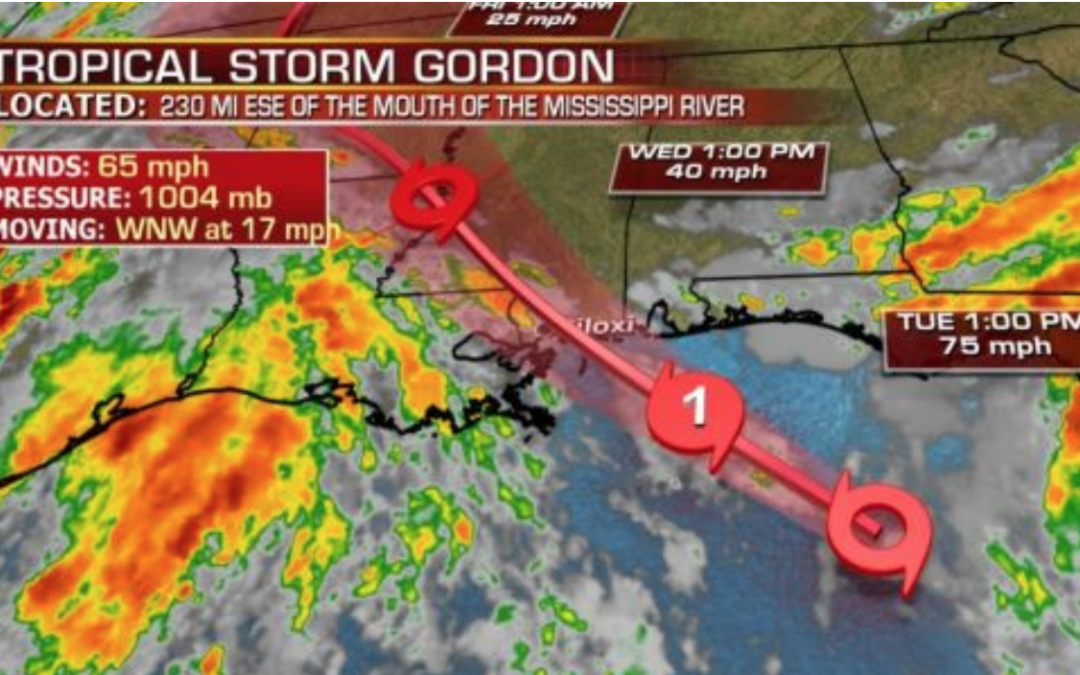
Gordon made landfall over the southern tip of the Florida Peninsula on Monday, September 3rd.
It’s now predicted to make its 2nd landfall as a Category 1 Hurricane over the central Gulf Coast from Louisiana to Mississippi late today (Sept 4th).
Are you ready for the storm?
(Courtesy of Fox News)
Tropical Storm Gordon is continuing to gain strength this morning and is expected to become a hurricane by the time it hits the central U.S. Gulf Coast, including coastal Mississippi.
Voluntary evacuation orders have been issued for parts of Louisiana for residents in areas outside the levee protection system.
We’re looking a 3 to 5-foot storm surge along the coasts. And the Weather Channel is predicting 75 mph winds on the Alabama and Mississippi borders. They also warn that there will be flooding inland, so even if you’re away from the coast, you should still make plans to protect your property. That means your business technology.
Here’s What You Should Do Now:
Make sure all of your computer equipment is off the floor, in case of flooding.
Back up all of your critical data in case your computers fail.
Unplug all of your computers when you leave the office.
Make sure everyone reviews your disaster plan in case you need to put it into action.
Keep backup copies of your important documents, such as insurance documents and vendor contact information. Take them to an area that won’t be affected by flooding or high winds.
According to FEMA you should also take these precautions NOW:
(ELEVATE, WATERPROOF, AND CLEAR DEBRIS Your goal now, before a flood occurs, is to reduce the risk of damage to structures from flooding.
This means elevating critical utilities, such as electrical panels, switches, sockets, wiring, appliances, and heating systems, and waterproofing basements. In areas with repetitive flooding, consider elevating the entire structure.
Make sure that basements are waterproofed and that your sump pump is working and then install a battery-operated backup in case of a power failure. Installing a water alarm will also let you know if water is accumulating in your basement.
Clear debris from gutters and downspouts. Anchor any fuel tanks. Move furniture, valuables, and important documents to a safe place.
Know your evacuation routes; plan your transportation and a place to stay. The safest way to survive a flood is to evacuate the area if advised to leave. To ensure that you will be able to act quickly should the need arise, you need to plan ahead. – Know your community’s local flood evacuation plan and identify several escape routes for your location if roads are blocked; include plans to evacuate people with disabilities and others with access and functional needs, pets, service animals, and livestock.
If you will evacuate by car, keep your car fueled and in good condition. Keep emergency supplies and a change of clothes in your car.
If you will need to share transportation, make arrangements now.
If you will need to use public transportation, including paratransit, contact your local government emergency management agency to ask how an evacuation will work, how you will get current information during an evacuation, the location of staging areas, and other information.
If you need to relocate for an extended period of time, identify a place away from home now where you could go if you had to leave. Consider family or friends who live outside of the local area.
If you expect to go to a shelter after evacuating, download the American Red Cross Shelter Finder app. This app displays open American Red Cross shelters and provides the capacity and current population of each shelter. Visit https://www.redcross.org/get-help/disaster-relief-and-recovery-services/find-an-open-shelter.html You can also text SHELTER + your ZIP code to 43362 (4FEMA) to find the nearest shelter in your area.
If you have pets and plan to go to a shelter, call to inquire whether the shelter can accommodate your pets. Shelters will accept service animals.
Imminent Flooding Action Plan (Courtesy of Interstate Restoration)
If you are in an area where flooding or flash flooding has been an afterthought, and are suddenly facing the possibility of a flood, or you simply haven’t prepared, your top priority should be the safety of customers and employees. Here are some key steps to protecting people and your business:
Pay attention—In addition to listening to local weather alerts, keep an eye out in your area for signs of trouble.
Don’t wait to move or act—If there is a chance of flash flooding that could impact your business or leave people trapped in your business, heed official advice for evacuations or other measures and carefully consider the best evacuation routes. Remember as little as six inches of fast-moving water can sweep a person away, and two feet of running water can move a vehicle.
If you have time, grab key documents and information—Hopefully, you have backups of key insurance and business information at another safe site. If not, and the circumstances allow, try to get your most important documents and information to a safe place.
Be safe everyone. Remember, we’re here to help with the restoration of your technology if you need it.
by Felicien | Sep 3, 2018 | Education
Happy Labor Day (Labour Day – International Workers Day – May Day)!
You’ve worked hard all summer. This Labor Day before going back to work and back to school, take some time to relax and enjoy one more backyard barbeque, one more trip to the beach, one more night sleeping under the stars, one more bonfire, and create one perfect summer memory. After all, you’ve earned it!
When Is Labor Day Celebrated Around The World?
In both Canada and the United States, Labor Day is celebrated on the first Monday in September. It’s to honor the achievements of American and Canadian workers. In Australia, it’s celebrated on different days according to which state/territory you’re in.
For some countries around the world, it’s connected to International Workers’ Day that’s celebrated every May 1st. And yet for others, it’s celebrated on different dates that hold a unique significance for their labor movement. Over 80 countries around the world celebrate International Workers’ Day on May 1st.
The History Of Labor Day In The U.S.
The first national Labor Day was held in 1885. The late 1800s was in the height of the Industrial Revolution in the U.S. At this time, the average laborer worked 12 hours a day, 7 days a week. Plus, children ages 5 and above worked in factories, mills and even in mines.
On May 11, 1894, laborers in Chicago working at the Pullman Palace Car Company went on strike. They were protesting wage cuts and the firing of union representatives. Because of the massive unrest, it caused, and to repair relations with American workers, Congress made Labor Day a legal holiday.
As the story goes (no one is really sure) Peter J. McGuire, general secretary of the Brotherhood of Carpenters and Joiners and a co-founder of the American Federation of Labor, suggested we honor our workers.
But some believe that Matthew Maguire, a machinist, was the founder of Labor Day. He was also the secretary of Local 344 of the International Association of Machinists in Paterson, N.J., and it’s said that in 1882 he proposed we have a holiday to celebrate the work our laborers do. At this time he was serving as secretary of the Central Labor Union in New York.
The History Of Labour Day In Canada
In 1872 the Toronto Trades Assembly organized Canada’s first demonstration for worker’s rights. It was held to promote the release of 24 leaders of the Toronto Typographical Union who were imprisoned due to a strike they held for a nine-hour working day. Trade unions were illegal at this time.
There was such an uprising of support that the house of Canada’s first prime minister, Sir John Macdonald promised to repeal all Canadian laws against trade unions. This led to the Canadian Labour Congress in 1883.
In 1894, Labour Day which had been celebrated in the spring, was changed to the fall to be held on the same day as the U.S. The celebration of workers’ rights continues, and many Canadians take the day to relax, take a late summer trip or get together with family and friends at picnics, fairs, and festivals.
Labour Day In Australia
Labour Day in Australia is held to honor the granting of the 8-hour working day and to recognize the contributions of workers to the country’s economy. Before then, the workday was 12 hours and people worked 6 days a week.
In Australia, Labour Day varies between its different states and territories.
In New South Wales and South Australia, Labour Day is celebrated on the first Monday in October.
In Tasmania and Victoria, it’s recognized on the second Monday in March. (Tasmania calls it the Eight Hours Day).
Western Australia celebrates Labour Day on the first Monday in March.
Queensland and the Northern Territory celebrate it on the first Monday in May, and they call it May Day.
On Christmas Island, they celebrate it on the fourth Monday in March.
Labour Day Is Called May Day In The United Kingdom
May Day is a bank holiday in the UK and coincides with Labour Day. It’s also known as Labour Day. It’s commemorated on the first day of May each year.
May Day goes as far back as the Gaelic festival Beltane. In Britain, communities celebrate May Day with village gatherings where folks erect a maypole with ribbons attached that children and adults hold onto while dancing.
A competition is typically held to name one of the girls the May Queen in honor of the Roman goddess Flora. The winner then dresses in a white gown and a crown of flowers is placed on her head. Then, she leads the others in a May Day parade.
Labor Day/Labour Day/ May Day/ International Workers Day
Labor Day, Labour Day, May Day or International Workers’ Day, it’s a public holiday for all to enjoy. Whatever you call it, Labor Day constitutes an annual national tribute to the contributions workers have made to the prosperity of our countries. So, take the time to celebrate. You work hard, and you deserve a nice long weekend!
