by Felicien | Sep 10, 2018 | Education
As convenient as our interconnected world has become, it has also made us vulnerable to an attack from hackers wanting to make a quick buck. Internet pirates are targeting defenseless networks with the sole purpose of hijacking our personal devices for use in their criminal activity.
The Internet of Things (IoT) is changing how we live our day-to-day lives both in our personal lives at home and our professional time at work. From a doctor’s visit, installing a home security system, and paying our utility services, we have to adjust to this new way of functioning to make sure our information is safe from attack. A recent Gartner (the world’s leading research and advisory company), survey states that 20 percent of individuals and businesses have had one or more IoT-based attacks in the past three years.
What Exactly is the Internet of Things (IoT)?
The “Internet of things” (IoT) has quickly become a buzzword thrown around in the business world and independent of it. It has the potential to influence how we live at home and also how we operate in the workplace. Because of the complexities that surround the Internet of Things, let’s try to break it down to a simple understanding.
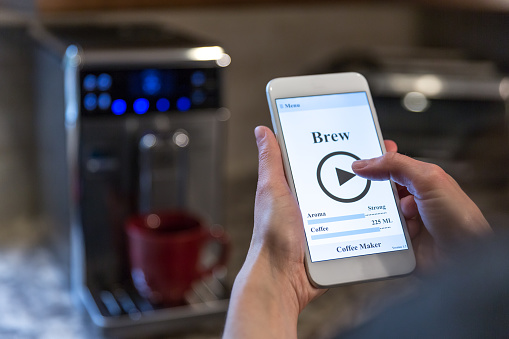
The Internet of Things is the concept of linking a device with the Internet or another device. What this means to you is that the IoT encompasses a lot of the stuff you already use each day: cell phones, TVs, laptops, microwaves, etc. Also, as each day passes by, we are encountering the IoT in the basic gadgets we have relied on for years: coffee makers, washing machines, headphones, and refrigerators. If you are flying on a passenger plane, the jet engine of an airplane is being operated and maintained through the use of the IoT. Gartner claims that by 2020 there will be an estimated 26 billion connected devices in use.
How Does the IoT Impact Me?
With so many devices connected to the internet, it’s easy to understand why the IoT is such a hot topic in our world today. With the IoT, security is an issue that is oftentimes immediately included in the conversation; and rightly so. With all these devices connected together and vulnerable to hackers, what can you do as a consumer to make sure that your information is safe? Will someone actually be able to hack into your microwave and obtain access to your whole network? The IoT also opens up homes and businesses to security threats unimagined even ten years ago.
Can My Smart Appliances Really Give Away My Information?
Kellyane Conway, former Trump spokesperson was quoted in an interview with the Bergen Record in 2017 that microwaves can be used as spy cameras by government agencies. She said this concerning allegations from President Trump that President Obama wiretapped the Trump campaign. Although microwaves don’t seem to have these spying capabilities yet, we do know that televisions do. In CIA documents released by Wikileaks, it came to light that some models of Samsung televisions were hacked by the CIA so that they could eavesdrop on conversations taking place in households the CIA deemed suspicious.
Television companies have also admitted that Smart TVs have the power to spy on the users watching habits as a way to help the manufacturer understand how to better reach their consumer base.
How Can I Protect Myself From Cyberattacks Launched Through The Internet Of Things?
What can you do to protect yourself when using all these new smart devices? Here are some strategies you can implement to keep your family and business safe:
Do your due diligence in selecting trustworthy vendors when purchasing new smart devices. Purchasing something as simple as a baby monitor with smart technology, means ensuring the device is from a retailer that has a proven reputation. You are more likely to find that they have better security in place.
When feasible, secure your devices. Also make sure your software is updated, and you are properly using filters and firewalls. Train your family members and employees on good internet habits and how to detect phishing scams on websites and through email. When possible, always use a second layer of password protection.
Make sure the network you use is designed correctly so as not to send out data without your expressed consent. Keep your passwords protected and diverse to avoid hackers who look for patterns in your network.
For an extra layer of protection, consider using a virtual private network (VPN) on your router which adds a firewall to inward traffic. A VPN prevent attacks that attempt to permeate your network.
Employ Network Segregation in both your home and business. Network segregation splits one Network into two local networks (LANs) keeping the unsafe computers in one Network and moving the computers that you want to protect to a separate secured Network. Network segregation can be accomplished by using two Entry Level Cable/DSL Routers.

by Felicien | Sep 10, 2018 | Education
Air Canada recently confirmed a data breach occurred between August 22 and 24, affecting users of the Air Canada mobile app. The breach is just the latest in a string of cyber-attacks impacting mobile app users.
The Air Canada mobile app has approximately 1.7 million users. It is believed that one percent, or 20,000 users, may have been affected. The company announced they would be contacting potentially affected users directly via e-mail.
Upon notice of the breach, Air Canada says it immediately took action to deter further unauthorized login attempts and implemented additional measures to enhance security. Certain data, like users credit card information, was deemed safe. This is because this type of data is encrypted and required to be stored in compliance and in accordance with the industry’s payment card regulations.
The type of data compromised includes passenger names, telephone numbers, email addresses, birth dates, nationalities, and other data.
Air Canada contacted potentially affected customers by email beginning August 29. The company also released an FAQ section on their website, which provides details regarding specifics of the breach. As a precaution, the company is requiring that Air Canada mobile App users reset their passwords following a new, improved set of password guidelines.
They recommend a more robust password as an added layer of protection against attempts for unauthorized access. In the release, the company also encouraged users to frequently monitor their transactions to ensure there are no unauthorized charges.
A Growing Trend
Data breaches are a growing problem in today’s increasingly digitalized world. In July of this year, Timehop announced a “network intrusion” that led to a possible breach of personal user data, affecting more than 21 million users. The incident was disclosed in a blog post on the company’s website. About 3.3 million users had information like their name, phone, email, and date of birth compromised.
In February, the data of approximately 150 million users of the MyFitnessPal app was compromised in a data breach. The app’s parent company, Under Armour, said in a press release in March that usernames, hashed passwords and email addresses may have been exposed. Sensitive information such as credit card information was not compromised.
How To Protect Your Data
There are several precautionary steps mobile app users can take to reduce the risk of a data breach within their device. These can include:
Make sure to update when new versions are released
Reduce the use of public Wi-Fi
Clean up apps not in use
Use Two-Factor Authentication (2FA) when possible
Always use unique, strong passwords for apps
Minimize the Use Of Public Wi-Fi
Free Wi-Fi may seem like a good idea, but using it too much can leave you open to a data hack, especially if you’re not careful. Using free, public Wi-Fi for things like web surfing, streaming movies and shows and reading the news is typically safe.
Where you begin to enter dangerous waters with public Wi-Fi is when you enter personal data like credit card information. Unsecured networks can be dangerous if you’re not protected, and in this case, protection can come in the form of a virtual private network (VPN). This software encrypts your wireless session while using a public network. Some devices even have a built-in VPN for your convenience. If you don’t have one, you can easily purchase one for as little as $5 per month.
Update Your Operating System
Updating your operating system when prompted offers more than cool new features like emojis. These system updates often include security improvements, which can include fixes for security flaws in the previous version. Failing to update your operating systems can leave you susceptible to hackers. Make a habit of updating your OS as soon as the newest version becomes available.
Evaluate Your App Usage
You may think there’s no harm in keeping dozens of apps on your phone, but if you’re not utilizing them, they can do more damage than good. Too many apps leaves the potential for security holes, which can be used by hackers to access your personal data.
Evaluating your apps and deleting those you no longer use on a regular basis can be a good line of defense against a hack. And for the apps, you do use regularly, be sure they’re updated accordingly. You can do this by adjusting your settings to automatically download app updates. It is also a good rule of thumb to download apps only from legitimate sources, like iTunes or the Google Play store.
Lock Your Phone
The auto-lock function on your phone is an important one if you’re hoping to elude the prying eyes of hackers. A strong password is also a necessity. In addition to a passcode, set up a biometric security measure, such as a swipe, finger tap, or fingerprint. This will make it much more difficult for hackers to invade your device.
One general rule of thumb? The longer the password, the more secure it is. Consider custom numeric codes rather than important dates. If you’re running apps with personal information, be sure those are password protected, too.
The need for strong cybersecurity measures is now at an all-time high. Air Canada is just the latest to be affected, but if current trends are any indication, there will be plenty more attacks in the future. Solidifying and implementing a strong cybersecurity plan can help you minimize the chances of your data being stolen. Don’t help thieves steal from you!
by Felicien | Sep 10, 2018 | Education
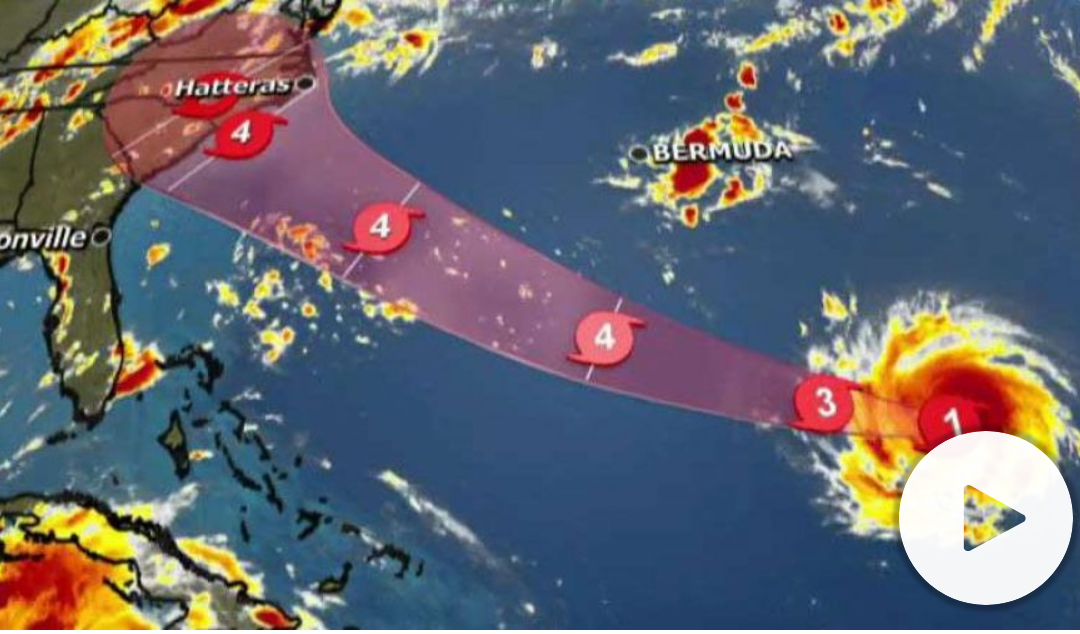
Hurricane Florence is spinning up to be a Category 4 Hurricane. It’s predicted to make landfall between North Carolina and Georgia this week. Virginia may be impacted when Florence comes ashore at the end of this week.
Virginia announces a state of emergency ahead of Hurricane Florence.
Preparing For A Major Hurricane or Tropical Storm
When a hurricane is 36 hours from arriving
Turn on your TV or radio in order to get the latest weather updates and emergency instructions.
Restock your emergency preparedness kit. Include food and water sufficient for at least three days, medications, a flashlight, batteries, cash, and first aid supplies.
Plan how to communicate with family members if you lose power. For example, you can call, text, email or use social media. Remember that during disasters, sending text messages is usually reliable and faster than making phone calls because phone lines are often overloaded.
Review your evacuation zone, evacuation route and shelter locations. Plan with your family. You may have to leave quickly so plan ahead.
Keep your car in good working condition, and keep the gas tank full; stock your vehicle with emergency supplies and a change of clothes.
When a hurricane is 18-36 hours from arriving
Bookmark your city or county website for quick access to storm updates and emergency instructions.
Bring loose, lightweight objects inside that could become projectiles in high winds (e.g., patio furniture, garbage cans); anchor objects that would be unsafe to bring inside (e.g., propane tanks); and trim or remove trees close enough to fall on the building.
Cover all of your home’s windows. Permanent storm shutters offer the best protection for windows. A second option is to board up windows with 5/8” exterior grade or marine plywood, cut to fit and ready to install.
When a hurricane is 6-18 hours from arriving
Turn on your TV/radio, or check your city/county website every 30 minutes in order to get the latest weather updates and emergency instructions.
Charge your cell phone now so you will have a full battery in case you lose power.
When a hurricane is 6 hours from arriving
If you’re not in an area that is recommended for evacuation, plan to stay at home or where you are and let friends and family know where you are.
Close storm shutters, and stay away from windows. Flying glass from broken windows could injure you.
Turn your refrigerator or freezer to the coldest setting and open only when necessary. If you lose power, food will last longer. Keep a thermometer in the refrigerator to be able to check the food temperature when the power is restored.
Turn on your TV/radio, or check your city/county website every 30 minutes in order to get the latest weather updates and emergency instructions.
Survive DURING
If told to evacuate, do so immediately. Do not drive around barricades.
If sheltering during high winds, go to a FEMA safe room, ICC 500 storm shelter, or a small, interior, windowless room or hallway on the lowest floor that is not subject to flooding.
If trapped in a building by flooding, go to the highest level of the building. Do not climb into a closed attic. You may become trapped by rising flood water.
Listen for current emergency information and instructions.
Use a generator or other gasoline-powered machinery outdoors ONLY and away from windows.
Do not walk, swim, or drive through flood waters. Turn Around. Don’t Drown! Just six inches of fast-moving water can knock you down, and one foot of moving water can sweep your vehicle away.
Stay off of bridges over fast-moving water.
Be Safe AFTER
Listen to authorities for information and special instructions.
Be careful during clean-up. Wear protective clothing and work with someone else.
Do not touch electrical equipment if it is wet or if you are standing in water. If it is safe to do so, turn off electricity at the main breaker or fuse box to prevent electric shock.
Avoid wading in flood water, which can contain dangerous debris. Underground or downed power lines can also electrically charge the water.
Save phone calls for emergencies. Phone systems are often down or busy after a disaster. Use text messages or social media to communicate with family and friends.
Document any property damage with photographs. Contact your insurance company for assistance.
Is Your IT Infrastructure Backed Up And Quickly Recoverable?
Many businesses aren’t prepared as they should be.
Yes, you’ve backed up your data to a storage device in the office, but won’t help if your building’s roof comes off. Your office will flood and your server, backup device, and computers will be left floating in Florence’s wake.
This may sound extreme, but it happens.
Unless your IT service company backs up your data to an enterprise-based cloud backup solution, you could lose all the information you’ve worked so hard to attain.
Better yet, ask your IT professional to virtualize your entire network. This means all of your data and software. If you lose your onsite data and applications, everything will be quickly recoverable within a few hours.
A cloud backup, on the other hand, can take days to recover, and you won’t have access to your software applications.
But you have to do this now. You only have a few days left.
Above all, be safe everyone.
Resources:
https://www.ready.gov/hurricane-toolkit
Hurricane Seasonal Preparedness Social Media Toolkit
Hurricane Information Sheet (PDF)
Six Things to Know Before a Disaster
National Hurricane Center
National Weather Service Hurricane Safety
When the Waves Swell – Hurricane Animated (Video)
How to Prepare for a Hurricane
Hurricane Playbook
Prepare Your Organization for a Hurricane Playbook
Communication Tools
Hurricane Creative Materials
National Creative Resources
https://www.ready.gov/hurricanes
by Felicien | Sep 8, 2018 | Education
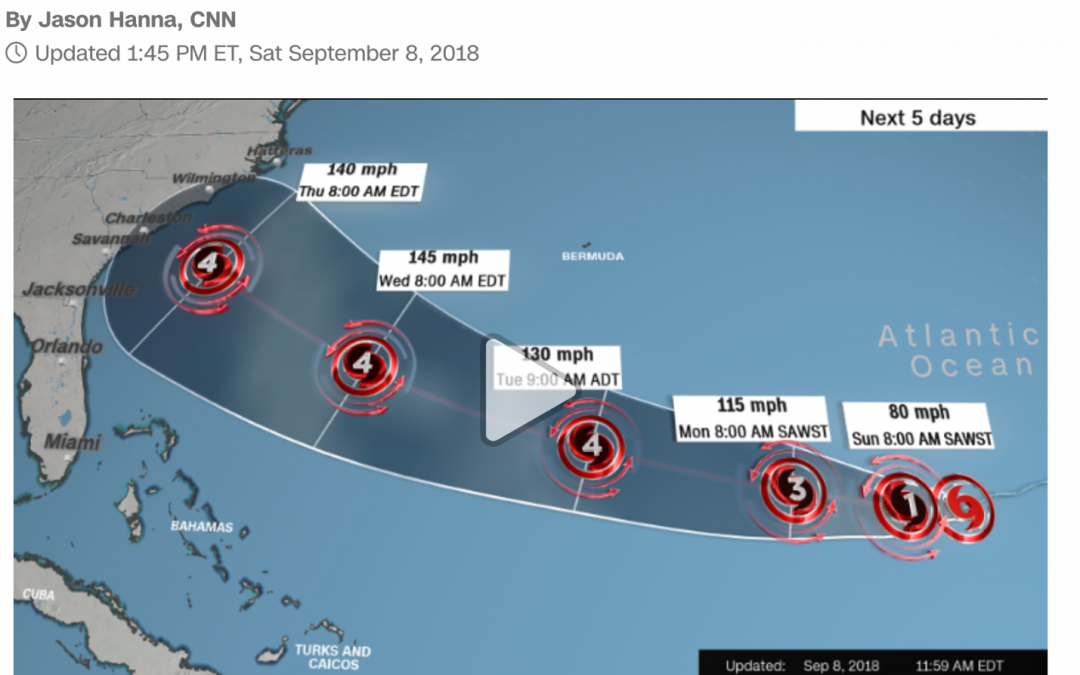
Florence is spinning up to be a Category 4 Hurricane. It’s predicted to make landfall between North Carolina and Georgia this week.
Preparing For A Major Hurricane or Tropical Storm
When a hurricane is 36 hours from arriving
Turn on your TV or radio in order to get the latest weather updates and emergency instructions.
Restock your emergency preparedness kit. Include food and water sufficient for at least three days, medications, a flashlight, batteries, cash, and first aid supplies.
Plan how to communicate with family members if you lose power. For example, you can call, text, email or use social media. Remember that during disasters, sending text messages is usually reliable and faster than making phone calls because phone lines are often overloaded.
Review your evacuation zone, evacuation route and shelter locations. Plan with your family. You may have to leave quickly so plan ahead.
Keep your car in good working condition, and keep the gas tank full; stock your vehicle with emergency supplies and a change of clothes.
When a hurricane is 18-36 hours from arriving
Bookmark your city or county website for quick access to storm updates and emergency instructions.
Bring loose, lightweight objects inside that could become projectiles in high winds (e.g., patio furniture, garbage cans); anchor objects that would be unsafe to bring inside (e.g., propane tanks); and trim or remove trees close enough to fall on the building.
Cover all of your home’s windows. Permanent storm shutters offer the best protection for windows. A second option is to board up windows with 5/8” exterior grade or marine plywood, cut to fit and ready to install.
When a hurricane is 6-18 hours from arriving
Turn on your TV/radio, or check your city/county website every 30 minutes in order to get the latest weather updates and emergency instructions.
Charge your cell phone now so you will have a full battery in case you lose power.
When a hurricane is 6 hours from arriving
If you’re not in an area that is recommended for evacuation, plan to stay at home or where you are and let friends and family know where you are.
Close storm shutters, and stay away from windows. Flying glass from broken windows could injure you.
Turn your refrigerator or freezer to the coldest setting and open only when necessary. If you lose power, food will last longer. Keep a thermometer in the refrigerator to be able to check the food temperature when the power is restored.
Turn on your TV/radio, or check your city/county website every 30 minutes in order to get the latest weather updates and emergency instructions.
Survive DURING
If told to evacuate, do so immediately. Do not drive around barricades.
If sheltering during high winds, go to a FEMA safe room, ICC 500 storm shelter, or a small, interior, windowless room or hallway on the lowest floor that is not subject to flooding.
If trapped in a building by flooding, go to the highest level of the building. Do not climb into a closed attic. You may become trapped by rising flood water.
Listen for current emergency information and instructions.
Use a generator or other gasoline-powered machinery outdoors ONLY and away from windows.
Do not walk, swim, or drive through flood waters. Turn Around. Don’t Drown! Just six inches of fast-moving water can knock you down, and one foot of moving water can sweep your vehicle away.
Stay off of bridges over fast-moving water.
Be Safe AFTER
Listen to authorities for information and special instructions.
Be careful during clean-up. Wear protective clothing and work with someone else.
Do not touch electrical equipment if it is wet or if you are standing in water. If it is safe to do so, turn off electricity at the main breaker or fuse box to prevent electric shock.
Avoid wading in flood water, which can contain dangerous debris. Underground or downed power lines can also electrically charge the water.
Save phone calls for emergencies. Phone systems are often down or busy after a disaster. Use text messages or social media to communicate with family and friends.
Document any property damage with photographs. Contact your insurance company for assistance.
Is Your IT Infrastructure Backed Up And Quickly Recoverable?
Many businesses aren’t prepared as they should be.
Yes, you’ve backed up your data to a storage device in the office, but won’t help if your building’s roof comes off. Your office will flood and your server, backup device, and computers will be left floating in Florence’s wake.
This may sound extreme, but it happens.
Unless your IT service company backs up your data to an enterprise-based cloud backup solution, you could lose all the information you’ve worked so hard to attain.
Better yet, ask your IT professional to virtualize your entire network. This means all of your data and software. If you lose your onsite data and applications, everything will be quickly recoverable within a few hours.
A cloud backup, on the other hand, can take days to recover, and you won’t have access to your software applications.
But you have to do this now. You only have a few days left.
Above all, be safe everyone.
Resources:
https://www.ready.gov/hurricane-toolkit
Hurricane Seasonal Preparedness Social Media Toolkit
Hurricane Information Sheet (PDF)
Six Things to Know Before a Disaster
National Hurricane Center
National Weather Service Hurricane Safety
When the Waves Swell – Hurricane Animated (Video)
How to Prepare for a Hurricane
Hurricane Playbook
Prepare Your Organization for a Hurricane Playbook
Communication Tools
Hurricane Creative Materials
National Creative Resources
https://www.ready.gov/hurricanes
by Felicien | Sep 7, 2018 | Education
When companies fail at or are not prepared for a catastrophe, it’s often because they neglect to think that the unexpected is possible.
They often fall into one of two categories:
They assume disasters are unpredictable, so why prepare for them?
They fall into the allusion that their plans are fail proof (nobody can sink the Titanic).
Most disaster situations are simply due to a service outage or user error. But a catastrophe could wreak havoc on your business when you least expect it. Think about the thousands of companies in Houston that were shut down for weeks due to Hurricane Harvey in 2017. Nobody expected it, but it happened and many people were caught completely off guard.
Companies that take the time to be proactive are more likely to persist, despite a disaster. It requires a higher level of preparation than many businesses currently have. There are too many depending on a simple cloud backup service to save the day, but is that enough?
What is The Condition of Your Cloud Disaster Management Plan?
Current statistics show that more companies are taking inventory and calculating the risks of an attack on their IT infrastructure. However, there are still quite a few who are ill-informed and not doing enough.
Recently, a Forrester Research and Disaster Recovery report showed that up to 40% of companies currently have an official enterprise risk management program that is held accountable by a board or upper management. While the number of companies that are taking cloud disaster management seriously are improving, it’s obvious that not all companies are on board.
The difficulty with cloud disaster management, as with all disaster recovery programs, is that it’s never important until unexpectedly, it is. When a major disaster event occurs, it can take a company down in the blink of an eye.
Could This Happen to You?
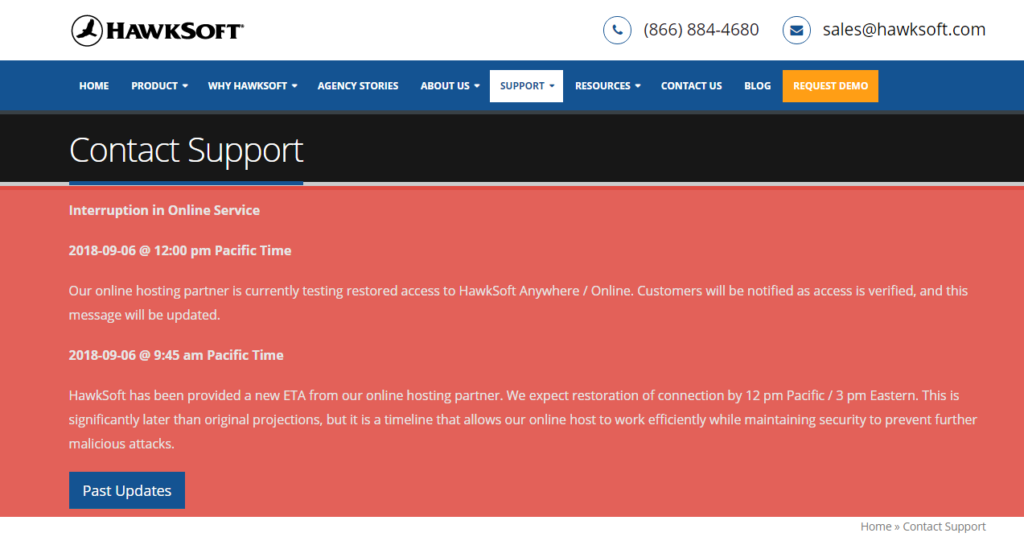
HawkSoft, an Insurance Agency Management platform, was just hit with a ransomware attack. Their business had to shut down until they could deal with hackers. Are you ready for a ransomware attack? Does your team know what to do? More importantly, your employees should be well-trained so that they recognize suspicious emails and attachments and do not click on them to begin with.
Recently, Ticketfly was the victim of a data breach. Over 26 million customers who use Ticketfly to purchase concert tickets were affected. Ticketfly’s parent company, Eventbrite, revealed that customer names, addresses, emails, and phone numbers were stolen by hackers. The breach damaged the company’s reputation and left millions of customers looking for a new place to buy their tickets.
The company had rave reviews from its customers. They most likely had a very sophisticated security system. So what went wrong?
When it comes to disaster recovery, it’s vital to choose an IT services provider that consistently tests their disaster management procedures. They need the best security resources money can buy, but they also need a well-qualified team of pros who understands what’s at stake.
Your IT services company should do more than just provide dependable hosting. They must stay on top of new hacking schemes. They should be running simulations on a regular basis that test disaster preparedness. They should be doing this internally and for their clients.
How Can You Manage Cloud Disaster Recovery Solutions?
A good disaster recovery plan includes the core IT services and infrastructure that your company depends on. These assets should be fully protected with today’s most effective security solutions. You need a qualified team of people who know what to do in case there is a breach. Acting quickly always limits the damage and makes your company look better in the media. Your shareholders and investors should be fully involved.
What Does Your Company Need to Survive a Disaster?
Did you know that service outages are the most common disasters that companies encounter when it comes to IT issues? However, even though possessing a strong data center solution is essential, there are many other situations that can wreak havoc, such as earthquakes, fires, floods, and severe storms. Your team should have a thorough plan to address events like these. That means backing up your data both onsite and offsite using a reliable cloud solution.
Do You Have a Complete Disaster Management Program?
No one ever thinks about what would happen if heavy rain caused the roof of your data center to cave in. What if your offices were flooded in a big rainstorm? How long would it take to get things back up and running again? You could lose several weeks’ worth of work.
Cloud disaster management isn’t something you should figure out on your own. You need a partner with the information, experience, and resources to know what could happen and how to respond. Sometimes you don’t get a second chance.
You need a business leader in cloud disaster recovery, with proficiency that guards every part of an IT system, from application management, to cloud hosting. All your software programs and data should be backed up regularly so that everything can be restored quickly.
Disasters Are Expensive
Each day that your company is shut down costs you money. Many small businesses in Houston never recovered after Hurricane Harvey. They had to close their doors. They learned the hard way how important disaster recovery is, but you don’t have to.
Look for experts in cloud disaster recovery who will get to know your business and develop a unique plan that addresses all the areas that are important to your business, from applications to servers. Make sure they have a good track record and can deliver on their promises. Working with a proactive IT services provider can ensure that your company survives no matter what.
