by Felicien | Sep 14, 2021 | Education
If You Own These Four Small Business Cisco Routers: It’s Time to Replace Them
A security flaw discovered in RV110W, RV130, RV130W, and RV215W Cisco routers creates significant vulnerabilities. Traditionally, these UPnP (universal plug and play) routers would receive security updates from the vendor. However, Cisco recently announced that it has no plans to release a security patch for the devices. As a result, the company recommends replacing the routers.
Security experts noted that the four devices fell victim to the remote command execution vulnerability. Improper validation of inputs triggers the vulnerability (CVE-2021-1459), which has a common vulnerability scoring system (CVSS) score of 9.8 out of 10. This issue affects the router’s management interface.
If you fail to replace the routers, you create an opportunity for a cybercriminal to execute code on the router. The remote attacker can exploit the device without authentication by delivering specially designed HTTP requests. In such cases, the bad actor assumes the root user status on the underlying operating system. As a result, it becomes easier to execute arbitrary code or launch a denial of service (DoS) attack.
Experts believe that replacing the routers forms part of a more comprehensive cybersecurity measure to harden network defenses. Failing to heed the recommendation is not an option, irrespective of company size.
End of Support
Cisco is not releasing a security patch because the routers are nearing the end of their working life. Additionally, support is ending for the devices. Although there are no known exploitation instances and proof of concept exploits, you should take risks posed by the security flaw seriously. If you need more time before replacing the devices, consider disabling the virtual private network (VPN) service. Doing so mitigates the risk of an attacker remotely exploiting this feature.
According to Cisco, you can determine the status of the VPN by opening the web-based management interface. In the Basic Settings, find the UPnP feature and tick the Disable box.
Benefits of Using a Business-Class VPN Router
A VPN router is a practical solution for small businesses looking to ensure secure communication. By investing in this type of device, you take advantage of a VPN tunnel that safeguards communication between two networks. The router can also handle secure connections for remote teams, irrespective of location.
Some manufacturers offer devices that enable your team to manage VPN functions centrally. It is also possible to configure individual routers to suit your specific needs. The ideal devices come with failover and load balancing capabilities. If you need more flexibility, opt for devices that run open-source software.
Doing so makes it easier to replace the router’s OS and create additional features. On the downside, this option is not ideal for all businesses. Thus, choose your router carefully.
Advanced routers support up to 45 tunnels and come with robust firewalls to filter traffic in both directions. They also set minimum password complexity standards and incorporate encryption keys. Vendors like Cisco offers wide-ranging VPN routers for small businesses. The devices are more affordable and secure. Some business-class VPN routers are easier to configure, while others require advanced tech skills to set up and manage.
On the other hand, mesh wireless network solutions maximize coverage using nodes and satellite modules. These modules and satellites expand coverage throughout your business premises.
How to Bolster WiFi Network Security
A business WiFi network is an essential component of doing business in today’s connected world. However, an unsecured network compromises your company’s ability to operate smoothly. Cybercriminals can launch denial of service attacks or steal sensitive business information. Thankfully, there are various ways to safeguard your WiFi network.
One of the effective ways to improve security is to keep your router’s OS up to date. Also, replace any routers nearing their end of life or support. By keeping the devices up to date, you take advantage of the router vendor’s security patches and bug fixes.
Additional measures include:
Invest in a business-class VPN router with advanced security features
Harden cyberdefenses by doubling your firewall
Store the route in a physically secure area
Employ advanced encryption protocols
Eliminate unofficial access points
Disable WiFi Protected Setup or WPS
On another level, it is crucial to ensure that your router’s firewall is active. Some routers require manual activation. The manufacturer may list the firewall under network address translation (NAT) or stateful packet inspection (SPI). You can find the feature in the device’s settings.

by Felicien | Sep 6, 2021 | Education
Do You Want to Speed Up Your Computer? Here are Top Tips
A slow computer can undermine productivity and become a source of frustration. Fortunately, there are several ways to boost speed and overall performance, irrespective of whether your computer is relatively new or older. You can achieve the desired performance by following specific tips unless your device is experiencing considerable hardware problems.
Installing the latest version of the operating system (OS) is one of the best ways to supercharge your device’s performance. Updating the OS also allows the system to search, download, and install the latest device drivers.
Here are proven ways to boost your computer’s processing power.
Uninstall Redundant Applications
Software or applications that you no longer need consume system resources unnecessarily. Uninstalling redundant apps frees up space and system resources, contributing to improved performance. Dormant apps occupy critical space in your computer’s directory structure and registry. For this reason, you need to uninstall the software properly via the control panel.
To get rid of unwanted files and other unnecessary registry entries, consider using apps like CCleaner. These programs can remove unwanted apps, even if they do not appear in the control panel. Proper removal is vital if you want to prevent them from reloading after rebooting.
Defragment the Hard Drive
Defragmentation provides an effective way to reorganize information on your computer’s hard drive. In doing so, you gather scattered pieces of data and combine them in proper order. Operating systems are constantly dealing with files being written, resized, and deleted. These activities result in considerable fragmentation. The best part about defragmentation is that you boost PC performance.
Add More RAM
Increasing random access memory (RAM) is another surefire way to speed up a slow PC. However, this option is viable on some gaming and business laptops. Most detachable and convertible laptops cannot add RAM. On the other hand, desktop computers make it easier to increase RAM to suit your needs.
Delete Temporary Files
Temporary files can hog your computer’s performance and undermine your productivity. You should consider deleting them from the PC. However, you may need to skip some files if the system prevents you from removing them. This approach frees critical space on the hard drive, boosting overall performance. Emptying the entire temporary internet files directory is possible, but you need to exercise caution.
Reduce Startup Programs
Startup processes play an integral role in your computer’s performance. Launching a high number of applications during startup eats up system resources. Thus, you should manage your PC’s startup processes to limit active programs during booting. However, it is vital to choose carefully the programs you disable.
Applications like antivirus programs deserve to launch during startup, while word processors and browsers are removable from the list. Ultimately, the final list depends on your specific needs. You can manage startup processes via the task manager in Windows 10.
Scan for Malware
Viruses and spyware can compromise your device’s performance. Thus, scan the computer regularly using antivirus programs like Comodo, Norton, Windows Defender, and Avast. You should select the ideal software carefully to avoid installing a heavy antivirus program that slows down your PC.
Ideally, you need a light program that scans the system efficiently without occupying large spaces on your computer. Some applications can protect your PC and monitor performance. These programs are capable of resolving performance issues.
Choose the Right Browser
Your choice of a browser is also crucial in achieving the desired processing speed. Browsers like Chrome are resource-intensive, compromising overall PC performance. The ideal browser does not affect your computer’s speed, even if you open multiple tabs. As a result, you also enjoy improved browsing and page loading speeds.
Opt for Startup Solid-State Drive (SSD)
A startup solid-state drive (SSD) aids your processor in handling resource-intensive tasks. In doing so, it boosts performance, allowing you to run multiple applications simultaneously. Photo and video editing software eat up a significant amount of memory. Thankfully, SSD enhances your PC’s processing power, making it easier to run these applications without undermining performance.
A solid-state drive enables resource-intensive apps to load faster and run optimally. You can install it on a desktop computer or a laptop. SSD can operate internally or externally, depending on your device’s hardware status.
External units connect to your device via a USB port. Once you install an SSD, your computer performs better at startup.

by Felicien | Aug 30, 2021 | Education
Amazon Exploring the Feasibility of Keystroke Tracking Plan
An internal document obtained by Motherboard revealed Amazon’s plan to track employee’s keystroke entries. The tech and e-commerce giant plans to curb ever-increasing data leaks using this type of surveillance. Imposters, rogue employees, and hackers routinely compromise customers’ confidential information.
Amazon is considering deploying advanced keystroke tracking tools. A company known as BehavioSec is working with the e-commerce firm to license specialized tools capable of enhancing system surveillance. The vendor’s software relies on behavioral biometrics to determine the nature of user activity. Behavioral biometrics eliminates the need to depend on static data or personally identifiable information.
Profiles generated by BehavioSec’s software make it easier to detect suspicious activity. Amazon shortlisted BehavioSec’s product based on privacy considerations. Other tools considered by the firm presented privacy challenges linked to keystroke data collection.
Closing Security Gaps
According to the internal document, Amazon detected several breaches that compromised customers’ sensitive data. In one of the incidents, an imposter illegally accessed customer data by posing as a service agent. For this reason, the company is looking to deploy an effective IT security solution to verify users’ identities and monitor device usage.
The security gaps present a serious threat that could damage customers’ confidence and Amazon’s reputation. Data exfiltration is a major concern for the management team since many employees work from home. Amazon plans to thwart threats that arise under various conditions, including unauthorized access via a device that an employee forgot to lock.
It aims to eliminate imposter takeover by 2022 since employee and customer data security is a top priority. The company stated that it regularly explores and tests wide-ranging cybersecurity technologies to bolster data protection measures. However, it is mindful of the need to achieve a delicate balance between monitoring employee activity and remaining compliant with privacy laws.
Managing Employee Activity
The internal document also revealed that outsourced workers in the Philippines and India present a higher risk of data exfiltration. Most of the recorded incidents happen in these countries. Hence, Amazon is hoping that BehavioSec’s solution will address the problem.
In general, companies rely on the employee-manager team to enhance security controls. However, the remote work trend introduced a new dynamic that compromised companies’ basic security controls. When employees work from home, it becomes difficult to detect all unauthorized access to sensitive data.
Under such circumstances, companies need to find viable solutions to compensate for the reduced controls. Experts believe that keystroke monitoring is a security feature that remote workers should expect to find on company devices in the future. BehavioSec’s profiling mechanism plays an essential role in helping companies detect sophisticated cyber attacks.
Highly skilled hackers often gain access to corporate systems and remain undetected for lengthy periods. Behavioral profiling detects such intrusions by monitoring anomalous patterns and user behaviors. This approach detects patterns in one or more connected devices. For instance, security software will raise a red flag if a video surveillance camera connects to a suspicious domain.
In Amazon’s case, behavioral profiling makes it easier to identify compromised devices. Many of the company’s customer service agents work remotely in shared residences. Meanwhile, some agents store their devices on properties with poor physical security.
Employee Surveillance Key Considerations
Federal law allows businesses to monitor their employees’ activities under specific circumstances. Several states also provide regulatory guidelines on the subject. However, transparency is a key component of employee monitoring practices. Failing to inform employees about workplace or digital surveillance may result in legal action.
In some cases, the law does not compel companies to inform employees about surveillance activities. The (ECPA) Electronic Communications Privacy Act of 1986 legalizes surveillance for organizations with a legitimate business reason to monitor employees. As such, employers can view emails composed and sent by employees.
On the other hand, a different regulatory framework deals with web activity surveillance. It allows companies to track keystrokes and web browsing activity on corporate devices and networks. Employers should use information from the monitoring activities for internal purposes only. Sharing information with third parties is against the law.
Similarly, the law compels employers to safeguard the collected information to prevent unauthorized access. Employees can initiate legal action against an employer if with sensitive information leaks following a data breach.
These regulatory requirements necessitate a cautious deployment of keystroke tracking tools and other surveillance software. Thus, Amazon is treading carefully when it comes to the employee monitoring tool it wants to use.

by Felicien | Aug 14, 2021 | Education
What Will the Windows 11 Experience Be Like?
Windows 11 comes loaded with wide-ranging new features, such as a revamped start menu. You can also expect to find a Microsoft Store with Android apps. This new edition also boasts a cleaner tray area and a redesigned start button. These features represent a simplified version of Windows 10, excluding live tiles.
Although the start menu comes in a central position, you can opt to move it back to the left side of the screen. In addition, Windows 11 includes a dark mode from which to choose. Microsoft has made this version easier to restart and shut down. You can also now pin your favorite apps and recent files for quick access.
A key feature of the new operating system is the ability to use Android apps via your desktop. This capability allows you to connect your desktop device to your smartphone.
Overall, the experience is ultra-modern and distinctly user-centric. Even the small details, such as the start menu positioning, focus on you, the user. The new design also highlights Windows 11’s central role in your digital life. Microsoft switched focus from offering a functional and practical OS to something more personal and emotional.
Enhanced Productivity and Ease of Use
Windows 11’s simplified design inspires you to become more creative and productive. Thanks to minor changes to the fonts, sound, and icons, the OS empowers you to gain more control of your digital activities. You can access files stored in the cloud via the start button, irrespective of the device you use. The best part is that it is possible to access files you worked on a mobile device.
Windows 11 provides a more efficient way to multitask and boost productivity with snap groups, desktops, and layouts. These new features help you stay well-organized by creating different desktops based on particular projects or themes.
Easier and More Convenient Ways to Connect
Staying in touch with loved ones and colleagues is easier with the Windows 11 OS. The operating system incorporates Microsoft Teams for your convenience. Teams is a video conferencing that enables you to communicate with your contacts, regardless of the device they use. Thus, you can connect to friends and family from your desktop, even if they are on Android or iOS.
Another key capability is connecting with people who have yet to install the MS Teams video-conferencing application. In such cases, you communicate via a two-way short message service (SMS). The app allows you to mute and unmute the chats from the taskbar.
This level of flexibility eliminates communication barriers associated with different platforms and devices.
A Faster and Easier to Use Microsoft Store
With Windows 11, expect a refreshingly faster and simpler MS Store experience. The store comes with a more refined appearance and improved content search function. You can now discover a wide selection of content with relative ease. Microsoft also plans to include Visual Studio, Zoom, Adobe Creative Cloud, Canva, and Disney+.
The most significant part is the introduction of Android apps in the Microsoft Store. This capability will undoubtedly revolutionize the way you use and interact with your desktop and mobile devices. You can download your favorite apps via the Amazon Appstore. Additionally, Windows 11 allows you to capture videos and upload them from TikTok.
Easier Access to News and Information
Widgets in Windows 11 provide access to information and news you need. The news feeds leverage artificial intelligence to deliver curated stories. In addition, Microsoft Edge enhances your browsing experience and faster access to critical information. You can take advantage of the widgets and faster browsing experience to refresh by reading the latest news.
Transparent, personalized feeds slide over the screen to minimize disruption. Widgets also play an integral role in expanding and personalizing content delivery options within the Windows ecosystem for publishers and content creators.
Superior Gaming Experiences
If you enjoy playing games on your desktop, you will appreciate changes in Windows 11. The operating system unlocks your device’s full potential by optimizing hardware performance. This capability allows your PC to work optimally with the latest gaming technology, such as DirectStorage, Auto HDR, and DirectX 12 Ultimate.
DirectStorage improves processing speed and delivers detailed gaming experiences. Thus, your games load much faster than on Windows 10. Meanwhile, DirectX 12 Ultimate boosts the frame rate to ensure immersive graphics. On the other hand, Auto HDR plays a critical role in delivering more vivid colors.
by Felicien | Aug 8, 2021 | Education
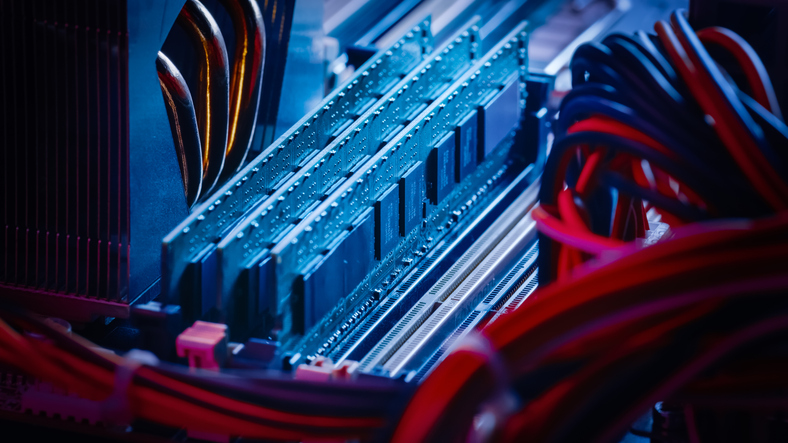
Understanding The Role of RAM in Computer Performance
Random-access memory (RAM) plays an integral role in mobile devices and desktop computers. It determines the operating capacity of a device at any given time. A computer processes data using RAM as a digital workspace for placing programs temporarily. In turn, your computer’s processor gains access to the relevant data quickly and easily.
Larger RAM space translates to more computing power, thanks to the larger space available to active programs. The computer processes information faster than a device with less RAM. For this reason, your PC can benefit from adding more RAM. You will find it easier to interact with resource-intensive apps and programs like video editing tools.
As a result, your computer can still operate optimally, even when running two or more heavy programs. With increased RAM, the apps can function properly without competing for workspace. The operating system (OS) no longer needs to perform increased code and data swapping between the resource access memory and the hard drive. Swapping is a common cause of poor processing performance.
Also, increased RAM enhances your ability to multitask using resource-intensive apps like Photoshop and Outlook. You can switch from one program to another without the operating system resorting to the page file to write the process memory. The page file relies on a slower hard drive for data storage.
Key RAM Parameters
Data transfer rate is an essential component of your computer’s random access memory speed. It refers to the amount of data processed by the central processing unit (CPU). On the other hand, most random access memory is double data rate (DDR) RAM. You can determine the RAM’s generation by the number appearing after the acronym, such as DDR4.
Additionally, RAM comes with a number indicating speed in megahertz (MHz). You can find devices with RAM speeds varying between DDR4-1600 and DDR4-3200. In the latter case, the RAM is the fourth generation with a data rate speed of 3,200MHz. It is vital to install random access memory in matched memory module pairs to maximize speed.
If your device comes with single memory or mismatched modules, you can expect 50 percent less than the specified data rate. For instance, DDR4-3200 operates at just 1,600MHz.
Another key component of RAM is timing or latency rate. This aspect is more complex than the data transfer rate. Computing devices come with timing or latency rate specifications formatted as 7-8-8-24. This set of numbers indicates the time random access memory takes to handle specific computing functions. Faster RAM has smaller numbers.
How to Determine Your RAM Requirements
The nature of programs you run on your computer or smartphone determines the ideal RAM you need to maximize processing power and overall performance. Most personal computers and workstations running apps like Excel and Word can function optimally with 8 GB of system memory.
To check your PC’s status, open the Task Manager. Doing so allows you to determine whether RAM is experiencing any overload. Most computers come with RAM of between 4 and 8 GB. Depending on your day-to-day activities, you may not need 16 GB of random access memory.
If your PC slows down as you work with multiple open browser tabs or streaming video content, you should consider upgrading the device’s RAM. Forcing the computer to rely on the hard drive does not yield the best performance. Without any overload, your PC’s RAM can perform at top speed.
You can optimize performance by reducing unnecessary programs (crapware or bloatware). Also, limit the number of background apps on your desktop or laptop device. In doing so, you make room for critical programs and day-to-day functions.
If you regularly run resource-intensive programs like Final Cut Pro or Photoshop, upgrade your computer to 32 GB of RAM. Opting for 16 GB RAM limits your wiggle room. With 32 GB of RAM, you can run photo editors together, and multiple browser tabs simultaneously.
For gaming, you need to consider 16 GB of RAM. This capacity allows you to play a game without any other background programs. However, you should opt for 32 GB of RAM if you want to run other programs while playing optimized games like Grand Theft Auto V. The best part is that gaming computers are highly customizable.
Keep in mind that adding more random memory access is useful when running multiple apps simultaneously. On the other hand, increased RAM does not affect the performance of individual programs.
