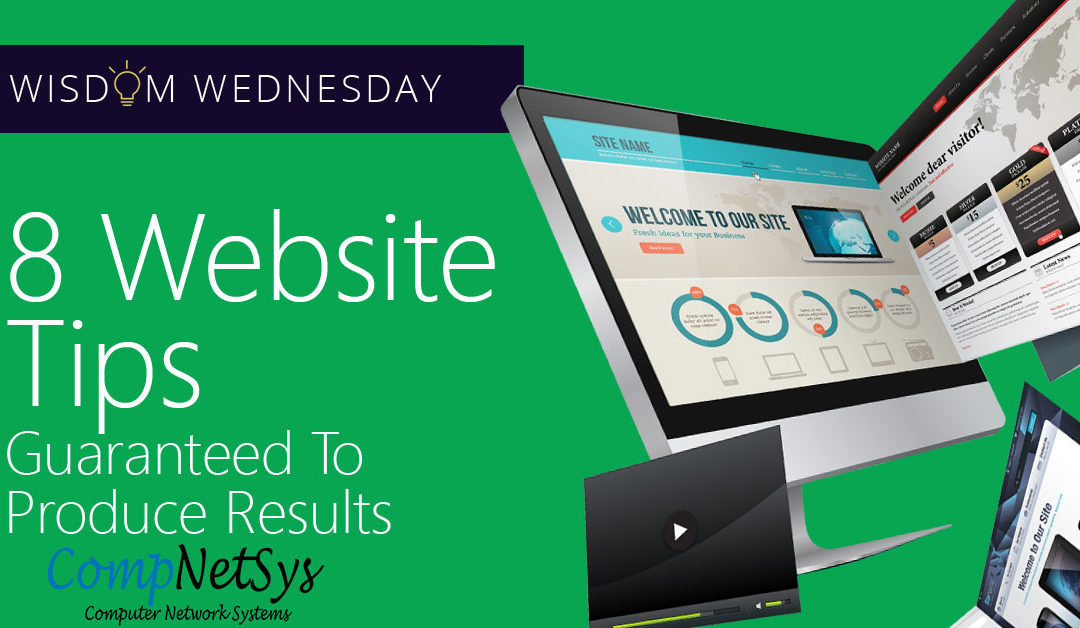
8 Website Tips Guaranteed To Produce Results

8 Website Tips Guaranteed To Produce Results

Here are eight highly effective guidelines for better website conversions.

When designing buttons — particularly those for landing pages — it’s important to note a few fundamental principles that will boost your click-through rates and make your responses surge. Here are eight highly effective guidelines for better website buttons:

  • Use Contrast in Your Designs: Buttons need to pop off the page and look different from the rest of your content. Choose colors that stand out and look fresh, not dull or flat. Don’t be afraid to use bold, bright, saturated or even unusual colors. Your button text itself should contrast highly with the button colors so it’s super-readable.
  • Maximize Clickability: Buttons should look like buttons — typically, they should be rectangular and have slightly rounded corners. A 3-D look is also recommended, as is incorporating a rollover effect such as a color or depth change when a user rolls over them. Users should recognize buttons immediately when they see them.
  • Maximize Size: While you don’t want buttons that are as large as your content, don’t be afraid to make buttons big or oversized. If a user can’t find the buttons on your page, they might as well not be there at all! Experiment and see how big you can make buttons without them dominating your content. Remember to still leave white space as described below.
  • Add Directional Cues: Use arrows to point directly to your button and/or your call-to-action. Don’t be afraid to put the arrow right on the button itself or extremely close to it. Studies show that the presence of arrows boosts conversions more than their absence.
  • Use the Right Call-to-Action: The text on your button should describe exactly what the button does; some samples could be “Download My Free Tutorial” or “Request a Sample.” Never use a vague, indirect word or phrase like “Click Here” or “Submit.”
  • Add Supporting Information: Extra information that helps the call-to-action or clarifies the purpose of the button should be added either inside the button itself or immediately below it. It can be in smaller type if necessary. Some examples are “Downloads are always free!” or “There’s no obligation to join!”
  • Communicate Urgency: If you don’t communicate a sense of urgency, many people won’t respond to your offer. Instead, add words that convey a quantity or time limitation, such as “Today” or “Now,” to your call-to-action.
  • Incorporate White Space: Just as design elements grab people’s attention, the use of white space makes them stand out. Not enough white space on a page will make content and buttons all flow together so they’re indistinguishable from one another. Make sure there’s enough white space between your content and your buttons and between buttons themselves so each element is evident.

In general, buttons are as important as your content, if not more so, because they’re what a user employs to interact with your page. It’s critical that they’re useful and are appealing to users, so you can generate the outcome that you’re looking for.

Your best source for tips, tricks, and hacks

Computer Network Systems (CompNetSys),is your best source for tips, tricks, and hacks as well as news relating to the latest advances in technology to help you work smarter, not harder.

Call us @ 866.205.8123 or send us an email @ support.staff@compnetsys.com
5 Great Reasons to Move to Microsoft Bookings

5 Great Reasons to Move to Microsoft Bookings

Let your customers schedule and manage appointments online with Microsoft Bookings.

If your business involves scheduling appointments with customers, you need to give the Microsoft Bookings service a serious look. This online service, which is part of Office 365, simplifies the process of setting and managing appointments with customers. It’s ideal for businesses such as medical offices, law firms, consultants, advisors, auto shops, hair salons, or anyone who provides services on an appointment basis. Customers can set appointments themselves or you can do it for them.

Bookings has 3 primary components:

  • An online bookings page where your customers can schedule appointments with specific staff members. This page can be used as a stand-alone page or embedded in your website and works on desktop and mobile devices.
  • An online backend where you can view and manage appointments, set a staff list and schedules, specify your services and pricing, record customer preferences, and customize how the service works.
  • A mobile app you can use to view and manage bookings and access customer information from anywhere you can get an internet connection.

With Bookings, you can efficiently:

  • Bring in Business 24/7 – You get a customizable public web page your customers can use to book appointments around the clock.
  • Put an End to Phone Tag – Customers can view available times online and book the slot that’s most convenient for them. Customers who prefer to call can do so, and you can enter their information manually. Either way, confirmations are sent immediately and automatically.
  • Reduce No-Shows – Send automated appointment reminders to customers, on the schedule you define, with date, time, and directions. You can set the system up to remind staff members automatically too.
  • Offer Self-service Rescheduling and Cancellations – It’s easy for customers to change or cancel an appointment. All they have to do is click the link contained in the appointment confirmation email. You can control how much advance notice is required for cancellations.
  • Manage Bookings on the Go – With the mobile app, you can add or view appointments and access or change staff and scheduling info when you’re away from the office. You can also view customer information and call or text customers directly from your mobile device.

How it Works

Bookings appointments can be made two different ways: customers can schedule an appointment themselves using the online booking page or staff can manually enter appointments. To make an appointment, the customer first selects the service they want. Then, based on the availability schedule you created, they can choose a day and time and enter their contact information to book the appointment.

As soon as the appointment is submitted, the customer is sent an email confirmation notice. The notice contains details of the appointment and a link for directions. It also includes a link the customer can use to change or cancel the appointment.

At the same time, the date is automatically added to your calendar or your staff’s calendar. Bookings work with Outlook calendar and Google calendar. Your customers won’t see your linked business calendars; they’ll only see the Bookings calendar you publish online.

The configuration is highly customizable and easy to configure. To set it up, you simply:

  1. Enter your business information.
  2. Set your scheduling policies, such as length of appointments, acceptable cancellation times, and automatic notifications.
  3. Define your service offerings, including service name, description, location, and pricing. You can also add internal notes about the service.
  4. Create your staff list.
  5. Set employee working hours.
  6. Schedule business closures for vacations or other reasons.
  7. Publish your booking page.

Bookings is available to Microsoft customers who have an Office 365 Business Premium subscription. The Microsoft Bookings mobile app is available in the Itunes and Google Play app stores.

For more information on Microsoft Bookings or help getting started, contact Computer Network Systems today at 1.866.205.8123 or support.staff@compnetsys.com

Your best source for tips, tricks, and hacks

Computer Network Systems (CompNetSys),is your best source for tips, tricks, and hacks as well as news relating to the latest advances in technology to help you work smarter, not harder.

Call us @ 866.205.8123 or send us an email @ support.staff@compnetsys.com
So You Want Highly Informative Excel Spreadsheets?

So You Want Highly Informative Excel Spreadsheets?

If you are giving a presentation and part of it involves a shared display or handouts of a spreadsheet what can you do to keep the group awake? Let’s face it, Microsoft Excel is an excellent tool for organizing and manipulating statistical data, but when sharing your spreadsheet with others, your spreadsheet has to be interesting and informative.

How Do I Get More Information into an Excel Spreadsheet?

Before you get more information into your spreadsheet, make sure that a spreadsheet is a right tool for the job. More often than you might think, we use spreadsheets inappropriately. Would an Access database work better? Should you use PowerPoint for your presentation.

If you have decided that Excel is the right vehicle for your presentation, include a text document that is a “welcome” or “about” for the Excel document. This keeps you on track and reminds others what the purpose and mechanics of the spreadsheet are.

While it’s true that most of the spreadsheets we use in our careers are for our own consumption, it is a good practice to talk about your spreadsheet with others. Find out what features they like and which they don’t favor. If you work collaboratively with others in your organization be generous with credit and be sure to mention their names in the about or welcome document.

PivotTables Help (A lot)

PivotTables are important as they take tables of data, often with hundreds if not thousands of rows and help you and others understand the data by summarizing them by the column fields.

For a PivotTable to operate correctly it has to be set up in a certain way; each column needs to contain the same kind of data that is in a “raw” state – that is the data has not been processed yet. The following are some advantages associated with using PivotTables in Excel:

  • Simplicity
  • Speedily produced
  • Multiple dimensions – you can sort data by row or by column
  • Allows for interactive analysis

Appearances Do Matter

Your Excel Presentation can be exciting and visually stimulating. Following are some tips that help you accomplish this.

  • Consistency: Your spreadsheets will be easier for others to understand if you use only one font, bold headings for data groupings and formulae, distinct shade categories of data (for example shade raw data gray and results in green) and analytical comments should be in italics.
  • Create a Logical and Natural Flow: This is done by using the order of Worksheets and the layout of calculations and data to read left to right and top to bottom. An excellent Excel presentation takes the reader through a story – from inputs and assumptions to calculations and finally the results.
  • I Want Highly Informative Excel SpreadsheetsMake Data Relevant: To be more informative, an Excel spreadsheet presentation needs to have relevant data and analysis stand out. To do this, try to downplay the non-data elements of your tables and graphs. While you might create axes and gridlines the same color, make them paler than the data points.


Your best source for tips, tricks, and hacks

Computer Network Systems (CompNetSys),is your best source for tips, tricks, and hacks as well as news relating to the latest advances in technology to help you work smarter, not harder.

Call us @ 866.205.8123 or send us an email @ support.staff@compnetsys.com
Additional reading that may interest you :The Truth and Lies Behind Common IT Security Myths

Twelve Shortcuts Saving Maximum Time Using Microsoft Outlook

Twelve Shortcuts Saving Maximum Time Using Microsoft Outlook

The latest version of Microsoft Outlook is designed to be a personal information manager, not just email. Learn the shortcut tricks and a user can become a power communicator very quickly.  

While many wish there might be another choice, it is unlikely that Microsoft Outlook as a user interface is going to go away anytime soon in the workplace. In this regard, those who see the long perspective focus far more on how to use Microsoft Outlook effectively versus trying to replace it. And that’s where power users are really pushing the boundaries of the tool for maximum performance and the least amount of time communicating.

Here are 12 shortcuts that really stretch Outlook for what it can do for a user:

  1. Keyboard Shortcuts – Yes, there are menu commands. However, it’s those who know the keyboard shortcuts who really get things done amazingly fast. Shortcuts go direct to the function needed, and it doesn’t take long to get used to them. Beginners often just print out a cheat sheet.
  2. Quick Steps – In addition to the keyboard shortcuts, Outlook has a number of Quick Steps. Started with the 2010 version, this is the macro version of shortcuts. They are customizable, so you can make personal multi-step tasks that happen with one code versus three or four menus.
  3. The Clipboard Email Creator – A neat feature, one puts the text in the clipboard and then with Ctrl-V Outlook will automatically convert it into a message, calendar post, or contact entry.
  4. Email Shortcuts – Outlook comes with a number of built-in sorting features for fast locating of a given email message. Learning them allows a user to control the mass of messages that come in daily.
  5. Limiting Notices – A default notice in Outlook will notice every new email, but these can be limited to just high priority parties, cutting down time and focusing attention better. It’s a simple rule creation in Outlook.
  6. Flagging – Ever had an important email that you needed to find later but couldn’t? Red flagging makes it easy to find a pin in a haystack of messages.
  7. Template Powering – Saved email templates for commonly sent emails cuts down a great deal of time, and it protects messaging when protocols have to be followed.
  8. Folders – Simple but effective, active sorting of emails into labeled folders makes them extremely easy to find, segmenting out other emails not needed at the time.
  9. Quick Message Saving – Many people use cut and paste or printing to an Adobe PDF file to save a message. Instead, one can just drag it to the desktop which changes the email to a .MSG format file, easy to open in Outlook.
  10. Utilize All the Features – Outlook isn’t just email, it’s also a task-minder, calendar and journal. Don’t ignore them.
  11. Use Priority Tagging – Outlook has a number of priority fields and color coding for tagging. Using these make it easy to sort and filter items for what’s critical versus fluff.
  12. Natural Language – The software includes a feature where natural language can be typed in to the date field. For example, type in “Christmas” or “four days from today” and Outlook will recognize it on the calendar and implement the item.
Wisdom Wednesday : Taking and Printing Screenshots on Windows 10

Wisdom Wednesday : Taking and Printing Screenshots on Windows 10

Need a fast Windows screenshot? We’ll show you how to do it!

Do you need to take a quick Windows screenshot for work or fun, but can’t figure out how to do it? Don’t worry: Our guide will show you just how it’s done.

Copy the Screen for Posts

Traditionally, the “Print Screen” option is the quickest way to take an easy screenshot that you can use later on as desired. The only problem here is that these days Print Screen looks a little different based on what type of keyboard you may have. These steps may not all be available on some keyboards, especially more compact keyboards or non-Windows keyboards.

First, look at the top rows of buttons on your keyboard. Look for a button that says “PrtScn” or “Print Scr” or any other abbreviation (it may also be lurking around the Ctrl key, there are several places that they appear. If there’s a dedicated key, all you have to press it. This will instantly copy a snapshot of the screen. You can then go into any document and paste the screenshot wherever space is available.

Note that sometimes this feature is on a dual-purpose key, and you may have to access it by pressing the Ctrl or Fn key at the same time.

Automatically Save Screenshot as File

Let’s say that you don’t want to just copy a screenshot for pasting, but that you actually want to save a screenshot as its own photo file. In that case, you may need a combination of buttons. If your keyboard has both a Print Screen button and a Windows logo key, you can press them both at the same time: This will usually take a screenshot and then automatically save it as a separate file, typically in the desktop or its own screenshots folder.

Of course, it’s not always that simple. If you have a Windows key, an Fn key, and a Ctrl key, you may need to push some combination of these keys along with the Print Screen key to create an automatic save. A little bit of experimentation may be in order, but if you’re using a built-in keyboard (like on a laptop) then you can probably look up the best method.

Choose a Single Window as a Screenshot

This is a common case in many of today’s larger screens, where you have several windows open at the same time but only want to take a screenshot of one window, not the whole screen. There’s a way to do this, too: Click on the window you want to copy so that it’s highlight. Then press the Print Screen key and the Alt key at the same time. If your keyboard has an Fn key, you have to press Print Screen, Alt, and Fn at the same time to get this to work.

“Snipping” Screenshots

Windows also lets you select a particular area of the screen through a dedicated screenshot tool called the Snipping Tool. It’s not as fast as other methods, but it is very effective. Just type in “snipping tool” into your Windows search box and it will bring up the right link to select. This opens up a small bar that allows you to create a “New” screenshot and change the shape of the shot. You can then drag your mouse to create whatever size you need.

Looking for more information on how to use Windows 10? Remember to take a look at Computer Network Systems Wisdom Wednesday series for continued advice. If our  readers have any further questions or need help figuring out a problem, contact Computer Network Systems at 1.866.205.8123 and support.staff@compnetsys.com

How Viruses Worked 20 Years Ago

How Viruses Worked 20 Years Ago

There are viruses that can be implanted on a computer in 2017, and lie in wait until a network becomes vulnerable before attacking. Unfortunately, viruses have come a long way from 20 years ago. The term virus was coined early on in computer history, but it’s every bit as relevant today as it was then. Just like biological viruses adapt to Purell and antibiotics, so too have viruses learned to adapt to new security measures.

Brain in 1986

Brain was the first reported computer virus on DOS, and was announced in January of 1986. It spread via floppy disk, and spawned generations of hackers with its ability to move from computer to computer. Brain appeared to be little more than a prank (courtesy of two developers in Pakistan), a joke in which the hackers actually revealed their real location in the text of the virus. Because the virus did little to harm people’s data or machines, it often went entirely unnoticed by users.

The Evolution

Today we refer to viruses as a specific kind of malware, one that can self-replicate and continue its destructive path indefinitely. While Brain may be one of the famous early viruses because it came about when computers were experiencing more ubiquity, self-replicating programs date back to the 1940s. Programs in the early days might slow down processing time, taunt users with cryptic messages, or severely impact performance. Once Brain was no longer a news items, new forms started to pop up. The ones that followed famously infected files from Yale University, destroyed files in Jerusalem, and exploited computers that were known to have buffering vulnerabilities. Viruses could be the product of hackers, or sometimes of legitimate company’s software.

Viruses Today

Viruses have gotten faster and more efficient to make them a force to be feared. They can delete photos, files and entire storage libraries. They’re developed to target Word, Outlook, Windows OS, Mac OS — nothing is safe. They can be designed to affect Facebook or Twitter users, or programmed to steal credit card information straight for the source. Hackers may be out for pure destruction or chaos, or potentially for ransom. The more the average person understands them, the faster hackers create new tricks to get in. Viruses can come in the form of a pop up, an email from a coworker, or a completely undetectable program that waits until the time is right.

Protection for Everyone

The physical world will never provide total safety, and the same holds true for the virtual world. But there are preventative measures you can take to safeguard your company from viruses that go beyond anti-malware and perimeter protections. Security needs to have layers to fend off the intelligent viruses of 2017.

Computer Network Systems is the trusted choice when it comes to staying ahead of the latest virus developments and can provide you with tips, tricks and news. Contact us at 1.866.205.8123 or send us an email at support.staff@compnetsys.com for more information.