


Did you know spam has been around since 1864?

Did you know spam has been around since 1864?

More recently, people consider the first spam email coming out of Digital Equipment in 1978 which went to a total of 393 people promoting their latest computer model. You can thank a Monty Python sketch based on a cafe that only served the canned spiced ham SPAM for the origin of the name. Another early spammer was the lawyers Canter and Siegel posting their “Green Card Lottery” message to USENET, a shared messaging system.

What does all this have to do with today? You don’t want to be known as a spammer. There are three ways to attack the spam problem. First off, you don’t want your marketing emails to be classified as spam. Secondly, you don’t want your mail server to be abused where someone sends spam through your hardware. While this wasn’t sent to you directly, your hardware could be blacklisted, thus affecting your own emails. Lastly, you don’t want your employees to respond to spam. There are ways to filter this at the mail server to prevent them from seeing the messages, or at least classify messages as fishy before their opened. Our company {company} can help you to protect your business from being labeled a bad apple in the email business.

Starting with the most important avenue, ensuring your marketing messages get through, there are some best practices to know about. For starters, don’t just send emails directly to your clients. Putting everyone’s email in the “To:” field of a message is bound to cause problems when someone does a reply-all. If you absolutely have to send a message to LOTS of people, it is better to use the BCC (for blind carbon copy) field of a message. Better yet, rely on a mailing list management package like that offered by Constant Contact. Typically, you don’t want to add people to the mailing list yourself. Instead, people should opt-in. More importantly, with each message you send, there should be unsubscribed instructions.

Protecting your mail server is not an easy task. There are some simple steps you can do like requiring that users are authenticated before sending a message, but someone can just spoof the email headers to make it appear messages came through your server. To best protect your server, in 2012 DMARC, or Domain-based Message Authentication, Reporting, and Conformance was introduced. Combined with the earlier introduced SPF, Sender Policy Framework, this makes sure that any messages appearing to come from your mail server actually came from your mail server. {company} can help you keep up with the latest ways to protect your email servers and thus getting your marketing messages through.

Lastly, it is important to look at the inbound side of spam. With all the talk of Russians hacking servers and the release of inappropriate celebrity photos, most of these attempts are triggered by phishing attacks of targets. You still need to worry about viruses being sent through email, but phishing involves fraudsters sending what look like real emails in the attempt to reveal personal information like passwords and bank account info. You don’t want your employees giving away the farm so that others can then get into your company network or your employees worried about identity theft. Computer Network Systems (CompNetSys) can help protect your mail servers from letting these unsolicited emails through.

Your best source for tips, tricks, and hacks

Computer Network Systems (CompNetSys),is your best source for tips, tricks, and hacks as well as news relating to the latest advances in technology to help you work smarter, not harder.

Call us @ 866.205.8123 or send us an email @ support.staff@compnetsys.com

So You Want Highly Informative Excel Spreadsheets?

So You Want Highly Informative Excel Spreadsheets?

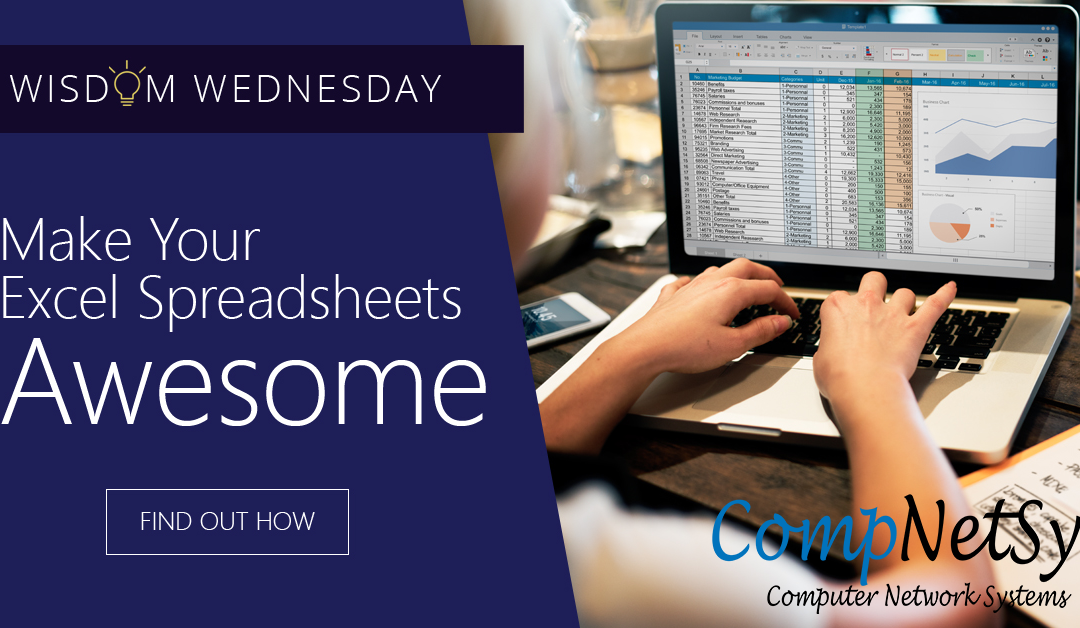
If you are giving a presentation and part of it involves a shared display or handouts of a spreadsheet what can you do to keep the group awake? Let’s face it, Microsoft Excel is an excellent tool for organizing and manipulating statistical data, but when sharing your spreadsheet with others, your spreadsheet has to be interesting and informative.

How Do I Get More Information into an Excel Spreadsheet?

Before you get more information into your spreadsheet, make sure that a spreadsheet is a right tool for the job. More often than you might think, we use spreadsheets inappropriately. Would an Access database work better? Should you use PowerPoint for your presentation.

If you have decided that Excel is the right vehicle for your presentation, include a text document that is a “welcome” or “about” for the Excel document. This keeps you on track and reminds others what the purpose and mechanics of the spreadsheet are.

While it’s true that most of the spreadsheets we use in our careers are for our own consumption, it is a good practice to talk about your spreadsheet with others. Find out what features they like and which they don’t favor. If you work collaboratively with others in your organization be generous with credit and be sure to mention their names in the about or welcome document.

PivotTables Help (A lot)

PivotTables are important as they take tables of data, often with hundreds if not thousands of rows and help you and others understand the data by summarizing them by the column fields.

For a PivotTable to operate correctly it has to be set up in a certain way; each column needs to contain the same kind of data that is in a “raw” state – that is the data has not been processed yet. The following are some advantages associated with using PivotTables in Excel:

  • Simplicity
  • Speedily produced
  • Multiple dimensions – you can sort data by row or by column
  • Allows for interactive analysis

Appearances Do Matter

Your Excel Presentation can be exciting and visually stimulating. Following are some tips that help you accomplish this.

  • Consistency: Your spreadsheets will be easier for others to understand if you use only one font, bold headings for data groupings and formulae, distinct shade categories of data (for example shade raw data gray and results in green) and analytical comments should be in italics.
  • Create a Logical and Natural Flow: This is done by using the order of Worksheets and the layout of calculations and data to read left to right and top to bottom. An excellent Excel presentation takes the reader through a story – from inputs and assumptions to calculations and finally the results.
  • I Want Highly Informative Excel SpreadsheetsMake Data Relevant: To be more informative, an Excel spreadsheet presentation needs to have relevant data and analysis stand out. To do this, try to downplay the non-data elements of your tables and graphs. While you might create axes and gridlines the same color, make them paler than the data points.


Your best source for tips, tricks, and hacks

Computer Network Systems (CompNetSys),is your best source for tips, tricks, and hacks as well as news relating to the latest advances in technology to help you work smarter, not harder.

Call us @ 866.205.8123 or send us an email @ support.staff@compnetsys.com

Additional reading that may interest you :The Truth and Lies Behind Common IT Security Myths

Flashback Friday – Remember Dialing Into The Internet?

Flashback Friday – Remember Dialing Into The Internet?

Who remembers dealing with dial-up? It was technology that changed the world, but how did it start?

There was a time when the telephone line ruled the world. It did more than making vocal connections from one person to the next; it was also the heart of transmitting written data. Its core concept began early in the 1960s and ended with the advent of broadband connections. In between those years, the ringing buzz of dial-up was the sound heard around the world. Today, dial-up service is all but obsolete in most metro regions, although, you might still hear its signature ring in remote areas. Take a minute to remember those days of dial-up service.

Finding the Right Number

Visionaries began conceptualizing computer networking as far back as 1962 with the Defense Advanced Research Projects or DARPA. In 1965, MIT researcher Lawrence Roberts connected his computer to one in California using a telephone landline and modem, but the phone system at the time was incapable of handling complex packet switching in a larger scale.

In the really early years, it worked more like a fax that transmitted from screen to screen after you physically establish the link between your computer and the phone using a clunky modem. You would pick up the phone receiver, dial a remote number and then wait to hear the ringing noise that indicated a successful connection. The next step involved placing the phone receiver on the modem and then sending whatever file you wanted through the line. It was a process that could literally tie up your phone line for hours and, of course, those long distance fees hurt.

Introducing USENET

At some point, the old-school dial-up becomes more commercialized and global. Even if you remember dial-up Internet, you probably know very little about its predecessor USENET. Developed by Duke University graduate students Tom Truscott and Steve Bellovin, USENET was a series of newsgroups, much like today’s Internet forum. USENET was conceived more than a decade before anyone was using the World Wide Web, but it set the stage for people wanting that kind of online communication. By the time dial-up hit the consumer marketplace, USENET had already established a market for it.

How Dial-Up Works

Dial-up connections work using telephone lines. The computer now makes a phone call for you via a modem. In order for data to travel through the phone lines, the modem must convert the computer’s signal into analog first. The call goes through using the public switched network, connecting it to modems operated by the service provider.

Once the computer call is initiated, the phone line remains tied up until the computer disconnects. You might remember a time when you picked up the phone receiver and heard a loud screeching noise that indicated the phone line was in use.

Even after homes installed dedicated lines for their dial-up Internet connections, it still took some time to turn on your computer and click the button that initiated the call to the service provider and wait for the connection to go through.

It sounds cumbersome but dial-up changed the world. Before we all become glued to our keyboards and smartphones, your best bet for fast, written communication was the telegram. From emails to social media, the world has become one global consciousness and it all started with old-school dial-up.

Twelve Shortcuts Saving Maximum Time Using Microsoft Outlook

Twelve Shortcuts Saving Maximum Time Using Microsoft Outlook

The latest version of Microsoft Outlook is designed to be a personal information manager, not just email. Learn the shortcut tricks and a user can become a power communicator very quickly.  

While many wish there might be another choice, it is unlikely that Microsoft Outlook as a user interface is going to go away anytime soon in the workplace. In this regard, those who see the long perspective focus far more on how to use Microsoft Outlook effectively versus trying to replace it. And that’s where power users are really pushing the boundaries of the tool for maximum performance and the least amount of time communicating.

Here are 12 shortcuts that really stretch Outlook for what it can do for a user:

  1. Keyboard Shortcuts – Yes, there are menu commands. However, it’s those who know the keyboard shortcuts who really get things done amazingly fast. Shortcuts go direct to the function needed, and it doesn’t take long to get used to them. Beginners often just print out a cheat sheet.
  2. Quick Steps – In addition to the keyboard shortcuts, Outlook has a number of Quick Steps. Started with the 2010 version, this is the macro version of shortcuts. They are customizable, so you can make personal multi-step tasks that happen with one code versus three or four menus.
  3. The Clipboard Email Creator – A neat feature, one puts the text in the clipboard and then with Ctrl-V Outlook will automatically convert it into a message, calendar post, or contact entry.
  4. Email Shortcuts – Outlook comes with a number of built-in sorting features for fast locating of a given email message. Learning them allows a user to control the mass of messages that come in daily.
  5. Limiting Notices – A default notice in Outlook will notice every new email, but these can be limited to just high priority parties, cutting down time and focusing attention better. It’s a simple rule creation in Outlook.
  6. Flagging – Ever had an important email that you needed to find later but couldn’t? Red flagging makes it easy to find a pin in a haystack of messages.
  7. Template Powering – Saved email templates for commonly sent emails cuts down a great deal of time, and it protects messaging when protocols have to be followed.
  8. Folders – Simple but effective, active sorting of emails into labeled folders makes them extremely easy to find, segmenting out other emails not needed at the time.
  9. Quick Message Saving – Many people use cut and paste or printing to an Adobe PDF file to save a message. Instead, one can just drag it to the desktop which changes the email to a .MSG format file, easy to open in Outlook.
  10. Utilize All the Features – Outlook isn’t just email, it’s also a task-minder, calendar and journal. Don’t ignore them.
  11. Use Priority Tagging – Outlook has a number of priority fields and color coding for tagging. Using these make it easy to sort and filter items for what’s critical versus fluff.
  12. Natural Language – The software includes a feature where natural language can be typed in to the date field. For example, type in “Christmas” or “four days from today” and Outlook will recognize it on the calendar and implement the item.
How To Avoid Computer System Infection

How To Avoid Computer System Infection

Wisdom Wednesday: How to Avoid Computer System Infection

Criminals want your company’s financial data, customer lists including credit card information, intellectual property, and anything else they can sell.

Cyber crime is a huge endeavor with severe consequences for organizations that are victimized. Criminals want your company’s financial data, customer lists including credit card information, intellectual property, and anything else they can sell.

Besides the immediate impact on your business’ ability to operate (for example ransomware can shut you down), there are significant costs associated with a data breach. These costs include:

  • Potential fines from regulatory agencies for failure to protect personal identification data (PI) or personal financial information (for example a credit card number). Some fines have been in million dollar multiples.
  • The cost of notifying all persons and businesses that had their data breached.
  • Costs of providing credit monitoring and identity theft protection for all involved.
  • The potential cost of defending a class action lawsuit against your company for failure to adequately protect sensitive information.
  • Loss of customers
  • Loss of business reputation
  • Inability to attract new customers or clients

Following are Best Practices for securing your computer system and company data.

Best Practices for Computer System Protection

The following list is the Best Practices for keeping your business’ computer system, programs, and data, safe from prying eyes.

  1. Make sure your firewall is on so that intruders cannot access your system from the internet.
  2. Install security software and keep it updated.
  3. Filter all email for computer viruses.
  4. The more popular a program used by your business is, the more appealing it is a target for cyber criminals. Criminals know that many users do not regularly patch their programs against malware infections, so popular programs give them a wider pool for targeting. Make sure that your computer programs are updated as soon as a security patch is released.
  5. Exercise caution when using free 3rd party software claiming they check for software updates. Free software may be bundled with malicious software.
  6. Instruct employees that they should never open emails from unknown senders since they might be a source of infection to your company’s computer system. Attached malware might be anything from a virus to ransomware.
  7. Tell your employees they should check with senders they know if an email has a suspicious attachment. A phone call to the sender can help avoid the consequences of a data breach.
  8. Inform employees they should not open websites they are not familiar with and they should make sure the address bar is the site they want to visit. A random click could take them to a website that is just waiting to download malware onto your company computer system.
  9. Buy your software from a reputable buyer and never use pirated software as it may be infected with malware.
  10. Before using thumb drives and other portable media, scan them with security software to ensure they are virus free.

Computer security may surpass your company’s IT capabilities. Accordingly, consider a computer managed services provider with a strong background in computer security. For more information about managed services and how an MSP can help your company contact Computer Network Systems at 866.205.8123 or contact us by support.staff@compnetsys.com
Wisdom Wednesday : Taking and Printing Screenshots on Windows 10

Wisdom Wednesday : Taking and Printing Screenshots on Windows 10

Need a fast Windows screenshot? We’ll show you how to do it!

Do you need to take a quick Windows screenshot for work or fun, but can’t figure out how to do it? Don’t worry: Our guide will show you just how it’s done.

Copy the Screen for Posts

Traditionally, the “Print Screen” option is the quickest way to take an easy screenshot that you can use later on as desired. The only problem here is that these days Print Screen looks a little different based on what type of keyboard you may have. These steps may not all be available on some keyboards, especially more compact keyboards or non-Windows keyboards.

First, look at the top rows of buttons on your keyboard. Look for a button that says “PrtScn” or “Print Scr” or any other abbreviation (it may also be lurking around the Ctrl key, there are several places that they appear. If there’s a dedicated key, all you have to press it. This will instantly copy a snapshot of the screen. You can then go into any document and paste the screenshot wherever space is available.

Note that sometimes this feature is on a dual-purpose key, and you may have to access it by pressing the Ctrl or Fn key at the same time.

Automatically Save Screenshot as File

Let’s say that you don’t want to just copy a screenshot for pasting, but that you actually want to save a screenshot as its own photo file. In that case, you may need a combination of buttons. If your keyboard has both a Print Screen button and a Windows logo key, you can press them both at the same time: This will usually take a screenshot and then automatically save it as a separate file, typically in the desktop or its own screenshots folder.

Of course, it’s not always that simple. If you have a Windows key, an Fn key, and a Ctrl key, you may need to push some combination of these keys along with the Print Screen key to create an automatic save. A little bit of experimentation may be in order, but if you’re using a built-in keyboard (like on a laptop) then you can probably look up the best method.

Choose a Single Window as a Screenshot

This is a common case in many of today’s larger screens, where you have several windows open at the same time but only want to take a screenshot of one window, not the whole screen. There’s a way to do this, too: Click on the window you want to copy so that it’s highlight. Then press the Print Screen key and the Alt key at the same time. If your keyboard has an Fn key, you have to press Print Screen, Alt, and Fn at the same time to get this to work.

“Snipping” Screenshots

Windows also lets you select a particular area of the screen through a dedicated screenshot tool called the Snipping Tool. It’s not as fast as other methods, but it is very effective. Just type in “snipping tool” into your Windows search box and it will bring up the right link to select. This opens up a small bar that allows you to create a “New” screenshot and change the shape of the shot. You can then drag your mouse to create whatever size you need.

Looking for more information on how to use Windows 10? Remember to take a look at Computer Network Systems Wisdom Wednesday series for continued advice. If our  readers have any further questions or need help figuring out a problem, contact Computer Network Systems at 1.866.205.8123 and support.staff@compnetsys.com