
by Felicien | Nov 27, 2017 | Education
A warning to businesses to be on the lookout for the latest ransomware threat, “Scarab” which is making headlines in the UK and around the globe. This variant of the ransomware virus has become part of a large-scale email-based campaign that manages to slip past the defenses of some unsuspecting companies.
Scarab, is distributed through a malicious email campaign. The email uses the subject line “Scanned from {printer company name}. This is similar to a previous version of the Locky ransomware. The email contains a 7zip attachment that contains a VBScript downloader. The virus script has been found to contain several references to Game of Thrones.
Scarab is a relatively new ransomware family that was discovered back in June. Strangely, the note doesn’t specify the amount demanded, instead it tells you “the price depends on how fast you write to us.”
As with all ransomware, Scarab encrypts the victim’s files, making them irrevocable without payment. Most ransomware has a built-in file extension filter that will leave executable files intact.
While antivirus and firewalls are incredibly effective in reducing risk, you need a more robust security solution in place to defend against the increasingly dangerous threat landscape. To be fully protected, companies will need a proper, reliable backup and disaster recovery (BDR) solution with online and offline backup solutions as the ultimate failsafe against successful attacks.
You want to be vigilant in protecting yourself and your data on a daily basis. Some things to remember are:
Backup that data. You can never backup too often.
If you don’t who is sending an attachment, don’t open it.
If it appears to be from someone you know, verify that they sent you one before opening.
Install Windows updates as soon as you see them available. They are there for a reason.
Make sure you are using passwords and don’t use the same password on multiple sites or more than once.
Unfortunately, no matter how strong the security solutions, attacks will continue to slip through the cracks. Therefore, MSPs and MSSPs who are looking to fully-protect their clients must implement a proper, reliable backup and disaster recovery (BDR) solution with online and offline backup solutions as the ultimate failsafe against successful attacks. Your data is important, don’t let some hacker take it away.
by Felicien | Nov 24, 2017 | Education, M-A
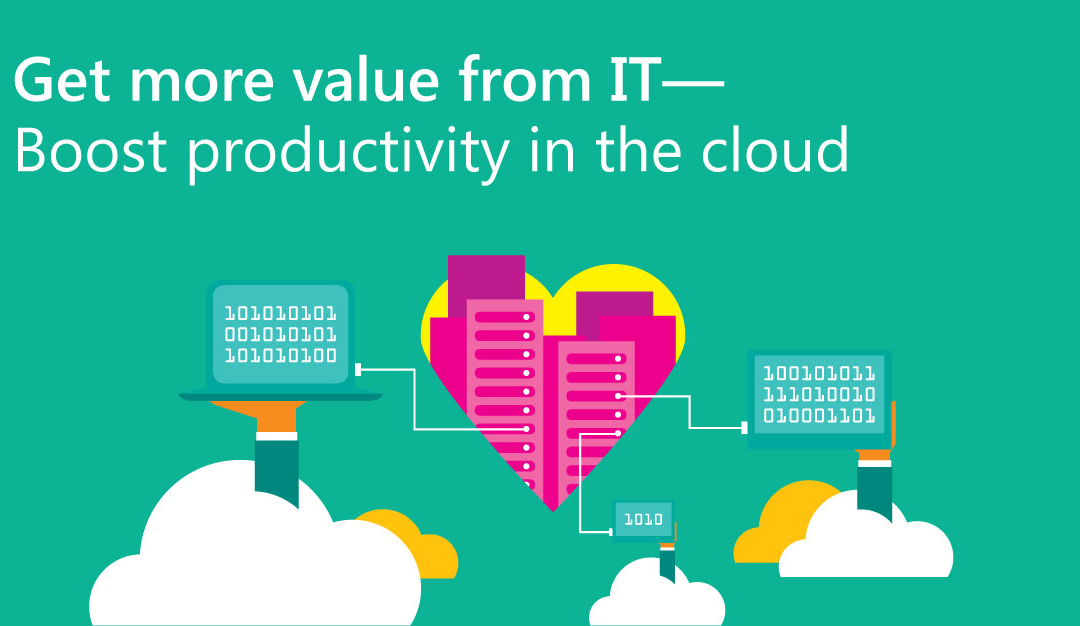
Staying on top of business and technology trends have become increasingly expensive. However, your competitors will be investing in IT even if you don’t—and that’s something you can’t afford. With our deep understanding of small and mid-sized businesses needs, together with our expertise in cloud technologies/CRM/enterprise infrastructure/collaboration platforms, we can design a unique solution based on Microsoft Office 365 that makes technology your competitive advantage.
You can boost productivity with cloud-based collaboration tools, and work with full versions of Office anytime, anywhere, and on virtually any device. Further benefits include low up-front costs and the flexibility to add users and services as needed.
Whether you want to transition to a cloud environment or extend the value of your existing IT investment, we can help you meet your unique business goals.
Contact us now and get on the fast track to modern business.

by Felicien | Nov 24, 2017 | Education
Migrating from G Suite to Office 365 – A Comprehensive Guide for Business Owners
Microsoft’s Office 365 and Google’s G Suite are the two leading contenders when it comes to business optimization in the Cloud. While the two platforms share a variety of similar features and applications, administrators know that there are some distinct differences between the two Software-as-a-Service (SaaS) productivity platforms.
What are the benefits of Microsoft Office 365 over Google G Suite? Watch our webinar recording focused on “Google G Suite vs. Microsoft Office 365”
This means, for administrators looking to migrate data from G Suite to Office 365, making careful considerations about platform differences can make the transition run smoother. While Microsoft offers an Office 365 Onboarding Guide, it doesn’t address all the potential considerations for users migrating from G Suite.
Setting Sail: Strategies for a Smooth G Suite to Office 365 Migration
To ensure no G Suite data is lost in translation, it’s critical that businesses take a moment to examine their situation and develop a migration strategy. By implementing migration best practices, administrators can better manage the migration from G Suite to Office 365 and make sure all data is transferred successfully.
There are a variety of third-party tools and services that business owners can use to migrate data from Google’s cloud to Microsoft’s online office suite. Regardless of which tools or services you use, developing an overall migration strategy will help your company avoid the common pitfalls and problems associated with G Suite to Office 365 migrations.
Before launching a migration, companies need to answer four key questions. Answers to these questions will determine the type and scope of your migration. Having these answers firmly in place before the migration process begins will prevent problems down the road and make the overall process run smoother.
Let’s explore each of the four questions below:
What Data Needs to be Migrated?
First and foremost, determine what G Suite data needs to be migrated into Outlook. For most organizations, the critical element of migration is focused on migrating email data from Gmail to Outlook or Exchange. Because email is such a foundational part of operations for all modern businesses, this data is usually the most important element of the migration process. So, for some businesses, migration will be heavily focused on migrating email data and nothing else.
However, if organizations are looking to move more than email data, a few other questions arise. For instance, is all the data coming from G Suite or does data need to be migrated from additional apps and platforms used by different departments? Do different users have different kinds of data that need to be migrated? Having answers to these questions is a critical part of ensuring migration is constructive and efficient. Furthermore, asking all the necessary questions ensures that no data is left behind.
Will you Deploy a DIY Migration or Enlist Outside Help?
Next, it’s critical to choose how you’re going to undertake the migration process. For some businesses, going it alone may be the most cost-effective option – especially if there are some tech-savvy team members on staff. If your company decides to take on the migration process without external help, be sure to do your research and get the lay of the land before diving in. Microsoft has a variety of instruction manuals designed to help business owners understand and master the migration process – we’ll touch on those later.
For companies looking to enlist support, there are a number of third-party services out there that specialize in Office 365 migrations. Additionally, if your organization works with an IT MSP, their team can help manage or at least provide expert assistance with the migration process. No matter what, if you decide to enlist third-party migration help, make sure to make that decision before you start the migration process. Bringing in outside help mid-migration can be incredibly complex and expensive.
What’s in Your Migration Toolbox?
Once you’ve determined your migration team – whether it be internal, external or a mix of both – it’s just as important to build a migration ‘toolbox’. There are a wide variety of software tools and services designed specifically to arm business owners with everything they need for a successful migration.
This wide range of tools includes totally free options and some solutions that carry a price tag. The free solutions simply do Internet Message Access Protocol (IMAP) transfers between Gmail and Office 365 accounts. Alternatively, the priced solutions offer more complex SaaS tools that map and move data between Google and Microsoft accounts. However, business owners should make explicit considerations about cost and compatibility issues before deploying or investing in any of these tools.
What is Your Migration Timeline?
As much as we’d love to say it’s like flipping a switch, migration from G Suite to Office 365 takes time and care. Unless you have a very low number of users, it’s unwise to migrate every account from G Suite to Office 365 at once. In fact, even for companies with a low number of domains, ‘all at once’ migration is not the most strategic approach.
Migration should happen in waves, and start with a pilot subgroup of users who will have the easiest time adapting. If possible, break up your migration into at least three stages. Experts suggest:
10 percent of users in the first wave,
40 percent of user accounts in the second, and
The remaining 50 percent in the third.
Be sure to leave ample time between each stage to troubleshoot any problems discovered during each phase. By setting a clear, reasonable timeline before your migration starts, you’ll avoid mistakes and future headaches.
Migration from G Suite to Office 365: A Step-by-Step Migration Check List
Once you’ve answered all the necessary questions about your migration strategy, you can use the Setup Wizard in the Office 365 Admin Center for migration. The full scope of instructions can be found here. For comprehensive details on the basics of IMAP migration, check out the background info here.
However, before Office 365 can connect to Gmail or G Suite accounts, all users need to create an app password to access their account. This is because Google considers Outlook to be a less secure app and will not allow a connection to it with a password alone. For full details on how to connect Office 365 to G Suite, check out these instructions. Furthermore, learn how to set up 2-step verification here.
In addition to the information provided above, here is a basic list of steps in the migration process:
Step 1: Verify that you own your domain
Step 2: Add users to Office 365
Step 3: Create a list of Gmail mailboxes to migrate
Step 4: Connect Office 365 to Gmail
Step 5: Create a migration batch and start migrating Gmail mailboxes
Step 6: Update your DNS records to route Gmail directly to Office 365
Step 7: Stop synchronization with Gmail
Step 8: Users manually import their calendar and contacts
IMPORTANT NOTE: As reflected in Step 8, migration will only transfer email data, not calendar and contact information. However, users do have the ability to manually import their own contacts, calendar info and other mailbox data to Office 365 once the migration is complete. Full instructions on how to make manual imports can be found here.
Making the switch from one platform to another usually results because of headaches or shortcomings. The migration process shouldn’t be another hassle for business owners to worry about. Though it may seem complicated and daunting, migrating from G Suite to Office 365 doesn’t have to be an uphill battle – so long as business owners pay attention to the tips, tricks, and instructions outlined above.
If your company is thinking about making the switch, be sure to use this outline as a guide for making your migration run as smooth as possible. Taking time to consider your migration strategy will make execution easier than ever. In turn, the migration will be implemented more efficiently and users will adapt better to the switch.
However, if your head is spinning and you’re looking for a little extra help in navigating the migration process, reach out to a team of local technology experts for guidance and consultation. When it comes to migration, a little help from the industry pro’s goes a long way in optimizing efficiency and productivity.

by Felicien | Nov 24, 2017 | Education
How to Optimize Compatibility Between Google Chrome and Microsoft Office
Microsoft continues to be at the forefront of business technology optimization. From Windows operating systems to Office 365 and SharePoint platforms, Microsoft has a huge collection of tools and services that help business owners get work done more efficiently.
However, one place Microsoft falls short is with their browser solution. While Internet Explorer was one of the first consumer web-browsers on the market, tech innovation has seen competitors come to market that offers speedier and better functioning alternatives. Undoubtedly, one of the most popular web-browser’s today is Google Chrome.
For Microsoft-loving business owners, using Google Chrome instead of Internet Explorer is an incredibly common scenario. Additionally, there are new strategies available that allow Google’s speedy Chrome browser to be optimized for increased compatibility with Microsoft Office applications.
Office Online: A Browser Extension Designed by Microsoft for Chrome Compatibility
So, let’s assume you’re a Windows loving business. Chances are, even if all your business software is from the Microsoft camp, you and your team definitely prefer Google Chrome over Internet Explorer. We don’t blame you – Chrome it’s quite simply one of the best web-browsers on the market – and it’s definitely head and shoulders above Explorer.
However, you’ve probably noticed that since Chrome is designed by Google, many of the built-in features have a Google bias. For business owners who use a variety of Cloud-based Microsoft Office apps, Google defaults can be a real nuisance.
Luckily, Microsoft has given in and answered the call. Microsoft users who have their heart set on Chrome for web-browsing can now download Microsoft’s Office Online extension for Google Chrome. The Office Online extension allows users to supplement Chrome with an Office-first mandate and streamlines access to all Office documents.
Using Office Online: The Key Ways Microsoft’s Chrome Extension Optimizes Compatibility
With the Office Online extension for Chrome, users can open and create documents using Office Online apps. Without leaving the browser window, users are able to launch new documents or open and view existing documents stored in OneDrive or locally on their machine. Using the extension, users are able to sign into their Microsoft account to open and edit files using all the most familiar Office apps like Word, Excel, and PowerPoint.
Beyond the basics, the Office Online extension also offers a unique drag-and-drop feature. This feature allows users to drag-and-drop files directly from their machine into an open Chrome window, which automatically uploads them to OneDrive. This makes it easier than ever to grab a document from your desktop and seamlessly transport it to the Cloud.
Finally, when a user runs across Office document formats on a web page, such as resumes or academic papers, they will automatically open in Office Online instead of the Chrome file viewer. However, it should be noted that PDF files will continue to open in Chrome’s native viewer.
Sign Me Up: How to Add and Navigate the Office Online Chrome Extension
The Office Online extension can be added to your Chrome browser by accessing and installing it from the Chrome Web Store. It’s incredibly easy to add and once installed the extension will appear as the Office Online logo in the top right-hand corner of the browser window, next to the address bar. Once, installed, click on the logo to sign into the extension using your Microsoft account.
Once signed in, users can click the Office logo at any time to display recent documents. At the top of the extension’s drop-down window, users will find the option to create a new document using Office Online apps. The extension supports all the major Office file types including Word, Excel, PowerPoint, OneNote, and even the latest app from Microsoft, Sway. The extension drop-down menu will also give users the option to open existing documents saved to OneDrive or a local drive.
IMPORTANT NOTE: To take advantage of the drag-and-drop feature, users must manually activate it. Once your Office Online extension is installed, type chrome://extensions into the address bar of your browser window and scroll down until you see the listing for Office Online. To activate the drag-and-drop feature, select the box that says, “Allow access to file URLs”.
Smooth Sailing: Navigating Chrome with the Office Online Extension
Once these steps are complete, users are ready to go. Chrome browsing for business purposes becomes easier than ever and compatibility with business apps is optimized. Depending on the unique needs of every business, this can result in a streamlining of processes, a decrease in wasted time and an increase of resourcefulness among employees.

by Felicien | Nov 24, 2017 | Education
Combatting Cybercrime with Multi-Factor Authentication in Microsoft Azure
For business owners, the cybercrime landscape is only getting worse. More and more, businesses are looking for the best ways to lock down company data and implement strengthened lines of defense. Two-step account verification is becoming an increasingly popular means of keeping hackers away from business account data.
Breaking Down the Basics: What is Two-Step Verification?
Two-step verification serves as a critical second layer of security that demands an additional method of authentication to allow user sign-ins and transactions. It works by requiring two forms of account authentication to prevent unauthorized access or account hacks.
Two-factor authentication involves any two or more of the following verification methods:
Something a user creates and knows (typically a password)
Something only the user has possession of (a trusted device that is not easily duplicated, like a smartphone or tablet)
Something entirely unique to the user’s actual being (biometrics like fingerprint logins)
Today, more than ever, people are increasingly connected – especially across the business landscape. Between smartphones, tablets, laptops, and PCs, business users have multiple ways to access accounts and applications from anywhere. Two-step verification allows business users to implement an extra layer of protection in this growing digital atmosphere. Furthermore, as leaders in business technology optimization, Microsoft has wasted no time in implementing their own two-factor authentication method for Azure.
Secure Azure: Benefits of Multi-Factor Authentication in Microsoft Azure
Azure Multi-Factor Authentication (MFA) is an easy to use, scalable, and reliable two-factor authentication solution that provides increased protection of user accounts. Azure MFA helps professionals control and protect access to data and applications without creating a ridiculously complicated and irritating sign-in process for users. Azure MFA allows users to implement a reliable authentication system, through a variety of mediums.
Let’s break down the key benefits of implementing Azure MFA:
Easy to Use
First and foremost, Azure MFA is incredibly simple to implement and even easier to use. The extra protection that comes with Azure MFA allows users to manage their own devices which alleviates the security burden for management and IT admin staff.
Scalable
Azure MFA harnesses the power of the cloud and integrates seamlessly with on-premises applications. This means Azure’s authentication feature can handle high-volume, mission-critical situations and is equipped to support business growth.
Consistent Protection
Azure MFA is designed specifically to ensure consistent and user-friendly authentication processes for business users. Azure MFA provides this consistent protection by deploying the highest industry standards and best practices.
Reliable
Because business never sleeps, Microsoft guarantees 99.9% availability of Azure MFA. The service is only unavailable when it is unable to receive or process verification requests for authentication.
How it Works: Functionality Considerations for Azure Multi-Factor Authentication
Azure MFA is so secure thanks to its layered approach to protection. Hackers looking to gain unauthorized access to an account will have a much harder time compromising multiple check-points as opposed to basic, password-only options. By implementing Azure MFA, even if a cybercriminal were to crack a user’s password, the information would be useless without possessing a trusted device or completing the next authentication step.
Azure Multi-Factor Authentication helps lock down access to data and applications while meeting user demand for a simple sign-in process. It provides additional security by requiring a second form of authentication via a wide range of easy and customizable verification options.
The following are a list of methods that can be used for second-step verification:
Phone Call
Here, a call is automatically placed to a user’s registered phone. To authenticate access, users enter a PIN if necessary, followed by the # key.
Text message
If preferred, users can also receive a text message to their mobile phone. The text message will provide a six-digit code and users then enter this code on the sign-in page to authenticate.
Mobile app notification
Users can also set up verification through the Azure mobile app. A verification request will be forwarded to a user’s smartphone, and the user is then able to enter a PIN if necessary, followed by selecting Verify on the mobile app to authenticate.
Mobile app verification code
Similar to the previous option, the Azure mobile app also has a verification code feature that users can take advantage of. The app, running on user smartphones, has a tool that generates verification codes that change every 30 seconds. Users select the most recent code and enter it on the sign-in page to authenticate.
Third-party OATH tokens
Finally, if for whatever reason, the above options aren’t preferred, the Azure Multi-Factor Authentication Server can be configured to accept third-party verification strategies as well.
IMPORTANT NOTE: Azure Multi-Factor Authentication provides varying verification methods for both the Cloud and server platforms. Business owners can choose which methods are available for users. For full details, check out info on selectable verification methods.
Strategies for Implementation: Getting Started with Azure Multi-Factor Authentication
Now that we have the lay of the land, let’s take a look at the steps necessary for implementing Azure MFA for business users. Implementing the solution isn’t difficult at all and if business owners follow this step-by-step guide, they’ll have a second layer of security deployed in no time.
PREREQUISITE
Before anything else, businesses must be signed up for an Azure subscription.
In order to take advantage of Azure MFA, businesses who do not already have an Azure subscription will need to sign-up for one. If you are just starting out and want to take a test-drive, there is a trial subscription option.
Enable Azure Multi-Factor Authentication
This part is generally easy and automatic. As long as business users have licenses that include Azure MFA, there’s nothing that you need to do to manually activate the feature. You can start requiring two-step verification on an individual user basis under the following Azure licenses:
Azure Multi-Factor Authentication
MFAAzure Active Directory Premium
Enterprise Mobility + Security
However, if you don’t have one of these three licenses, or you don’t have enough licenses to cover all business users, you’re not out of luck. You’ll just have to complete an extra step and create an MFA Provider in your Azure directory. For full instructions, check out this guide.
Turn on two-step verification for users
Next, business owners need to turn on the two-step verification feature so that it’s required of all users. Business owners have the option to enforce two-step verification for all sign-ins or create conditional access policies to require two-step verification only in certain situations. There are a variety of ways to set up your preferred method – you can find a collection of step-by-step procedures here.
Configuration
Finally, once Azure MFA is set up, business owners can configure and optimize deployment. The configuration allows for a variety of customizing strategies like fraud alerts, by-pass permissions, trusted device logs and more. For full details on strategies for configuration, check out this how-to configuration guide.
The business environment is increasingly fast-paced and digitally-based. Furthermore, as innovation continues to unfold, the cybercrime atmosphere is only getting more dangerous. This means it’s more important than ever for business owners to get strategic with IT security.
Azure’s MFA two-factor verification solution offers business owners an easy way to combat cybercrime, empower users and protect company data. Azure MFA operates as an additional line of defense for business users, making it harder than ever for cybercriminals to hack into password-protected accounts.
Is your company making use of Azure MFA or another solution for two-step verification? If not, what are you waiting for? Implementing two-factor authentication is one of the easiest ways to up your cybersecurity game. If you have questions about implementation, reach out to a local IT firm for professional consultation – you have nothing to lose and everything to gain.

by Felicien | Nov 23, 2017 | Education
Understanding How Everyday Companies are Getting the Short End of the Cybersecurity Stick
Debates over inequality are a hot topic of debate in America these days. While the technology industry isn’t usually included in these debates, there are some key inequality issues surrounding cybersecurity that are leaving many everyday business owners struggling to maintain a strong line of defense. The conversation isn’t being had enough outside inner IT circles, so let’s explore this inequality and how its impacting everyday business owners like you.
The Have’s and Have Nots: Cybersecurity Inequalities Across the Business Landscape
Chasing the Action
More and more, companies are facing increased difficulty trying to protect their corporate networks. Why? Retaining high-skilled security professionals is harder than ever. This means that despite an intense increase in damaging and disruptive cyber-attacks, everyday SMBs aren’t able to keep their hands on high-quality IT security hires.
The reason is pretty simple. Most high-skilled cybersecurity experts are looking to be at the center of the action. Namely, they want to work on high-profile, big, interesting problems like protecting assets for Wall St. giants or working for the CIA, going head-to-head with Russian hackers. Unfortunately, for security experts, protecting the network of a local bank or construction company simply doesn’t offer the same rush.
High Salary Demands
Everyday cybersecurity jobs also don’t offer the same paycheck that these high-profile positions. How is an everyday SMB supposed to compete with the salaries offered by Fortune 500 companies or government agencies? Simply put, dynamic and highly skilled tech professionals often demand salaries that SMBs simply cannot afford.
Additionally, as the cybersecurity climate continues to become more unpredictable, the demand for high-paying security jobs will only increase. In fact, a recent report from DICE noted that the average “Director of Security” professional makes more than $178,000 a year. This isn’t great news for small business owners and research giants Frost & Sullivan forecast that by 2020, 1.5 million cybersecurity jobs will go unfilled.
Leveling the Playing Field: How Can SMBs Stay Strategic with IT Security
While there are plenty of new, high-tech products on the market, designed specifically to protect companies from unexpected cyber-attacks, these systems can often leave employees with more work than before. Between managing software updates and dealing with constant security alerts, IT management employees can become overwhelmed, which only results in high turnover rates.
However, regardless of the security challenges companies face, consumers still expect their data and money to kept private and secure when traveling through various web-based business channels. So, business owners are left to make the most of what they have, to ensure client and company data doesn’t end up in the wrong hands.
Let’s break down some of the key ways in which business owners can optimize their security strategy:
Set Realistic Expectations
As noted, the cybersecurity climate is only getting worse as time goes on. This means, for most modern businesses, the chances of being subject to some kind of cybersecurity incident is nearly inevitable. Many businesses want to take on a ‘zero tolerance’ approach to cyber-attacks, but it’s incredibly expensive – and nearly impossible – to do that successfully.
So, the key is to have transparent conversations between executive team members and security staff to determine how your company wants to balance cost vs. risk. First, companies should focus on protecting what matters most and deciding what risks will be accepted.
Maybe your company will decide to invest in cybersecurity insurance as opposed to building an entirely new security infrastructure. Depending on the unique needs and demands of your business, setting realistic expectations helps to avoid surprises and layout standard operating procedures. There are no wrong answers in this discussion, just strategic decision-making.
Determine Your Security Management Approach
The next step is determining how your company’s security strategy will be managed and overseen. The choices here include managing security yourself, as the owner, designating security management to internal staff or outsourcing IT security management to an external vendor.
Outsourcing is becoming an increasingly popular option, because the truth is, hiring and maintaining a fully-staffed internal security team is a hassle, not to mention expensive. However, for business owners considering outsourcing options, there are key considerations to be made to ensure vendor partnerships support business goals.
When looking for an external vendor, be sure to choose one that is clear and transparent about the value they deliver, their integration capabilities and any additional spending required to make the most of their service offerings. Ask for references and ask them to quantify their value after their first year of service.
Finally, ensure that you choose and IT security vendor who will be an informative and constructive security partner. Make sure that the service provider you partner with will not only alert you to security problems but also give you concrete explanations for why they occurred and how to remediate the issue.
Develop a Cost Framework
This is the most obvious element of security investments: what kind of security strategies do you want to implement and what are the cost implications over time? For instance, are there additional cost requirements for training new employees about tech security? What is the cost associated with keeping team members up-to-date on security developments? What will it cost to maintain a system on your own versus the cost of paying a third-party vendor?
If you’re going it alone, the consistent maintenance of a dynamic security team can be costly. Make considerations for how long you want to retain employees and make a detailed accounting of proposed salary increases over time. Also, since security professionals are being pulled in every direction, make sure you’re considering costs for training and promoting junior employees and identifying new talent to address turnover concerns.
If you decide to outsource to a vendor, make sure to consider all the costs required including start-up fees, monthly payments, equipment purchases and software investments. Developing a detailed framework for what you need and what you can pay will help vendors match their service plans to your service requirements and budget conditions.
In a sharply divided world of cybersecurity talent, many businesses feel left out in the storm, unable to meet the salary demands of the IT security professionals they’d like to retain. However, if company’s approach security programs smartly and deliberately, they can make security investments work harder. Developing dynamic IT security platforms can restore peace of mind for business owners and optimizes cybersecurity investments.
However, for small business owners, building a dynamic cybersecurity plan can seem like an uphill battle – especially when cybercrime is getting worse, and the most qualified security experts are getting pulled to high-level, high-paying jobs. But business owners do not have to go it alone.
If a salaried security employee isn’t in your company budget, it doesn’t mean you can’t be strategically proactive with cybersecurity. Reach out to a team of IT security experts for guidance and consultation. Tech professionals can help ensure your data is locked down, even if security budgets are tight.