by Felicien | Jan 2, 2018 | Education
Theft and fraud are serious causes for concern both in and out of the office, which makes education and awareness on the subject crucial.
Cybercrime comes in many forms and uses many different tactics to put valuable data in the hands of hackers and scammers. Often a cybercriminal will simply focus on getting a hold of whatever bits of data they can easily access, whether it be from an individual or from a business. Others, however, will tailor their efforts to extract specific data from a specific target.
Information that can help someone to steal your identity is very lucrative for hackers since this is the type of information they can profit off of quickly and easily thanks to Dark Web marketplaces. This type of theft has become a multi-billion dollar business for cybercriminals, which means these threats won’t be going anywhere anytime soon.
Knowing how to recognize these threats, understanding how they work, and learn how to avoid falling victim to the tricks these hackers rely on to get what they want can help protect you, and protect your business. Here are five quick tips that will help you avoid identity theft.
Tip #1 – Be Cautious Of How You Shop Online
Cybercriminals are motivated by one thing, and one thing only – money. If they can’t sell your information to make a profit, they’ll happily help themselves to your credit card information, banking information, and even the contents of your accounts. They can drain your savings, max out your credit limit, or even open new cards or new accounts under your name for their own use.
One of the easiest ways for a hacker to get their hands on what they’d need to do any of those things is by intercepting your information during an online transaction. You can stop this from happening by being mindful of how and where you make transactions, and by taking care to:
Avoid using unsecured public Wi-Fi
Shopping only on familiar and recognizable websites
Checking for the “lock” icon in your browser’s URL bar before supplying any information to a website
Navigating directly to websites rather than clicking on pop-ups, ads, or links
Having an active an up-to-date firewall and antivirus program in place on all devices
Making use of Two-Factor Authentication to protect your accounts
Tip#2 – Learn To Spot A Phishing Attempt
Phishing scams are nothing new. Criminals have been using the same tactics for many years, adapting techniques used over the phone into highly successful email campaigns. Regardless of the approach they take, the goal remains the same – getting a hold of sensitive information by simply asking you for it.
By posing as financial institutions or the IRS, scammers will send out emails advising targets that their account has been compromised, their password needs to be updated, or important information is missing from their file. By responding to these messages and providing the requested information, you’re handing over everything a hacker needs to steal your money or your identity.
No matter how legitimate these emails may look, no reputable company, institution, organization, or agency will ever request sensitive information via email. Avoid clicking on embedded links in these types of messages and instead go directly to the website, and if you want to follow up with the sender before responding, make sure you use the contact information found on their official site, not what’s provided in the email.
Tip #3 – Know What To Do When A Breach Happens
No matter how cautious you are, there is always a chance that a data breach will happen. If you find yourself in this situation, the first thing you should do is try to verify what information has been compromised. Next, you’ll want to get in touch with your bank and have them put a freeze on your bank accounts and credit cards until you have a better understanding of your situation. If the breach was the fault of a company that you had trusted with your information (think the Equifax breach), be sure to take advantage of any free credit and identity theft monitoring the company is willing to provide.
While some of what needs to be done to rectify the situation might be out of your hands, there are steps you can take to keep things from getting worse. Change the passwords for any website, account, or app associated with the email address that was compromised by the breach, and consider adding Two-Factor Authentication wherever possible if you don’t already have that measure in place.
Tip #4 – Beware Of Social Engineering Scams
Social engineering is a tactic that has made phishing scams even more dangerous than they have been in the past. Instead of relying on generic messages sent out en mass in the hopes that someone will fall for the scam, social engineering uses information a hacker can find online through social media or other public sources to tailor messages to a specific target.
By impersonating a specific individual or entity you would expect to receive an email from and directing their request for information to you specifically, the odds of you responding and providing information are significantly higher. Again, it’s important to remember that no one should ever contact you asking for sensitive information about yourself or your business via email.
Tip #5 – Remember Businesses Can Have Their Identities Stolen, Too
Small businesses can find themselves dealing with identity theft just as easily as an individual can. Today’s cybercriminals are incredibly savvy, exploiting a knowledge of tax codes and financial policies to open business accounts or company credit cards, and even file false tax refunds in order to take your business’ refund for themselves.
The same tactics used to steal your personal identity can be used to steal your business’ identity, but the latter can be a little trickier to spot. Common indicators that your business’ identity has been compromised include tax or financial correspondence suddenly stopping because the thief has changed your address to intercept documents, your e-return being denied because it’s already been filed by someone else, or you receive notices of tax submissions or major transactions that were not made by you or your staff.
Want to learn more about the steps you can take to protect your valuable personal and business data from cybercriminals?

by Felicien | Dec 28, 2017 | Education
Microsoft Word is what many of us use to read and create new documents. This might mean writing essays for school, novels in your free time, or step by step instructions for work. Whatever you’re doing, it’s important that you be able to access your files quickly and efficiently. A problem that some users face when using Word is understanding how to open documents they have not accessed recently. Of course, there is a list of the most recent documents available to you when you click on the Office Button or right-click the Word tab on your taskbar, but what if you need something that is not in that list?
This can be frustrating and could potentially impact your business or life, so it’s important to know how to access all of the files that you have created through Word. To access all of your Word documents, there are two options. You can do so by selecting the ‘Computer’ option on your device, or you can then select the ‘Open’ icon from the Quick Access bar. Both options will allow you to search for the document you need.
To open Word documents on your computer or device, first select the ‘Start’ icon, where all the apps and other tools on your device are listed. Scroll until you find the ‘Computer’ option and then click it. Next, all your files will show up on your screen. Not only will there be a ‘Recently Opened’ option, but there will also be the ‘Document’ and ‘Download’ options available to you here. You can scroll through the different folders and files until you find the one you are looking for. Alternatively, you could type the name of the document you are looking for into the Search field, which is located in the top right-hand corner of all of these folders.
If you wish to open a document while you already have Word open, you can do that by selecting the ‘Open’ icon from the Quick Access bar. The drop-down will look very similar to the list of files you find when clicking the ‘Computer’ tab as we previously discussed. There will be a dialog box, where you can search for the files that you need. To open them, just select the file, and then select ‘Open.’ Word will open a new Word file with this document.
Word is a very useful tool that no doubt has been very beneficial to people’s lives both personally and professionally. There are many tricks that you can pick up to make your Word experience even more efficient and useful, and learning how to access your documents quickly and easily is definitely something everyone should be taking the time to understand.
by Felicien | Dec 27, 2017 | Education
How many emails do most business people send each day? Email is the most popular form of business communication and it’s going to increase according to the 2014-2018 Email Statistics Report, by The Radicati Group.
Here are some interesting statistics highlighted in the Report:
The average number of business-related emails both sent and received will rise from 121 each day today, to at least 140 each day in 2018.
Workers receive an extra 13 emails a day on average now than in 2011.
By 2018, 97 emails will hit inboxes each day, at an average of 12 emails every working hour.
It’s expected that 43 emails will be sent each day, at an average of five an hour, or one about every 10 minutes.
And, if you do email marketing add a lot more to these numbers. Sending emails can take up a lot of time and be really frustrating if you have to go searching for hidden commands buried in mouse clicks, buttons and tabs. That is unless you customize the Ribbon Bar in Outlook 2016. When you place the commands that you use most often in the Ribbon Bar, you can save time and increase your productivity.
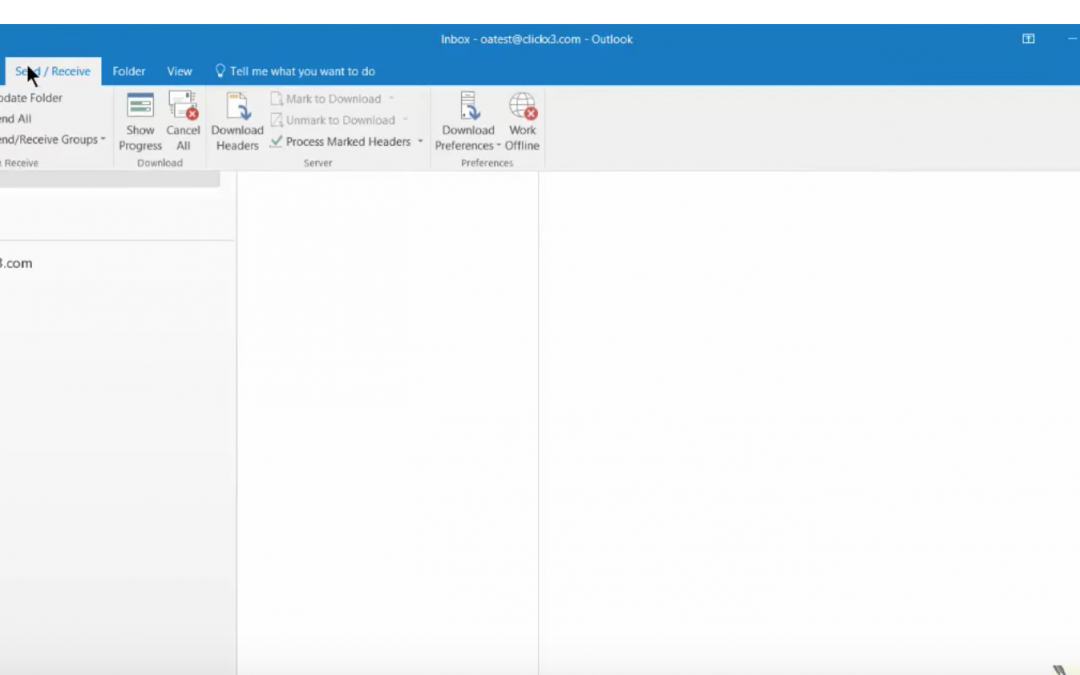
Before you begin, make sure the Ribbon is displayed. The Ribbon in Outlook 2016 is hidden by default to give you more vertical space, so you’ll want to change this. Here you can see that the Ribbon Bar is missing:
To show the Ribbon, click on View. You’ll see a little pin in the upper right. Click it and now your Ribbon will always show in Outlook (unless you decide to hide it again.)
You can personalize your Ribbon to order the tabs and commands the way you want them. You can also hide those that you don’t use often. For some basic directions on customizing tabs on your Ribbon click here. We’re going to go into more detail below.
Note that when you customize your ribbon in Outlook, these changes won’t be visible in Excel or PowerPoint. If you want to make the same customizations in your other Office applications, you must open each of them to make the same changes.
Let’s say you use email forms all the time in your communications. There’s a command for this that you can add to your Ribbon Bar: Open Outlook and click on the File tab.
On the Sidebar to the left of your screen, click Options.
In the Options window, click Customize Ribbon.
In the Customize Window, highlight Home Mail tab.
Next, click the New Group button at the bottom of the window.
The New Group option will appear.
To reorder where the New Group option appears, left-click it and drag it into the position you want.
If you prefer, you can rename this option so it’s more descriptive. Highlight the option by left-clicking your mouse and click Rename.
You’ll be presented with a number of options, in the Display Field enter the new name for your option.
Click OK and your option will be renamed.
Now it’s time to add the command to the new button. Go to the Choose Commands dropdown menu.
Select All Commands.
Next, scroll down until you find the Choose Forms command.
Make sure the custom button you created is highlighted.
Click the Add button.
The Choose Form command now appears under the new button you created.
If you want to create a custom icon for your new command, open Form Email.
Next, click on the Choose Form option, and click Rename.
Highlight the icon you like and hit OK.
Click OK to close the window and try out your new Choose Form button on the Ribbon Bar.
Your Choose Form window opens and you can select the template you want.
Highlight the Email Form you want to send and select OK.
Up pops your new template ready to write and send!
Want to Add a Command to a Custom Group? Here’s How:
Say you want to put the Spelling & Grammar command in its own group on the Message tab.
Open a new email.
Go to File> Options> Customize Ribbon
In the list on the right, verify that a “New Mail Message” is expanded and select the Clipboard Group.
Click the New Group button at the bottom.
With “New Group (custom)” selected, click Rename, and key in a name for the group.
From the list on the left, select the Spelling & Grammar command.
(If the command that you want isn’t here, use the “Choose commands from” dropdown list at the to: All Commands.) Click Add.
Press OK and your command should show up on the default Message tab when you compose a message.
Now, Let’s Add a Command to a Pre-Defined Group:
We’ll add the Print Command to the “Move” Group on the Home Tab.
Select File> Options> Customize Ribbon
In the list on the right, make sure that Home (Mail) is expanded and select Move group.
Click New Group at the bottom.
With New Group (custom) selected, click Rename and give the group a name. An example might be “Move & Print”.
From the list on the right, select Print.
If the command that you want doesn’t show in this list, use the “Choose commands from” dropdown list at the top: All Commands.
There’s also a “Quick Print” command which immediately sends the selected message to your default printer without any additional prompts for settings.
Press the Add >> button.
Set the “Choose commands from” dropdown list to: All Tabs
Open the list at the bottom until you see the group that you’re editing. Make sure you also expand this group.
On the right, verify that your newly created group “Move & Print” is selected.
Add all the commands that you wish to keep from this pre-defined group to your newly created group by clicking the Add >> button.
Now, select the pre-defined “Move” group and click the << Remove button.
Click OK to close the dialog box.
Your command should now show up on the default Main tab of Outlook within the “Move & Print group.
Now, no more searching for commands in Outlook 2016 when you need them. Follow the same processes with other commands you use most often. Doing this will save you so much time in the future. You can also do this with the Ribbon for other Microsoft products like Excel, Word and Powerpoint.
There are a lot more ways you can customize your Microsoft Outlook and other Office products. The experts at Intelice Solutions will be happy to share them with you. Simply contact us at:
Phone: 301-664-6800
E-mail: Info@Intelice.com

by Felicien | Dec 27, 2017 | Education
There’s no denying that in today’s world, information is more accessible and easier to obtain than ever before. From the Internet, tablets, laptops and even your smartphone, information can be accessed anytime and from anywhere. But do you know all the “ins and outs” of making this “connect-from-anywhere” information work for you?
As a business owner, big or small, why would you put yourself under the pressure and stress of maintaining your own IT service? You need all the time and effort you have to run your company and turn a profit. Let someone else take on your IT worries. Hand that stress over to professionals who know today’s technology and whose sole job is to handle things like data storage and server maintenance. When you do, you’ll be free to work on other aspects of your business, like sales.
An IT services provider is equipped to handle issues and prevent devastating downtime. Your service provider will have the knowledge and latest technologies to handle any problems and get you back up and running with minimal effect on your business. In 2018, you don’t have time to play at IT, you need someone who knows all the “ins and outs” of technology management.
If you’re still on the fence about outsourcing your IT management, take these points into consideration:
Efficient cost control
This is probably the number-one reason businesses outsource their IT services. It lowers costs and frees up funds for other aspects of the business. Who doesn’t want to save money?
Reap the benefits of freed up resources.
As a business owner, you’re probably operating on limited resources—So why use up, even more, maintaining something you know so little about? Let someone else take over the management of your IT services. When you do, you can finally free up Bob from accounting so he can do his job. Let the IT professional fix those broken computers and laptops, and Bob do what he does best. Using an MSP frees up your staff to do the job they were hired to do. Considering how rapidly technology is changing, how is Bob from accounting supposed to keep up anyway?
Minimize risk.
Another good reason to use IT services is that you’ll minimize risks to your IT infrastructure. This allows businesses to be more flexible and agile, and deliver better products and services over the long run. Again, lowering costs and the stress of having to maintain a network can minimize the risk of something going wrong, and have a positive effect on your business outcomes.
Re-focus your priorities.
When you worry about your network or data storage issues, you’re not focused on your business. It’s not productive to split your time between six different IT issues while trying to make a sale and stay in the black.
Access to data management expertise
If you were an IT pro, you’d be in the managed service provider (MSP) business. When an MSP maintains your network and provides the IT services you require, you’ll have access to experts who know the most efficient way to implement data storage or supply you with up-to-date equipment for your unique needs. The professionals who work for MSP businesses are certified experts who keep up with the latest and best technologies.
Now that you know some of the benefits of switching over to outsourced IT services, the next step is determining what you need to turn over to them. The easy answer is everything that has to do with information technology, such as computer maintenance and networking. But there’s much more to a smooth-running office than just computer failures.
An outsourced IT provider can handle:
Data center operations,
Business continuity,
E-Commerce web design functions,
Basic support services (help desks, etc.)
Security management,
E-Mail marketing management,
Virus protection,
Data backup and recovery,
Wireless support,
IT Procurement consulting,
Network architecture, and more.
It’s up to you to ensure your business runs at peak performance. Your employees must be able to send and receive emails, order supplies and communicate with clients securely. If your staff couldn’t do these things, how long would your business last?
With {company} you’ll have access to first-class technology, with streamlined processes that make your business more efficient and productive. Call us at {phone}, or email us at {email} and learn how we can make first-class technology work for you!

by Felicien | Dec 27, 2017 | Education
Cybersecurity, no matter the size of your business or how many employees you have, is a vital part of today’s business. Everyone in your organization must be up to date on how to spot a cyber threat and what to do about it.
In addition, there are some fundamental things you should do to protect your business from cyber threats. As hackers find new and innovative ways to steal your data, you must be able to stay a few steps ahead of them. Here are some ways that you can “seal the breach” against hackers:
Educate your staff about social engineering attacks.
Social engineering attacks trick people into giving up sensitive information, usually by posing as someone within your company or a vendor. Educate your staff on what to look for and how to protect themselves and your company from these malicious attacks. Phishing is a popular social engineering threat that disguises a virus within an email. Once the attachment is opened, the virus goes to work attacking data and sending information back to the hacker. Make sure your employees question anything that seems odd or out of place.
Use up-to-date anti-virus software and firewalls.
Check for updates periodically and set them to install automatically. Cybercriminals can easily exploit an unsecured system with a one-time breach or ongoing theft.
Establish company policies for handling and storing sensitive data.
Everyone in your organization doesn’t need access to sensitive data. Restrict who has access, and make sure they change their passwords every 90 days at the very least. Also, don’t store more client data than you need, and don’t hold it any longer than you have to. The less data you have on hand, the less you lose during a breach.
Establish guidelines for company-wide computer use.
Your employees shouldn’t use company computers or devices for personal use. This prevents them from inadvertently sending out sensitive data. Plus, employees shouldn’t use their personal devices for business purposes. This includes thumb drives, tablets, and phones.
Institute a mobile device policy.
Set up a protocol so your employees can access data from a secure location on their phones without downloading data. Enable access codes, encryption and remote-wipe software on all company devices—And keep a log of all issued and approved devices, and who has them
Stay up-to-date on software patches.
Install all hardware, software and operating system updates. This keeps hackers from taking advantage of vulnerabilities. Be sure these updates take place across-the-board on all computer devices.
Use passwords.
Use the built-in password functions for laptops and other devices. Don’t allow employees to store passwords on their work computers or devices. And make sure they use a combination of letters, numbers, and symbols to make strong passwords. They should also change them at least every three months.
Encrypt sensitive files.
Encrypting your files is essential. This way, even if criminals get your data, they won’t be able to view or alter it. Data in transit that’s sent over the internet should also be encrypted. This way, if they’re intercepted, they’ll be unreadable by unauthorized individuals.
Dispose of old files and devices properly.
Simply deleting a file on your hard drive doesn’t mean that it’s gone forever— The data can still be retrieved. The only way to prevent this is to destroy the hard drive. When you upgrade equipment, remember to destroy their drives. And when replacing copiers with hard drives, destroy them as well. Consider what other equipment might contain drives with stored data, and destroy them when replacing these pieces of equipment.
Back up your files.
Keep copies of your data separate from your original files. Whether online in the cloud or offline at a separate site, always back up your data. It’s best to both back up data on the cloud and offline in another location. This way, if you’re hacked or data gets lost, you’ll have a better idea of what’s missing, and be able to retrieve it.
Cybersecurity is a big deal and a big job. But it’s never foolproof. You must remain vigilant and uncompromising in your security measures. Don’t let hackers take what you’ve worked so hard to build. With ransomware and other cyberattacks on the rise, you want to start 2018 on the right foot.
Give {company} a call at {phone}, or send us an email {email}. Our technicians will help you increase your cybersecurity.

by Felicien | Dec 27, 2017 | Education
Data loss is always a concern for businesses, and now with cloud storage, there’s more of a concern than ever before. “It can’t/won’t happen to me” attitudes among small businesses often end in disaster, costing their owners a pretty penny.
Reduced profits, lost productivity and damage to your business’s reputation are just a few things that can result from loss of data – and these are the best-case scenarios. Small businesses can’t afford to lose data. Almost 60% of small businesses go under within six months of a major data loss.
The good news is that a majority of small businesses already back up their data, whether it’s locally, on the cloud, or both. To prevent a catastrophic loss of data, it’s important that you follow some simple guidelines to preserve your data. For starters, backup your data on a daily basis, or at least a few times a week. You also need to put a Business Continuity Plan in place.
A Business Continuity Plan is a process you use to respond to any catastrophic loss of data. It’s a documented and clear set of plans detailing how to recover this data. The Plan should include step-by-step instructions on how to recover from a loss and get your network up and running as quickly as possible. It prevents a major loss of productivity and revenue and gets your people back to work.
Your Business Continuity Plan should be monitored by a Managed Service Provider. They are specially qualified to handle data recovery and get your business back up and running after an IT disaster. They will also analyze your unique situation and show you the best way to safeguard your data. Plus, in the event of a catastrophe, they can help you recover your data.
How is data lost? There are a few main causes for this, including:
Hackers – In most cases, data loss results from poor cyber security. Without the right preventative measures in place, hackers can infect your system with ransomware, and compromise all of your files. Ransomware is one of today’s biggest threats to your data. The hacker gets in, takes over your files, and demands a ransom to release them.
Human Error – Backing up files, moving files and deleting old files is something that we do every day. It’s inevitable that you’ll accidentally delete files or backup an outdated version. Human error happens— You must have a plan in place for recovery when this happens.
Software Failure – We’ve all been there. You have a dozen programs running at once as you try to accomplish a dozen tasks. When working in one of these programs, your computer gets sluggish and then crashes. Now, all that data is gone because you didn’t save or back it up before the crash. Similarly, if you use outdated software you’re asking for problems. Don’t fall victim to this. Keep software up to date and don’t over-task your hardware.
Hardware Failure – Hard drives fail all the time – 140,000 fail every day. Some just get worn out, but others fail due to extenuating circumstances such as:
Water Damage
Fire Damage
Overheating
Power Surges
Being Dropped
Cyber Viruses and Malware – Viruses and malware are a real threat in today’s ever-connected world. The Internet has immense value and you’re probably connected to it all the time. However, this also leaves you open to computer viruses that corrupt your network, and hackers who want to steal or hijack your data.
Power Failure – Loss of power to your system might seem like a remote risk, but that’s not always the case. A power failure on your computer can result in lost data, or even worse, hard drive failure.
Natural Disasters (hurricane, tornado, etc.) – A tornado doesn’t care how long it took you to back up your data, or that you didn’t backup at all. A server room could flood, or a main work area could suddenly cave in and be swept away. If you live in an area that’s prone to natural disasters, you should already be backing up your data.
The best way to protect your data from hackers and other risks is to have a reliable recovery solution in place that’s designed by an IT professional. The biggest threat to your data and your business is not being prepared. Get together with your Managed Service Provider (MSP), and develop a Business Continuity Plan that works for your particular business.
Call {company} at {phone} or send us an {email} and we’ll help you create your Business Continuity Plan for 2018.
