
by Felicien | Jan 9, 2018 | Education
We all wish that we had a personal assistant who would manage all aspects of our lives. Wouldn’t it be great to have someone who would order your Uber rides while telling you about the newest and greatest restaurant in your area? And wouldn’t it be even better if that assistant didn’t require breaks, a salary or awkward ‘how was your weekend’ conversations? All of this is now possible with the creation of Alexa. Alexa is an intelligent personal assistant, developed by Amazon. This device is capable of voice interaction, music playback, and so much more.
The only requirement of Alexa is a wake-word. A wake-word is a multi-syllabic word or phrase that Alexa listens for and prompts your device to take action. The wake-word can be “Alexa, Amazon, or even Computer”, so you will have to talk to her at times- though this is nothing when compared to the long-winded conversations your assistant may be roping you into. Since Alexa has become a much-desired tech device, an increasing number of individuals are turning to Alexa to take care of everyday tasks. Alexa’s capabilities mean less work for you, and more time that you can spend enjoying the various gifts, Alexa has to offer.
Alexa can do things like:
Give Short Answer Information
Some would consider Alexa, a cousin to Siri. With their similar abilities and robot-humanoid voices, it’s easy to see why- thus lumping Alexa into a category that it far exceeds. Alexa can access information ranging from Wikipedia to spell-check, and grouping it with Siri is discrediting its abilities.
Alexa can also perform calculations, conversions, and measurements. Since Alexa has not been around for long, the fact that it offers so many useful features including advanced mathematics capabilities along with the ability to answer questions is worth mentioning. Alexa can answer questions regarding anything ranging from the founding date of your favorite partner company to where you can get a cleaning service for your office; it is exciting to think about what possible future advancements Alexa might have.
Set Timers, Alarms and Reminders
You can use your voice to set and cancel alarms, timers or reminders with Alexa. To use, just tell Alexa to set the alarm, timer or reminder. When setting up an alarm say, ‘Alexa, create an alarm.’ Alexa will then ask what time you would like the alarm. When the alarm goes off, you can say ‘stop’ to stop the alarm or say ‘snooze’ for an additional 10 minutes.
If you are creating a timer, say, ‘Alexa create a timer for 10 minutes’ or however long you would like the timer to be. After setting the timer, you can inquire about how much time is left before the allotted amount of time has passed, or stop, cancel or resume the timer.
To set up a reminder through Alexa, begin by saying ‘Alexa, create a reminder.’ You can then tell Alexa what you need reminding of and when you would like the reminder. For example, ‘Alexa, create a reminder for a 9:00am business meeting Monday’. You can also ask Alexa about what reminders you have for tomorrow or the upcoming week, to keep track of events and stay organized.
Purchase Supplies
Since Alexa is part of the Amazon family, this device can order whatever you need from the website at the slightest mention. You can make purchases, add items to your cart and even search for new items you may want to buy. Alexa can even tell you about deals that are going on.
The have Alexa make a purchase or add an item to your cart, say, “Alexa, order printing paper,” or “Alexa, add printing paper to my cart.” Alexa can reorder items you have previously purchased, to ensure you are receiving the product you require.
Make Lists
To make a list, you just need to say, ‘Alexa, create a list.’ Your device will then prompt you to name the list, which helps keep things organized in the long run. The ability to name your lists means that you can have shopping lists for specific stores or to-do lists for businesses or locations.
The lists will also be available for review in the Alexa companion app. In the hectic lives many of us live, this feature provides some stability. Since Alexa is not most peoples first choice for list-making, users also have the option of syncing to third-party apps that are more frequent.
Keep Your Calendar
The Alexa calendar can help you keep track of upcoming events, or add events as needed. It is also compatible with Office 365 Cloud or Outlook calendars. However, you can only link one calendar per device.
To review events you may have coming up, ask Alexa ‘What’s on my calendar’? You can make this specific by adding a time and date to the question. You can also schedule events with other people. To do this, tell your device to ‘Schedule a meeting with Joe Smith.’ There are options besides scheduling a meeting of course. It can be lunch, a phone call, or any event you might need.
Provide News and Traffic Updates
It is important to stay up-to-date on events happening in your community or around the world. Not many of us set aside time during the day to catch up on the news, and with Alexa, you don’t have to. Alexa can give you updates on news, weather, traffic, sports and more. Just ask.
Say, ‘Alexa, what’s in the news’ to receive headlines. Say, ‘What does the traffic look like,’ to get information regarding the roads and any alternate routes you might want to consider taking. Alexa helps you out in various ways, and this is just one of them. Your device wants you to make it work on time, and it is prepared to help you do so.
Do Your Banking
Most banks now offer a mobile app which helps you manage your money on the go. It makes sense that this process would get even easier with the help of Alexa. Several banks are now offering Alexa enabled skills including Capital One and American Express. To use the banking features on your device simply enable actions by saying ‘Enable Capitol One skill.’
You can then check your account balance or even pay bills through your Alexa. You must first set up your financial account information with Alexa using the companion app. Selects ‘skills’ from the list and search for your bank. Then, enable the skill and enter your bank information. You also have the option of setting up a personal key to keeping your information secure. After following these steps, you can access your information via the Alexa device.
Give You a Weather Update
To get weather updates, you must first enter your location in the companion app. You can get a seven-day forecast for your location through the companion app, or just ask your device ‘What’s the weather?’ Alexa can also give you weather updates for other locations, just make sure to include the day and location in your request.
You can configure your device to give you updates in either Celsius or Fahrenheit by changing your ecobee4 settings. These settings are in the settings portion of the Alexa app. You can select ‘device’ from here and then select your ecobee4.
Make Calls
Perhaps one of the most useful tools is Alexa’s ability to make and receive calls. Alexa offers free calls to any landline or mobile number in the U.S, Mexico, and Canada. Alexa offers hands-free calling and text. Alexa even works with emergency numbers like 911.
When you are placing or receiving a call the Alexa light ring will turn green. If you have a message waiting, the light will be yellow. To use this feature, you need to make sure you grant Alexa access to your contacts via the companion app. From here you can ask Alexa to make calls, the same way you would ask a personal assistant.
Tell You What’s Nearby
If you’re looking for information on nearby restaurants or businesses Alexa has all the answers. You just need to ask Alexa, ‘What restaurants are nearby,’ for information about local places to grab a bite with clients or potential business partners. Furthermore, Alexa can give you information about operating hours and menu listings, in case any of your clients have allergies.
Just make sure your device is set up with your location to ensure you are receiving accurate information. You can also view information about local businesses on the app, which will also link you to Yelp to ensure your satisfaction.
by Felicien | Jan 9, 2018 | Education
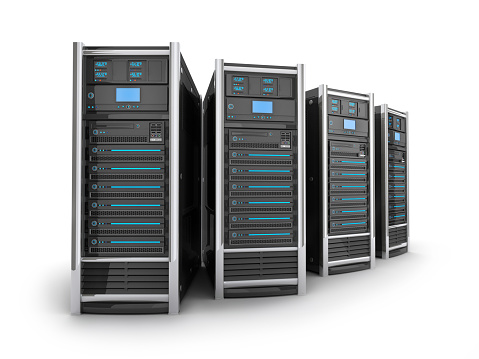
Server hardware is the backbone of all that you do in your business. With the appropriate hardware, your company can remain competitive in a world dominated by tech. Needs such as connected devices, analytics-driven processes, and social media marketing are reliant on well-functioning server hardware and devices. Without these things, it can be difficult to stay current in an ever-changing market.
There are four immediate reasons to replace your old server hardware,
You should replace your server if:
You’ve been using it for more than three years: Older servers will not have the ability to do what newer servers do. If a company is unable to meet their commitments to customers, the resulting difficulties could include incurring higher costs and falling behind the competition. Another issue that could arise is unplanned downtime. Unplanned downtime will not only decrease the productivity of your business but will also have an impact on customers. This impact, along with other unplanned expenses, could cause excessive damage to your company. To avoid these issues and expenses, it’s essential to have a high-functioning server.
Your warranty has expired: Without a warranty, a server isn’t reliable. There needs to be a plan if something goes wrong, and without a warranty, you run the risk of introducing security threats and the potential of compatibility issues with your company.
Your server is unstable: An update will not cure an unstable device. If your server is having issues with Windows or the like, replacing a bad stick of RAM won’t be the solution. You can try to fix the server, but this will likely take time and effort, and ultimately might not even work. Upgraded servers also come with more features, giving your business more opportunities to have things the way you want them. Finally, well-functioning servers can help you maintain a standard of function for your devices, meaning that you can plan future updates easily.
Your business requires more storage: If you are running a server that is functioning well but requires more storage, you have the option of adding hard disks to your server. After formatting, you have the option to move information to the new hard drive. If your storage needs have changed, perhaps from a 500GB to a 1 or 2TB drive, it may be time to replace your current drive and ultimately your servers. The deciding factor when determining if you should replace your server hardware should be what the server is used for and if it is meeting the standard for the business. A server that is used for multiple, time-sensitive functions should be of the highest working order. For example, servers handling customer based functions will need to be consistent in the service they provide, which requires an up-to-date server.
There are other reasons why you should replace your out-of-date or non-functioning server hardware, including:
Avoiding unplanned downtime.
Preventing unplanned expenses.
Being equipped with modern features.
Planning future updates with ease.
When you are considering replacing your server hardware, it is worth considering online servers over local servers. You must maintain local servers. They require storage room, in-house IT support, and when something goes wrong, you must wait an undetermined amount of time for the issues to clear up.
Consider switching to the Cloud, which provides similar functions to a physical server, while offering some upgrades as well. With Cloud-based server’s, businesses can access resources online within minutes and will have the required tools for auto-scaling, auto-provisioning, and auto-management through the community-driven open development API.
There is also the option of running both Cloud servers and physical servers simultaneously. Running both types of servers may be the best option when considering a shift in server hardware. By working with Cloud and physical servers all server needs can be met. Cloud servers provide the ease and reliability of use, while dedicated servers are more secure and allow users to address stringent security and compliance needs.
You need the ability to use the cloud for applications where it’s best suited, and run dedicated hardware where needs require.
Cloud also offers the option of private or public servers. Private servers are better for business-critical operations, and public Cloud servers are best for non-sensitive operations.
Alternatively, you may consider replacing your current server hardware with the newest Windows 2016 server. This system s is an entirely new generation of operating systems and offers features that were previously not seen. If you are considering moving to the Cloud, but find that it seems complicated or does not fit your business’s needs, Windows 2016 may be the answer. Windows 2016 is designed to work with any infrastructure that is currently in place, making the transition seamless.
Replacing old or non-working servers with the newer Windows server gives companies the option of doing more with their server. They will have the standard server functions and implement key security applications. Windows 2016 can also improve efficiency by blending physical and virtual infrastructures through software defines technologies.
Replacing your server might seem like it will be more effort than it is worth. However, when you are struggling with issues such as instability or storage issues, replacing your old server is the best option. Newer servers offer more usability and better functioning systems that are essential for keeping the standards of a company.
To learn if it’s time for you to replace your server hardware, or for more information about what server will work best for your needs, contact your local IT professionals.

by Felicien | Jan 9, 2018 | Education
Tax season is one of the most active times of the year for cybercriminals – without the right IT security support, your business could be an easy target.
It’s that time of year again – the IRS, state tax agencies, and finance professionals across the nation are once again urging everyone to be on the look-out for scams as they file this year’s taxes.
The number one most popular and effective type of cybercrime scam at this time of year is “phishing”, a method in which fraudulent emails are sent to targets that appear to be from reputable sources in order to access and steal sensitive information such as passwords, account details, credit card numbers, social security numbers, and more. It doesn’t take as much as you may think for a cybercriminal to convince a target that they are a superior in order to persuade employees to give them money, data, or crucial information.
How Can You Spot A Phishing Email?
Effective IT security often comes down to simply knowing what to look for. The most recent trends and patterns in phishing scams include:
Emails that appear as urgent warnings telling recipients to update their online financial accounts as quickly as possible.
Emails that tell recipients to click a hyperlink and download important documents or contracts.
Emails that offer a tax refund once that recipient has verified their identity with private information.
In a nutshell? Cybercriminals will do whatever it takes to seem like they’re an official or familiar source. They will research you and your employees on social media, copy a superior’s email signature, scare the employee into action with a false sense of urgency, and more, just to get the recipient to act without thinking. Once the target has divulged private information, clicked a malicious link, or downloaded malware, the cybercriminal has won. This inevitably leads to extensive damage to the business where the recipient works.
How Can You Keep Your Business Safe?
So what’s the answer? What can the average business professional do to keep themselves and their company safe when criminals are employing such deceitful methods? In addition to equipping your business with the best technology security services, you should also be sure to educate and test your employees on IT security best practices and knowledge. Make sure they understand the following:
Stay Alert: Remember, nothing is so urgent or so important that it can’t be confirmed first, especially if it involves giving out information or executing a potentially dangerous task.
Never give out private information: The trusted institutions with which you do business will not ask you for your private information. They already have your account numbers, social security number, and your passwords. They don’t have any good reason to ask for it again, right? If an email from a superior or external contact asks for that info, it is likely a scam, so be sure to confirm the request by phone or in person.
Equip Your Business: As important as employee awareness is, don’t forget that key IT security solutions like spam filters and firewalls can help keep dangerous emails out of your employees’ inboxes in the first place.
Implement a Strong Password Policy: It’s simply not safe to trust your employees to use strong passwords. More often than not, users go with something simple and easy to remember, which leaves them more vulnerable to hackers. Ensure that your staff is using passwords that include letters, numbers, symbols, multiple cases, and are at least 8 – 10 characters in length. Furthermore, you need to make sure that passwords are updated on a regular basis.
Never click on a link before you hover over it with your mouse: If you hover over a link with your mouse, your computer will show you where that link is actually taking you. Many times, criminals will give you what looks like the right link (such as www.YourBank.com) but when you hover over the link with your mouse it actually will show something different (such as
www.YourBank/2340937fvt5.com). If the link is not as advertised, then don’t click.
Always check up on unexpected email attachments: If you get an email from someone you know with an attachment that you weren’t expecting, give them a call or send them an email to confirm that the attachment is from them and is legitimate before you open it. Be sure to send a new email – don’t reply to the suspicious one!
Think of it this way – cybercriminals keep doing the same old thing because users keep falling for the same cybercrime scams without ever seeming to learn from the experience. Make sure you and your staff do your due diligence to protect your business.
Making network security education routine for your entire team – management included – is the most effective way to stop a phishing attempt. Waiting for another major cyberattack to start making the rounds is not the time to start investing in your staff’s cybersecurity awareness. Allow us to help – we’ve been providing IT security services to businesses like yours for years, and we will do the same for you.

by Felicien | Jan 8, 2018 | Education
If you think that all telephone services are equal and that there’s no difference between a business phone and a home phone system, you’d be wrong. In fact, there are several differences between a phone used for business and a phone used for personal calls, including required call features, calling abilities, and even how many phones you need available.
The following are differences you should consider when comparing business and home phone services:
Cost
There’s an estimated increased cost of 75 to 120 percent on business phone lines, more than home phone systems. This increase in cost is because business systems offer more complex features, which may be essential to your business. And because of this, business phone systems can range from prices like $20 a line to a whopping $1,000 a line depending on the features required.
The cost of setting up a home phone system can also be expensive for what you are getting. With more people opting for Bluetooth or other mobile device enabled phone systems, prices can skyrocket. Phone companies could require you to purchase a second phone line for this service, not to mention the added tax and regulatory fees added to your bill.
Usage
A business phone usually gets a lot more useful than your typical home phone. Businesses rely on their phones to communicate, not only with clients but also with staff and vendors. Communication needs could span the length of a state or the length of the globe. Meaning that business phones lines must be more powerful and handle a lot more traffic than the standard home phone, and they require the features and capabilities to support these calls.
Equipment and Features
When looking at what businesses require in a phone system, you can see there is a huge difference when compared to the requirements of a home phone. A business phone system will need to be able to forward calls, conference with multiple people, and will need to be prepared for multiple lines. These are features most don’t require a home phone. A home phone can support features such as caller ID, voicemail, and, call waiting. You do not miss more advanced features in a home phone system.
Furthermore, voice over internet protocol (VoIP) is becoming more widely used. This system allows both businesses and individuals to make calls through their internet provider. In some cases, this is more reliable than traditional telephone services.
Required Services
The required services of your phone system will vary depending on what is required for your business to function, or what personal preferences you have as far as home phones go. Depending on the volume of calls a business receives, specific services or features may be essential. What’s more, phone companies may be more likely to fix an issue with a business line sooner than they would for a residential phone system, this is especially true of VoIP providers. This difference in service speed could be because businesses pay higher prices than residential customers.
Something other things to consider are phone numbers and tax deductions. Businesses can purchase toll-free numbers, or the numbers can be randomly assigned. Choosing a specific toll-free number comes at a cost, however, which is something those with a home phone do not need to consider. For businesses who are making a lot of calls, tax deductions are possible. This deduction is also an option for those with home phone systems, especially if your business is home-based or you work from home periodically.
Phone services can be a tricky thing to figure out. Do not be fooled, however, because there is a significant difference between a phone used for personal calls and a phone used for professional calls. Not only do costs vary, but so do the features and capabilities of the service and the equipment. Before signing up with for phone service make sure you take a moment to look at what is being offered to you and decide if it will fulfill all your needs and requirements.
by Felicien | Jan 8, 2018 | Education
Healthcare providers are searching for simpler ways they can communicate with patients. It can be tedious to schedule all communication in person or over the phone, so medical professionals are looking for another way. Email has become a popular form of communication for those in the healthcare industry, but there are questions about its legality and if it complies with HIPAA laws.
HIPAA sets the standard on what is or is not allowed regarding medical communication. Meaning that to avoid a breach, penalties or fines, healthcare providers must understand the HIPAA privacy and security rules.
Privacy Rule: Patients have a right to request a provider communicate by alternative means.
Security Rule: Communication through email is not prohibited, however, it must have adequate protection.
HIPAA laws state that healthcare providers can communicate electronically, so long as safety measures are in place. Some suggested safety measures include:
Encrypted Email
It is always a good idea to encrypt sensitive information that you send electronically. Encryption keeps information safe, and should it fall into the wrong hands, it will be useless to them unless they have the encryption key. This makes encryption especially important considering that most email systems are not HIPAA compliant.
Do Not Send Protected Health Information (PHI) Via Email
If you must communicate any PHI, it is best to do this in person. By communicating sensitive information through email, medical provers may put their patients at risk of having their private information exposed.
Information that can be classified as PHI includes:
· Payment claims submitted to insurance providers.
· Patient referrals to specialists
· Appointment scheduling
Have Patients Fill Out Communication Consent Forms
A communication consent form will verify what forms of communication a patient allows. Written consent tells medical providers a patient’s preferred form of communication. This form is helpful if there is any confusion down the line as to what types of communication a patient allows.
Communicate Through a Patient Portal
A private patient’s portal is a place for medical providers and patients to message each other without the potential risks an email carries. A private portal is a secure platform, where patients can view information about appointments, medical results, or communicate with staff.
The Office of Civil Rights (OCR) states that if a patient communicated with the medical provider via email previously, it is okay to assume that communication through email is okay. It is also the healthcare professional’s responsibility to alert the patient if they feel as though the patient does not understand the potential risk involved in communicating through non-encrypted emails. Alternative means of communication should also be made available in this instance.
There are other steps that HIPAA recommends to ensure the safety of information transmitted via email. HIPAA emphasizes ensuring that you send emails to the right recipients. They recommend double checking the intended recipient’s email address, and even sending a test email before-hand which would help verify that the right person will receive the email.
A report by the Healthcare Billing and Management Association states that most of the Covered Entities and Business Associates are not in compliance with HIPAA laws. The fact that most are not in compliance means that patients need to take extra steps to ensure their information is secure and protected from potential security breaches. Patients should only communicate with medical professionals in a way that they are comfortable with, and should always remain aware of potential threats.

by Felicien | Jan 6, 2018 | Education
The year 2018 started with a Meltdown that even Mac and iOS users aren’t immune to. Meltdown is a flaw in processors that allows a hacker to gain access to the personal data stored in your computer. Meltdown, and the similar Spectre were discovered January 3rd. They affect processors from Intel, AMD, and ARM, leaving these machines vulnerable.
Meltdown exploits a user-based program to read your kernel memory. This means that important information such as passwords, credit card information, and more are vulnerable. Spectre allows applications to read each other’s memory. So far, these exploits haven’t been used for nefarious means, but they’re still a problem.
Microsoft and Google immediately went to work releasing a patch that would take care of the issue. Apple kept quiet until a document came out confirming that iOS devices and Mac systems were indeed vulnerable. Apple has since released updates for iOS, macOS, and tvOS to handle the exploits. Apple’s watchOS isn’t affected by these exploits, so Apple Watch users have nothing to worry about.
Keep an eye out for the latest patches for your OS, and make sure to download and install them as soon as possible. If you’re diligent about installing updates, you may have already installed the fix. If not, it will be available soon. It’s also a good idea to run antivirus software on your machine. Since the exploits can only be used locally, the attacker would have to gain access to your machine. If a hacker can’t gain access to your system, it’s potentially safe from Meltdown and Spectre.
