
by Felicien | Feb 2, 2018 | Education
We are addicted to our phones. These little boxes of life give us the capabilities to seamlessly stream Netflix or Hulu, update spreadsheets and respond to emails for work, all from wherever we are at the moment–whether we’re on a train commuting to and from work or waiting in line at the grocery store. But what if you aren’t getting the most out of your phone? Often, we view the specs of the phone and the wireless carrier as two separate mechanisms, when in reality this isn’t the case.
Did you know that your wireless carrier could have an impact on which features you can use on your phone?
Which carrier is best? Typically, we choose our carrier based on price, internet speed, and signal strength. While these are important, they aren’t the only differences between carriers. The biggest wireless carriers in the US are AT&T, Sprint, Verizon, and T-Mobile. Verizon and AT&T dominate the wireless carrier market at 34% and 33% respectively. While Sprint and T-Mobile try to maintain their portions of the market at 15% and 18% respectively.
AT&T, Verizon, and T-Mobile all offer the following 8 features for their iPhone users.
FaceTime over cellular data,
LTE,
Unlocking,
Visual Voicemail,
VoLTE,
Personal Hotspot,
Wi-Fi Calling and
Wi-Fi Calling on supported cloud-connected devices.
Sprint offers all but one—They don’t provide VoLTE.
What are these features? When shopping for a carrier, you should ask yourself a few questions specifically about these features and how they will affect your use of your phone. Ask, “Which ones do I need, and which ones can I live without?”
FaceTime is Apple’s video calling technology. It allows you to place a video call between compatible devices such as the iPhone, iPod, iPad, and Apple computers. Usually, this feature is only provided through the use of Wi-Fi, although certain carriers will allow you to use FaceTime over cellular data.
LTE stands for Long-Term Evolution. While a network might be the old version of 3G and the newest version of 4G, LTE allows the phone to work on the 4G. In a sense, LTE provides your phone the opportunity to keep up with the technology, even if it wasn’t available when the phone first came out.
Unlocking is the feature that allows you to free yourself from one wireless carrier. A carrier locks your phone to force you to remain with them. If you were to switch carriers, you wouldn’t be able to use that phone on the new plan, unless the phone was unlocked. Unlocking your phone is fairly easy but comes at a cost. If your carrier doesn’t support unlocking your phone, then you will be stuck with that carrier for the life of your phone. If your carrier does allow unlocking feature, then you must fill out a form using information such as the account holder’s name and address, as well as the serial and IMEI number for your phone. After the form is processed, you’ll receive a code that allows your phone to be unlocked. Both AT&T and T-Mobile permit you to start this process online. Sprint allows customers to unlock their devices via an online chat or by phone, but they don’t allow their iPhones to be unlocked. Verizon seems to be ahead of its competitors as their phones don’t need a code to work on another carrier.
Visual Voicemail is a new feature that allows you to view your voicemails in any order on your device. This essentially converts your voicemail into an inbox similar to your email. You can scroll through your messages to select which one you want to listen to, or which ones you want to erase.
VoLTE stands for Voice Over Long-Term Evolution. It allows you to make voice and video calls over the LTE network. While LTE provides the phone with higher processing speeds for uploads and downloads, VoLTE provides a seamless experience during calls.
Personal hotspots are one of the most popular features of cell phones. Personal Hotspots allow you to use your cell phone to create a Wi-Fi network. This is beneficial if you’re in a crunch to complete a work project, but you’re in a location that doesn’t offer a Wi-Fi network. You only need to enable the Wi-Fi hotspot on your phone, then connect your computer or device to that network. Once connected you can then browse the web, respond to emails, or complete your report, all through the use of the cellular data from your phone.
Wi-Fi Calling allows you to make domestic calls and receive calls without any additional charge. This is great because there’s no impact on your voice call airtime usage since it uses the Wi-Fi network instead of cellular data. Additionally, you can also use this feature to send and receive text messages, but you will be charged according to your cellular plan.
Wi-Fi Calling on supported iCloud connected devices means that you can complete these same tasks on your other iCloud devices such as tablets and computers.
The Take-Home Message
It’s a good idea to be aware of what features each carrier supports. If you don’t need all of these features, this helps you narrow down your search and save money in the long run. If you do need these features, it is important to do your research. The worst thing would be to get locked into a carrier that doesn’t support all the features that you require. The next time you need to pick a carrier for your wireless services, know that your choice not only affects your cell tower coverage but also what features you’ll be able to use on your phone.
by Felicien | Feb 2, 2018 | Education
In a world that seems to be growing more technologically savvy every day, we must be prepared for anything, from phishing scams to ransomware attacks. But, what if the threat to your business and data isn’t from technological warfare? What if something incredibly simple could cause your business to lose data?
The National Lightning Safety Institute reports that “Computer damage and data loss from lightning strikes cost the United States nearly $2 billion in an annual economic loss.” When lightning strikes, it causes a power surge. This change in current can have enormous repercussions for your computer’s systems and data.
It may not be from mother nature but rather human error. A technician in 2011, made a mistake when switching out major equipment. This one mistake caused 12 hours without power for over 2.7 million American industries, businesses, and residences.
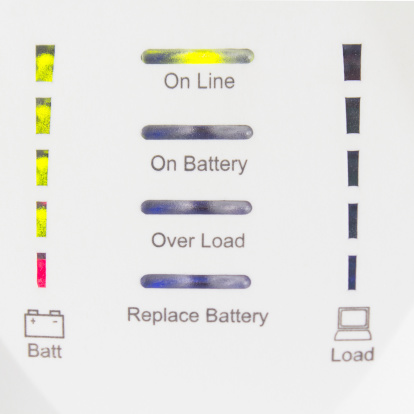
Power interruptions can be catastrophic. But the good news is that it doesn’t have to be. Something as simple as a UPS (Uninterruptable Power Supply) could save your business.
A UPS (Uninterruptable Power Supply) protects against certain power problems. Mainly it protects against blackouts, brownouts, noise, spikes, and power surges. Each of these provides a different challenge to your computer systems, and, if left unrestricted, they could have a devastating effect. So, how does a UPS protect your computers?
Blackouts are one of the more commonly known terms in relation to power problems. Blackouts occur when the system experiences a total crash of the power grid due to an imbalance between a generation and its consumption. Sometimes this could be a total blackout, while other times a controlled shutdown is applied to a specific area to avoid a complete blackout.
Brownouts aren’t as well-known but are just as destructive. While a blackout is a total loss of voltage, a brownout is a drop in voltage. This means that you will still have power just less of it. This can last anywhere from a few minutes to a few hours. While this sounds innocent enough, a brownout is capable of ruining your electronic devices within a few minutes.
Noise is caused by interference between lightning and generators. While this sounds minor, it can cause malfunctions throughout your computer operating systems. This lesser-known power problem has also been known to corrupt files.
Spikes are sudden increases in voltage. Usually, these are short-lived flare-ups in electric current caused by lightning. Another cause for spikes is when power is restored after a blackout. When power is restored it takes some time for the current to normalize. If electronics are plugged in when a spike occurs, they could suffer negative effects.
A Power Surge is the equal and opposite of brownouts. While brownouts are a decrease in power, power surges are an increase in power. Like brownouts, these are short-lived, however, they still cause significant damage, especially to large appliances like refrigerators or air conditioners.
How often do power problems like these occur?
The Department of Energy compiled a report showing the cost of power outages in the past 15 years. It also includes the number of customers affected. For example, in 2014 severe thunderstorms in Illinois caused a power outage for two days. Within these two days, over 420,000 customers were affected. And, in less than a day, severe weather (snow and ice) in Pennsylvania caused power problems that affected 715,000 customers. Anyone of these affected customers could be your business. If so, would you have the tools to protect your computers and data?
So, how does a UPS (Uninterruptable Power Supply) protect your computer and data? It detects changes in the electrical current and stabilizes it, so your computers aren’t harmed. When shopping for a UPS for your business, you should first do some research to determine what best fits your company’s needs.
There are two main types of Uninterruptable Power Supply solutions: Standby UPS and Line Interactive UPS.
A Standby UPS protects against outages and power surges. It constantly monitors the voltage-current to detect inconsistencies. If it recognizes a surge or outage, it immediately switches to battery power. This allows your systems to continue running without power interruption. A Standby UPS is best suited for a business with one computer hub because it can’t support numerous computer hubs at once. These typically cost between $200-$500.
A Line Interactive UPS works best to protect your computers and data against long-term issues. Line Interactive UPS works to constantly stabilize the voltage-current that supplies power to your business. It does this via a regulator that automatically boosts or reduces the incoming line voltage, and without switching to battery power, which can prolong the life of the battery in the long run. These typically cost between $500-$1,200.
The Take-Home Message
A UPS costs anywhere between $200-$1,200—This seems a fair price for the peace of mind that it can offer. It’s a simple yet effective tool to protect your IT investments. Not only would you risk losing your computer, but you could also lose the data it holds. The National Weather Service states that on average, each year 22 million cloud-to-ground lightning flashes hit the United States and surrounding coastal waters. Anyone of these 22 million could cause you to lose your computers and your data. Since you never know when lightning could strike, you should be prepared for it.

by Felicien | Feb 1, 2018 | Education
Do you want your Mac to work like a Windows machine? There are many reasons that small to mid-size businesses like yours want this kind of functionality, but the most common reasons are:
I don’t like Macs.
My employees don’t know how to use Mac OS.
I want to make use of what’s on a remote computer – at home or another office.
The applications I want to use aren’t available for or don’t work well on Macs.
If any of these reasons sound familiar to you, you’re in the right place! Let’s talk about VMware Fusion 10 and Parallels Desktop 13. To run a cloned or virtual Windows machine on your Mac, these are the two big players on the market.
What are the advantages of using Parallels Desktop 13 or VMWare Fusion 10?
You can:
Run Windows on a Mac.
Utilize a virtual Windows machine.
Save time.
Save money.
Save space.
If you want a seamless Windows experience on your Mac, either one of these software packages will do the job for you. They were each developed by leaders in the field, and their developers stand behind these products. Depending on the package you buy, you may have to spend more money if you want ongoing support.
So, with Parallels Desktop 13 and VMware Fusion 10 both on the market, how do you choose which is right for your internal workflow and broader network configuration?
It’s certainly possible to pick up one of these options, install it, and hope for the best. But that’s exactly what you would be doing–hoping for the best.
The truth is, this is a level of technology that isn’t as simple as plug-and-play. For Parallels Desktop 13 or VMware Fusion 10 to work as they should require an IT professional to set up and maintain it. Without the correct configuration and ongoing support, either of these applications could be a drain on your time rather than a boost to your business.
What’s the difference between VMware Fusion 10 and Parallels Desktop 13?
As we dive into the nuts and bolts of these two impressive software packages, we learn that despite their identical purpose, they are, in fact, very different. Yes, both will allow you to use a cloned or virtual Windows machine on your Mac computer, but that’s pretty much where the similarities end. It seems that each developer decided to emphasize different features within the user experience. This makes for two unique offerings that essentially accomplish the same purpose.
Because these two products are so similar, deciding which to use for your small to mid-size business may come down to the finer features included in the recent–almost simultaneous–releases of VMware Fusion 10 and Parallels Desktop 13.
While the developers would point out dozens, if not hundreds of tiny differences between the two, here are the ones that most people are interested in.
Parallels Desktop 13
Cortana Integration
Folder Sharing – Between OSX and Windows
Maintenance Mode for the Virtual Machine
Virtual Machine Icon in Mac Dock
Compatible with macOS High Sierra
One Click Windows 10 Install
Supports Retina Display
Presentation Mode
Customize Touch Bar for Windows applications
Drag and Drop to Open a Document in Windows
Search Feature for Virtual Machine Configuration
Virtual Machine Starts Automatically – Windows Always in Background
Coherence Mode – Windows Apps Made to Act Like Mac Apps
Wizard to Free Up Disk Space in Virtual Machine
Safari Plugin for “Open in Explorer” Function
VMware Fusion 10
New, Easier, User Interface
Touch Bar Integration
Run Mac and Windows Applications Side-by-Side
Share Virtual Machines with other VMware Fusion users
Utilizes the Latest Releases of Windows 10 without trouble
18 Months of E-mail Support
Eligible for Upgrade Pricing – For Next Release
Unity View – Uses Windows Apps Like You Use Mac Apps
Supports Retina Display
Supports Mac Metal – for Better Graphics and Battery Life
Import Virtual Machines from Parallels Desktop
Migration Assistant
MacOS 10.13 Host and Guest Support
Virtualization-Based Security – for Compliance Standards.
Virtual Trusted Platform Module
SSD Based Storage
What hardware do you need to run VMware Fusion 10 or Parallels Desktop 13?
Here are the hardware and software requirement specs for each software package (taken directly from each developer’s page). It’s essential that you take the time to ensure your Mac fits within the given criteria.
Parallels Desktop 13
Hardware:
A Mac computer with an Intel Core 2 Duo, Core i3, Core i5, Core i7, Intel Core M or Xeon processor
4 GB of memory (8 GB recommended)
850 MB of disk space on the boot volume (Macintosh HD) for Parallels Desktop installation
Additional disk space for virtual machines (varies by operating system installed)
SSD drive is recommended for better performance
Internet connection for product activation and select features
Software:
macOS High Sierra 12.13 or later
macOS Sierra 10.12.5 or later
OS X El Capitan 10.11.6 or later
OS X Yosemite 10.10.5 or later
VMware Fusion 10
Apple Mac launched in 2011 or later*
Also supports the 2010 Mac Pro “Six Core,” “Eight Core” and “Twelve Core” models.*
Minimum 4GB of RAM
750MB free disk space for VMware Fusion and at least 5GB for each virtual machine
Mac OS X 10.11.0 or later
Operating system installation media (disk or disk image) for virtual machines.
Microsoft Windows is not included with VMware Fusion.
Recommended graphics hardware for Windows DirectX 10 or OpenGL 3.3 support:
NVIDIA 8600M or better
ATI 2600 or better
Minimum requirements for Metal support:
See Apple’s documentation regarding Metal supported Macs: https://support.apple.com/en-us/HT205073
*Support excludes the 2012 Mac Pro “Quad Core” using the Intel® Xeon® W3565 Processor due to CPU architecture incompatibility.
Need some help deciding between Parallels Desktop 13 and VMware Fusion 10? We can help! The team of friendly IT professionals at {company} are standing by to answer your Mac and Windows questions. We would be happy to advise you on the right product for your requirements plus implement and maintain it to give you the best user experience for your investment. {phone} or {email}
by Felicien | Feb 1, 2018 | Education
In the fight to avoid security breaches, one area has proven over and over to be the weakest link. It’s the human factor. A survey done by CompTIA shows that human errors are responsible for 52 percent of all security breaches. Each day employees open emails; it’s part of their job. Often there are links in these emails, and most of them are legitimate. But then there’s that one link that downloads a virus into the computer system, and suddenly thieves have access to all company files.
A growing number of cybersecurity breaches come as a result of malicious email links. Educating employees about the various types of viruses has become a full-time job for many companies. In spite of regular meetings, webinars, and conferences, careless employees still open suspicious emails and click on links that open the door for cyberthieves. A recent report from Experian says that most employee training seminars are insufficient to alter employee behavior.
One study from MeriTalk reports that employees sometimes bypass security measures on purpose, then download a malicious virus without realizing it. That same report reveals that many employees view security measures as restrictive. They say it takes longer to get their work done each day. Employees can sometimes view security measures as cumbersome and annoying.
In spite of continuing education about data breaches, employees simply forget. They get busy working on something, then absent-mindedly open an email and click on a link that downloads spyware, ransomware and other malicious programs. Employee training about security threats has ramped up considerably over the past decade. And yet one study shows that 57 percent of company employees aren’t even aware of the current security protocols where they work.
Lack of communication
Another issue that was recently exposed is the lack of communication between the IT department and CEO. Some CEOs simply don’t want to spend the money to update their cybersecurity. They fail to equate a cyber breach with a monetary loss. Human beings seem to function under the fallacy that bad things only happen to other people. Cross-departmental communication is critical for everyone to understand what’s at risk.
With so many companies now employing remote workers, this lack of communication can quickly escalate. Remote workers should not be given access to any areas of the company’s network that aren’t necessary. A remote worker could accidentally leave their laptop in a restaurant or hotel. The IT department must be more vigilant about these matters. With greater control over who has access to what data, a company can better manage their risks.
Lessons learned
In just the last few years, massive data breaches at well-known stores like Target have everyone rethinking their data security. The federal government isn’t immune either. In 2015, the Office of Personnel Management (OPM) publicly disclosed that a data breach had occurred exposing the personnel records of over four million federal employees. Before this investigation was completed, the public learned that there were two separate breaches and that over 21 million records had been stolen. Most of these records included names, dates, social security numbers and even fingerprints.
This breach should have been a wake-up call for everyone. If the government can’t protect its data, then what chance do small business owners have? As unsettling as these types of breaches are, they have not resulted in dramatic changes to data security. Though businesses are taking the threat more seriously, most are not willing to spend the time and money to protect their data from intrusion.
Malicious employees
Another factor that isn’t spoken of much is the growing number of angry employees who expose a company’s network on purpose. These may be people currently working for the company or those who have recently been fired. When an employee is about to be fired, the IT department should make sure all their credentials are canceled before the employee leaves the building. Management can step in and try to mitigate the situation if they feel an employee may try to retaliate against the company. For everyone’s sake, it’s best to try to mend fences before allowing an angry employee to leave for the last time.
The ongoing cost of data breaches
For those who have already experienced a data breach, the lessons learned came at a high cost. Many of them are still dealing with the repercussions. A certain number of shoppers may never visit a Target store again. It sometimes takes years before consumers forget. The average cost of a data breach in monetary terms is $154 per record. If a company loses six million records, this is a significant amount of money. The cost is rising rapidly.
Also, a company’s reputation can suffer serious damage. Retail stores may not see customers returning to shop with them for months or even years after a cyber intrusion. Data breaches cause embarrassment for the business as well. Customers may not feel like they can trust a business anymore with their personal information. Customer trust is difficult to rebuild.
Conclusion
It’s time for companies of every size to take data breaches more seriously. Every company’s sensitive data deserves the best protection available. Employees should participate in regular monthly security awareness training. The IT department must have a solid system of checks and balances. The CEO should make it a priority to regularly communicate with the IT department.
Every business should strive to install the very best security programs they can afford. They must examine their weaknesses at every level and ensure IT professionals conduct annual vulnerability assessments. System-wide encryption, password management, and multi-factor authentication are strong measures that can help. When each enterprise, corporation, and company does its best to stop data breaches, we may see a decline in security gaps. Until then, a greater degree of diligence on everyone’s part can stem the tide of the growing number of data security leaks.
by Felicien | Feb 1, 2018 | Education
Ransomware has quickly become one of the biggest cyber threats to businesses today, especially given the recent Wanna Cry epidemic that infected hundreds of thousands of IT systems in more 150 countries. This kind of malware presents serious data integrity and financial concerns for affected businesses. It works by tricking a user into opening an executable file (either as an email attachment or downloaded from a webpage linked in an email) which then encrypts the victim’s files and holds them for ransom.
A majority of cybersecurity services offered today include the best in vital technologies, from firewalls to anti-malware to data encryption and more. However, as important as this technology is, on its own, it simply isn’t enough to protect against threats like ransomware. The key to truly comprehensive cybersecurity is simple, yet often overlooked: the user.
Cybersecurity company Malwarebytes has found that as many as one-third of businesses like yours were hit by ransomware within the last year – the key to all these incidents? The “human factor”. Included in Malwarebytes’ Second Annual State of Ransomware Report, data showed that, of the 32% of organizations that were hit by malware, 20% had to immediately halt their operations.
It gets worse – further statistics showed that:
25% of businesses were hit with more than 20 ransomware attacks in 2016
31% of affected businesses in Australia did not know they were hit by ransomware, as compared to 9% in the US
46% of Australian victimized businesses paid the ransom, and after paying, 40% still lost their files.
Cybersecurity gimmicks — such as “set it and forget it” firewalls and antivirus software — fail to account for how important the user is. Even the most effective digital security measures can be negated by simple human error, which is why conventional solutions are simply not enough to ensure your business’ safety. Much of cybersecurity is dependent on the user, and as such it’s vital that you properly educate your employees in safe conduct. The more your workforce knows about the security measures you have in place, the more confidently they can use the technology in a secure manner.
“People [behind the ransomware attacks] are going to more of the human factor now,” said Malwarebytes Senior Systems Engineer Brett Callaughan to CNET. “A lot more attackers are becoming aware of the fact that they can make small amounts of money on a grand scale very quickly if they completely automate this. The attackers we’re seeing are extremely sophisticated — they’re not fussed about creating a file and making something look real. They’ll just go after the user and they’ll spray and pray. If you hit 100,000 email accounts and 10,000 hit the button and you’re charging $200 a piece? That’s a significant amount of income right there from doing very little.”
So what can you do? First of all, ensure your employees are comprehensively trained in cybercrime awareness and prevention so that they can help keep your business safe. Training should include:
How to identify and address suspicious emails, phishing attempts, social engineering tactics, and more.
How to use business technology without exposing data and other assets to external threats by accident.
How to respond when you suspect that an attack is occurring or has occurred.
Further vital information that your staff needs to maintain a secure business.
That said, employee awareness will only do so much. Remember that ransomware is likely today’s biggest threat to cybersecurity, which means anything less than a comprehensive defense won’t be enough. You hear about it everywhere, along with a range of possible solutions, most of which are defensive – ways to keep the intruders out before they encrypt your files and send you the ransom note.
Both industry leaders and cybercrime law enforcement members agree that the best defense against ransomware, other types of malware and similar cybersecurity threats is a robust data backup contingency. Have you invested in one for your business?
When developing your ransomware defense, keep these recommendations in mind:
Make a considerable investment in a comprehensive backup data recovery solution so that you can restore your data at a moment’s notice when necessary.
Test your backup and cybersecurity measures thoroughly and regularly; create dummy files and then delete them to see how fast they can be restored, or schedule a day to literally unplug your critical systems to find out how long it takes to get online again.
Be sure to make the most of the available resources (both provided online and through expert IT consultants) to ensure that you’re not overlooking vulnerabilities in your IT security methodology.
The good news is that you don’t have to do all this on your own. Partner with an experienced, expert provider of security support and solutions like {company} today to ensure you’re comprehensively protected from ransomware on all fronts.
For more information about how to train your employees to protect your business against ransomware, get in touch with {company} right away at {phone} or {email}.

by Felicien | Jan 31, 2018 | Education
It’s been coming since 2010—That’s when Steve Jobs announced that Apple was going to kill XServe, its enterprise-level server hardware solution.
Ever since that time, Apple has been slowly backing away from the server market.
This slow death of Apple server ambitions has now come full circle for individuals and small businesses with the release of an Apple support memo that states, “A number of services will be deprecated, and will be hidden on new installations of an update to macOS Server coming in spring 2018.”
What does this mean?
Apple is getting rid of many of the functions that individuals, small businesses, educational institutions, and software developers currently rely on to get things done.
But they aren’t just hitting the “delete” button.
If you already have these functions set up, you’ll still be able to use them with the spring 2018 release. Apple’s just going to make it difficult for you by hiding the “deprecated services.”
Basically, Apple wants us to forget that this functionality was once available, and wean the public off the macOS Server. Eventually, as fewer and fewer users are tied to the functions of the macOS Server, they will be discontinued entirely.
What is the rationale for getting rid of macOS Server functionality?
In its support memo, Apple tells us that they are going to “focus more on the management of computers, devices, and storage on your network.”
Apple ran the numbers and realizes that the money lies in selling and serving the iPhone, iPad, and Apple computers – not in server functionality.
The functionalities that are going by the wayside with the new macOS update are as follows:
Calendar
Contacts
DHCP – Dynamic Host Configuration Protocol
DNS
Instant Messaging
NetInstall
VPN
Website Hosting
Wiki
Apple provided a list of “potential replacements” in their support memo.
But the BIG question is: How can we get secure file access without the macOS Server VPN?
These macOS Server changes impact system admins who will lose some or all of the macOS Server tools they depend on, and the businesses they serve could be negatively affected.
At one time, Apple claimed that the macOS Server was, “so easy to use, you don’t need your own IT department.”
Now you’re going to need an outsourced IT professional, like those at {company}, to help you figure out your next steps and how to allow secure file access.
To help us out, Apple has provided three options for VPN alternatives to the macOS Server VPN function:
OpenVPN
This network tunneling VPN software option is compatible with iOS, Windows, Mac, Android, and Linux. Regarding security, it allows for granular remote access and connects to either your cloud assets or your company’s internal network. One of the prominent features of this VPN option is the onboard, fine-grained access control.
SoftEther VPN
This open source VPN option works across platforms (FreeBSD, Solaris Windows, Linux, and Mac) to deliver multi-protocol VPN functionality. SoftEther gives you mobile device compatibility through L2TP/IPsec server function. Part of the attraction of this VPN option is the low latency, fast throughput, and Nat-traversal firewall resistance.
Tcpcrypt
This software is used to encrypt traffic to and from high volume servers. It protects the user against passive attacks where criminals are eavesdropping on communications. Part of the attraction of Tcpcrypt is that they claim it, “requires no configuration…has no NAT issues…has very high performance (up to 25x faster than SSL).”
So, how do you run a secure file storage server without macOS Server VPN?
Apple certainly hasn’t given us much to go on in its recent support memo. The third-party VPN and encrypted traffic software options provided by Apple are certainly useful to the IT professional and systems administrator, but not to the home-based business owner or individual user who was enjoying the macOS Server VPN capabilities.
With Apple’s announcement to phase out macOS Server functionality, it leaves us with the question of file collaboration for small to mid-size businesses.
There are several ways that an IT professional – such as the IT support team at {company} – can enable the Mac users in your business to access and edit documents, spreadsheets, presentations, and databases in-house or on the move. Here are just a few of those alternatives:
Cloud-Based File Sharing Applications – These applications have become increasingly popular. You likely already use a home version of at least one of them – like DropBox, Google Drive, or com.
Office 365 – Office 365 is compatible across platforms and was built with secure file collaboration in mind. No need to go to the office to get your data – it’s all there at the touch of a button. Businesses worldwide have moved away from VPN and now rely solely on Office 365.
Remote Access Models – These popular cloud-based applications allow access to your home or office computer through a web interface. Options include companies like GoToMyPC, RemotePC, and LogMeIn.
As Apple takes its final walk away from server offerings, we realize that it is no longer a competitor in enterprise-level computing. Sure, Apple devices will always be used, but for now, they are peripheral to the server and cloud assets that are at the core of enterprise computing. However, Apple still holds the market share – and the hearts – of creative individuals and industries that have relied on Macs for years.
The experts at {company} will show you how to store data securely, access it freely, and collaborate instantly with colleagues. Enjoy the freedom of mobility while having everything you need at your fingertips – wherever you go. Contact us at {phone} or send an email to {email} to get started.
