
by Felicien | Mar 9, 2018 | Education
Give Free Global Radio A Try Instead
Listening to free, global radio stations is a great way to broaden your horizons and liven up your listen to habits. It’s also a lot easier than you may think.
Why Listen to Global Radio?
Many people are saying that radio is dead, but that’s not true at all. It has morphed into something much greater than it once was. Today, many of us have friends and family living in other countries, which is why someone might want to listen to a radio station in Hong Kong. There is a wide range of other reasons as well. Maybe you grew up in the Philippines and just want to keep up with what’s going on in your hometown. Tuning into one of their local radio stations is a great way to do this.
Say you just moved from Seattle to New York, but maybe you’d like to continue getting daily news from Seattle. Or maybe you might be thinking of moving to New Zealand. What better way to find out what life is really like there than by listening to local radio stations?
Get Local News & Weather
You can get local news, weather and other fun, interesting or weird information by tuning into radio stations in other parts of the world. The best part about this is that there are now several services that offer you the ability to listen to dozens of different radio stations from Ireland to Australia. Many of these services allow you to browse by station or by country. Let’s say you want to listen to a radio station in Latvia.
Latvia is a small country on the western border of Russia. Estonia lies to the north, while Belarus lies to the south. In spite of this being a small remote nation, one global radio service offers 19 different radio stations in Latvia. Some of these stations are broadcast in Russian while some are broadcast in Latvian or other Baltic languages. If you’re trying to learn to speak Russian, listening to a Russian radio station would enhance your efforts.
Whether you were born in France and yearn to hear the language spoken by French people or you are trying to learn about a new culture, listening to a French radio station would make your efforts more enjoyable. As mentioned above, access to global radio stations is free on many websites. Most of these sites give you choices as to what you’d like to listen to. You can listen to talk radio shows, local news, and weather for any city, sports news for any country or city, or just music from the city or country of your choosing.
How to Get Started
Search for internet radio stations or services that provide multiple choices. Good search phrases for this include:
Listen to radio stations worldwide
Global radio stations
Internet radio
Multiple choices will come up depending on exactly what you typed in the browser. Some of these will be paid services like Amazon Music Unlimited. Though they do offer 30 days of free music, at some point you’ll have to start paying to listen. Of course, a paid service will offer other perks like being able to listen using your Echo device. These are Alexa voice-controlled devices that make it easy to hear your favorite tunes from Spain, India or anyplace in the world.
If you’re not ready to sign up for a paid service, you’ll also find many free services like Pandora, Screamer, TuneIn, and Jango. Most of these allow you to search for your favorite artist, search by genre, or search by specific song/artist titles. You might be looking for the latest Hip Hop music or some good music for your workout routine. Simply click on something that peaks your interests and listens. If you don’t like what you hear, use the back button to return to the original page.
At Pandora, you create your own personal “station” by choosing favorite artists or genres of music such as country music. You can add favorite tunes or artists as you desire. Pandora offers ad-free listening for around $5 per month. This type of “radio station” does not include local news and weather; it’s just music.
Tips for Success
With so much cultural, musical, and lifestyle information available through radio stations, there’s no reason not to become an avid listener. You can broaden your musical tastes or just find out what’s going on today in Rome simply by tuning into an Internet radio station. However, there are many other reasons to listen – become better informed about what’s going on in the world, or track new emerging technology in Southeast Asia.
Since there are so many choices now available, select a station or service based on what you’d like to accomplish. If you simply want to listen to music, then Pandora or Jango are both good choices. If you want to listen to an actual radio station, then Screamer and TuneIn are good ideas. Most stations and services offer ad-free content for an additional charge. You may have to pay extra for specific content, such as comedy programming.
The interface for many worldwide radio stations will allow you to manage volume control, play, stop or resume listening. They may also have an information box that will tell you what song/artist is currently playing. You can tag a song or a station as a “favorite” so that it’s easy to return there.
Improving your Sound Quality
With music, sound quality is usually important. That’s where many computers and laptops fall short. You may have to spend over $1,000 to get a computer with a decent sound card. If you are unable to afford this, there are workarounds. Amazon and other online sellers, offer devices that allow you to hook your computer up to external speakers.
External Speakers
To find out more about this, simply search online for “how to hook up my computer to external speakers” and other similar phrases. Usually, it’s just a matter of wiring your computer to a device like a Lepai LP2020 amplifier and then wiring that device to your external speakers. You can also purchase external speakers made specifically for this purpose. These speakers will have a 3.5mm jack or USB plug that can be plugged directly into the laptop or computer.
Of course, all computers have a headphone jack. For about $100 you can buy headphones with amazing sound quality. This will make your listening experience more personal and intimate. This is a good idea when you have others in the family or home who may not want to listen to, say, Latvian Folk Music.

by Felicien | Mar 8, 2018 | Education
Though terms like the Dark Web and Deep Web are often used interchangeably, they aren’t the same place at all – read on to learn everything you need to know about both.
The term Deep Web is used to describe any content that is not indexed by Google. These are typically not the disgusting, creepy sites that might contain illegal images, drugs, and other nefarious information.
Instead, the Deep Web contains any gated content that requires user login credentials. Sites like this might include a company’s backend intranet site or a university site where only students can access the content. Organizations that host their own intranet cannot be crawled by Google Bots and therefore are considered part of the Deep Web. Even your Gmail account cannot be indexed by Google Bots and so it is considered Deep Web content.
The Dark Web is a subset of the Deep Web. This is like the Back Alley of Main Street USA, where all sorts of (often) illegal interactions take place. There, you’ll find a wide range of seedy content and illegal activities, along with products and services that most folks would prefer to avoid.
The Dark Web requires a special web browser and other tools that can protect your identity. The most common browsers used to access these areas are Tor (the Onion Browser), Freenet and I2P. Though many people are curious about the content on these sites, just a single visit to one of these sites may place you on an FBI watchlist, so proceed with caution.
How Big is the Internet?
Some experts say that only 4 percent of the whole Internet is readily available to users. The other 96 percent is hidden behind walls that require special tools to access. Much of this content is not illegal or unethical; it’s just content that the creators do not want to be made public for whatever reason.
On the other hand, there is a huge amount of content that is of questionable origin. For instance, one very well-known black market online site called Silk Road was highly popular on the Dark Web. At Silk Road, people all over the world could purchase illegal drugs, fake IDs, and other such items. Silk Road was finally shut down by the FBI in 2013, when the owner Ross W. Ulbricht was arrested. Other similar sites have tried to spring up, but the FBI keeps close tabs on this type of illegal drug trade on the Internet.
Proceed With Caution
You should never visit a site like this without a VPN, which will mask your identity. Many other precautions are usually recommended, such as enabling “noscript” in the TOR browser and turning off your webcam. Even with all precautions in place, just one visit to a Dark Website can alert local police. Sites like this always deal in Bitcoins and rarely take credit cards. No one wants a $50,000 transaction to hire a hitman to show up on their credit card statement.
Many people, even savvy Internet users, are very uneducated when it comes to the Dark Web and that’s actually a good thing. It means they haven’t gone searching for content that is probably illegal or unethical. It’s also a topic that has been so taboo in the past that users simply couldn’t or wouldn’t go looking for answers. Though there are a great many Dark Web sites, how do you find them?
As mentioned above, you need a special browser, but often word of mouth is one way people find out about sites that might deal in unlawful activities. There are a number of forums and directories that also make mention of Tor activities, such as Reddit.
The Tor network hosts many clandestine or hidden services that you can’t find using a regular browser, including hacking software.
How to Access the Deep Web
Typically, those who want or need access to corporate content already know how to access it. Other examples include webinars or forums that require registration. This includes online classrooms and other teaching materials owned by schools and universities. Most company databases cannot be indexed by search engines. Academic journals and scientific papers are also excluded from the indexing process. Your banking information and most other personal financial information is not indexed by search engines and therefore considered deep web content. It is possible to exclude your website from search engines and sometimes people do this to protect their privacy.
How to Access the Dark Web
First of all, not all sites on the Dark Web are associated with illegal activities. The well-known site, WikiLeaks first began on the Dark Web as a secret place where whistleblowers could vent. In addition, the FBI has been cracking down on sites that deal in illegal drugs and dozens of these sites have recently been closed down.
Tor software encrypts web traffic in layers that allow it to bounce traffic around the world. With each pass, a layer of encryption is deleted before the data moves to the next network. Though it isn’t foolproof, it’s the best-known way to prevent anyone from spying on computers that enter the Dark Web.
Below are the step-by-step instructions for accessing the Dark Web. Remember to tread carefully. Enter at your own risk:
Step 1: Install the Tor browser on your computer. The download begins with the Tor bundle and you’ll need to install all of this onto your system.
Step 2: After the download is complete, install all files. Follow the screen prompts to correctly install everything.
Step 3: After installation, open the Tor browser.
Step 4: Install an Advanced VPN Service. There are numerous VPN services available today, such as ExpressVPN, PureVPN, and Hotspot Shield. These services charge a monthly fee ranging from just a few dollars per month to $30 per month. The rates are typically based on how many countries you can access, whether streaming services and games are included and other perks like that.
Step 5: Type something into your Tor browser that indicates your interests.
Security Tips
In spite of all precautions you may take, the Dark Web can be a dangerous place to hang out. For that reason, it’s a good idea to take certain precautions:
Cover your webcam.
Be sure to turn on the “NoScript” extension in the Tor browser and enable “Forbid Scripts globally”.
Never trust anyone you meet on the Dark Web.
Create a virtual identity.
Be aware that government law enforcement organizations may still be able to track your activities.

by Felicien | Mar 7, 2018 | Education
Don’t You Want to Be in Control of Your Business?
Guest post by one of our legal IT support clients.
I’m an attorney who owns a law practice with four offices throughout the state of Virginia. It’s essential that my employees and I stay connected on the cases we work on. I’m on the road a lot, so this isn’t always easy to do. However, I recently discovered Microsoft Teams. I can’t tell you how much it has helped me keep everyone on the same page.
It took me some time to do this because I often get overwhelmed with all the new business tools today. It seems like a new one is launched every day. Plus, everything we do is confidential, and I was concerned about using online communication solutions. However, when a colleague told me how much time and money he saved when his employees used Teams, I thought I’d give it a try. Boy, am I glad I did.
Like me, I found that a lot of my business friends either didn’t know about Microsoft Teams or they just “didn’t have the time” to learn it. When I heard this, I made it my mission to inform them and others how great it is.
So, What is Microsoft Teams?
Microsoft Teams is a chat-based workspace in Office 365 that lets you bring together other users and collaborate with conversations and content. The idea behind using Teams is to help you do more and increase your employees’ productivity. Basically, it helps your teams get work done. You can easily integrate it with other Microsoft Office applications via its secure cloud.
Teams will help you standardize processes for your employees who do the same kind of work. With my employees spread out between four offices in different cities across Virginia, it was difficult to get a consensus on projects. Teams provide the organizational capabilities and transparency that we need to easily share information and make decisions.
This saves us so much time and effort. Our discussions and decisions in Teams are securely archived and stored in the Office Graph so we can go back into our Conversations at any time and review what was communicated. (Conversations is one of the main features in Teams.)
Here’s How We Use Teams in A Law Practice.
I set Teams up with me as the Manager. Teams organizational structure is much like the way our firm is set up. I’m the Manager, and I oversee other managers in my four offices. So, I simply set up our Teams this way.
I can set the controls from Teams right from Office 365 Admin in the Groups Control Panel. Here I can establish who can create teams, and what features they can use. If I decide to add a manager or user, I can go in at any time and update the settings.
Teams has multiple settings that I can turn on or off at the Tenant Level in Office 365. To do this, I simply go to the Office 365 admin center and open Settings > Services & add-ins. From here I select Microsoft Teams. Then I sign in and go from there.
I set up Teams so my managers and I can all access:
Calendars and Meetings via Outlook.
Content, and edit it via SharePoint, OneDrive, and OneNote.
Team meetings via Skype.
Instant messaging and chats via Skype.
It’s easy to set up Teams with just a few clicks. All you need is a Team name and a description of what it is, then allow members to be added. Each new Team I create has a matching Group, OneNote, SharePoint site, and plan. I can also set up more than one Team.
I also use the Email Integration feature, so our users can send and receive emails from within Teams, and to any Channel with Connectors that are enabled. I only allow my managers to access Apps. These are third party tabs, connectors, and bots.
Each Team includes subsections called Channels. You’ll have a General Channel and then you can set up multiple Channels within a Team. This way we can have focused conversations about different areas in our practice and collaborate on cases securely. We have Channels for our different areas of practice: Criminal Law, Personal Injury, Traffic Law, Real Estate.
Each Channel has Tabs that represent Conversations, Files and Notes. (Files provides access to all your Team’s files and files in OneNote. Notes takes you directly to OneNote, and from within Teams we can view and edit notes without leaving the application.) Teams has automatic tabs that include Planner, Excel spreadsheets, Word documents and Power BI dashboards to name a few.
We add our own tabs as needed and customize Channels using the Connectors that are available in Teams. In our Teams windows, we can perform a variety of tasks without going outside the Team Application. We can delete, move, copy, edit and download Files.
I know I’m getting pretty technical here. What I advise, and what I did was to ask my IT provider (my local Managed Services Provider) to come in and instruct me and my staff on how to use Teams. They were really helpful and gave me one-on-one training on how to set it up. Then they instructed my managers, and finally the rest of the staff.
Teams Has Really Enhanced our Communication Capabilities.
I can set up Calls and Meetings for my Teams, with scheduling for private meetings, Channel meetings, video meetings and more. We typically have less than 20 people in a meeting at any one time unless we schedule an “All Hands” meeting (everyone in all 4 offices). Fortunately, Teams allows us to include up to 80 users in a meeting.
We can also start a Group chat when viewing and working on a file. It’s seamless, transparent and very effective way of working.
Messaging can be set with or without various restrictions, such as the ability to include memes, stickers and animated images (or not), allow users to delete messages (or not), allow users to edit their own messages (or not), allow users to chat privately (or not), and more.
All of this probably makes me sound like a real “control freak” but then, it is my business, so I should have control, right? I guess that’s another reason why I really like Teams – it puts me in control!

by Felicien | Mar 7, 2018 | Education
Follow These 3 Easy Steps To Stay Safe
If you’ve ever been a victim of identity theft or have been affected by a cybersecurity data breach, you remember the anger and frustration you felt at a violation you had no control over. Don’t feel defeated – arm yourself with the latest in cybersecurity protection protocols!
Cybersecurity is an intense word, but do you fully understand what it means? Maybe you think it’s not important to you, so you don’t pay attention…
“I don’t shop online…”
“I don’t use social media…”
“I don’t pay my bills online; I only write checks…”
Unfortunately, even if all of the above applies to you (though we sincerely doubt that!), you can still be affected by a cybersecurity breach, and trust us when we say it does matter. We’ll tell you why, and how to protect yourself.
You might think you can avoid cyberattackers – “hackers” – by avoiding the Internet as much as possible, but the reality is much more complex. Your name, your personal information, and your identity are each online in some form. Even individuals that only make telephone calls to their bank are prompted with questions to verify their identity, and that information is stored in the bank’s software. Paying an electric bill in person at a local Department of Utilities won’t prevent someone from needing protection, either, and for the same reason. Cybersecurity is an issue at the heart of every aspect of life – even medical records are migrating to digital format these days, simplifying the process by which medical professionals need to access patient history to expedite care.
Consider the other side of the coin on this, too – cybersecurity is critical for organizations that store this information. Consumers need to know their information is protected, and we have a right to privacy and protection. The more PII a company stores, the greater the risk for which they assume the burden of proof of protection.
Cloud data storage of personally identifiable information (PII) leaves consumers vulnerable to a cyberattack in all aspects of life, from global enterprises with which they do business to their local machine at home or work. Got a credit card with Citibank? Over 360,000 Citibank credit cardholders had their data stolen in a cybersecurity breach in 2011. In 2013, more than 40 million consumers with Target credit and debit card accounts were affected. More than seven million small businesses had sensitive information exposed in a data breach with JP Morgan Chase in 2014. In one of the worse cybersecurity breaches of all time, in terms of volume and data sensitivity, the records of 80 million Anthem patients and employees were accessed in 2015, including social security numbers. Major data breaches make news reports more often than we like, reminding us of the dangers presented by hacking and phishing, malware, identity theft, and much more. Once a hacker has obtained your name, address, and personal information, they can then use this data to represent you online and try to infiltrate your desktop system to access even more personal data, to plant a virus or ransomware, or even mine cryptocurrency.
Does all of this sound like a foreign language? You don’t need to be a technical whiz to be able to protect yourself. A few simple measures can go a long way toward increased cybersecurity. The great news is that you can do a few things on your machine, at home or work, that can increase security. Follow these tips for improved protection:
Use best practices for passwords.
Passwords should be unique
Create a different password for each computer and each website or web portal you access. If a hacker can determine one password and you use the same password for multiple accounts, the hacker now has access to more than one of your accounts and can cause that much more damage.
Passwords should be complex
Create passwords using a combination of capital and lowercase letters, numbers, and symbols like ?!@#$%.
Change your password regularly
Changing your password for each computer and website or web portal you access at least twice per year is wise. Even if a hacker can figure out your password for one machine or location, changing the password in a matter of days or weeks from that time can minimize the damage the hacker can cause.
Know your privacy settings.
Maintain a realistic perspective on your risk
Every major organization performs routine risk assessments. Why wouldn’t you have a realistic perspective on the risks you face and do whatever you can to protect yourself? Trust us when we say you can’t afford not to!
Verify your privacy settings
You can verify the privacy settings on your desktop or laptop by clicking on the “Start” menu in the lower left corner of your screen, “Settings”, and then reviewing the options shown. On the right side of this menu, you’ll also see suggestions for how to restrict privacy, and as you read this you’ll know we encourage the maximum privacy settings!
Take advantage of built-in security tools.
Updates!
Operating systems from Microsoft will regularly release updates for applications and security, and we strongly recommend regularly checking for these updates and installing the latest security packages.
Windows Defender
Windows 10 comes with a built-in tool called Windows Defender that helps protect your user experience against pop-up screens, slow performance and threats from spyware and viruses.
Microsoft’s default settings have Windows Defender automatically enabled for users.
It’s important to note that in professional environments, IT departments commonly establish guidelines for security and password protocols. While the above are best practices that you can follow to protect yourself, you should always follow the policies and procedures set forth by IT security teams.
These tips are catered for a Windows 10 system, but the basic rules apply to any operating system.
Don’t fall victim to a hacker this year – take the proper approach to cybersecurity and protect yourself from vulnerabilities. See more details by watching this short video and taking the proper steps today.
Make 2018 the year you have an ironclad cybersecurity program, for your home and your office!
by Felicien | Mar 7, 2018 | Education
Microsoft Teams provides a rich environment with a wealth of apps and features, including a customizable user experience. Here are tips for making the most of Microsoft Teams.
In 1989, Robert Van Winkle (better known by his stage name, Vanilla Ice) gave the world some valuable advice – “Stop. Collaborate and listen!”
He raised a valid point nearly 30 years ago that professionals are shifting the focus to today; listening is a critical component of collaboration. Listening is one of the primary steps in the communication process, and communication is the foundation of collaboration. Pretty deep insight for a decades-old pop culture song that wasn’t meant to provoke deep thought!
What the song did not focus on was how collaborations relate in today’s tech-savvy world – understandable since cellphones had extending antennae and weighed about four pounds in 1989. In 2018, the goal of any collaborative environment is to merge team members, conversations, and content in an easily accessible location. For example, the team behind Slack – the widely-used collaborative platform after which all other collaborative platforms are now modeled – took what they didn’t like about various solutions already on the market, made vast improvements and then married these improvements with what features they did like. The result was a freemium platform made available for everyone to enjoy. Millions of users later, Slack seems to be doing something right.
The team over at Microsoft agrees, which is why the buzz was in overdrive recently with the tech world in full gossip mode about hints that Microsoft was in talks to acquire Slack. No matter how little truth there may be to these rumors, the fact is Microsoft did not acquire Slack, and instead released their solution for an Internet-relay chat (IRC) program: Microsoft Teams.
You might say Microsoft did the same thing Slack did, in that the developers over at Microsoft picked apart Slack, categorized what they liked and what they didn’t like in terms of features and functionality, and made their solutions with their version of improvements. Rather than come up with a catchy name, they stuck to the basics and called the program after the users it was designed to support: Teams. Built-in branding, right? The definition of a team is “a group of players forming one side in a competitive game or sport”. Taking this definition one step further, a team is a group of individuals that share a goal and works together toward this common goal (or goals). Each member of a team has individual strengths they contribute, together supporting the collective achievement of the goal.
Microsoft Teams itself is a collaborative effort: users can submit feedback for features they would like to see added to improve the overall end-user experience. Microsoft has already included a few added features post-launch based on user-submitted requests.
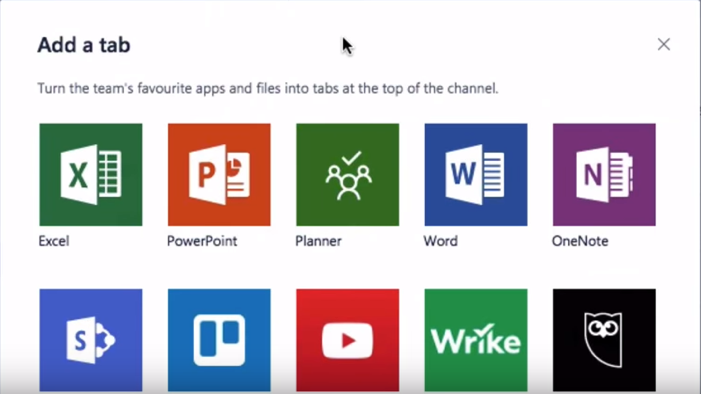
This entire concept is the fundamental spirit of collaboration. What is most important in any collaborative effort is the community, communication, and information. This spirit is clear in Microsoft Teams, with the combination of workplace chat, meeting space, notes forums, and file sharing. The focus on user experience in the design of Microsoft teams is significant and obvious from the start. Users can see the variety of integrated apps in the tab gallery accessed in the user main navigation menu at the center of the top section of your screen, or in the Store experience found in the left navigation menu, at the bottom. Team admins are able to customize the user experience to cater to team requirements.
Microsoft Teams supports a host of third-party integrations, with Team admins having control of settings for what apps are available to their respective users. Do you need help with adjusting this feature? Here are the steps you’ll need to follow:
A Team admin needs to login to the Office 365 Admin Center (or “dashboard”): https://portal.office.com
In the left navigation menu, expand Settings and select “Service & Add-ins.”
Scroll and select Microsoft Teams.
In the pop-up menu that opens, you’ll see several Settings options. Choose “Apps”. These settings are divided into two groups:
The first group, “Default Apps”, are premier apps that are part of Office 365, like Flow or OneNote. These are toggled on and enabled.
“External Apps” are applications created by partner developers and are not necessarily associated with Microsoft other than these developers publish apps to the Microsoft environment. Adobe Creative Cloud is an example of an application in this group.
Click “Save” and changes are deployed immediately.
Team admins have control over what apps are available to – and seen by – your users, to maximize productivity through user experience. Microsoft Teams suggests turning off apps for which you don’t use or plan to grant user access.
Other settings Team admins can adjust for users in the Settings menu include allowing of sideloading external apps; apps you might develop yourself fall into this category. There is also an option to allow Microsoft to automatically update with apps they add and integrate. Apps are often added, and enabling automatic inclusion is one less “update” a Team admin needs to consider.
“Apps” is one of the big buzzwords of the year. Apps are software applications designed to simplify a process. Of the thousands of apps available, only a select few are chosen by an organization for regular use, with the intention of improving productivity, thereby increasing revenue.
Partner apps add significant value to the Microsoft Teams environment, contributing to the collaborative environment. Recent partner apps added to Microsoft Teams include News, Weather, and Wikipedia Search. An example here is the recent announcement of expanded Education partner apps to be included in Microsoft Teams, helping educators and students with a tailored experience for learning environments.
On that note, Microsoft has heard user requests to be able to manage apps by security group, and this is a feature Microsoft plans to launch in the coming months. In the meantime, make the most of Microsoft Teams by studying all apps that can be integrated at the user level, reviewing your settings for managing apps for your users, and customize your Team’s user experience. Remove apps that are unnecessary.
The ultimate goal of Microsoft Teams is to provide a completely customizable experience that can be managed by an admin and drilled down to users based on the needs of the organization – and its users – providing a priceless and indispensable tool for teams and organizations.
How can Microsoft Teams help you make 2018 your best year yet? Find out which new and exciting apps are waiting for you – and your team – today!
by Felicien | Mar 7, 2018 | Education
Stop Struggling – Try Microsoft’s Team Planner
Microsoft’s latest and greatest app is called Team Planner. It’s an amazing tool that lets people organize any task. Of course, it was developed with corporate America in mind, but this type of app would be great for planning anything from a birthday party to a wedding. The app has been well-received and is now being used around the world in every type of business or enterprise.
Designed for Projects of Any Size
For those who work with teams every day, it’s clear why this type of app has been so successful. Any company or department that has worked on a big project understands the frustrations. There’s just no easy way to manage a big project with lots of players involved. How do you assign people to specific tasks? How do you upload documents so everyone has access? How can you find out each person’s current status?
In the past, programs developed to streamline project management have been large, unwieldy conglomerations that most team members could hardly understand. Each task was so cumbersome it was often easier to just work without project management software. This is where Microsoft really excels, because their developers have been down this road before. They know the pitfalls and drawbacks. With each generation of software, they’ve gradually eliminated time-consuming obstacles. They’ve fine-tuned the app, sanding off its rough edges and now what’s left is a really intuitive solution that works well for both corporate America and individuals.
How to Begin
Begin by Opening MS Office 365. There you’ll see all the apps available. Planner should be shown as one of the tiles on the page. Click on the interface and Team Planner will open to the Dashboard. You can also launch the app from the “app launcher” icon in the upper left-hand corner. At the dashboard page, you can view all ongoing projects. This is also where you create a new project.
Let’s say you want to create a project for your company’s new marketing video. Just click on the “Plus” sign. Next, you’ll fill in project details including a name and description of the project. As you create tasks, go ahead and assign each one to a member of your team. You can include as much or as little information as you need to. The app also has a chat feature that allows team members to connect. Workers find it helpful to have a built-in chat feature. As they discuss the project, both parties can see the plan’s progress and find out what each member is working on.
Planner uses a handy tool called “Buckets” and you can give descriptive names to your buckets. Place all related tasks in one bucket. This prevents you from having to search around for specific things. Click on My Tasks for a comprehensive list of your own projects. It’s easy to see where you are and what you need to do next.
Email Notifications
As the project leader assigns new tasks to team members, an email notification is sent to each one. This ensures that everyone knows what they’ve been assigned to do. From now on, there’s no confusion about who should be working on what. These types of snags can prevent a project from moving forward the way the boss expects it to – those days are over with Team Planner.
Transparency in Every Task and Project
Ever worked on a big project and not known its status or who was working on what? That’s happened to all of us at some time. With the Team Planner Dashboard, you can quickly see who has been assigned to what task. You can also view any attachments, images, videos or other task-related information.
As each person completes a task, they mark it done. That makes it easy for the team leader and others to check the project’s progress. No more playing phone tag with the PM and team members for progress updates.
Organize Your Work Visually
For those people who work better when tasks are more visual, Team Planner is a good solution. Each project has a board that allows you to easily organize tasks, placing them in buckets. It’s easy to view the project’s current stage. If someone has to drop out of the project, just drag and drop to assign it to someone else. Teams work together in unison. Anyone can update or change the status of an assignment. With Team Planner, project collaboration is a breeze.
Best Features
Built for Office 365, Team Planner lets you attach files to tasks, work together on those files, and even have conversations around tasks without switching between apps. With this app, all discussions and deliverables stay with the plan. That way, nothing can fall through the cracks. Want to know what you should be working on next? Click on My Tasks for a comprehensive list of your own projects. It’s easy to see where you are and what you need to do next.
Microsoft Flow
Microsoft Flow is a SaaS cloud service that makes it easy to get all your favorite apps to communicate with each other. It works with Microsoft programs like Outlook and OneNote, but also includes over 100 other programs that people use daily and find handy. Automate time-consuming tasks, such as emails. Set up a flow that notifies you with a text message when you receive an important email from a client. Emailing your customer using Outlook with project updates. Manage approvals all in one place. With just the tap of a button, you can set up and accomplish many tasks that once took days to complete.
Conclusion
No matter what type of work you do, great teamwork is the key to success. That’s one of the reasons why Microsoft developed its new app, “Team Planner.” With this program, it’s so much easier for teams to create plans, assign tasks, share files and get organized. That’s the key to any project succeeding. All team members must be working together toward a final goal. When everyone has a clear idea of what the project is all about and what should be completed next, your project will get completed on-time and on budget.
