
by Felicien | Apr 9, 2018 | Education
A ransomware attack has left Atlanta officials with no choice but to shut down their municipal courts while they determine the best course of action. The hackers responsible are demanding $51,000 worth of bitcoin in ransom.
In late March, the city of Atlanta’s IT systems were hit by a ransomware attack that is still affecting them today. Described by Atlanta Mayor Keisha Lance Bottoms as a “hostage situation”, the ransomware attack has crippled their municipal court’s IT systems and is preventing residents from paying bills online. The cybercriminals have demanded a ransom of $51, 000 to be paid in bitcoin.
Since the ransomware was first discovered, the city officials, along with members of various law enforcement agencies, such as the FBI and Department of Homeland Security, have been working hard to determine what type of information was compromised and whether it could affect citizens directly.
The SamSam malware in question hunts for critical files and uses AES 256-bit encryption to lock them up, offering a key to decrypt them only if a bitcoin ransom is paid. If the victim doesn’t pay, they erase all the data.
What makes SamSam different is in the way the attacks develop. SamSam scans for open ports and uses a brute force attack until it gets in. A brute force attack means that they’ll constantly hit the port with credentials until one works. Once the hacker group succeeds, they’re inside your system.
The ransom note left by hackers said that refusing to pay the $51,000 would result in deletion of all the information. This particular group of hackers has successfully collected $850,000 since last year.
This wasn’t the first time SamSam paralyzed a government – it also infected offices in Colorado, North Carolina, Alabama, and Maryland. Governments’ operations are mission-critical, and so hackers like this know that they often pay the ransom.
What about your business? Could you wait more than a week after a ransomware attack to start turning your computers back on? How long could you hold out before the loss of business and downtime would cause permanent damage to your bottom line?
How Ransomware Works and How To Defend Against It
In a ransomware attack, a hacker gains access to an organization’s computer systems. Typically, an unsuspecting employee clicks on an emailed attachment that appears to be a bill or other official document. In actuality, the attachment installs a malicious software program (malware) onto the computer system. Once embedded, the malware allows a hacker access to critical systems, often giving complete remote control data and access.
Hackers are getting more sophisticated. Today, the malicious code may be placed on a website. When a user with an unsecured or unpatched software program accesses the site, the malware slips inside that user’s computer.
Protecting your business
The FBI recommends that organizations continue to be vigilant when it comes to safeguarding systems and educating employees. The two areas that the FBI recommends that organizations focus on are:
Creating and frequently reviewing a robust business continuity plan that can be deployed in the case of a ransomware attack. Data should be backed up regularly. The backups should be inspected to verify that they maintain their integrity. Backups need to be secured and kept independent from the networks and computers they are backing up.
Ensuring employees receive proper awareness training and that prevention controls are in place and comprehensive.
Tips for keeping systems secure
The FBI has released the following tips that are applicable to organizations, employees, and individual computer users:
Be sure that employees understand what ransomware is and what role they play in keeping the organization’s data and computer network systems protected.
All software, firmware, and operating systems should be patched on desktop and digital devices (including smartphones, tablets, and laptops). A centralized network patch management system can make the coordination of these efforts easier in large organizations.
Confirm that anti-malware and antivirus settings are deployed to automate all updates and to continually conduct system and device scans.
Have very clear access and authorization procedures in place. Do not provide administrative access to employees unless absolutely necessary. Administrator accounts should be used sparingly.
Access controls should be configured so that shared permissions for directories, files, and networks are restricted. The default settings should be “read-only” access to essential files, with limited permissions for write access to critical files and directories.
Macro scripts in Office files should be disabled when sent over email.
Software restriction policies should be created or other controls implemented that prevent execution, especially in the common locations where ransomware lurks, such as temporary folders used by the most common web browsers.
The FBI encourages any organizations that believe they have been a victim of a ransomware attack to report the issue to the agency’s Internet Crime Complaint Center.
Don’t wait until a ransomware attack locks up your data. Take steps to protect your business now by partnering with Ray Morgan Company. Get in touch with us at (530) 343-6065 or info@raymorgan.com to get started today.

by Felicien | Apr 6, 2018 | Education
Do You Want to Save Time, Money and Beat Out the Competition? We Have Some Important Information to Share
As you know, your architecture company is under constant pressure from economic shifts, a shrinking talent pool, and a fiercely competitive marketplace. When it comes to information technology you need solutions that don’t cost a fortune and can really make a difference.
One such solution is 3D modeling software. You can easily develop 3D designs with automatic features and without a lot of experience. There’s software for beginners, as well as more sophisticated solutions for experienced architects.
3D modeling software enables you to produce detailed and realistic results, and it’s the best solution to help you save time, money and efficiently modify your models as needed.
Are you looking for better collaboration with your team? Some forms of 3D modeling software use the cloud. They allow you and your coworkers to work on a computer model at the same time.
When IT solutions like 3D modeling are used wisely, they can provide a strategic advantage for your architectural firm. You can win bids, manage projects efficiently, and complete them without cost overruns.
The following are some 3D CAD modeling software solutions you might want to consider:
ArchiCAD is architectural CAD software that uses BIM (Building Information Modeling) that allows you to produce both 3D and 2D drafting, visualization, and modeling. It enables you to complete your building designs via the high-quality photorealistic renderings of both interiors and exteriors.
Revit is a BIM solution that allows you to collaboratively design buildings and infrastructures with your team. Authorized users can access centrally shared models to work together on designs and save time.
AutoCAD Architecture is a complete and practical tool that allows you to do both 2D design and 3D modeling, so you can better visualize your project. With it, you can create realistic-looking models with a blend of solid, surface and mesh modeling tools. AutoCAD Architecture is also useful for 2D drafting and drawing. Plus, it allows you to communicate and collaborate with others on the same project.
AutoCAD Civil 3D provides all the benefits of the solutions above but is better suited for civil engineering and construction professionals. You can produce civil designs, connect to AutoCAD Civil 3D to Revit, and rework and complete your designs with structural modeling.
3D Studio Max (3DS Max) although mainly used by those in the video games industry, is great for by architects who require previsualization. Training is available online if you want to give it a try.
Chief Architect is a CAD software for 2D and 3D rendering. It’s very easy to use, and you don’t need to have 3D modeling skills. The interface is intuitive, includes smart building tools, and lets you easily create a 3D structure. You can also export 360° panorama renderings that you can share with your clients.
SketchUp is also easy to use. It will help you save time and can be used for 3D modeling. You can create walkthroughs and flyovers to present your work to clients. It can also be scaled for accurate 2D drawings.
Rhino 3D is mainly used for industrial design and architecture. It provides great accuracy for models. It can be used along with Grasshopper, a graphical algorithm editor created by Rhino’s developers and made for 3D geometry and visual language. It’s designed for structural engineering, architecture, and fabrication.
CATIA is used in various sectors such as aerospace, automotive, high tech, and architecture. This software allows you to create complex and very accurate models. It has a practical collaborative environment as well.
Solidworks is a 3D modeling software mainly used by engineers. It can be a great solution if you want to create a quick design. You won’t be able to perform complex renderings, but it’s capable of designing a building and to obtain overviews of your architectural projects.
When using any 3D software programs, don’t forget about your IT security.
In this age of rapidly expanding IT networks and Internet economies, data and network security are of increasing importance. For architectural firms, managing your reputation and providing optimal customer service is of primary importance.
Data breaches are now commonplace. Imagine turning on your computer and finding that ransomware has locked down all your designs. Every minute that you can’t retrieve them means lost time and money and potentially lost clients. It’s essential that you protect your firm’s IT assets from malware, viruses and other forms of cyber attacks. To do this, you must adopt the following best practices for IT security.
Data Encryption
Stored data and across-the-wire transfers must always be encrypted. Architectural firms benefit from data encryption and user authentication tools to maintain the confidentiality of product designs, test-market results, and patent applications. Encryption is essential to protecting this sensitive data, as well as preventing data theft.
Disaster Recovery and Business Continuity
We live in a digital age where technology is used for most business operations. Disaster recovery and business continuity planning can prevent the catastrophic effects of data loss. Architectural firms must retain project documents for legal purposes, for future alterations, and historical documentation. If this data gets lost or stolen, a backup and disaster recovery plan prevents total loss of important documents.
Auditing
It’s important for architectural firms to regularly conduct IT audits to monitor, identify, alert, and block the flow of data into and out of a network. In addition, auditing can help locate and correct errors in business processes.
Anti-Spam Software
In order for an architectural firm to utilize their design software, computers and electronic devices must be up and running properly at all times. For any anti-spam software to be successful, it must be kept up-to-date. Keep in mind that anti-virus software isn’t enough; architecture firms must also use a comprehensive endpoint security solution, including anti-virus, personal firewall, and intrusion detection.
Security Awareness Training
Educating your users is the most important non-hardware, non-software solution available. Informed users behave more responsibility and take fewer risks with valuable company data.
Just like you design quality architectures, your IT provider will design a secure architecture for your network that keeps your data safe. So, before you invest in CAD software, set up a consultation with your local IT Managed Service Provider.

by Felicien | Apr 5, 2018 | Education
Technology is invaluable in the legal landscape, and with time it will become even more so. Why is this? Because legal work is highly regulated, and many attorneys fear malpractice suits or failure to comply with regulations. Law practices throughout the world are adopting new technologies. Just like other businesses, they need to streamline their services, and secure their data, and technology helps them do this.
Every legal practice has three basic technology requirements:
To analyze diverse, extensive amounts of data.
To ensure the security of clients’ confidential information.
To increase efficiencies, productivity and cost savings.
However, some aren’t meeting these basic requirements because they aren’t using an IT Managed Services Provider (MSP) to ensure they’re using the right IT solutions.
If you want to succeed in today’s technology-driven environment, you need up-to-date, reliable and secure IT solutions. By handing this chore over to an MSP, you can focus on your core legal competencies.
What Should You Look For In An MSP?
Expertise in the following:
Case Management Software
The computerization of legal work has promoted the adoption of electronic spreadsheets, word processing, databases, telecommunications, legal research software, and presentation applications. Electronic case management has probably altered how your legal documents are prepared. You can now manage large case files and use software to search, edit, track, archive and distribute documents.
Case management software helps you stay organized. It brings your desktop calendar, contacts, filing system, and task systems together into one solution. You also need it for managing deadlines, storing client information and coordinating communications. It provides you the information you need to effectively manage your practice, along with feedback on how you’re progressing in all aspects of your cases. Make sure your MSP is well-versed on the applications you rely on every day, such as Copitrak, CompareRite, LexisNexis and other legal software solutions.
Cloud Technologies
Just like with other businesses, legal professionals can now work remotely. With the right cloud solutions, you can travel for court dates and still access your documents securely. And, cloud technology can help you stay connected to your clients, staff, and colleagues. Solutions like Microsoft Office 365 that are powered in the cloud let you access documents and applications, and collaborate online securely from anywhere you have a computer and internet connection.
By embracing cloud computing, you can:
Save on paper costs.
Locate files more easily.
Maintain and process Big Data (large amounts of information).
Work collaboratively on files securely in real time.
Make sure your MSP is up to date on today’s secure cloud solutions. They should be able to help you improve your firm’s productivity, efficiency, collaboration and IT accessibility. They should also help you find the right solutions for data security, document management, and workflow improvement.
Financial Management Software
You no longer need stacks of papers, files and cumbersome logs to track your finances. Today, there are many software solutions you can use to track every transaction. But how do you know which is right for you? Your MSP should help you find the most suitable financial management software to help with budgeting, managing billable hours, accounts receivable, accounts payable, tax filing and more. They should also help you find the right software to aid in your short- and long-term planning. Unfortunately, many attorneys don’t think about the future when considering their financial goals. The right MSP can help you find the right software to do this as well.
Data Backup and Recovery Services
The intellectual property and sensitive information you store must be backed up securely. As you know, computer hard drives can fail, laptops can be stolen or lost, and data can be erased due to human error or viruses. It’s important for your firm to have a reliable backup system to keep data safe and avoid data loss. Your MSP should ensure your business continuity and disaster recovery solutions meet your objectives with robust backup and secure off-site replication solutions.
Ask them if they can provide:
A Complete Backup and Recovery Strategy – Your firm requires a comprehensive onsite and offsite backup and recovery service that backs up all data and provides for your quick recovery when disaster strikes.
Power Protection – 90% of disasters are power-related. Be sure your MSP provides UPS protection to ready your firm with alternative power sources to keep you operating.
Email Continuity – Can your firm keep running if your email isn’t? Most can’t for more than 24 hours. Make sure your MSP can ensure you have a proper email continuity solution in place.
Telephone Services –What would happen to your law firm if your telephone services were down? How would your clients reach you? Make sure your MSP tells you how they can keep your phones up and running when phone lines are down.
Remote Monitoring to Prevent Downtime
A qualified MSP will prevent IT downtime. Your firm can’t afford to be idle. With remote monitoring solutions, your Managed Services Provider can detect and mitigate issues with your technology before they cause problems. Your MSP should provide 24x7x365 Monitoring and Maintenance services. If not, look for another.
Cybersecurity
As you know, it’s your legal obligation to protect your clients’ confidential information. Your MSP should be capable of handling all of your IT security measures and should be up to date on the latest cyber threats and solutions to protect your data.
They should implement a multi-layered, managed security defense using sophisticated security devices, technical controls like firewalls, patching, antivirus, software updates, intrusion-detection and log analysis systems. They must also be able to provide Security Awareness Training for your employees to ensure they don’t click malicious links or open phishing emails.
Data and Email Encryption
It’s essential that you use encryption to protect your confidential data. Encryption should include both emails and data to ensure the security of this information. It should protect data at rest, such as on laptops or portable servers, as well as data in motion, such as over wireless networks or the Internet. Your MSP must be capable of providing this service for you.
Mobile Device Management
With the rising use of BYOD (Bring Your Own Device), it’s essential for your MSP to provide Mobile Device Management. If an employee’s mobile phone is lost or misplaced, they must be able to erase the contents of the phone. This requires the expertise to know how to ensure your mobile devices are set up correctly, and your business information is properly safeguarded. If a mobile device is lost, or a staff member leaves your employment with your legal data, you can rest easy knowing that the device can be remotely locked or wiped if necessary.
Artificial Intelligence (AI)
Legal professionals now use AI to handle laborious and time-intensive tasks so that they can focus on higher-value work. Using AI makes it possible for you to concentrate on more important tasks and use your expertise and time for the benefit of clients. AI is highly reliable and can identify key documents that staff members might miss. During the due diligence phase of a transaction, AI can locate contractual provisions with a high degree of accuracy. AI can also help you deliver services to clients more quickly and affordably without sacrificing the quality they demand. The right MSP should be able to suggest AI solutions to save you time and money.
by Felicien | Apr 4, 2018 | Education
Are you using Outlook to its fullest potential? If not, you’re missing out on a valuable tool that will make your work so much easier. Not only will it incorporate everything you need to do with emails, like make appointments and set “Quick Steps,” it can save you a lot of time. We have 9 great timesavers we want to share with you here.
1. Turn Off Notifications
You know those little pop-ups that appear when you’re trying to concentrate on a project? They are there to let you know that you have new mail. This is great if you’re waiting for an important email. Otherwise, they can be very distracting.
Here’s how to turn these off:
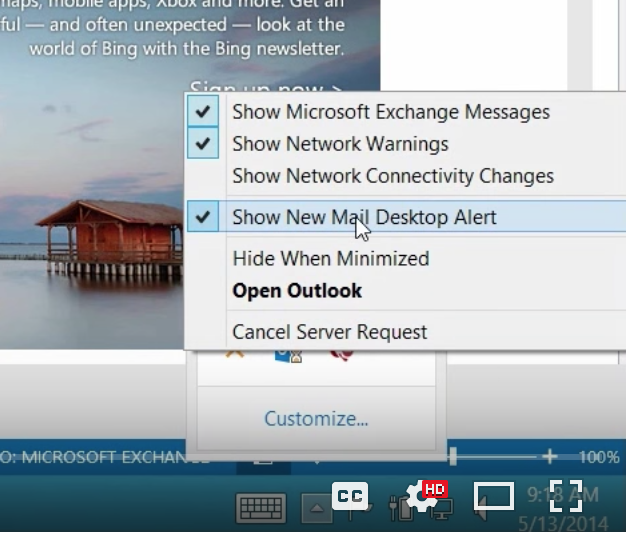
Just go to the bottom right-hand side of your screen (in Windows) and click on the little triangle. A check box will come up.
You can see here where it says, “Show New Mail Desktop Alert”.
Uncheck this and no more annoying pop ups!
You can also do this right from Outlook:
Go to the left-hand side of your screen with Outlook open.
Select “File” and “Options.”
Under “Mail” you’ll see a bunch of options. Here’s where you can select all the notifications and sounds that simply distract you, and that you don’t need. Ah, peace and quiet for a change!
2. Drag Mail to the Calendar
When you’re in an email, and you want to add a meeting to your calendar, simply go up to the top Ribbon where it says “Meeting” and you can “Reply with Meeting” to all the people on the email stream.
Set up the time and place, and then invite everyone.
3. Block Off Time Slots
Let’s say someone emailed you a proposal and you need to block off some time to read it. Here’s how to do this right from the email and attachment:
Here’s the email with the proposal marked in blue.
Drag the box down to the left where it says “CALENDAR” and it will create a prompt where you can enter the block of time in your calendar, on the day and time that works for you. It will appear as an appointment in your calendar.
When you’re entering time in your meeting time slot, Outlook does some of the work for you.
Say you want to start at 10:00 am. Simply key in 10 and hit TAB, and Outlook will enter the rest (10:00 AM). You can even enter military time. 15:15 TAB and Outlook will convert it to 3:15PM.
You can do the same with the end time as well.
4. The Ignore Button
If there’s an email that keeps appearing in your inbox, but you don’t want to see it anymore, rather than deleting it you can simply go to the Ignore button on the top left, (or Control >Delete) and emails about this subject will automatically go into your Deleted Items.
You’ll get this prompt to ensure that you want to delete the message every time. Check “Don’t show this message again” and click “Ignore Conversation.” You won’t be bothered by the message anymore.
5. The Quick Access Toolbar
Microsoft provides this toolbar in all of their software solutions. You can put some of your most used commands in this toolbar. Simply check the ones that you want to appear. They will always appear at the top of your screen until you remove them.
And you can easily add more commands, as you see below.
Simply highlight the commands to the left and click “Add” and they will appear in your ribbon. To remove, do the opposite. Highlight the commands to the right and click “Remove.”
5. Respond Fast with Instant Messaging
Sometimes you need a fast way to get a message to someone, and email isn’t doing this for you. Right from Outlook, go to the top ribbon to: “Reply All with IM”
Now, you can send everyone on your email stream an Instant Message instead of an email. This comes in handy if you need to get a quick message to your team. However, it only works if your team is connected to you with Microsoft Link. If not, you can do this with Skype as well.
6. Quick Steps
You may recognize this in the top Ribbon. It’s been in Microsoft products since 2010.
Sometimes you do things manually. Or you may set up Rules. For example, “If the email is from Molly Dempsey save it to Project Falcon.” Or something like this. You can also save commands like this in Quick Steps. Here’s one we set to move the message, mark it as read, tag it, and put a follow-up flag on it.
Quick Steps moved the email, categorized it and marked it as read, just as we specified.
There are multiple actions you can choose from in Quick Steps. Start with “Create New” and your selections will pop up. Click “New Message.” Then preset the email that you think you’ll use over and over.
Here’s a Quick Step to create an invoice right from Outlook.
Click the invoice you want (we have one called Tailspin already set up). Outlook will take you to your contact list where you can choose who to send it to.
Then we set the importance level as “High.”
And we simply fill in the information in the preset template, send it and it’s done!
7. Out of Office in Advance
Now you can set your “Out of Office” messages in advance. Remember when you had to do this right before you left town? No more.
Here’s how to set it up:
Go to the “File” menu.
Click ” Automatic Replies (Out of Office)
Then set up your parameters.
Click “Send Automatic Replies” and type in the start and end date, along with the message you want to send when you’re away.
Check the box that says, “Only send during this time range”. Outlook will remember to send the Out of Office message beginning on the date and time you set and stop on the end date and time.
You can also set Out of Office emails for those emailing you from inside or outside your organization. How easy is that?
8. Search Your Email
The search box is right above your emails.
Say we want to find messages from Garret Vargas. All I have to do is type “Garret” and his messages came up.
But as you can see, some other messages popped up here. They probably contain Garret’s name.
Yes, you can see below that Garret’s name was in Katie Jordan’s message. Outlook search capabilities go that deep into your emails. Outlook will even look in attachments in your emails for what you’re searching for.
You can also search the Current Mailbox or All Mailboxes.
And, notice that when you’re in Search you have all kinds of options in the top Ribbon.
9. Look for ? or press F1 for Help
The ? is on the top right of your screen if you ever need help in Outlook or any Microsoft program.
Or, simply click F1 and the Help prompt will appear.
Microsoft Outlook has many other great features. Keep watching this space for more ways to get the most from Outlook and other Microsoft products.

by Felicien | Apr 4, 2018 | Education
Is “Yoast” a typo? Are we raising a “toast” and just missed the “t” and hit the “y” key? Or is there a deeper meaning behind the name of the SEO superstar?
WordPress users love WordPress. It’s an incredibly straightforward platform with a simple user interface, which makes sense given its humble beginnings as a blogging application. Bloggers have used the free solution since 2003, enjoying the flexible and friendly features. Though it did begin as a blogging platform, its evolution into a content management system (CMS) was a natural progression. It’s estimated that as much as half of major global brands have websites run on WordPress. If you’re keeping count, that’s a staggering number of websites.
WordPress offers a plugin architecture for users that encourage plugins to extend features and functionalities of WordPress, catering to the needs of the user. At last estimate – though still in 2018 – there are over 50,000 plugins available for WordPress users, each offering customized functions and features to enable tailored experiences for specific needs. In fact, WordPress highlights available plugins for users, complete with a rating system and biographical details – similar to a product offering on Amazon!
Available plugins range from contact forms to an importer that allows users to bring in blog content from other blogs. Others include a WooCommerce plugin for e-commerce sites, and an on-page Google Analytics plugin for users to track site metrics. The second most popular plugin on the WordPress plugin dashboard is Yoast SEO, with more than 5 million active installations and a 5-star user rating by nearly 20,000 users. We were curious about the most popular plugin and had to know. Yoast SEO falls just behind a plugin called Contact Form 7, with the same number of active installations (but a lower rating by only 1,500 users in comparison).
What is Yoast SEO? Was someone thinking of toast and made a typographical error? The keys are right next to each other on the keyboard – is that what happened? Nope! The founder of Yoast SEO, Joost de Valk, pronounces his first name “Yoast” – it’s as simple as that! The firm that developed Yoast SEO is based in the Netherlands, by a team that is dedicated to its users and the community at large. Yoast SEO creators believe in open source software, where the code is readily available to anyone that wants to modify the code for customization.
Yoast SEO is an amazing tool that WordPress users add as a plugin to optimize their content for better search engine rankings. The Yoast SEO plugin helps users by making sure the right keywords are included in their content if they want to tag that content with those keywords, as well as reviewing word count and other elements that are important to better search ranking. The results of a search are based on Google’s infamous algorithm that determines the position a page ranks in search results returned in Google. The Googlebot crawls billions (and billions!) of pages across the Internet to index and adds to its search results. What are some of the factors that Google takes into account for ranking web content in search results?
Word Count
Word count is one of the most important content factors since Google – the king of search engines – takes length into consideration when the Googlebot crawls pages to index. The number of words in a page is a good indicator of the quality of content – sometimes. A thousand words of gibberish or just words strung together with zero relativity are always possible, which is why this isn’t the only factor Google relies on for a page’s search position.
Keywords
Keywords are equally important for more reasons than just Pay-Per-Click (PPC) advertising. When the Googlebot is crawling through those billions of web pages, the byproduct is the indexing of the words it finds and their locations on a web page. This process also reviews all the “hidden” words in content, like the tags used and various content attributes within the code, like alt text and title tags, and all of these are used to relate the keywords to the content, a stronger indication of content quality than word count, but together with word count keywords boost a search engine result position.
Title and URL
A web page’s title is the first thing a user sees when looking at search results in a browser. This is not necessarily the title that is shown on a web page as the headline announcing the page content. This title is what is in the code of the page and shows on the browser tab. This title should relate to page keywords and content to help boost a search position. If your primary keyword is in your title, it adds credibility to – or, optimizes – your content and boosts your search position and ranking. The title is sometimes also in the URL of a web page, but it can be slightly different. So long as the primary keyword is still present, any slight alteration won’t negatively impact your position.
Description Snippets
Why do snippets matter? Snippets show the description of your page content in search results, which Google shortens as it needs to based on screen space or other factors. The bottom line with descriptions and snippets is to include critical keywords, place them early in the descriptions.
Traffic volume
Google works very hard to ensure the user’s search experience and maintain impeccable quality standards. This much is clear given Google’s position as King of Search. When Google serves search results, all of the above factors work to improve the overall search experience. The cogs in the machine are always turning and working to make sure that not only the user gets the best search results based on its determination that the content is relevant to the user’s search query, but also that when users click links to pages, Google is driving quality traffic to sites.
Now you’re thinking, how does Yoast SEO use all of this information and help me with my content? Yoast SEO has a plethora of built-in features that optimize your content:
Snippet Preview
This handy little feature shows users how their snippet will look in search results in desktop, mobile, and even social media.
Integration with Google Search Console
Users can see exactly how to expect site and pages to perform in search engines, presenting the opportunity to fix errors before they affect search traffic
Readability
This is a great feature that scores your content based on readability factors. Users create the content and tend to have difficulty seeing an outsider’s perspective. This score helps users better understand if sentences are too long, or if too many sentences start with the same word or phrases.
Frequent Updates
The Yoast SEO plugin is often updated to keep up with Google’s algorithmic updates, to help users keep content optimized using current requirements and best practices.
Do you have the Yoast SEO plugin for WordPress? There are paid and free versions, and it’s absolutely worth it to get the free version! Instructions are simple:
Within WordPress, visit “Plugins” and “Add New”
Search for “Yoast SEO”
Activate Yoast from your Plugins page
A prompt will ask you to start the configuration wizard
Follow the wizard, and you’re done!
Familiarizing yourself with the Yoast SEO plugin will be even more simple after reading this, and you’ll start to notice your search rankings improve quickly, within 30 days of starting this process. Maintaining quality content will automatically help boost ranking, but Yoast SEO is the go-to tool for further optimizing and reviewing the factors that will impact search results most.

by Felicien | Apr 4, 2018 | Education
Over Easter weekend, hackers stole 5 million credit and debit card numbers that were used at Saks Fifth Avenue, Saks Off Fifth, Lord & Taylor, and Canada-based Hudson’s Bay Company. The personal information of customers who shopped at these stores is now compromised.
Most of the stolen card data — which goes all the way back to May 17 — was obtained from these stores in the New York City metro area, and other stores in the Northeast U.S. It appears that these stores weren’t using a secure credit card payment system. Security firm Gemini Advisory reported:
“The attack is amongst the biggest and most damaging to ever hit retail companies…Credit card data was obtained for sales dating back to May 2017. The breach likely impacted more than 130 Saks and Lord & Taylor locations across the country, but the majority of stolen credit cards were obtained from New York and New Jersey locations.”
Gemini Advisory says that the hacking group JokerStash/Fin7 boasted about their success on the Dark Web and that the data is now for sale. The name of their “product” is BIGBADABOOM-2. Gemini Advisory’s co-founder and chief technology officer said that this group previously targeted major hotel and restaurant chains. They were also responsible for other data breaches like the ones that affected companies including Whole Foods, Chipotle, Omni Hotels & Resorts and Trump Hotels.
The hackers typically use phishing emails to gain confidential information. They send the emails to company employees including managers and supervisors who are key decision makers. They disguise themselves as an entity these people would recognize as legitimate. The email contains an invoice and asks them to pay it via a link provided. Once clicked, their IT system is infected.
No store is immune from this type of breach. However, you can protect your business from phishing attacks by educating your employees.
Cybersecurity training is a must for all businesses today. You can have all the right security technology in place, but if one of your employees unknowingly clicks a malicious link, or visits a counterfeit website, your business can be ruined.
Phishing is when a scammer uses fraudulent emails, texts, or copycat websites to get you to click a link so that they can steal your confidential information like Social Security numbers, account numbers, login IDs, and passwords. They use this information to rob you of your money and your identity.
The majority of account takeovers come from simple phishing attacks where you or someone in your organization gets tricked into releasing private credentials and information.
Scammers also use phishing emails to get access to your computer or network, so they can install programs like ransomware that lock you out of your important files unless you pay a ransom.
Spoofing
Phishing scammers try to lure you or your employees into a false sense of security by pretending to be a trusted source like a legitimate company, the IRS, a colleague, vendor, or even a friend or family member.
Phishers create a sense of urgency, making it seem like they require your information right away or something terrible will happen to you. They may threaten to hold back a tax refund or close your bank account. Essentially, they lie to get your information.
Here are things that you and your employees should do to protect your business.
Be cautious about opening attachments and clicking links in emails.
Files and links may contain malware that can infect and weaken your computer’s security.
Type in URLs and email addresses.
If a company or organization you know sends you a link or phone number, don’t click the link or call the number. Go to your search engine and type in the correct URL for the company’s site and find the legitimate phone number.
Call the source. Don’t respond to emails that request confidential or financial information. Phishers use strategies that prey on fear. If you think the contact in the email needs this information, refer to the phone number in your address book, not the one posted in the email, and call them to verify the request.
Use Two–Factor Authentication. For accounts that support this, two-factor authentication is an extra step to ensure the security of your information. It requires both your password and an additional piece of information to log in to your account. The second piece might be a code the company sends to your phone or a random number generated by an application or token. Two-factor authentication protects your account even if your password is compromised.
Update your applications and Operating System. Use a good security software you trust, and make sure you set it to update automatically. Also, make sure you update all your applications and your Operating System when you receive patches from the manufacturer. Don’t delay, as there are good reasons for these updates, and they will protect your information from the latest threats.
Back up your files to an external hard drive and enterprise-based cloud storage. Back up your files regularly to ensure you have a duplicate of all your files and applications if your network is compromised.
Google conducted a study between March 2016 and March 2017 in conjunction with researchers from the University of California, Berkeley. The results revealed that phishing is far riskier for users than data breaches because of the additional information phishers collect.
Use a unique email address.
Spammers send out millions of messages to name combinations hoping to find a valid email address. If you use a common name like Joe, you’ll receive more spam than with a name like Wwmj4itvi. It’s harder to remember an unusual name like this. Try using an acronym like: “We were married June 4 in the Virgin Isles (Wwmj4itvi).
Use an email filter.
If your email account provides a solution that filters out potential spam or will channel it into a bulk email folder, opt for this. If they don’t, you might want to consider another Internet Service Provider.
Use more than one email address.
Consider using a disposable email address service that forwards messages to your permanent account. If the disposable address receives a lot of spam, you can shut it off without affecting your permanent address.
Limit your exposure.
Don’t share your email address in public. This includes blog posts, chat rooms, social networking sites, or in online membership directories. Spammers use the web to obtain email addresses.
Check privacy policies and uncheck boxes.
Before submitting your email address to a website, determine if they can sell your email to others. Don’t provide your address to sites that won’t protect it.
Be wary of messages that:
Try to solicit your curiosity or trust.
Contain a link that you must “check out now”.
Contain a downloadable file like a photo, music, document or pdf.
Don’t believe messages that contain an urgent call to action:
With an immediate need to address a problem that requires you to verify information.
Urgently asks for your help.
Asks you to donate to a charitable cause.
Indicates you are a “Winner” in a lottery or other contest, or that you’ve inherited money from a deceased relative.
Watch for messages that:
Respond to a question you never asked.
Create distrust.
Try to start a conflict.
Watch for flags like:
Misspellings
Typos
Always Use Secure Passwords.
Use Two-Factor Authentication if it’s available.
Never use words found in the dictionary or your family name.
Never reuse passwords across your various accounts.
Consider using a Password Manager (e.g., LastPass or 1Password).
Use complex passwords.
Create a unique password for work.
Change passwords on at least a quarterly basis.
Use passwords with 9+ characters.
Keep Your Passwords Secure.
Don’t tell anyone your passwords.
Don’t write them down or email them.
Never include a password in a non-encrypted stored document.
Don’t speak your password over the phone.
Don’t hint at the format of your password.
Don’t use “Remember Password” feature of application programs such as Internet Explorer, Portfolio Center or others.
Don’t use your corporate or network password on an account over the Internet that doesn’t have a secure login starting with https://. If the web address begins with https:// your computer is talking to the website in a secure code that no one can access. There should be a small lock next to the address. If not, don’t type in your password.
If you believe your password may have been compromised, you should change it.
Regularly Backup Your Data Both Onsite and Remotely.
Maintain at least three copies of everything.
Store all data on at least two types of media.
Keep a copy of your data in an alternate location.
If you haven’t backed up your data and you’re attacked, it’s gone forever.
Ask Your IT support to Conduct Testing and Security Awareness Training for Your Employees.
Give a social engineering test.
Share the results with your staff.
Debrief and train your users.
Test again each year.
Report Phishing Emails and Texts to the Federal Trade Commission.
Forward phishing emails to the Federal Trade Commission at spam@uce.gov – as well as the organization that was impersonated in the phishing email. Include the full email header if it’s available.
File a report with the Federal Trade Commission at FTC.gov/complaint.
Visit Identitytheft.gov. Victims of phishing could become victims of identity theft; there are steps you can take to minimize your risk.
You can also report phishing emails to reportphishing@apwg.org. The Anti-Phishing Working Group which includes Internet Service Providers, security vendors, financial institutions and law enforcement agencies uses these reports to fight phishing.
