If You Want to Be First on Google Searches, Be Sure to Employ Best Practices for Mobile-First Indexing
On March 26th, 2018, Google announced that after over 18 months of testing they will now begin migrating sites that follow best practices for their mobile-first indexing. This means that Google will now use the mobile version of content to index and rank all websites. Before now, they used the desktop version of a webpage’s content to evaluate how relevant it is to users’ Google searches.
NOTE: You won’t have to change anything if you have a responsive site or a dynamic serving site where the main content and markup is the same in both. However, if your site configurations are different on your mobile and desktop site, you should make some changes to your site. You can check the structured markup across your desktop and mobile versions by typing their URLs into the Structured Data Testing Tool and comparing them.
We’ve been getting a lot of questions about this, so we’re providing some answers for you below.
Why is Google doing this?
Today, most of us search on Google using our mobile devices. Yet, their ranking system is still based on the desktop versions of websites. This creates issues if the mobile pages contain less data than the desktop pages. In this case, the Google algorithms can’t properly evaluate the actual page that’s seen by the mobile device user.
So, to make their results more accurate, Google started experimenting with their index mobile first initiative. And now that it’s been launched, it will be the primary way Google will search for content, show snippets and rank pages.
How does this work?
Google’s Googlebots (or crawlers) search and index web pages. Crawlers are robots or spiders that automatically locate and read websites by “crawling” from one link to another.
Last summer (June 2017) Google advised website owners to switch their m-dot domains to “responsive” before the Mobile-First Indexing launch. If you didn’t do this, then Google will fully index your m-dot content and URLs. This means that the migration for your site will take longer than it should because Google will have to update the content on your pages.
If you have separate desktop and mobile content for your website, this means that you have a dynamic-serving or separate m-dot site specifically designed for mobile devices.
It’s good to have an m-dot site because you can use it to enhance the mobile experience on your site without compromising your desktop or mobile experience.
Ensure you follow Google’s best practices if you want your sites to rank well now with their mobile-first indexing.
Should our mobile content be different than our desktop content? No. It should be the same. And don’t limit it either. This could cause your ranking to decline. If your mobile site contains less content than your desktop site, it’s time to update it. Plus, be sure you include all of your photos, images, and videos in their original indexable and crawlable formats.
What about the structured data? Should we include it on both of our mobile and desktop versions? Yes. The URLs in the structured data on the mobile versions should be updated to the mobile URLs. If you use Data Highlighter for this be sure to check your dashboard regularly for any extraction errors.
How about the metadata? Do we need it on both versions? Definitely. Make sure that titles and meta descriptions are identical across both versions of your site.
Things that you should verify to meet Google’s new Mobile-First Indexing:
Verify both your mobile and desktop sites in Google’s Search Console. Now that Google has switched over to mobile-first indexing your sites may have experienced a data shift.
Make sure your mobile site’s hreflang points to the mobile URL and the desktop hreflang points to the desktop URL.
Make sure your website server has enough capacity for the potential increased crawl rate on your mobile version.
Use the robots.txt testing tool to be sure that the Googlebot can access your mobile version.
Be sure that your robots.txt directives work properly on both your mobile and desktop sites.
Ensure that you have the correct rel=canonical and rel=link elements between your mobile and desktop versions. However, Google says that you shouldn’t have to make changes to your canonical links because they will continue to use them as guides for users who search on either on desktop or mobile sites.
If you add structured data to your mobile site, don’t add a lot of markups that aren’t relevant to the information.
The Finer Details
To allow or block Google’s crawlers from accessing any of your content, be sure to specify Googlebot as the user-agent.
To block pages from Google, blocking the user-agent Googlebot will also block all Google’s other user-agents.
You can also get more fine-grained control, like having all of your pages show up in Google Search, but not the images in your personal directory. You can use robots.txt to disallow the user-agent Googlebot-image from crawling the files in your personal directory (while allowing Googlebot to crawl all files). Go here for more details on how to do this and for other examples.
Three important points to remember:
If you only verified your desktop site in Search Console, you must do so for your mobile version as well.
If you only have a desktop site, Google will continue to index your desktop site but use the mobile agent to do so. This should be fine.
If you are still in the process of constructing your mobile version, it’s better to keep using the functional desktop site rather than trusting an incomplete mobile version of the site until it’s ready to launch.
To Summarize:
Google’s ranking, indexing and crawling systems used to use desktop versions of a page’s content. Now, because this may cause problems for mobile searchers they’ll be using the mobile version of a page instead. Google will be showing the mobile version of pages in their Search results and Google cached pages. You should also expect to see increased crawl rates from the Smartphone Googlebot.
You don’t have to worry too much because Google will always present the URL that is most appropriate no matter if it’s a mobile or desktop URL. While their index will be built from mobile documents, they say they will continue to build a great search experience for all users, whether they come from mobile or desktop devices.
If you have any questions, feel free to contact us. Or you can always contact Google via their Webmaster Forum.
The wildly popular subscription-based Microsoft Office 365 offers an ever-expanding application gallery. The latest additions to the line-up are sure to excite professional users.
The professional landscape today appears quite different from photos of workspaces and desktops 30 years ago. For one, shoulder pads are no longer as common! At one point, smoking and the occasional cocktail were quite acceptable in the workplace. Naps, too! But seriously, aside from the differences in the grainy photos – and the interesting hairstyles and wardrobe choices – you’ll notice major differences in staff count, communication style, office environment, and most importantly, technology.
The giant boxes that used to adorn desktops with the black screens and the giant white cursors that resembled a game of Pong. The ornately-framed diplomas and certificates on the walls of each office. Maybe a set of golf clubs in the corner? None of these are commonplace today. Why? First, let’s address the “office”. Gone are the days when a new college graduate receives an offer of employment and is escorted down a hallway to their own office on the first day – not since the explosive use of cubicles (we don’t mean that literally). Wall space in an office is nil because offices tend to be reserved for senior management in more modern set-ups. Pre-fab cubicles are the trend, being more flexible in design and layout, more economical in cost than construction of walls, and still offering the general guise of privacy in a professional workspace.
This type of environment is far from conducive to productivity – for some. Individuals have no control over noise level since there is no door that can be shut to block sound. While the cubicle was intended to also promote a more collaborative setting, the result is often disruptive. With the pressure on to maintain or increase productivity, professionals often resort to wearing headphones in an attempt to customize their environment to their needs – or just work remotely. In fact, a reliable Internet connection is all that is needed for a completely personalized work environment. Crank loud music or have silent surroundings, whichever is more helpful. Dim the lights or open every window, depending on the lighting that works best. It’s never too hot or too cold, and there’s never a wait for the bathroom. Lunches are never stolen out of the breakroom fridge if the fridge isn’t shared by a dozen other people!
Some organizations even maintain an entirely remote – or, distributed – workforce, where all employees work remotely. Staff may be in the same city and meet for the occasional coffee or brainstorming session, or be across the globe and only see each other via video conference. The number of distributed organizations in the United States continues to grow, including organizations like Automattic. The 400-strong staff are spread across more than 40 nations and are able to collaborate effectively, considering the company is valued at over $1 billion. The current count of companies with distributed workforces varies, but it’s estimated that as many as 200 U.S.-based brands are run entirely remotely. That means someone is potentially promoting a brand while wearing pajamas!
The professional landscape has evolved due to the modern technology. Boy, that’s an understatement! Thinking back to that giant boxy desktop computer in that grainy photo and comparing it to the sleek laptop or tablet today is a clear indicator of just how far we’ve come. We won’t lose our Internet connection when someone picks up the telephone, nor do we have to pay by the hour for dial-up service – in fact, high-speed connectivity is the standard in metropolitan areas. With high-speed Internet, remote staff have the connectivity to send or access shared files, send emails or instant messages, or have audio or video conferencing sessions with clients, customers, or colleagues.
The availability of productivity apps is astounding. Basic word processors that were the desktop staple haven’t been replaced, but have evolved from requiring installation from a CD-ROM to not even requiring a downloaded program file anymore! Yes, Microsoft Word, the workplace word processing darling, is accessible online through subscription-based Microsoft Office 365, which has a multitude of integrated apps designed for the flexible workforce. Create documents in Microsoft Word or spreadsheets in Microsoft Excel and save them to SharePoint or OneDrive, send emails through Microsoft Outlook, design innovative and edge presentations with PowerPoint, and the list goes on.
The list of apps that integrate with Office 365 expands every day! Considering Microsoft Office 365 now includes Microsoft Teams and Microsoft Flow, the possibilities are incredible. If you’ve not yet experienced either of these apps, you’re truly missing out.
Microsoft Teams
Microsoft was rumored to be interested in acquiring the techie-favorite collaborative platform Slack in 2016, but instead, release Microsoft Teams in 2017 as an updated and improved alternative to its Skype for Business. Microsoft viewed its Teams release as everything users loved about Slack and a “fix” to those areas where Slack wasn’t sufficient. Was Slack for sale? Probably not. But it didn’t matter – Microsoft decided to invest in a proprietary solution rather than re-do someone else’s established product. The even better news with this decision? Complete compatibility with the full family of Microsoft products is guaranteed, and integration with productivity apps!
Microsoft Flow
Do you love rules in Microsoft Outlook? If a new email comes in, is from a specific sender, includes a group of words in the subject line, or is from a specified domain, then treat the email with a certain process – the same way, every time. Whether this is forwarding to someone else, deleting the email, or moving to a folder to organize messages, the process will remain the same until the user changes the rule. Microsoft Outlook users love rules. Well, Microsoft Outlook users will love Microsoft Flow. Microsoft Flow is basically one big “if, then, then” rule app – but don’t let us oversimplify this for you – it’s so much better! Why? Glad you asked! It’s much better because these rules aren’t restricted to Outlook. Microsoft Flow is one giant automation machine. Rules in Microsoft Outlook are essentially automated processes the user defines, and Microsoft Flow helps users turn repetitive tasks into specific step-by-step workflows – hence the name – and automate these multistep workflows into templated processes to increase productivity and efficiency. Plus, don’t you get tired of doing the same things over and over again? Users can set up a plethora of cool processes – Flows:
If an email from your biggest customer comes in, get a push notification on your smartphone
Save any attachments that come in through an email in Microsoft Outlook to Microsoft OneDrive or SharePoint.
Track items like working hours or social media posts or responses in an Excel spreadsheet
Microsoft Project
If your Microsoft Office 365 subscription is an Enterprise, Government, or Academic account, Microsoft Project is available to use. Microsoft Project is a fantastic project management solution, facilitating in keeping projects, teams, and resources on track and centralized in one organized location. As with other Microsoft Office 365 products, Microsoft Project is easily integrated with Microsoft productivity apps.
There you have it! Microsoft Office 365 just keeps adding to its arsenal of productivity apps for professionals, and we love it. Whether you work remotely or not, Microsoft caters to the needs of busy professionals with modern apps – no shoulder pads required!
Technology has made it possible for you to get more done in less time. Are efficiency and productivity always a good thing?
Technology and telecommute: Two fabulous words that start with the same letter, and one is very much dependent on the other. The “tele” in “telecommute” certainly isn’t short for “telepathy” – though imagine how telepathy would impact professional relationships! On second thought, don’t.
The professional world changes and evolves, of that, there is no question. No longer is physical presence a requirement for staff, as more organizations migrate to a distributed workforce. What has become clear in the last decade is the location is no longer as important as the output. The focus on productivity is essentially a focus on the individual and catering to the needs of the one for the benefit of the whole. This individual-centric mentality seems counterproductive, but it’s quite the opposite. It would be impossible to cater one office building or workplace to the needs of many individuals for whom environmental factors differ. One requires silence for concentration, while another works better with loud music playing. Does one wear headphones? This is one option, but if this method stifles even one professional, the sacrifice may not justify the means.
One practice that more Americans are embracing is freelancing: individuals contract themselves with a person or organization to offer their time, skills and expertise in exchange for money. The person remains an independent contractor, and the organization is released from any legal obligations, like payroll taxes or insurance benefits. This is a cost-effective way for a business to meet their needs without taking on the full responsibility of onboarding.
There are estimates that more than a third of Americans participate in independent contract agreements. In fact, according to the Internal Revenue Service, over 10 million Americans rely on freelancing for more than half of their total income stream. That translates into more than 10 million Americans essentially being their own brand, running their own organization, and being a one-person operation while managing all sales, marketing, and accounting tasks. By the way, “accounting” also means handling their own payroll and other practices a business would otherwise task a Human Resources department to oversee. These freelancers operate like sole proprietors and CEOs of a business and take on great responsibilities to manage their time efficiently.
In juggling these processes, are freelancers losing time due to inefficiency? Lost time directly results in lost earnings. The best thing a freelancer can do to protect their time is finding the right combination of technology to help maximize productivity and minimize downtime. The great news is, with the incredible technological advancements in recent years, there is a huge variety of productivity apps available for this exact purpose.
Running your own business can be time-consuming, and you don’t have time to waste! Here are apps to help.
Apps to Get Paid
You have a multitude of options for processing payments now. From to to to, small business owners have a variety of apps catering to simplified payment processes, whether the purpose is sending or accepting a payment.
Due is a free problem solver when it comes to the need to process payments online. With a simple user interface, Due boasts encryption for secure data and transactions.
You’ve seen Square, the little white square box that plugs into a tablet or smartphone and uses a data connection to process a transaction. Square is limited to the transaction process, but they also offer Square Register for a point-of-sale system.
Start a Wave! Wave is like an all-in-one solution for tracking sales and expenses, processing payments, keeping track of payroll and customer invoices, you name it. The app is free to download, but like with any other transaction-based solution, there are fees for credit card processing.
FreshBooks has a name much like its well-known competitor but approaches payment processing with a “Fresh” outlook. Freshbooks acts much like a basic accounting platform with built-in functionality for transactions, but the invoicing and customizable reporting are a nice feature, too.
Apps to Get Organized
If only one app could do it all for you: email, scheduling meetings, maintaining files, the list goes on. Actually, the way you need to look at an app isn’t if the app can do it all for you, but if it can do it well! Sometimes, all you need is a little integration – and more apps are recognizing this need.
Basecamp has long been an industry darling for businesses: Collaborating, setting up projects, connecting team members, and offering a centralized location to chat about the projects but also a one-on-one privatized chat option for less public matters. Email communication and built-in customizable notifications are a great feature, too!
Slack is a far more economical option than Basecamp, but keep in mind that you get what you pay for. High on communication and organization, Slack is what most newer platforms were designed after. Slack is idolized by techies and creatives alike, but for freelancers and small business owners that have another focus, Slack may not be the best solution.
Asana is right there with Slack, offering the lower entry price point for a collaborative option, and even integrates with Slack if there is ever the need for both.
Apps for Communication
We already mentioned Basecamp and Slack, which offer exemplary communication tools in a collaborative workspace, but there are other apps to increase productivity with a focus on communication for freelancers and small business owners.
For small teams or large groups, Fuze offers real-time communications with voice, messaging, and perhaps its strongest offering, high-definition video conferencing.
The famous G Suite: The go-to suite of apps for productivity for professionals everywhere. From email to document storage, from calendars to shared documents, and integrated with Hangouts, the video conferencing solution, Google’s G Suite has earned its reputation. With the lowest entry price point around, seamless integration with Microsoft’s Office 365, and the simple user interface everyone has already been using for years now, what else is there to say?
Apps for Automation
Find ways to automate processes and require less of your hands-on attention.
If you use Gmail or Outlook for email and scheduling meetings, to is a fantastic free solution for arranging meetings in a single email. No more back-and-forth emails on what times work on which days – install the extension and grant access to your calendar!
Microsoft Flow is an amazing automation tool that lets a user automate processes using connectors for integrated apps. Establish your parameters, and voila!
Zapier is a simplified Microsoft Flow and has a cult following that sings its praises. Zapier follows much of the same practices as Microsoft Flow, so check both out and see which works better for your needs.
Who doesn’t love a little extra help? There’s always room for more when you’re running the show on your own. While the ideal answer is to clone yourself, the reality is there’s only one you. Try a few of the apps here to give yourself a hand. Spend less time on the workflow and more time on the work you’re getting paid for – in billable hours!
Your cybersecurity practices shouldn’t be treated like a game of chance unless you are 300% certain you’re going to win. What can you do to make sure your business isn’t the ultimate loser?
Is technology today the endless cycle of cat-and-mouse, with the bad guys always one step ahead? A quick search for “cybersecurity best practices” will yield millions of results, all with their ideas of what you can do – but does any of it make sense? Someone busy running a company faces a complex dichotomy: Being too busy running their company to worry about something that won’t directly generate revenue, but not giving enough time and attention to something that could directly impact revenue. Those are two very distinct and different thoughts, but still closely related.
Not only is cybersecurity a critical focus of business today, but it’s also the easiest way to fail. Cybercriminals – hackers – are usually one step ahead of us good guys, but that’s the “cat and mouse” game to them. We respond to cybersecurity breaches that make the news with preventive measures to avoid the same fate and do our best to have enough safeguards in place to protect every element we can.
Hackers seek a cybersecurity vulnerability to exploit to their advantage. Their reasons don’t matter – it’s the result that affects their victims. Why do we still have vulnerabilities when we know better?
Myth: Half of small businesses think they’re “too small” for a hacker to target.
Truth: Small businesses make easier targets for many reasons. They often don’t have the tech budgets that the Fortune 500 companies do in order to take every precautionary measure to avoid being hacked.
Smartphones are major targets of hackers now, given more than half of all web traffic is reported to take place via mobile devices. Smartphones don’t have the same level of protection, making them easy targets, and therefore easy points of entry to a cybersecurity vulnerability. Imagine pressing a thumbtack into a hairline fracture on a porcelain plate – this one weak spot has the potential for this singular action to shatter the plate into thousands of pieces. Now, imagine this plate is your proprietary data, and this thumbtack is a hacker. Can you see the potential damage?
Myth: Employees of small businesses know more about the company and are more invested in its success, therefore take the time to safeguard their actions.
Truth: The dedication of staff to their employer has nothing to do with cybersecurity.
Modern cybercriminals are targeting critical data: consumer information, accounts with intellectual property, financial information about both the company and consumers. Three out of every four small businesses have no formal cybersecurity policies or protocols in place for staff, nor training to discuss the latest threats and how to thwart them. Hackers know this – oh, yes, they know – and they also know the small business is less protected than those Fortune 500 companies. This is a lethal combination.
Nearly two-thirds of small businesses have yet to address security regarding mobile devices or enact formal policies for mobile device use as it pertains to professional operations.
Myth: Small businesses can bounce back faster after a breach.
Truth: Half of all small businesses don’t have a disaster preparedness plan in place for recovery should they be impacted by a cybersecurity threat, a “data breach”.
It’s reported that less than half of all small businesses back up their data weekly. Let that sink in. The data loss in the event of a hack could have catastrophic results for as many as half of all small businesses. In the event of a breach, companies of any size consider the data loss and downtime to have the greatest impact, followed by the revenue loss – but most of the time, the impact to a company’s reputation isn’t considered until already in clean-up mode.
If you’re ready to win at “Tech Truth or Dare”, here are the new rules of the game:
Do you know what needs to be protected?
What data do you store? How is your data stored? What protective measures and security protocols are in place? Where are the “holes”? This last question is the most important, and it’s a smart decision to hire an expert to help you with this one.
What formal policies need to be updated – or put in place?
Every business needs an official cybersecurity policy. This policy should also be updated annually, at the minimum. Formalizing a policy can make sure everyone that has access to your data follows the same procedures and the strongest safeguards are in place.
This should include:
Password protocols
Passwords should be unique, complex, and changed regularly
System updates
Check for the latest updates to all applications and security releases
Privacy settings
Verify that users have the most secure privacy settings on their desktop and laptop computers, and smartphones and mobile devices
What is your plan for how to handle a disaster?
Perhaps an extension of the previous question, but no less important is how to handle a hack or breach should one occur. You’ve taken all the necessary steps and precautions, but you still had a disaster – now what? Best practices include daily back-up of your critical resources – which you’ll need to identify – and then test the process to ensure it’s sufficient, just in case.
Talk to experts.
You are an authority in what you do, and your sales pitch to your customers focuses on your expertise. Why wouldn’t you hire experts to protect your business?
Is your training sufficient?
Make sure your staff is aware of the steps needed for Internet safety, email security, network threats, and how to detect and protect in the event of each. Equally important is what need to be done if something happens and they suspect a threat.
Prevent your business from becoming a victim of a hacker this year and win the game!
Make 2018 the year you have an ironclad cybersecurity program, for your home and your office!
With the 2016 version of Excel, Microsoft has really upped its game for people who aren’t great with numbers. You can now easily use one-click access that can be customized to provide the functionality you need.
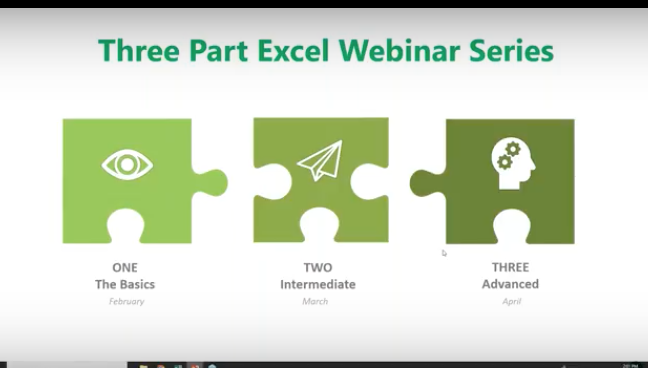
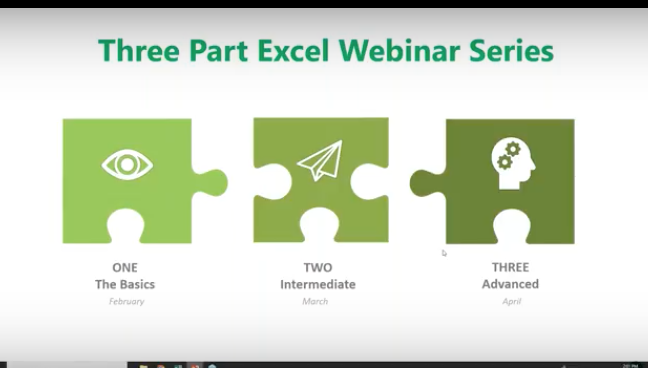
This is the second of our three-part series about using Microsoft Excel 2016 to help you identify trends, construct helpful charts, and organize information to maximize the value of your data.
Did you know that you can use Excel Worksheets and Workbooks in conjunction with programs like Microsoft Access and PowerPoint? Excel 2016 possesses many capabilities that aren’t readily apparent. That’s why we’re providing this three-part series for you.
If you missed Part 1 of our series, you can find it on YouTube at: https://www.youtube.com/watch?v=zA8X9wqrn1I
In this, Part 2 of our series we’ll be discussing:
Working with Multiple Worksheets and Workbooks
Managing Lists
Working with Dates
Formatting and Conditional Formulas
The IF, AND and OR Functions
Why would you want to use Excel?
If you or your employees work with financial data, it’s a great tool to use for:
Basic mathematical operations like adding, dividing, and multiplying.
Finding values like profits or losses.
Calculations like averages, percentages and number counts.
Performing calculations in Excel is only the tip of the iceberg. There’s much more you can do like creating charts and graphical layouts to make it easier to recognize trends and more easily analyze data.
What is Excel and how is it organized?
Excel is an electronic spreadsheet program that’s used to store, organize and manipulate data. You enter data into Workbooks that are made up of individual Worksheets. In the Worksheets, you enter data into cells that are organized into rows and columns. Excel data can consist of text, numbers, dates, times and formulas.
Working with Multiple Worksheets and Workbooks
Before you build your worksheets and workbooks think through the process and ask yourself:
“How do you want to see and analyze the results?”
“How much detail is needed to draw a conclusion?”
“What is the most important data for decision makers?”
To access or create a Worksheet, go to the tabs at the bottom left of the screen and click the one you want to activate. Or use Control Page Up or Control Page Down to move among your Worksheets using the keyboard.
You can move or copy a worksheet by going to the tab, right-clicking, and you’ll be presented with a dialog box where you can select your function. You can move your worksheet to a different Workbook by entering its name in the space above.
Use the scrollbars on the right to make other selections like making a copy. Simply click the checkbox for the action you wish to take.
Working with Formulas Across Worksheets
You can calculate different formulas across a worksheet with what Microsoft Excel calls 3D formulas. 3D formulas allow you to calculate data throughout a workbook using multiple worksheets. It refers to the same cell (or range of cells) on multiple worksheets.
Think of a 3D formula as a cross-reference to data in a different Worksheet.
It’s a great way to build summaries and Master Worksheets to bring them together in one place. And it’s a must if your labels and data types vary between worksheets.
Here we want to bring in the formula from another worksheet to this one. We have three worksheets for our inventory costs. We have a breakdown for our Fruits Dept. But we want to bring in the costs for our Bakery and Meats. So, we go to the cell we’ve created, select =sum, hit the left parenthesis ( then navigate to the Bakery Worksheet tab at the bottom, click on the cell where we want the formula to appear and hit Enter. Then the inventory cost automatically appears.
All 3D formulas are based on this syntax: Sheet1:Sheet4!A2:B5.
If you copy or insert a new worksheet after Sheet1 the reference will automatically include it.
Similarly, if you delete a worksheet it will be excluded.
Consolidate Data
You can consolidate data from separate worksheets into one Master Worksheet. They can be in the same workbook or from other Workbooks. Let’s say you have a sales team and a worksheet with their weekly report data, and you want to consolidate this data into a monthly report. There are two ways to consolidate this data:
1. Consolidate by Position: This is when the data in the source areas is arranged in the same order and uses the same labels. You use this method to consolidate data from a series of worksheets that have been created from the same template.
2. Consolidate by Category: Use this method when the data in the source areas is not in the same order but uses the same labels. Here you consolidate data from a series of worksheets that have different layouts but have the same data labels.
We are only going to demonstrate Consolidate by Position because it’s an organizational best practice.
Here’s our example Workbook. Data is in the same order and uses the same labels.
Creating a clean master worksheet for this is best. But if you use a worksheet with pre-existing data make sure you have a blank area where the consolidated data can appear.
To start, click in the upper left-hand corner and click Consolidate. A window will open. By default, SUM will be your option, although there are others to choose from. Average is the next most common function people use.
Now we want to choose our ranges from each of the worksheets. We’ll collapse the Consolidate box and click on Week 1. Select the entire range.
Bring back the dialog box and add this week to the references.
Now, when you click on week 2 to do the same, it’s already pre-selected. Just click Add. And do the same for the next two weeks. Now you’ve told Excel what data you want to consolidate.
Creating Links
You must choose between automated and manual updates. If you want Excel to consolidate your worksheets automatically when you change data, you must tell it to do so by checking this box: “Create links to source data.”
Press OK and Excel will generate the consolidation. It’s up to you to format it the way you want. But you’ll only have to do this once if you used “create links.” If so, Excel automatically updates any changes.
Notes:
You can’t create links if the source and the data are on the same worksheets. This means it’s smart to group data into worksheets in smaller periods. In this case, we did it by weeks.
If the information you want to consolidate is in a different Workbook, you want to browse for that Workbook before you begin the consolidation process. Then you can select the reference in the same way we did above. Excel will create the path for you.
Linking Workbooks
Up to this point, we’ve been working in one Workbook with several worksheets. Just like we pulled data in from multiple worksheets, we can do the same with multiple Workbooks.
Remember our 3D formula? When this same type of linking crosses over to a different Workbook it’s called an “External Reference.” Sticking to our Sales worksheet example, you may have a Workbook for each month or each year.
We now want to compare how our Sales Team did month to month instead of week to week. We are going to add a link to last month’s total. Just like before: select =sum, hit the left parenthesis ( and navigate to the Workbook you want. (Here’s it’s the Monthly Sales Workbook.)
You’ll see that single quote marks have been added to the syntax. This is because there is a non alpha-numeric character in the name (space). You’ll need these when links are broken as well.
Here’s how to do it in the opposite way. Start in your first file, go to copy or Control C.
Go back up to Conditional Formatting and grab your Workbook and do a “Paste Special.”
And down at the bottom left click “Paste Link.”
And here it is.
Managing Lists
Excel lists don’t typically use formulas. They use filtering and sorting instead. So, it’s important that lists have column headings and that there are no empty rows in your lists.
First, we’ll do a simple sort: From the list below, we’re going to organize who had the most wins.
We click the column header for Wins.
Go up to Sort & Filter in the top right and sort from highest to lowest.
Next, we’ll sort by multiple columns:
Select your columns.
Go to Sort & Filter > Custom Sort
And we’re going to sort by Earned Run Average (ERA).
You can see below that it worked. (ERA sorts smallest to largest because a smaller number is better.)
Auto Filtering
This is how you can include or exclude any row data.
Select any column or header and under Sort & Filter choose Filter.
To the right of any column header there’s a drop-down menu.
We’re going to see who was selected for the HOF (Hall of Fame.)
Click the drop-down and deselect everything.
Then choose Y (for yes).
Click OK and now you’ll see just the players who were selected for the Hall of Fame.
The Filter Icon is an easy way to see that a column is filtered.
Now we’ll customize the filter by Strike Outs.
Click the drop-down next to Strike Outs.
Choose Largest to Smallest.
And now the list is ordered by Strike Outs.
We want to see how many Wins they had. Go to the Wins and click the drop-down menu. Under Number Filters.
Choose Less Than and enter 20 > OK
Now we see the pitchers who won less than 20 games.
Sum Up Totals
Click in the cell where you want the Sum to appear and choose AutoSum>Enter.
And if you decide to take off all the filters, the Sum will recalculate automatically.
Working with Dates
Dates and times are the most common functions people work within Excel, but they can be frustrating because Excel uses a serial number to represent a date instead of the typical 01/02/18 format and hours, minutes and seconds that we’re used to. It’s further complicated because dates are days of the week.
For example, In this system, the serial number 1 represents 1/1/1900 12:00:00 a.m. Times are stored as decimal numbers between .0 and .99999, where .0 is 00:00:00 and .99999 is 23:59:59. The date integers and time decimal fractions can be combined to create numbers that have a decimal and an integer portion. For example, the number 32331.06 represents the date and time 7/7/1988 1:26:24 a.m.
The Date Function will help. It’s on the Formula part of the Ribbon under Date & Time.
The TODAY() Function and the NOW() Function
The TODAY function returns the serial number of today’s date based on your system clock and does not include the time. The NOW function returns the serial number of today’s date and includes the time.
Here we are using the Today function. Excel will always use the exact date. The Today function is useful for calculating intervals. You might use this function to calculate someone’s age.
For example, we entered =YEAR(TODAY())-1965
And the age Excel came up with is 53.
TODAY always had the () following it.
The NOW () function is useful when you need to display the current date and time on a worksheet or calculate a value based on the current date and time, and want that value updated each time you open the worksheet.
Formatting Dates
This is found on the Home Ribbon.
Under DATE you can see many ways you can display your information.
Formatting and Conditional Formulas
Conditional formatting highlights important information in a spreadsheet. But sometimes the built-in formatting rules aren’t enough. Adding your own formula to a conditional formatting rule helps you do things the built-in rules can’t do.
Here we want any ERA lower than 2 to be highlighted in red.
Highlight the column and click on Conditional Formatting.
We selected Cells Less Than 2.00
The IF, AND, and OR Functions
IF
The IF function helps you make logical comparisons between a value and what you expect. For example: IF(Something is True, then do something, otherwise do something else)In this sense an IF statement can have two results. The first result is if your comparison is True, the second is if your comparison is False.
Below we’re going to determine our WINNER based on a calculation of IF:
Based on our IF formula, Chester is our WINNER!
OR
Use the OR function, to determine if any conditions are TRUE.
Here we use a formula that tells us if someone is SAFE or FIRED.
That’s it until next time! To View this Demo on YouTube visit:
To View Part One of this Series, visit: https://www.youtube.com/watch?v=zA8X9wqrn1I
With the 2016 version of Excel, Microsoft has really upped the game for people who aren’t great with numbers. You can now easily use one-click access that can be customized to provide the functionality you need.
This is the first of a three-part series about using Microsoft Excel 2016 to help you identify trends, construct helpful charts, and organize information to maximize the value of your data.
You can use Excel Worksheets and Workbooks in conjunction with programs like Microsoft Access and PowerPoint. Excel 2016 possesses many capabilities that aren’t readily apparent. That’s why we’re providing this three-part series for you.
What is Excel and how is it organized?
Excel is an electronic spreadsheet program that’s used to store, organize and manipulate data. You enter data into Workbooks that are made up of individual Worksheets. In the Worksheets, you enter data into cells that are organized into rows and columns. Excel data can consist of text, numbers, dates, times and formulas.
Why would you want to use Excel?
If you or your employees work with financial data, it’s a great tool to use for:
Basic mathematical operations like adding, dividing, and multiplying.
Finding values like profits or losses.
Calculations like averages, percentages and number counts.
Performing calculations in Excel is only the tip of the iceberg. There’s much more you can do like creating charts and graphical layouts to make it easier to recognize trends and more easily analyze data.
Navigation
What’s great about Excel is that it has the same set up as other Microsoft products you’re familiar with. You have tabs across the top, where each tab has a corresponding ribbon with many functionalities to choose from.
The Quick Access Toolbar
The Quick Access Toolbar is a drop-down menu where you’ll find functions that you commonly use like Print and Save. You can also customize the Quick Access menu with other functions you use on a regular basis.
The Formula Bar
This is located underneath the ribbon next to the Name Box that shows you where your cursor is located on your Worksheet. The Formula Bar is important because it’s what calculates the math for you. Excel does the calculation and displays the answer in the cell you choose. The Formula Bar also shows you the contents of the particular cell you’re in.
Adding Data
There are three ways you can add data to your Excel Worksheet. You can:
Type in the data,
Copy and Paste data, or
Import data from other sources.
This is great if you have a large amount of data. For example, if you have customer lists in a database, you can even pull this into Excel.
You can enter data into only one cell, into several cells at the same time, or even on more than one Worksheet at once. And, as mentioned, the data can be numbers text, formulas, dates, or times.
On your Worksheet, simply click a cell and type in the information that you want to enter. Then hit ENTER or TAB. If you typed in a date, Excel will recognize this and format it the way you’ve specified in your default settings.
Formulas
Excel computes the correct answer when you enter a formula into a cell. Once you’ve done this, it recalculates whenever you change any of the values. The way Excel knows that you’re entering a formula is by starting with an equal sign. Then you follow the equal sign with a SUM or AVERAGE.
For example, C2: =A2+B2 means that the number in C2 is what occurs when you add the numbers in A2 and B2.
You can type this in manually, but now Excel has great functionalities to help you do this. The simple way is to put your cursor in cell C2, hit = and type in A2+B2. The numbers in A2 and B2 will be added, and the SUM will be entered in cell C2.
Note: You always want to calculate using the actual cells rather than typing in numbers like 1 + 2, etc. The reason for this is so you can go back at any time and change the values in cells and the formula will calculate with the new numbers.
Let’s say you want to add a bunch of numbers together in your Worksheet. You can type = sum (a1:a5) in the cell where you want the answer to appear. Or you can do this and drag your mouse across the cells you want to add. Type =sum ( and drag your mouse across the cells and hit ENTER. The sum will appear in the cell without you having to typing in all the numbers! When you put your cursor on the cell, you will see the actual formula you just created.
There are many ways to do the same thing in Excel. It’s like this across all Microsoft products. You can go to the Ribbon at the top to “Auto Sum” to do the same calculation. Select a cell next to the numbers you want to add, click AutoSum on the Home tab and press Enter. Do what works best for you.
Once you create a formula, you can copy and paste it into another cell. You can also copy and paste formulas into different Worksheets as well. This can save you a lot of time.
Formatting Worksheets
With Excel 2016, you can format your Worksheets much more easily than you could before. You can use document themes throughout the Worksheets in your Workbook to present a professional and consistent appearance. You can also apply predesigned formats as well.
Let’s say you have a Worksheet with many rows that are hard to read. You can go in and create fill colors and more to differentiate the rows, columns, and headers to make reading much easier.
You have options to create borders around cells, rows or columns from the drop-down menu. You can also shade cells with a solid background. Don’t forget that you can change the style and types of fonts. Right-click the text, and a drop-down menu will appear where you can make these and other selections easily.
Creating Charts
If the data isn’t complex, you can easily read it, but if you have a lot of data, creating a chart will help you better analyze it. You can select specific cells, rows, and columns for your chart. One way to do this is to highlight the data and go to the top ribbon to select the type of chart you want to create.
With Excel 2016, you have a “recommended charts” option. Excel will help you choose the chart that best suits your data.
You can then go in and further customize your chart in the “Chart Tools”. You can change the color scheme, 3D effects, shading and more. If you change the data in the cells in your Worksheet, your chart will reflect the changes.
Some of the new charts in 2016 include:
Waterfall
Tree Map
Box and Whiskers
Sunburst
Creating Tables
You may be used to creating tables in Word or PowerPoint. Some people think the format in Excel is already in a table, but it’s not; at least until you tell it to do so. If you want to do this, select your data, go to “Insert” and select “Table.”
Similar to other Microsoft products, tabs will appear to help you format your table.
Viewing Worksheets
When dealing with lots of information, it can get unruly trying to work around various rows and columns. This is where Viewing Worksheets can be helpful. You can freeze a portion of your worksheet with “Freeze Panes” to more easily view it.
You also have the ability to “split” the data to view different parts of your Worksheet. You can compare two Worksheets in the same Workbook or even in different Workbooks by viewing them side by side.
Saving and Printing
If you have Worksheets that are so large they won’t fit on one page, go to “Save As” and decide on the name, where it gets saved, and go to “Print” where you can save the file to a pdf that you can send.
You can select options for printing the entire sheet, part of it, resizing it, and more to suit your needs. Going to “Page Setup” will allow you to shrink the entire Worksheet down to a size that’s more manageable for printing.
Sharing & Security
In Excel 2016 you can share Workbooks and Worksheets with others and password-protect them. The people you send them to need to know your password to open them, whether you send them via email, share them on your network, or via the cloud. From within Excel, you can designate who can access your Worksheets and Workbooks, and also whether they can edit them or not. There are a variety of parameters you can set within a Worksheet.
For example, if you want to hide employees’ salaries, you can hide this section when you share it. Or, you can let people see your data but lock it down, so they can’t change it. You can also protect your Worksheets and Workbooks to keep them secure from non-authorized users.
The Quick Analysis Tool
When highlighting data, click on the Quick Analysis button to create a chart, highlight specific cells, and much more. It doesn’t give you the functionality you’ll find in the Ribbon, but you can get things done quickly and easily with this tool.
3D Power Maps
This is another new tool in Excel 2016 that lets you look at information in ways you might not have seen in the two-dimensional format. This helps you strategically create your data on a 3D map. You need latitude and longitude data to do this. You can also import your own maps into 3D Power Maps.
PivotTables
PivotTables help you analyze your Worksheet data. You can summarize, analyze, explore and present your data in just a few clicks. They are very flexible and can be adjusted to your unique needs. Note: Your data should be organized without blank rows or columns for this to work properly.
The good news is that Excel 2016 will also help you pick the best format for your PivotTables!
PivotCharts
PivotCharts are another great way to add visualizations to your data. You will first need a PivotTable to create a chart. Now, your PivotTable will behave like a PivotChart. When you change the information in your PivotTable, the PivotChart will also reflect this change. The PivotTable is connected to the PivotChart.
That’s it for now! For more information on using Excel 2016 like a Pro, feel free to contact us.