
by Felicien | May 25, 2018 | Education
Succeeding in a non-profit organization in this day and time requires unique strategies. Technology is advancing at ever-increasing speeds and challenges even the best organizations on every level. The world has seemingly gone completely digital with Millennials now using smartphones for everything they do.
A recent survey showed that only one-fifth of all Millennials have ever written a check. And yet, checks are the most popular way that people have given to charities in the past. Today’s consumers rely on electronic payment methods such as Paypal, Venmo and Apple Pay. This applies to their charitable giving as well. While Baby Boomers and Gen X are still largely using an organization’s website for their giving, the new generation of consumers uses their mobile phones.
People enjoy supporting a good cause
Surveys also show that Millennials are conscientious about charities. They have a deep abiding desire to help make the world a better place and they’re willing to give their time and money to make this happen. The best solution is to make it as quick and easy as possible. More and more charitable organizations are learning this lesson. Going mobile and digital provides you with unique ways to make the giving as painless as possible. Large organizations like the Red Cross, give you the ability to donate by texting an amount of money to a 5-digit number. It’s just that easy. There’s nothing to fill out. No credit card information to worry about.
In a highly digitalized world where new inventions amaze and amuse us all, nonprofits face a more critical challenge than others when it comes to fund-raising. In the past, non-profits have been seen as entities that were slow to accept change. Some charities continue to do business the way they always have. This has prevented them from maintaining proper relevance in our world. In order to influence social change, non-profits must stay ahead of the curve.
Dealing with a tight budget
If nothing else gets the attention of these older, less-flexible non-profits, their tight budgets will. Effective fundraising is all about appealing to today’s savvy consumer. It’s about getting their attention with a message that speaks to the heart.
On the journey to change the world, a non-profit must increase their revenue while continually managing their resources wisely. People don’t give to organizations who waste resources and ignore their relationship with constituents. Most charitable givers want to support organizations that strive to make every dollar count. Below are a few additional tips for today’s non-profit organization.
Tell a compelling story
Most charities do have a good story about how they began. Perhaps the Director went through a rough time and was homeless for a period. Now he or she is helping other homeless people turn their lives around. Many times, when people go through a really rough time in their lives, they want to somehow make things better for others who will travel the same road. Take the time and spend the money to hire a professional writer to flesh out this story so that it’s compelling and heartfelt. Sharing your story with others is a way to endear people. It’s an excellent method of moving from a distance right into someone’s true lifestyle.
Improve constituent relationships
Stay in constant contact with your givers. Be sure to make those communications as interactive as possible. Send regular updates about how your organization is doing or current projects you’re involved in. Don’t let your only contact with the public be all about donations. Make people feel like they are part of something dynamic, something that matters. It may be a good idea to have a team that focuses only on relationships with donors.
Stay relevant
Some organizations purposely stay out of politics, religion, etc. Though it’s difficult to walk that tightrope between staying relevant and remaining neutral, this is important for most people today. If there are earth-shaking events going on around the world, find a way to talk about these things in your monthly newsletter without being preachy. Many times, global disasters and political unrest can be a time to connect with your core base and see how they feel about these events. It can be a time to create stronger bonds with supporters if handled correctly.
Make it easy for supporters to give time and money
Make donating as flexible as possible. Meet people exactly where they are in their lives. An older person may want to mail a check, while a teenager will want to use a mobile wallet. Middle-aged people still pay bills, donate to charities and conduct other business online. They trust the internet and have become comfortable with surfing the web. Regardless of where someone is in terms of their technology level, meet them there where they feel safe.
Understand the demographics of givers
Demographics are an important tool used by marketing agencies. Specific data about consumers is collected and broken down so that it reveals personal information about customers. For instance, if you’re selling sports cars, you’ll want to reach a younger group of people with lots of expendable income. Paint a picture of exactly who your primary customer is. Someone looking for an expensive sports car might be a male 20-35 years old whose income is over $200k per year. Just the same way marketing agencies need this information about potential buyers, a charitable organization does as well. When you know your supporters personally, you can connect with them on a more human level. That’s when your organization will finally achieve its mission statement and goals. This is also where organizations begin to make the most difference in the world.
Final Thoughts
With the world changing so rapidly, it’s no wonder that technological advancements sometimes astound us. A non-profit cannot be seen as inflexible and antiquated if they want to compete. Though their values should always remain old-fashioned, the way they operate must be on a level with a Fortune 500 company. An organization must stay up to date on our evolving society. Attitudes change and they can do so quickly with the great flux of information coming at us each day. Stay in tune with these events and you’ll stay connected with a group of donors who are excited about supporting your cause.
by Felicien | May 25, 2018 | Education
Today is the day…doing business in the EU? You need to be compliant with GDPR.
Watch our informative GDPR training online today.
The General Data Protection Regulations (GDPR) have made headlines for some time now and the deadline for compliance is fast approaching. Many have wondered why these regulations are so important and whether they will be affected. If your business is located in the United States or Canada, why do you need to be concerned?
What are the General Data Protection Regulations (GDPR)
The GDPR are European Union Data Protection Regulations designed to protect the personal data of consumers in Europe. The regulations have put in place various measures to ensure that personal data is well protected from hackers. In this age where the cases of hacking and cyber-crimes are on the rise, these measures are crucial. The new regulations will come into effect on 25th May, 2018.
These regulations govern various aspects of data handling. They govern methods of handling data collection, data storage, data processing and data destruction. These regulations apply even when there are no financial implications in the transaction. Many organizations will be affected including companies that monitor the behavior of EU residents. They also cover anyone in the world who does business with a company in Europe. This includes many Canadian and American companies. If your business buys, sells or transacts business with a European company, then you must adhere to the provisions of the GDPR.
What happens in the case of non-compliance?
The GDPR requires that all companies that handle or deal with personal data belonging to European Union citizens comply with the regulations. Companies that fail to comply with these regulations will receive penalties and fines. The penalty imposed is calculated based on the company’s global annual turnover of the preceding financial year. It is set at 4% of the global annual turnover of the company or €20 million whichever is greater for non-compliance. Companies that are found guilty of less serious breaches of the regulations are faced with a penalty of 2% of the company’s global annual turnover or €10 million, whichever is greater.
How do these regulations affect United States based companies?
The GDPR rules apply to all companies that deal with data affecting or belonging to EU citizens. This means that people who own data processing companies with a global outreach are affected by the regulations. As has been noted, simply collecting data, even before financial agreements are reached puts the company within the purview of these Regulations. The GDPR also affects companies that deal in surveillance and monitoring of behavior, so long as the data collected belongs to a citizen of the EU.
How to comply
Knowing that the GDPR applies to your company and that the penalties for non-compliance or for breach are dire, it is important that all companies affected by these regulations take steps to ensure compliance before the May 25th deadline. There are various ways of complying with these regulations including:
Conduct an audit of your company
This enables the owners of the company to decide exactly which steps to take to comply with the regulations. The questions that you need to ask yourself while conducting this audit include; how is your data collected, where do you store your data, why do you collect that particular kind of data and when you are done with the data, how is it destroyed?
Audit your data service providers
You need to be sure that your service providers are GDPR compliant. This will ensure that the services that they provide to your company adhere to the provisions of the regulations.
Be sure that you understand new regulations
One particular regulation that may differ from general data protection regulations is the right to be forgotten. This basically means that citizens of the European Union reserve the right to request that their data be deleted from computer servers. EU citizens also reserve the right to have their data kept in a particular format and to have it transferred to another company at their request.
Determine the data handler category in which you fall
The GDPR categorizes data in two distinct categories:
Data handler- defined as a company that processes personal data on behalf of a data controller
Data controller – the person with authority over the collected data
The controller decides which data should be collected, in what format the data should be collected, how the data is to be stored and used, and how it is to be destroyed. The GDPR stipulates different regulations for various categories of data handlers. Knowing the category in which you fall will thus enable you to know which regulations are applicable to you.
Final thoughts
If you have not read the General Data Protection Regulations, it’s important to do so as soon as possible. As you can see, the requirements for adherence are demanding and the cost of non-compliance is quite hefty. It’s vital for every company that does business in Europe to know and understand these regulations. European authorities have stated that they will impose stiff penalties to make an example of companies who do not comply.
by Felicien | May 25, 2018 | Education
What Is It? What Do We Need To Know? What Should We Do?
If you don’t know what the GDPR is, and if you’re not ready for it, you’re going to get caught short because this is a legal deadline and it’s coming up fast. The General Data Protection Regulation goes into effect May 25, 2018. It’s a privacy law that the European Union is enforcing to protect the personal data businesses collect. Even if your business is outside of the EU, you must comply.
What is the GDPR?
The GDPR affects all internet business worldwide. It’s a very complex law, so we can’t explain everything here. We’ve provided some resources below that you should check out. Keep in mind that there are many gray areas where this law is concerned. So, you should do some research to determine how the law affects your organization’s unique situation.
The GDPR is an internet privacy law. All businesses, small or large, and even entrepreneurs who do business on the Internet with consumers located in the European Union need to be aware of how the law affects them.
It doesn’t matter if your company is inside the EU, or anywhere else in the world– If you do business with anyone in the following countries, you must comply with this new law by May 25th:
Austria
Belgium
Bulgaria
Croatia
Cyprus
Czech Republic
Denmark
Estonia
Finland
France
Germany
Greece
Hungary
Ireland
Italy
Latvia
Lithuania
Luxembourg
Malta
Netherlands
Poland
Portugal
Romania
Slovakia
Slovenia
Spain
Sweden
United Kingdom
The GDPR is a consumer data protection law. It ensures that individuals can:
Access their personal data.
Export their personal data.
Correct errors to their personal data.
Object to the processing of their personal data.
Erase their personal data.
The GDPR applies to the acquisition, processing, and storage of personal data – from initial gathering to final deletion of this data and every point in between. It applies specifically to personal data and anything that pertains to identifiable data such as:
Names
Email Addresses
Physical Addresses
Phone Numbers
Birthdate
Age
Sex
Race
ID Numbers
Nationality
Citizenship
Marital Status
Family Data
Health Data
Physical Characteristics
Profile Pictures
Occupation
Employment History
Income
IP Addresses
Cookies
(and more)
This could be information you collect automatically from Google, an opt-in, or other collection method online – anything that would identify an individual.
How Will The GDPR Affect My Business?
If your business has a website or an email list, you may be affected.
The GDPR affects any business relationship or transaction whether commercial or free where one or more of the entities are in the European Union. It’s not based on citizenship, rather location. Any business within the EU must comply with the GDPR across its entire audience. If your business is in any of the 28 European Union Member States, you must comply with the law if you conduct a transaction with anyone located anywhere. If your business is located in the U.S. and you collect data about any business or person in the EU, you must comply with the GDPR.
How Should We Prepare For The GDPR?
There are three requirements you must meet before May 25th.
Controls and Notifications
Protect personal data using appropriate security.
Notify authorities of personal data breaches.
Obtain appropriate consents for processing data.
Keep records detailing data processing.
Transparent Policies
Provide clear notice of data collection.
Outline processing purposes and use cases.
Define data retention and deletion policies.
IT and Training
Train privacy personnel and employees.
Audit and update data policies.
Employ a Data Protection Officer (if required).
Create and manage compliant vendor contracts.
Some Examples
Before the GDPR:
Let’s say you offer a whitepaper or free video to people online. Before the GDPR, your prospect provided their information, you gave them the freebie, and the consent was assumed because they accepted your gift. Pretty easy, right?
After the GDPR:
You can no longer assume that their consent is given if they accept your gift. Now you must specifically obtain their consent. It must be given freely, specifically, and be unambiguous. Nor can you require them to give their consent to receive the gift.
Note: This new standard applies to all of your existing lists. Beginning May 25th, you can no longer send marketing emails to anyone who hasn’t given their precise consent for you to keep their personal information. Plus, you cannot go back and ask them for their consent. You’ll need a stand-alone system to do this.
What Can We Do To Comply With These Strict Rules?
This is important. You must do this BEFORE May 25, 2018.
Compliance/Preservation
Step 1. Segment your email mailing lists into two parts.
Non-EU subscribers
EU-based subscribers and any unknowns
You want to continue to build goodwill with your Non-EU contacts so reach out to them as you would have before. The EU-based and unknowns you’ll need to re-engage with. Here’s what we mean:
Step 2. Reengage EU-based and Unknowns.
Before emailing them, add additional value and content to your website.
Then send them a link to your website and request their specific consent to keep their personal information.
Set up a system to migrate those who give consent over to it.
On May 24, 2018, you must delete anyone in this group who hasn’t consented.
Remember, storing and deleting their information is considered processing. That’s why you must do this BEFORE May 25th.
Breach Notification Requirements
The 2018 GDPR replaces the old Data Protection Directive of 1995. The most recent GDPR breach notification requirement was enacted in April 2016. It set a higher compliance standard for data inventory, and a defined risk management process and mandatory notification to data protection authorities.
Breach notification is a huge endeavor and requires involvement from everyone inside an organization. In-house tech support and outsourced Technology Service Providers should have acquired a good understanding of the consequences a data breach causes and the data breach notification requirements for their organization. They must be prepared in advance to respond to security incidents.
The Following Are Additional Steps You Should Take To Prepare Your Technology Before May 25th
Your Technology Solutions Provider Can Help
Perform a through inventory of your personally identifiable information, where it’s stored–in onsite storage or in the Cloud. And determine in what geographical locations it’s housed. Don’t forget about your databases. PII is often stored in databases.
Perform a Gap Analysis. This is a process where you compare your organization’s IT performance to the expected requirements. It helps you understand if your technology and other resources are operating effectively. By doing this, your Technology Solution Provider (TSP) can then create an action plan to fill in the gaps. The right TSP will understand the GDPR regulations and how your IT must support your compliance efforts.
Develop an Action Plan. Your TSP should document a detailed action plan for how to use technology to meet the GDPR if you experience a data breach. This should include individuals’ roles and responsibilities. Conduct tabletop exercises to practice how the plan will work with specific timelines and milestones.
Ensure data privacy. If you don’t have a Technology Solution Provider, then you need one for this. Data protection is key for any-sized organization. Consumers have the right to have their data erased if they want. This is called “the right to be forgotten.” This is a concept that was put into practice in the European Union in 2006, and it’s a part of the GDPR. You won’t be able to do this if their data is stolen.
Be sure to document and monitor everything that you do that’s related to GDPR Compliance. This includes any changes or upgrades that your TSP makes to your IT environment. You may need to demonstrate that you’ve done your due diligence when it comes to protecting citizens’ private information and that you practice “defense-in-depth” strategies where you use multiple layers of security controls when it comes to your technology.
Resources To Check Out For More Information
The European Commission’s website regarding the GDPR:
https://ec.europa.eu/info/law/law-topic/data-protection
Wikipedia
General Data Protection Regulation
https://en.wikipedia.org/wiki/General_Data_Protection_Regulation
Information from the service vendors you use:
Mail Chimp
Salesforce
Google
Microsoft
These and other services have GDPR-centric webpages with helpful information that impacts your relationship with them, how they handle processing, and how they can help you comply with the new regulations

by Felicien | May 24, 2018 | Education
PowerPoint is an amazing, multi-faceted software program from Microsoft that allows users to create professional-looking slideshows. These presentations have evolved from being a novelty to an essential part of everyday business around the world. The slideshow format makes it easy to tell a story that can be shown on a projector or TV. This program is used for small groups, large audiences, or even families wanting to show off their vacation photos.
This type of presentation offers so much and can be completed by even a novice. When the audience has visual and auditory elements, it’s much easier to get your point across while holding everyone’s attention. Often a PowerPoint demonstration is recorded so it can be viewed just like a YouTube video.
What’s new for 2016?
For 2016, Microsoft has integrated many helpful changes into all of its Office 365 programs, including PowerPoint. The great thing about Microsoft is that they carry over their product features from one Office 365 program to another. This means that if you’re already familiar with Word, you’ll have no trouble working in PowerPoint. The program uses the same menus and commands for common tasks like formatting text and adding pictures.
Available for any device
Office is now available on any device so you can work on your new PowerPoint demonstration from your smartphone, tablet computer, PC or Mac. If you want to collaborate on a project, then save it to OneDrive so that others can access the file and make their own changes or add new content. PowerPoint demos are always saved as a .ppt file, which is easy to open using any version of Office. You can give collaborators viewing or editing privileges.
Available in any language
Another helpful thing about PowerPoint is that it is used worldwide and available in many languages. This makes it easy to create a new slideshow in French, Italian, German, and many other languages. You may want to create a spectacular slideshow for your team in Italy or you may have teams in several countries. It’s easy to produce a stunning PowerPoint display in just about any language that can be shared across various devices.
What are PowerPoint Presentations used for?
Users find various ingenious ways to give any project a distinct flavor of its own. There are so many uses for PowerPoint that it’s hard to name them all, but below are just a few:
Product launch
Marketing plans & strategies
Business plans
Trade shows
Club meetings
Classrooms
Quarterly-earnings presentation
Employee training
Sales meeting
Family tree
Public appearance
Photo slideshows
How to begin
As you can see, there are endless ways to use PowerPoint to get your point across, entertain or make a boring presentation much more interesting. Begin by choosing a style. Remember that you can go back and change this at any time. Nothing is set in stone with Microsoft products because they’re versatile and user-friendly.
Begin by opening PowerPoint and selecting New>Blank Presentation to create a slideshow from scratch. Next, select your template or design. Templates and Themes offer you a wide selection of attractive colors, designs, and layouts. Double-click on one and the first page of the theme will open. You can add text and pictures to each slide. Also, add or remove text boxes simply by clicking on them and then choosing Delete. If you need inspiration, then select “Take a Tour” and the program will give you a brief explanation of how it works.
Once you’ve completed work on each frame, you can add exciting features like animation and transitions. If these two functions seem confusing, find a how-to video to get simple instructions or ideas. With all the various choices and features in PowerPoint 2016, it’s easier than ever to create a professional slideshow that will wow your audience.
Working with Templates
The program itself offers a number of exciting templates for any type of presentation, but you can also go online and choose from thousands of templates and themes. Once you’ve chosen a design, it’s time to add some text. Most people start at the beginning, so a title is often found on the first slide. Simply click on the top text box on the first slide, then start typing. If you want to change the font size, type, or color, highlight it first. Next, go up to the Home tab and sort through the many font styles there. This procedure is exactly the same as that for changing formatting options in Word.
After you get your first slide perfect, you can add notes at the very bottom. Notes will not show up on the presentation. Instead, they’re used to help the presenter create their audio dialog. If you aren’t ready to create your notes, simply skip this step and go back to it later. When you’re ready to add a new slide, it’s easy to do. Right-click in the left column that shows the thumbnails of your slides. You can also go to the Home tab and choose New Slide.
Using the home tab allows you to make a few choices when adding the next slide. You can select the slide format that works best for you, from content only to a mixture of content and pictures. If you aren’t sure or don’t have the right elements to create this slide, simply choose the blank slide and move on. It can act as a placeholder until you’re ready.
Adding media and other elements
Many of the slide layouts include small icons that make it simple to add a chart, table, picture, video, or smart graphics. Clicking on one of these icons will open the appropriate element, such as a table or chart properties. Remember that if you don’t like what you created, simply click on it and press delete or backspace to remove the item. PowerPoint allows you to get as creative as you like or collaborate on your slideshow with someone else. You may have someone in your office who does all the charts and graphs for a given project.
Notice that when an area with media in it is highlighted, the “Drawing Tools” are available. These tools work exactly as those found in Word. Choices such as changing the text fill, outline and effects are shown on this tool bar. You can rotate a box of text or pics. You can also group or align objects in the text box.
Making Changes
As mentioned above, it’s easy to make changes to a slideshow. If you want to change the text, then click in the box containing that text so that it’s highlighted. On each frame, you can have more than one text box. This is helpful because you might want a completely different look for your heading as your sub-heading. Once the text is highlighted, you can make whatever changes you like and they take affect instantly. You can change the color, size, style, and add elements like bolding or italics.
Sharing Projects
If you want to share your project, send co-workers a link to the PowerPoint file. You can give each collaborator either viewing or editing permissions. Comments on the presentation are visible to everyone. Your team can make whatever changes they like and return the project to you with a newly saved title. Each iteration requires its own unique file name. So that there’s no confusion on which is the current rendition, it can be helpful to save the project by name and date.
Presenting your PowerPoint to an audience
In Presenter View, the announcer has access to their notes, as well as the current and next frame. To begin your slideshow, simply set it up with the monitor or TV you’re going to use, then go to Slideshow>From beginning. This action will start the presentation. Watch how each frame is shown and then dismissed.
If you have set up Transitions, then each new frame will use motion effects to move through the slides. Frames will appear and disappear according to the transition type you have set up. For advanced users, Microsoft has developed a method of applying and customizing slide transitions so that your PowerPoint is clean and professional-looking, but unique from all the others.
PowerPoint is an excellent tool in today’s business world that brings every story to life.

by Felicien | May 24, 2018 | Education
Compliance Manager
Compliance Manager is a data tracking system designed by Microsoft to ensure companies adhere to General Data Protection Regulations (GDPR). Organizations can sign up for paid Compliance Manager or subscribe to a free Compliance Manager via Microsoft tools such as Microsoft Azure, Dynamic 365 or Microsoft Cloud Services. Microsoft recently released the long-awaited office 365 GDPR Compliance Manager with a few upgrades. Professionals are eagerly trying it out and giving their opinions about this exciting new product. The compliance management tool is expected to attain general availability on different platforms in the course of 2018. Here’s a sneak peek at the basic attributes of this highly anticipated GDPR data protection compliance tool.
Relevance of the new Office 365 GDPR Compliance Manager
Microsoft finally unveiled their much-awaited General Data Protection Regulation program that experts have been so excited about. Shortly after, they announced its features in a blog post and details of the new features to help users get started. Most users do look forward to new office products, but this one has been designed to make compliance to the new GDPR regulations much easier. That makes it a valuable tool that every business needs. Most business owners confess that they don’t know enough about the new GDPR rules and they are not ready for the May 25 deadline.
One key attribute of the new Office 365 is that it will include the compliance manager which was first previewed in November 2017. To date, the compliance manager is available on Azure, Dynamics 365, and Office 365 Business. Plans are also underway to have it available for Enterprise Customers via public clouds in the near future.
So what’s all the fuss about the new Office 365 GDPR Compliance Manager?
Customers have complained about difficult-to-understand compliance challenges and the GDPR is admittedly a complex document. Microsoft has attempted to take some of the complexity and mystery out of these regulations so that business owners can comply without having to hire outside help.
The most common challenge has been the lack of in-house employees who understand how to prepare and fulfill these new regulations. Office 365 GDPR Compliance Manager is tailored to ensure end-to-end regulation compliance. It also effectively empowers your business to manage the three key components of compliance. As your business uses this product, it will continuously provide you with a risk assessment and score that can alert you if you aren’t in full compliance in some areas.
Advanced GDPR Compliance
Microsoft’s Compliance Manager was developed to track an organization’s IT systems in specific regard to the requirements of international standards for data protection. One major issue has been that many company owners have simply not taken steps to be ready for the May 25 deadline, when all web sites who do business with European companies must adhere to EU’s General Data Protection Regulation (GDPR).
To help with this problem, Microsoft has unveiled a special GDPR template which will effectively detect and categorize personal information in your data base relevant to GDPR. This is important because many companies are still somewhat careless with their customer’s personal data. According to GDPR, companies failing to provide adequate protection for customer data could face penalties of up to €20 million.
The Compliance Manager has two features that customers will use to scan and assess data risk:
Compliance Score- Users are now able to assess data risk on an interactive dashboard on the new Microsoft 365 GDPR.
Azure Information Protection Scanner- This feature identifies, classifies, labels and effectively protects both on-premises and hybrid user data. It periodically scans sensitive data on emails and attachments based on the organization’s policies.
New Admin Role of Compliance Manager
Along with these two outstanding updates to Microsoft Compliance Manager is a unified labelling tweak on the admin dashboard. Microsoft cited protection of documents as the main reason for unified labeling, which it denotes as information protection administration. In the past, security admins and global admins could access the systems as separate entities to the Azure data protection service. With the new Compliance Manager, the option of additional management access permission is missing on the Azure portal and PowerShell unifying security and global admin roles.
With this new set up, the compliance manager ensures consistency in the labeling of information for easy protection of data records. However, the unified admin labeling role is still on a preview phase. At the moment, it allows the admin to apply a data protection setting which differentiates security functions from general global admin functions on a single interface in line with GDPR. Microsoft’s compliance manager is now available for customers on a paid program and or a trial option for users of Microsoft cloud services.
The Future of Data Compliance
The number of customers and companies worried about cyber theft is growing. Consequently, there’s a rising need for tools that can help protect customer data. The GDPR attempts to do this. As long as data stays scattered across an organization’s systems, there’s a greater risk that it will be stolen or compromised in some way. Compliance with GDPR guidelines seeks to eliminate many of these risks. Though it will constitute a huge challenge for most website owners, the alternative is unacceptable. Hopefully, the new Office 365 GDPR Compliance Manager can take some of the confusion and apprehension out of the equation.
by Felicien | May 24, 2018 | Education
Excel Like A Pro Part III
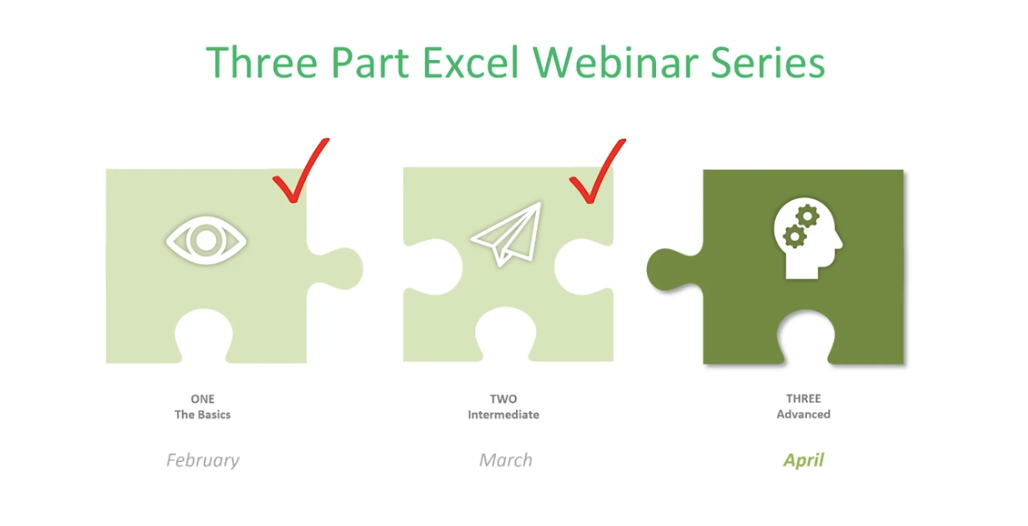
This is the final of a three-part series about using Microsoft Excel 2016. It will cover some of the more advanced topics. If you aren’t great with numbers, don’t worry. Excel does the work for you. With the 2016 version of Excel, Microsoft really upped its game. Excel’s easy one-click access can be customized to provide the functionality you need.
If you haven’t read Part I and Part II of this series, it’s suggested that you do so. The webinar versions can also be found on our site or on YouTube.
This session will discuss the following:
More with Functions and Formulas
Naming Cells and Cell Ranges
Statistical Functions
Lookup and Reference Functions
Text Functions
Documenting and Auditing
Commenting
Auditing Features
Protection
Using Templates
Built-In Templates
Creating and Managing Templates
More With Functions And Formulas
Naming Cells And Cell Ranges
How do you name a cell? You do so by the cell’s coordinates, such as A2 or B3, etc. When you write formulas using Excel’s coordinates and ranges you are “speaking” Excel’s language. However, this can be cumbersome. For example, here G12 is significant because it refers to our Team Sales.
You can teach Excel to speak your language by naming the G12 cell Team Sales. This will have more meaning to you and your teammates. The benefits of naming cells in this fashion are that they are easier to remember, reduce the likelihood of errors, and use absolute references (by default).
To name our G12 cell Team Sales, right-click on the cell, choose Define Name, and type “Team Sales” into the dialog box. You can also add any comments you want here. Then click Ok.
Another way to do this is to click on the G12 cell and go up to the Name Box next to the Formula Bar, then type your name there.
And, there’s a third option at the top of the page called “Define Cells” that you can use.
Notice that there’s an underscore between Team and Sales (Team_Sales). There are some rules around naming cells:
You’re capped at 255 characters.
The names must start with a letter, underscore or a backslash ().
You can only use letters, numbers, underscores or periods.
Strings that are the same as a cell reference, for example B1, or have any of the following single letters (C,c,R,r) cannot be used as names.
How To Name A Range
Highlight an entire range of cells and name your range (we’re doing this in the upper left-hand corner).
Then you can easily use the name to produce the sum you need:
You won’t have to go back and forth from spreadsheet to spreadsheet clicking on specific cells to calculate your formula. You simply key in the name of the cell range you want to add. Just be sure to remember the names as you build your spreadsheets over time.
If you ever make a mistake or want to change names, you can go to Name Manager to do this.
Remember that if you move the cells, the name goes with it.
Statistical Functions
The three statistical functions are:
Average If
Count If
Sum If
The Average If can be used to figure out the average of a range based on certain criteria. Here we’re going calculate the Average If of the ERA of 20+ Game Winners from the spreadsheet we developed in our last session.
We’ve already named some of our cell ranges (wins, era). And we want to know the average greater than 19.
Hit Enter and you have the average.
You can use this feature across a wide variety of scenarios. For example, if you wanted to know the average sales of orders above a certain quantity – or units sold by a particular region, or the average profit by a distinct quarter.
Count If is used for finding answers to questions like, “How many orders did client x place?” “How many sales reps had sales of $1,000 or more this week?” or “How many times have the pitchers of the Philadelphia Phillies won the Cy Young Award?”
As you can imagine, it’s essential that you type in the text exactly the way you named that particular cell.
Hit Enter and you get your answer
Now we’re going to use the Sum If function to calculate the number of strikeouts by the pitchers on this list who are in the Baseball Hall of Fame.
Sum If is a good way to perform a number of real-world statistical analyses. For example, total commissions on sales above a certain price, or total bonuses due to reps who met a target goal, or total earnings in a particular quarter year-over-year.
Lookup and Reference Functions
These are designed to ease the finding and referencing of data, especially in large tables. Here, cells A1 and E3 relate to a variable interest rate that is paid on a bank account. For balances under $1,000, the interest rate is 3% – between $1,000 and $10,000, the interest rate is 4%, etc.
Cell A6 shows the balance of a specific account. The Lookup Function is used in B6. It looks up the interest rate and applies it to the account balance of $45,000. This is what the formula looks like in the bar at the top:
The vector form of the Excel Lookup Function can be used with any two arrays of data that have one-to-one matching values. For example, two columns of data, two rows of data, or even a column and a row would work, as long as the Lookup Vector is ordered (alphabetically or numerically), and the two data sets are the same length.
V Lookup and H Lookup are used to pull information into reports. We’re going to use Report Setup. Here, we have a worksheet that references salespeople, sales data, pricing, revenue, and the clients that they sold to. You’ll see on the top right where we set up a report with names referencing sales data.
You can access the sales reps in the drop-down menu. Pick a rep and use the V Lookup Function to find the price.
To Find Price, key in =vlookup and the corresponding cell number for Rep 16, plus the table array which is the entire table not including the header at the top.
Then you need the column index number. This is the number of columns to the right of your lookup value column, which is column A. It’s the 4th column from column A (Price).
Enter 4,
For range lookup we’re using true or false. We are entering false here.
Hit Enter and this is what you have for your Find Price value.
Now we’ll do a similar V Lookup for the Client. Copy and Paste:
Make the necessary changes in your formula:
Client 16 goes with Rep 16.
Note: If you change the Sales Rep, all the corresponding values will change.
If you have a lot of data and long tables, V Lookup helps you find information easily. The V stands for Vertical (or by column), because columns are vertical. H Lookup is for Horizontal-like column headers.
Text Functions
Text Functions contain some very powerful tools to adjust, rearrange and even combine data. These functions are used for worksheets that contain information and function as a database such as mailing lists, product catalogs, or even Cy Young Award Winners.
The first text function we’ll show you is concatenate. It links things together in a chain or series. Here, we have our Cy Young list. But we no longer need to see our Wins and Losses in a separate column.
To do this easily rather than manually, create a new column where your data will reside.
Hit Enter
Now, just go in and hide the Wins and Losses columns. Don’t delete them or your new column will have a reference error.
If you do want to delete the Wins and Losses columns, you must first make a new column. Copy the W-L numbers and Paste Value in the new column. This way you’ve moved from a formula to the new information. If you delete your source information without taking this step you’ll be left with nothing.
Combine as many columns as you need with the concatenate function to make the data appear as you need it to.
The Left Mid and Right Functions
These are used to tell Excel that you only want part of a text string in a particular cell. Here, we have a product list and product IDs that tell us the date of manufacturer, the item number, and the factory where it was made. We’re going to pull the data out so we can put it in columns to use in different ways.
We use the Mid Function here.
This works because each of the product IDs are the same length. If they were different lengths you’d have to do something more creative.
Documenting and Auditing
You want to make your Excel files easy to understand for both yourself and others who need to use them – and this includes auditors. An organized worksheet results in clear error-free data and functions.
Commenting
The purpose of commenting is to provide notes to yourself or especially to others. Comments can include reminders, explanations or suggestions.
You’ll find the New Comment button at the top under the Review Menu. Simply click the cell where you want the comment to go and click New Comment. Then type your comment and click outside the box to close it. The comment will disappear but it’s still there. Anywhere you see a red flag, there’s a comment.
If your name doesn’t appear in the comment, go to File>Options>General and personalize your copy of Excel (in this case Microsoft Office) under the User Name. You won’t need to go back and change each comment; Excel will do this for you.
To format a comment, click inside the comment box and a drop down will come up where you can format the text.
You can change the color of the box and lines around the box. Some managers have different colors for members of their teams.
If you change the default color, it will change that for all your Microsoft products.
To delete a comment, go to the cell that hosts it, then go up and hit delete.
If you have a lot of comments, grab the handle on the box and resize it.
Auditing
What we really mean is formula auditing. This is an advanced way to check your work.
The yellow diamond on the left of this cell indicates that there’s an error.
Or to find any errors, go to Formula Auditing in the top menu.
You have a number of helpful tools here. Trace Precedents shows where the formula looks for information. Click the formula you want and click Trace Precedents. It will display where your data came from.
Here’s a more complex formula and trace auditing:
To hide the arrows, click “Remove Arrows.”
Show Formulas
This expands all of your columns and shows all of them in a bigger way. You can go in and check your formulas on the fly very easily. Click Show Formulas again and the worksheet goes back to the way it was before.
Error Checking
This feature lets you check all formulas at once.
This makes it easy to find errors and correct them.
Evaluate Formula
This feature allows you to check a formula step-by-step. It shows the results of each individual part. It’s another great way to de-bug a formula that isn’t working for you. Click the formula you want to evaluate. Click Evaluate Formula and you’ll get a dialog box.
Click Evaluate and it will change the formula to the actual value that you can review. Each time you click Evaluate, it will take you through the steps of how you got to the final formula. You can trace your way through to see if you made any errors.
Protection
With protection you can lock in your changes in individual cells, spreadsheets, and entire workbooks. You can also protect comments from being moved or edited.
This is how to protect an entire workbook. It’s the highest level of protection.
You’ll want to do this if your workbook contains confidential information like:
Pre-released quarterly results
Employee salary tables
Staff member evaluations
Click File>Info>Protect Workbook>Encrypt with Password.
Enter your password and be sure to make note of it because it can’t be recovered if you lose it. You can use password management software to keep track of your passwords.
Once complete, click OK and your Protect Workbook function turns yellow indicating that you’ve protected your workbook.
To take off protection, retrace your steps.
You can also protect a current sheet you’re working on. It will take you back to your worksheet where you’ll be presented with a variety of options.
You can also protect cells and comments from this option.
In the same way you protected the worksheet, you can protect your workbook.
Using Templates
To see the variety of templates you can use in Excel, click File>New and you’ll be presented with a collection of 25 templates you can choose from.
For example, there’s a great Loan Amortization Schedule you can use. Formulas are built in for you. All you need to do is change the numbers.
You can also go online while inside Excel to find more. You don’t want to download templates from outside Excel because they may contain macros that are contaminated with viruses.
On the right side of the page, you have a huge selection to choose from.
It even provides employee time sheets you can use that can save you so much time trying to figure out formulas.
Creating and Managing Templates
Go to File>Info>Save As and save the template to your location, then save as an Excel Template.
Before you save as a template you want to:
Finalize the look and feel of your template
Use review and auditing tools
Remove unnecessary data and information
Unprotect cells and sheets as appropriate
Create comments as guides
Congratulations! Now you’re an Excel Pro! This completes our Excel Like a Pro Series. If you have any questions or need assistance, feel free to contact our Excel 2016 experts.
