by Felicien | Aug 21, 2017 | Education
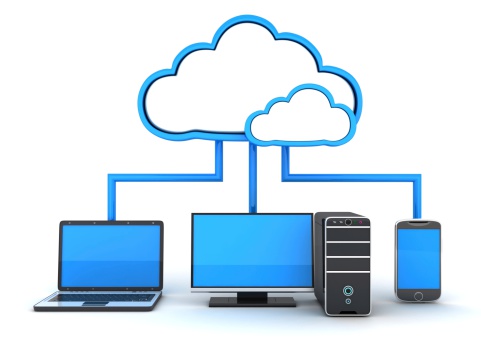
Cloud-based storage options are in high demand in today’s media-heavy world. Are you taking full advantage of all that Apple’s iCloud has to offer?
Cloud storage is one of the most exciting new developments in technology. It provides you with the ability to access files and information when, where and how you’d like.
However, as with any new technology, there have been some startup pains. If you’ve used an online file storage option, you may have experienced files that magically disappear, and syncing that suddenly stops.
For some, cloud storage is viewed with skepticism. However, once you experience the power and security of Apple’s iCloud Storage, you’ll never want to go back to physical storage again.
iCloud provides the ultimate in portability for your important data, with a simple structure that encourages sharing and collaboration across devices.
Call your local IT Managed Services company at {phone}.
The History of iCloud
While some may think cloud-based storage is relatively new, Apple’s iCloud came to market in October 2011. It now provides nearly 800 million users an inexpensive option to:
Store data files for download,
Manage Apple devices if they’re lost or stolen, and
Send and share data with other users.
What started as Apple’s MobileMe Service, now extends to bookmarks, calendars, email, iWork documents and more. iCloud utilizes seamless wireless technology to sync your files across mobile, desktop and even Windows devices, as long as they’re all logged into the same iCloud ID.
Great Features
Apple’s iCloud service offers the same functionality that you’ll find with other popular file storage options, such as Amazon’s Cloud Drive, Dropbox or Microsoft’s OneDrive. While these platforms provide document and photo storage, iCloud takes things one step further, with syncing and backup capabilities for Apple devices and apps.
What truly sets iCloud apart is its ability to reload a device without it being physically tied to a computer (as long as you have a robust WiFi connection). Alternatively, if someone grabs your phone, you can remotely disable it using location-based services.
You can purchase additional storage directly from your device. The purchase goes through your iTunes account. Storage fees range from $0.99 per month for 50GB of storage, to up to $9.99 per month for a full 2TB of space.
Privacy Concerns
With digital data, photos and personal information stored in the cloud, some people may be concerned about data privacy and security. Industry security professionals claim that data stored in the cloud is at least as secure as having your data stored on a local server – and possibly even more so.
How is this possible? First, all data is transferred via a secure sockets layer that utilizes WebDAV, IMAP or HTTPS. The information stored on Apple’s servers is encrypted and uses authentication tokens to upload and download information to and from devices without a password.
The notable exceptions are Notes and Email, neither of which are encrypted. This is due to performance issues, and the need to enable text searches.
Apple’s continuity feature called Handoff, provides a secure and efficient transfer between platforms and devices that’s fully integrated with the operating system. This is one of the ways Apple provides enhanced functionality, such as with “Find my iPhone,” and the ability to find friends who share their location.
iCloud Tips and Tricks
While there are any number of apps that can sync across iCloud, perhaps the most important is Find My iPhone. It allows you to play sounds to physically locate your phone, iPad, iPod and iWatch. In the event your device is lost or stolen, you can “brick” and erase the device to ensure no one can access your data. The beauty of this is that, even if a thief reboots your device, it’s still useless. Users are required to enter the correct iCloud password in order to gain access, making it much less attractive to would-be thieves.
Use iCloud’s Keychain functionality to create a secure password key from your phone. Turn on this feature by first ensuring your phone has a passcode. Then go to Settings > iCloud > Keychain to activate the app. Once setup is complete, you can save passwords from Safari on your Keychain instead of within your less-secure Safari browser.
“Restore” provides you an easy way to reset a device to factory setting, and quickly bring it back to the correct, last-known build. While iOS crashes aren’t prevalent, there’s always the potential that an overload of apps, or a miss-fired upgrade can cause degradation of your device. In this case, simply wipe your phone and tap “Restore from iCloud” to return your phone to the last backup point with no loss.
On a data allowance? No problem. Simply go to Settings > iCloud > iCloud Drive and restrict the number of apps you use. This helps you from experiencing overages on data plans, or stops you from overages while you’re traveling outside the U.S.
Shift large files around using iCloud, and you’ll save yourself some frustration – especially when sending them via email. While it feels like a slight a workaround, you can access this semi-hidden functionality by sending an email with a large attachment. It’s important to note that this only works for files less than 5GB. You can ignore warnings when sending excessively large files. Hit “Send” and Mail will automagically display a Mail Drop button. Selecting this option loads your file to iCloud in the background, sends the recipient a link, and doesn’t charge your iCloud account for storage.
Apple’s iCloud is only one of the key features that makes the technology giant stand out from the competition. Unless you have a solid understanding of iCloud, you may not be getting all the value you deserve from your investment.
Learn how your company in {city} can realize productivity gains from iCloud. Contact {company} at {phone} or via email {email} and we’ll provide a no-cost, no-pressure consult.

by Felicien | Aug 18, 2017 | Education
FUN WITH NUMBERS!
You Can Now Collaborate in Real-time with Excel.
Have you ever wanted to work on a spreadsheet with someone, and the technology didn’t work as expected? If you’ve been waiting for real-time collaboration in Excel, it’s here! There are still a few glitches, but overall, the service works well, and it offers remote teams another way to work together.
The co-authoring function in Excel has been available since September 2015 on select versions of Word—So you might wonder why it took so long to develop a real-time spreadsheet tool.
Unfortunately, even now, it’s not a full rollout—Many desktop versions of Excel don’t include this feature. Only individuals with an Office 365 subscription can to take advantage of Excel’s new functionality and collaborate in real time.
Co-Authoring
While Google led the way when it comes to real-time collaboration and co-authoring, Microsoft has been playing catch up over the past few years. There are many challenges to overcome when more than one person edits a file. This is because it requires an exact timestamp application to ensure edits are applied in the correct order.
As geographically remote individuals continue to look for ways to work together more effectively, real-time collaboration has become their rallying cry. Until recently, they were only able to collaborate on PowerPoint and Word documents. To co-author spreadsheets required using Google Sheets or other online alternatives.
Sharing Requirements
There are specific requirements when making files available for online sharing.
Before you can use Excel’s sharing options, Microsoft requires that you use one of their file-storage options: OneDrive for Business, SharePoint Online or OneDrive.
You must also be logged into an active instance of Office 365 to take advantage of the collaborative tools.
Turning on the auto-save function is the next critical step to ensure that your changes aren’t overwritten by others.
Sharing workbooks is relatively easy:
You access the tools through the in-app “Share” button located on the upper right-hand side of the screen.
Add your collaborators by typing them in, or looking them up via your linked Outlook address book.
An added bonus is the ability to select the type of collaboration rights you want for specific individuals. This ensures the sanctity of your spreadsheet.
One caveat to keep in mind: You can either make the spreadsheet “read only” or “full editing”— There really aren’t any in-between options available.
Confusing Issues
The steps leading up to sharing a file for collaboration make a great deal of sense. However, Microsoft confuses the issue once the request to collaborate has been received.
It’s important to note that you can’t simply open the file and begin collaborating. Instead, there are a few additional steps that include clicking an “Edit Workbook” button, and selecting whether to edit in the browser or in Excel.
If you don’t have the latest build of Excel that includes collaboration capabilities, the only option is to edit within the browser window. However, once setup is complete, the “fun with numbers” truly begins. You can see others actively editing in the shared workbook—Each individual is visually indicated by a separate color. Not sure which color corresponds to which individual? Simply hover over a change being made, and you can see that collaborator’s name.
There Are Still Some Glitches to Deal With.
While the thought of real-time collaboration on a spreadsheet is exciting, the execution leaves a bit to be desired. Some collaborators note that what should be real-time changes actually present a lag time of up to 10 seconds (or more!). This can make real-time editing difficult.
This is exacerbated by a slow Internet connection, and can pose some challenges. While you can still see the individuals who are actively collaborating on a spreadsheet, the best way to communicate is via the built-in Skype instance that allows for voice calls and instant messaging.
Working in concert with others in the Microsoft Excel framework still lags behind the experience you’ll have with Google’s G Suite, the enterprise-scale productivity tool offered by the tech giant.
It’s Worth Trying
Even with these drawbacks, the new Microsoft Office 365 subscription that includes Excel collaboration is a great way to help teams quickly get on the same page when editing spreadsheets. Technology teams will love that the advanced features are built right into the platform, requiring no additional service or installation.
When you’re ready to see how Office 365 productivity tools can supercharge your office operations, contact {company} in {city} at {phone} or via email: {email} Our experts will ensure your teams have the means to work together regardless of their physical location.
by Felicien | Aug 17, 2017 | Education
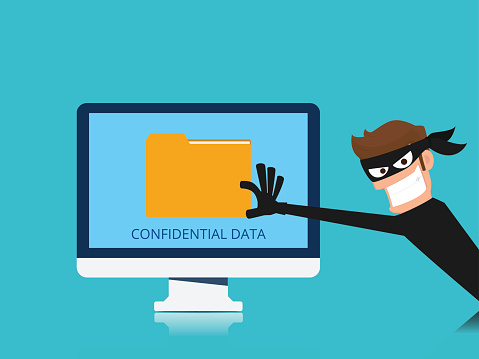
Criminals are no longer just after your physical business assets, they’re ready to steal your confidential data as well. Keep your business safe with these top cybersecurity tips.
Keeping your business safe is critical. While you can install all kinds of physical security devices at your location, you know that you can’t completely prevent break-ins. However, that doesn’t mean you should leave your doors unlocked – And the same goes for your digital assets.
Even though there’s always the possibility that a hacker will get past your defenses, it’s important to maintain the highest level of security for your data.
The Rise of Cybercrime
Organizations are reporting data losses in excess of 20 million dollars, and the trend shows no sign of slowing. Depending on which report you read, cybercrime is up as much as 48 percent and rising every year. This includes everything from malware to hacking, phishing expeditions and other types of data breaches.
The cost of preventing and combating these attacks is also soaring, and IT security professionals can be difficult to find and expensive to hire. While large organizations are more likely to get a massive hit, it’s important to note that small to mid-size businesses (SMBs) aren’t immune. Even relatively small organizations make a great target, especially if they have digital interaction with larger organizations. Numerous reports confirm that it’s SMBs, not larger firms, that are disproportionately targeted by cybercriminals.
Unknowing Helpers
While it may feel like all you hear is about is nation-state actors engaging in hacking activity, one of the largest causes of cybercrime can be found within your business itself: your employees. Whether disgruntled employees decide to “borrow” some data on the way out the door, or ignore security procedures, it’s a known fact that many data breaches start on the inside.
In order to track down the parties, IT security professionals must remain vigilant. In a smaller organization, this can be particularly challenging as there are limited extra hands for backup and security procedures. Senior leadership must be involved and fully understand the negative impact a case of a cybercrime can cause.
Staying Safe
There are specific steps you can take to limit the chance you’ll be hit by ransomware, hackers or phishing. While nothing is foolproof, having upfront defenses in place, and keeping a tight watch out for unlawful activity, gives you the best chance to halt cybercriminals in their tracks before they make off with crucial data.
Here are the top tips from IT security professionals to keep cybercriminals out of your business.
Use Strong Passwords. Perhaps the most important thing that an individual can do to ensure their safety online is to choose a strong password. However, even the strongest password isn’t good enough if you email it to yourself in a file named “Passwords,” and write it down where others can find it. Change passwords regularly, and consider using password managers.
Keep it Private. Privacy settings on your phone, devices and on social media sites are there for a reason: Use them! There’s so much information shared on social media, and without even realizing it you may be providing hackers with the details they need to make a move against your personal or work accounts. Keep in mind that once something has been put on the Internet, it’s there forever (even if you think you’ve deleted it!).
Protect Your Data. Strong passwords are great, but they’re not enough. Important personal information such as tax returns and financial records should be stored separately from your main system, and backed up often. Critical identity information should be protected, too. Criminals can open up lines of credit online with less personal information than you realize.
Secure Your Computer. Spyware, malware, ransomware –There are any number of ways that a cybercriminal can gain access to your data. From social media phishing attempts, to email attachments and even pop-ups on sites that are infected with malware. Stay alert, and if an offer in a pop-up looks too good to be true, avoid it!
Install Updates and Patches. Hackers are always looking for an “easy in” into your system—And one of the simplest is through un-patched hardware or software. When you don’t complete your software updates in a timely fashion, you’re opening up your business to potential basic and automated attacks. The “auto-update” feature in Windows is great, but it won’t catch everything.
Add Security Software. There are several options to consider for online security, including firewalls and anti-virus programs. These are the first lines of defense against cybercriminals. It’s important that you keep them up to date to prevent infection by Trojan-horse programs, spyware that can log your activity, and much worse.
Cybersecurity is no joke, and if you want to ensure that your organization is fully protected, contact {company} at {phone} or via email {email}. We work with all sizes companies in of {city} and offer the latest security solutions, recommendations and active monitoring options.

by Felicien | Aug 17, 2017 | Education
Yours Can Too.
When business owners regale the virtues of Office 365, others listen and say, “Well, maybe one day we’ll look into it.” The problem with this kind of thinking is that it puts O365 in a box only reserved for larger companies, and that’s not how the platform is designed to work. Many of the features Microsoft has recently added are beneficial for small businesses that want to grow.
An Upgrade from Traditional Licensing
New, small businesses tend to take a casual approach to licensing, buying individual licenses for their personal/work computers as needed. That’s fine, but only for a while. Eventually purchasing one-at-a-time licenses for the Office Suite or other important software becomes expensive and complex to manage from an administrator’s perspective.
O365 is designed for businesses that have grown beyond a few people, into a staff of employees with multiple desktop computers and mobile devices. When you purchase a package, you’re purchasing services based on the number of users, instead of trying to manage individual licenses, or one-time purchases. This makes it easy to plan for upcoming hires while creating a system that you can manage easily. It also helps you close the door on significant security vulnerabilities.
Collaboration Through the Cloud
Cloud tools are everyway these days, and O365 does a particularly good job of encouraging cloud collaboration. No matter what documents you’re working on, they are connected across Office 365 via platforms like SharePoint, so that you team can see them, share and work on them at the same time. Cloud collaboration is built in from the ground level for Word, Excel, Outlook, PowerPoint, and other core Microsoft apps.
Additionally, Office 365 adds powerful collaboration tools that help teams communicate.
The “Teams” app allows people to connect with each other and share information in a more casual IM/email combo.
Planner lets you to schedule events across the office, or assign tasks to specific teams.
Yammer is a social space where you can share docs, videos, updates and questions with your groups.
Office 365 comes with plenty of collaboration tools for the modern business—All you have to do is take advantage of them.
Syncing Data Across Everything
O365 is fully synced, another advantage of using cloud computing to share data. In other words, it doesn’t matter which device you switch to, your O365 apps will all be updated with the latest changes so that you won’t miss out on anything. This widespread syncing is a boon to young companies that need flexibility for their busy employees who hop from one device/location to another. Everything stays up to date, and no one gets confused because a meeting or document got changed.
Plus, syncing with Office 365 doesn’t require a VPN (virtual private network) or other complex setup on your part—Everything syncs right “out of the box” for the services you use, without any extra effort.
Cost Considerations
Startups may see higher fees when they first switch to O365, since the subscription-pay structure is more expensive than a one-time software purchase. However, Microsoft designed it this way to provide more value by including additional services and tiers for different types of businesses.
The good news about this subscription model is that fees are very predictable. They become a set item on the budget so you don’t need to worry about sudden expenses when adopting new technology or creating a new position.
Excellent Threat Intelligence
When you’re ready to upgrade your security, Office 365 is right there waiting for you to make the move. Part of the O365 package (including in the E5 Enterprise tier) is a new Threat Intelligence that includes tailored administrator reports about ongoing security efforts, new threats, and steps to take to secure data. These reports also access systems operations look for suspicious activity, and report it in alerts.
Remember, hackers love to target smaller companies because they often don’t have the strong security that larger corporations do. Prove them wrong by advancing your security efforts.
Reliability and Recovery
Microsoft aims for 99% uptime on its O365 services. If they do go down, you can bet that they’ll be available again in short order. This reliability is important to meet key deadlines – It’s also better than many smaller vendors can offer. Additionally, the cloud-based nature of O365, and the extended use of OneNote and backup services means that data is generally easy to recover if the worst happens and you lose information.
New Lead Management Services
One of O365’s newest benefits for smaller companies is Connections, an email marketing service that allows you to manage and automate leads from Outlook. Set appointments, keep track of contact information, reply to discussions, and much more. It’s very useful for a business that’s still building a customer base but isn’t quite ready for a full marketing platform.
Simplified Invoicing and Listing
Finally, Office 365 provides Listings and Invoicing, two vital services for small businesses. Listings helps you manage your online business profiles to make sure your contact/location information shows up where it should. Invoicing helps you quickly create, send and monitor invoices for clients, plus it’s customizable for a variety of industries.
Interested in Microsoft Office 365 for your business? Let’s talk about it! {company} in {city} provides a variety of data services and IT consultations for companies like yours. Contact us at {phone} or {email) to learn more.

by Felicien | Aug 17, 2017 | Education
Just because you know that an email is a phishing attempt, doesn’t make it safe for you to play along. Discover the dangers of engaging scammers online.
Most of us find phishing emails in our inbox each month—Some of them are so outrageous that they make us laugh out loud.
How many times have you read emails from scammers trying to entice you to hand over cash and personal information? Some use stories about foreign princes who’ve chosen you to help them move millions of dollars to offshore. Or, emails saying that you’ve won a lottery that you never entered? There are many different scams out there. The only thing they have in common is a preposterous back story, and poor English that’s riddled with spelling and grammar mistakes.
These phishing emails are so outrageous that people typically recognize them. But, cybercriminals are getting smart. Their scams are becoming more difficult to identify. However, there are always clues if you look hard enough. You can stay safe if you follow some basic rules:
Don’t download attachments you aren’t expecting.
Call a company or individual who requests information so you can verify the email came from them and not a criminal.
Policies and Training
Make sure your company has procedures and professional security training in place to help your staff recognize and properly handle potential phishing scams. Bring in an IT security professional to:
Train new employees on email security polices as soon as they come onboard.
Conduct refresher training for current employees each year.
Give phishing tests to see how your team scores.
Fighting Back Against Scammers
Some people want to fight back against the scammers. There’s even a name for this online vigilantism—It’s called “scambaiting.”Websites like Vice run humorous articles about tricking scammers. And, spambaiting videos are very popular on YouTube.
Entire websites such as 419Eater and Mac’s Bait Store are dedicated to providing tips on how to scambait successfully. Most of these stories portray spambaiting as a fun and exciting intellectual challenge.
Is it Spambaiting Worth It?
Honestly, I realize how the idea of spamming a scammer can seem like a mildly amusing diversion. Yet, if any of my clients asked me if it’s worth engaging with a scammer, I would tell them, “No.”
There’s never a reason to respond to someone that you believe may be trying to take advantage of you. While it’s amusing to read the stories about how others have retaliated, and what they did to turn the tables on scammers, it doesn’t mean that you, or anyone in your company, should try to do the same. After all, these scammers are criminals, and nothing good can come from communicating with people who make a living by conning people.
Don’t Respond to a Scammer’s Email. Here’s What Can Happen If You Do.
Although you have little to gain from responding to someone who sends you a phishing email (except a fleeting feeling of moral justice), there is a lot you can lose. When you respond to a phishing email, you’re telling the scammer a lot more about yourself than you can imagine.
First, when you respond to an email, you acknowledge that the email address is still in use. It can prompt the scammer to place your email on a list of active addresses that can trigger more email scams. This is just the beginning of the information you’re unintentionally providing to the scammer.
As you probably already know, every email has a header. It’s easy to see some of the information that’s included in the header, like the time the message was sent, the email address of the person who sent it, and the recipient’s email. But what you may not know is that there’s a lot more hidden information in the header. One of the most valuable pieces of hidden information that scammers can use against you is the pathway to your inbox. When a scammer knows the name of your server he can easily find out the general area from where you’re connecting to the Internet.
Once a scammer finds out your general location, it’s simple for him to look up the kind of information you really don’t want a criminal to know, like your social media accounts, your phone number, and even your home address.
So, What You Do?
My best advice to avoid becoming the victim of an email scam is to delete any suspicious emails from unknown persons without opening them. If you ever receive an email from a legitimate contact asking for personal information, don’t reply. Instead, call the person directly on the telephone and confirm that he’s the person who emailed you. If possible, provide the required information over the phone.
Three of the Most Advanced Phishing Scams to Avoid
Unfortunately, not every phishing attempt is so blatantly obvious. There are a few email scams out there that can fool even the most attentive person. Learn more about these three advanced phishing scams and ways to avoid them:
The Google Doc Scam
The Gmail Scam
The Amazon Scam
Remember that you can report phishing and other email scams by forwarding suspicious email messages with their complete header to: spam@UCE.gov
For more information about phishing scams and how you can protect your business with employee IT Security Training, contact the experts at {company}. {phone} {email}
