
by Felicien | Jan 19, 2018 | Education
Technology is advancing faster than ever before. We can now connect and create on a broader scale than many ever thought possible. However, as our technology advances, people are questioning the security of these cutting-edge systems. While most of our private and confidential information is thought to be protected, the truth is disheartening.
Hard drives have been replaced by the easily shareable cloud, and its improvements continue to help us send, share and store documents. While we might not fully understand the cloud, we trust it. In fact, most companies today use cloud-based email systems to communicate with others. However, hackers have found ways to get into these email systems and encrypt documents, so we can’t access them.
This scary new ransomware strain was created by good hackers, and unfortunately, adopted by bad hackers. They want your money, and they know the best way to get it is to take away or “temporarily block” your email system until you pay to unblock it.
There are hundreds of successful criminal hackers using this business model to corrupt and steal cloud-based emails. We’re all at risk– This form of ransomware has worked its way into our inboxes.
How Does Ransomware in Real Time Work?
Let’s get back to the basics of what ransomware is and how it works. Ransomware is a type of malware. Its sole purpose is to block users from their data until a ransom is paid.
Ransomware is effective because of it’s difficult to unblock data without paying the ransom. The only other option, besides paying, is restoring a recent backup. This usually isn’t an option for most because of how often backups fail.
Hackers locate a target, (typically multiple ones) and bypass verification of both Google and Microsoft 365 email applications. They then tempt users with “anti-spam” service emails. It works with any cloud-based email service that uses OAuth to grant an application access to information without requiring passwords.
Employees are likely to click accept these emails because they trust their email systems to filter out messages that could potentially harm their accounts.
So now that your employee has accepted this phishing message, and all of their emails are encrypted, what do you do? The hackers will offer to “decrypt” the user’s emails at a price around $300-$400. If everyone in the company accepts the message, you’re looking at a major financial loss.
The best thing to do is to be prepared. Take the initiative and equip your employees with the knowledge and readiness to recognize and avoid phishing messages. Do this before it’s too late.
How to Avoid a Hack
To protect your company and documents, you must determine which employees are likely to accept phishing emails. Then you should train them to recognize this threat.
You must stay one step ahead of the bad guys. Preparing and training your team is the only way to fully avoid potential security attacks.
Like we mentioned before, this ransomware strain is in its early stages. But with criminal hackers successfully scoring major money from attacking big businesses, as well as everyday users, other hackers and cyber gangs are quickly taking notice. The effectiveness of ransomware is only encouraging more hackers to create and use this strain.
Ransomware isn’t going anywhere anytime soon. It’s only growing stronger. The best thing you can do for your company is to be prepared and not fall victim to these attacks.

by Felicien | Jan 19, 2018 | Education
First impressions are important. This is even more so in the world of technology. When searching for a company online, your first results appear in a small 160-character snippet. Now Google has officially extended the search results snippets to a maximum character length of 320 characters.
What is a snippet?
Snippets, also known as meta descriptions, refer to the HTML attribute that explains the contents of a given webpage. It’s a small description you see under the link on the search results page. Not only is this your first chance to snag your audience, but you are also being presented alongside other websites, and possibly competitors. This means you need to create and polish your snippet to ensure you make the best first impression possible.
How long should snippets be?
Danny Sullivan from Google explains in a tweet:
So, while your meta description is important, it doesn’t mean that Google will use it. Google is telling webmasters not to change their meta descriptions. Danny Sullivan from Google wrote,
“don’t go expanding your meta description tags.” He said the longer snippets are “more a dynamic process” Google automatically makes decisions based on the content on your page and the query.
Another Google spokesperson explains:
“We recently made a change to provide more descriptive and useful snippets to help people better understand how pages are relevant to their searches. This resulted in snippets becoming slightly longer, on average.”
What’s the average character and word length for various websites?
A survey of Canadian media consumption by Microsoft concluded that “the average attention span had fallen to eight seconds, down from 12 in the year 2000.” It appears that we now have a shorter attention span than goldfish. Another study, done by Hubspot, found that “headlines between 8–12 words in length got the most Twitter shares on average, while headlines with either 12 or 14 words got the most Facebook Likes.” What does this mean for our snippets? If you only have 8 seconds to impress a reader, what should you 320-character snippet say?
The benefits of the newly extended snippet according to Google:
It will help people instantly find out more about your products and services: Structured snippets give visitors a preview of the nature and range of your products and services before they click on your ad.
It will improve your return on investment: The additional information that appears with your ads can increase your ads’ relevance and click-through rates. This may help you improve your return on investment by attracting clicks from visitors who are more likely to be interested in what you have to offer.
Customizability: You can add structured snippets to the account, campaign, or ad group levels. Specify the dates, days of the week, or times of day your structured snippets are eligible to show.
What information does Google use to make snippets?
Google wants to provide each searcher a tailored list of results. This means that if the website’s meta description is well written, includes important keyword terms or phrases, and falls into the snippets new length of 320 characters, then Google could use that website’s meta description as the snippet. However, this is not always the case. In other situations, Google will sometimes pull content from the web page to display for the searcher.
Stephan Spencer writes in the article “Anatomy of a Google Snippet that “rather than leaving your snippet to chance, try to ‘convince’ the Google algorithm to use your meta description instead (assuming it’s well-written and compels the click-through, of course!) by incorporating the popular search terms in the meta description.”
How can you make the most of your first impression with snippets?
Previously, Google would cut off most meta descriptions or snippets after roughly two lines of text. Now, while the character count might be 320 characters you should keep it under that limit. This is important because snippets are similar to title tags and may be based on pixel count and cut off. Due to this, you might lose some of your characters. When each character counts towards a first impression, you want to ensure that none are cut off.
What Google does recommend is that you keep these best practices in mind when creating or optimizing structured snippets:
Provide enough information. Aim to include at least four values per header. Optimize for mobile users. Create shorter snippets to appeal to customers on-the-go.
Increase your options. Add more than one header-value set. Having multiple sets of structured snippets provides more options and increases the likelihood that a relevant extension will show with your ad.
Pick the right format. Unlike callout extensions, which can highlight a single unique aspect of your business in a few words, structured snippets should provide a complete group of products or services that your business provides.
Will Google do the same for Meta Descriptions?
While Google hasn’t officially provided a statement about making similar changes to meta descriptions, Danny Sullivan did reference a previous tweet from Google’s John Mueller. He states: “We’re always working on search, there’s not really anything specific to say there. I don’t think we ever had a limit on description meta tag content length.”
by Felicien | Jan 19, 2018 | Education
LinkedIn is the largest professional marketing site with 500 million users, and 40% of them use the platform daily. LinkedIn is still growing in popularity and remains one of the best online platforms to market your business. Here we’ll discuss some ways to optimize your LinkedIn use.
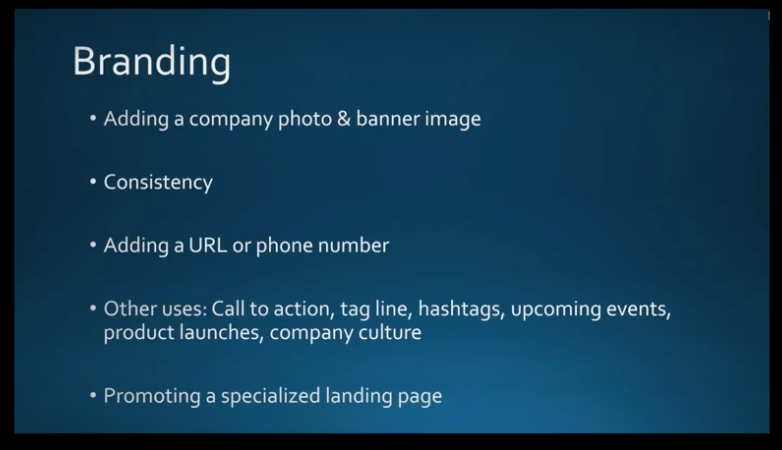
Branding
Your banner image, logo, photos and messages on LinkedIn should be consistent with those you use on other social media channels and marketing materials. Consistency is important for people to readily recognize your business. Make sure you use the same colors, fonts and messaging across all your branding for LinkedIn pages as well as other online platforms like Facebook. Consider including your phone number and URL in your banner image to make them readily available. Include a call to action, taglines, and hashtags to make reading your page, gleaning content, and reaching you easy for viewers. Promote a specialized landing page with images based on your brand to incrementally promote special events, product launches, showcase something new, or to share your company culture using photos of your team.
Your Company Description
Make sure this speaks directly to your prospects. You can always include a copy of the “About” page on your website, but, also take this opportunity to speak directly to your audience and tell your story. This might include some pain points you experienced and how you overcame them. Promote your expertise and industry focus, and how your company is different from others. Be aware that Google previews up to 156 characters of your page text, so it’s important that your description includes some keywords that best describe who you are and what you do.
Content
To get the viewership you need, it’s also important that you post updates to your page at least once a week. (Although, two or three times a week is better.) Make sure it’s content that will draw people to your page. Always be helpful and informative in your posts, and not salesy. (80% of your content should be informative with no more than 20% selling) Remember that LinkedIn is about sharing expertise, advice, and networking.
Post things that will keep people coming back to your page, like a series of 5 to 10 tips, countdowns to “top tens,” or any other topics that fit your brand. Posting a series will encourage people to come back to your next post. Plus, these posts are great ways to link back to your website to increase traffic.
Build a Following
A lot of people have difficulty with this. Try doing some cross-promotion using your other social-media pages like LinkedIn and Twitter. Add icons for these pages on your LinkedIn profile so people can find them.
Try sending out an email blast to directly invite people to follow your LinkedIn page. Also, encourage your employees to share and engage appropriate content on your page so people in their circles can find your posts as well. Even family and friends should be invited to see your content so they can share it with others.
You have the option to use sponsored content to build a following on LinkedIn. Otherwise, the best way to do this is to be consistent and invest time in building an organic following.
Engage with Your Community
Make sure that when someone comments on your page, you reply right away. Also, keep tabs on your analytics to see if what you’re posting is resonating with your audience. If not, you might need to make some changes. Invite people to respond to your content and provide their opinions and feedback. Post a question on your LinkedIn company page and see who responds. Ask what they struggle with most in your industry, and how they overcame it. People love to talk about their own experiences. Build a rapport and continue to invite others to comment. (Be sure to always answer and address their comments!) This not only increases your engagement but gives you some tips on what you need to do to better your posts. Those who engage with others tend to get better readership numbers.
Showcase Pages
These are separate and different from your company pages. They are an extension of your LinkedIn company page but allow you to promote certain products and/ or events to a specific audience. For example, a company like Adobe may create a showcase page to advertise their cloud services, or Apple their newest iPhone. Think of this as a “mini-LinkedIn page” for your company product. LinkedIn allows you to create up to 10 of them. (If you’d like to include more, contact LinkedIn Customer Support and they’ll help you with this.) They will appear on your company page under the “About Us” section.
Your showcase pages should have unique names to differentiate them from your company page. However, be sure to continue your branding throughout the different pages for consistency and brand recognition. Add a link to your product page so readers can learn more specifics. Just like anything else worthwhile, creating showcase pages takes time and commitment. You shouldn’t set them and forget them. You must follow up just like you do with your LinkedIn company page to ensure success.
To get started, go to your company page and open up the admin tools on the top right corner and this will bring up a drop-down menu you can use.
These images indicate the showcase pages you can go to.
When you click on one of the images, you’ll be taken to the showcase page.
Optimize Your Personal LinkedIn Profile
What some people forget to do is to make sure their LinkedIn profile is visible to everyone and posts are public. If not, people can’t share them and they won’t show up in Google searches. Go to “Edit Public Profile in URL” > “Edit visibility” and customize this according to your needs.
You should develop a headline that relays more than just your job title. Get creative and write a headline that really describes who you are. You can edit this in your profile section. What do you want to be known for? What’s your industry focus? Add samples of your work to promote your experience and skills. Use a professional headshot. Posting a “selfie” will tarnish your image as a professional. Finally, link your profile to your company page. This helps people find both you and your company.
The summary is where you can really impress your viewers with your experience and know-how. Be sure to use keywords you want Google to pick up so your profile will reach as many interested parties as possible. Also, link to your company website’s main page, or a page you want to highlight. Include an invitation for the types of people you want to contact you, or other calls to action such as connecting to your company website.
Make sure you keep the content of your profile up to date, including what your duties are and how you contribute to your organization. Archive information from places you’ve previously worked so people there can find you. If you get a promotion, be sure to include this as well.
If you need more content, add publications, certifications, languages you speak, honors, awards, and anything else that you think will appeal to your followers, that will set you apart from your competitors, and position you as an expert in your field. Similar to items in a professional resume that will draw the right people’s attention.
Endorsements & Recommendations
There’s a lot of confusion about the differences between these two features on LinkedIn. We’ll clarify this for you:
Endorsements provide an opportunity for you to network either online or in person. Endorsements help you affirm your experience and skills with recruiters and others. When a viewer endorses you on LinkedIn, they are confirming that you have the experience you say you do. When you showcase your “Skills” on LinkedIn, others who know you can endorse them to confirm what you’ve posted is true. Ask reliable people to endorse your skills. You can ask them via a direct message, or you can endorse their skills on LinkedIn so they’ll return the favor. Add your skills to the “Edit Profile” section.
Recommendations are different, although they fall into the same category as Endorsements because they provide social proof that you are who you say you are. This is when another LinkedIn member, such as a business partner, colleague or customer, writes a statement recognizing the good work you’ve done. You can solicit a recommendation from someone by navigating to their profile, select the “More” icon and the “Request a recommendation.” Add a note if you like. You can even request a revision of a recommendation when they come back to you. You also have the option to approve the recommendation before it’s posted to your profile.
The LinkedIn Mobile Application
The faster you respond to messages, the more opportunities and potential connections you’ll gain. This is why you should consider using LinkedIn’s mobile app on your smartphone. You can do most of what you can do on the desktop site with just a few exceptions. What’s missing are the analytics and the LinkedIn Publisher feature. You will have to download the separate applications for groups, sales navigator, and LinkedIn Learning Recruiter. It’s best to make a folder on your phone and store them here. The good news is that the LinkedIn Mobile App now allows you to upload and post videos to your profile.
Why Use LinkedIn Videos?
LinkedIn exclusively favors content that doesn’t take you outside of their application. For this reason, you should use native LinkedIn Videos rather than ones stored on other platforms. To access this feature, you’ll need to use the mobile app and follow the directions below.
If you have problems, you may need to update your LinkedIn Mobile app. Tag people, use hashtags if relevant, add posts, include talking points in your description, along with a brief overview of the video. Three minutes is an ideal for a video.
How to Use LinkedIn Videos
You can pre-record a professional video and edit it to your liking. Use videos for client testimonials or to showcase a product. Try to use videos that include closed captioning, as the videos in LinkedIn are muted by default.
Upload real-time coverage like a segment from an event you’re attending. You can post a video to share more about yourself and what you do. Upload a video biography or walk around your office and feature some of your co-workers (and be sure to tag them in your video).
Post a video with tips that you believe your viewers would be interested in. This will keep them coming back for more.
It’s best to have a plan for your video in advance so you’re sure to focus on what you want to cover. Above all, be personable but professional with your content, appearance, and demeanor.
LinkedIn Groups
Use LinkedIn Groups to find like-minded professionals, share your experiences, and learn from theirs. It’s like a virtual “coffee group” with other experts in your industry. You can post your comments, ask questions and even add photos to your group pages. Try not to sell in these groups. This will turn people off. If you can’t find a group that works for you, start your own! This is a good way to build some valuable relationships, possibly get some referrals, or turn them into prospects. Again, this an opportunity to position yourself as an expert in your field. Participating in Groups isn’t something you can set and forget. The more you invest in Groups, the more you’ll gain.
LinkedIn Analytics
You should always monitor the data you receive from Analytics and adjust your posting schedule and content accordingly. Perhaps your posts with images are getting more feedback than others, or content you post in the morning gets more attention than those in the afternoon. Taking note of these details can help you get the most from your time and investment in LinkedIn. Check in weekly to see how your posts are performing. Another way to determine if you’re getting the results you want is to “Pin” a post to the top of your page and check the analytics to see if it’s being viewed by the audience you want to target. Use Analytics to set a baseline for target performance, and set some short- and long-term goals for engagement and getting people to share your posts.
Impressions, Clicks, Interactions & Engagement
These are the main measures you’ll want to review in Analytics:
Impressions are the number of times your LinkedIn updates are viewed by members. It doesn’t mean people read them or clicked anything on them; just that they were viewed.
Clicks are the number of times people clicked on your content.
Interactions are the number of times viewers liked, shared or commented on your update.
Engagement is the number of interactions, plus the number of clicks and followers you have, divided by the number of impressions. (The percentage of people who engaged vs. the number posts they viewed.)
The Benefits of Using LinkedIn Analytics for Your Business
The key to engaging your LinkedIn audience is to know as much as you can about them. Analytics provides this detail. You can determine the age, gender, location and more about your viewers. This will help you make the adjustments you need to get the most viewership. You can view analytics from individual posts as well, so you can see how they stand up against others, and determine what made some more successful than others. Was it a Call to Action that drew followers, or a special offer for an e-Book? Or was the success due to the type of content you included? You can adjust your future posts based on the success of previous ones.
LinkedIn Analytics provides various charts and graphs so you can easily view and interpret your data and demographics.
This example page hasn’t been updated but should give you an idea of what a company analytics page might look like.
This next page highlights how you can choose what you want your graph to display.
Again, this graph is empty now but will prove very useful when it’s populated. It will show your most recent posts and how people responded to them. This will be useful for developing your future content. You can sort by which post did the best and more.
That’s it. But there’s still more. We’ll be featuring another Webinar about LinkedIn Analytics, Paid Ads and Premium Features soon. In the meantime, if you need more information about anything presented here, please contact your friendly IT services team immediately.
by Felicien | Jan 18, 2018 | Education
Occasionally, we all set up duplicate accounts on sites without realizing it. A spouse, friend or employee may have set up an account for you on LinkedIn trying to be helpful. Though it can be a bit inconvenient, it’s fairly easy to fix. At this time, LinkedIn only offers this account merging service from your desktop. Below are the step-by-step instructions for merging two LinkedIn accounts.
Please note that merging two accounts will transfer the connections of the account you are closing to the primary account.
How to begin
Log into the LinkedIn account you want to make your primary account. Click on the picture of yourself. For future reference, this is called the “Me Icon.” Now scroll down to “Settings and Privacy” and click on this. Scroll down to the bottom of the page and click on “Merging LinkedIn Accounts.”
Another way to get there
You can also click on your photo and scroll down to “Help Center.” Once you arrive on this page, there’s a list of popular actions at the top of the page. One of these is “Merge Connections from Two LinkedIn Accounts.” Click on this link.
Whichever way you go, you’ll end up on a page that asks you to enter the email address and password of the account you’re trying to merge and close. LinkedIn requires this to ensure that you own the account. Type in the email address and password; then you will be taken to a confirmation page.
Second Option
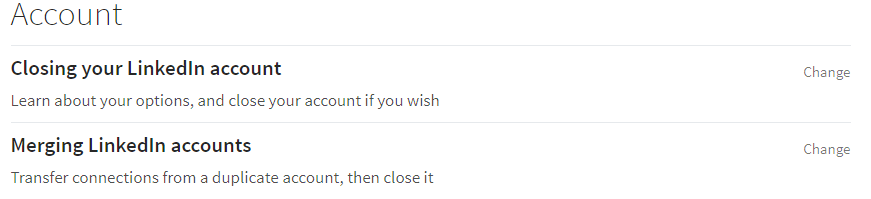
This option accomplishes the same thing, but you may find it easier. Log into the LinkedIn account you wish to close. Now click on the photo of yourself (Me Icon) and scroll down to “Privacy and Settings.” Once on this page, scroll down to “Account,” which is on the left panel of the page.
Click on “Account.” This page offers you a number of different things you can do to your account. The last option on the bottom left is “Close your Account.”
Click on “Close your Account.” The next page asks you for the reason WHY you are closing the account. Click on the radio button that says, “I have a duplicate account,” then click “Continue.” Click on the “Verify Account” button, then click on “Close Account.”
Next, you will get a confirmation page confirming that you have closed the account. You’ll also receive an email confirming that the account was closed.
How to search for duplicate profiles
If you’re not sure whether you have more than one LinkedIn account, you can search for your name on LinkedIn. This will show any accounts that were registered using your name or company name.
Simply log into your account, then type the name you want to search for in the “Search Bar” located at the left top portion of the page. All accounts using your name are displayed with the most likely profiles at the top of the search results.
How to edit your LinkedIn profile’s visibility
Search engines like Yahoo and Google periodically review the LinkedIn member directory. This enables all updates, changes and new profiles to be indexed on a regular basis.
To make sure your profile is showing up publicly, log into your profile. Click on the Me Icon, then “View Profile.” Next click on “Edit Public Profile and URL.” This is located on the right-hand side of the page. Once you arrive on this page, there are several options located in the right panel. These options include making your profile private so that no one can view it. Click on the appropriate radio button.
You can also change your URL so that it’s more searchable. Though all unique URL’s won’t be available, you can often tinker around with ideas for a unique URL that will have better search results. Search engines can take several weeks to update once changes are made to your website or LinkedIn profile. There’s no way to control how quickly these updates take place, so check back weekly.
About merging and deleting company pages
LinkedIn has a general policy of not deleting or merging company accounts. This is because all past and present employees of the company would be affected. For instance, if someone worked for ABC Plumbing in 1998, they might have them listed as a past employer on their LinkedIn profile. If LinkedIn deletes all the company information, then it would affect that profile and any other past or present employees who listed ABC Plumbing as a reference.
You can deactivate a company page if the company has fewer than 100 employees. Please visit the LinkedIn website to learn more.

by Felicien | Jan 18, 2018 | Education
The world is evolving incredibly fast with the help of various technological advancements. Both our homes and our offices are becoming more efficient than ever before. Previously, screens of all shapes and sizes were dominating the marketplace, but now, we’re seeing voice start to take over with many companies building and/or enhancing their own voice interfaces.
Over the past couple of years, we’ve seen the following:
Google’s Assistant
Microsoft’s Cortana
Apple’s Siri
However, nothing’s been quite as dominant and groundbreaking as Amazon’s Alexa, an intelligent personal assistant built into the company’s hardware on tens of millions of devices. Alexa is rapidly growing in popularity – finding its way into the living rooms and kitchens of many users around the world. Why? Alexa is the most convenient way to stay organized.
Whether you’re looking to add an item to your to-do list, check the weather, set an alarm or listen to a podcast, the intelligent personal assistant can do it all with a simple voice command. Alexa can currently be found waiting to be voice activated for your convenience within these devices:
Amazon Echo
Amazon Tap
Echo Dot
Echo Show
Fire TV
Fire Tablets
Alexa has seen a ton of success in living rooms and kitchens. In fact, it’s seen enough success that they’re bringing it into the world of business! Imagine operating your office with simple voice commands – from starting your conference call to scheduling and booking the boardroom to turning off the lights in the office after hours – it’s all happening sooner than you’d think.
Alexa for Business: Giving You Back the Precious Time You Spend Handling Tedious Tasks During the Workday…
We all know how much time is spent handling tedious tasks at work. You’re bogged down with managing your calendar, ordering office supplies, dialing into various meetings, and searching for important information to get projects done. It all adds up quickly. Alexa has partnered with various companies to bring you the ultimate playbook for the workplace, including:
Polycom
WeWork
Capital One
Concur
Splunk
Cisco
Salesforce
And more
These partnerships make Alexa for Business possible. How does it work? Alexa for Business gathers information about the devices, user accounts, and employees within your company. When asked a question, this information is used to formulate the appropriate response or perform the requested action.
Alexa for Business is extremely innovative and helpful for anyone looking to streamline their workday while:
Simplifying conference calls and/or meetings: You can rest assured knowing your conference calls and/or meetings will be smooth sailing! Alexa will get your meeting started, act as an audio conferencing device, or even control equipment for you.
Staying focused on important tasks: You no longer have to worry about time-consuming day-to-day things like managing your schedule, creating to-do lists or setting reminders. Alexa handles all of this for you.
Keeping the office running smoothly: You will be able to order new supplies, notify your IT department of issues, find an open meeting room, and more with a simple voice command. Alexa keeps your entire office operating at peak performance.
Providing a more personalized experience for customers: You can provide a more personalized experience for your customers by allowing them to play music, ask questions about products, and even receive support as needed.
Maintaining security through proper provisioning: You don’t need to worry about security threats as it’s simple to properly provision and manage devices. You can specify device locations, enabling skills that can be used, and more.
Alexa for Business makes it easy to manage enabled devices, enroll users, and assign skills whenever necessary. You can even use the skills kit and associated APIs to build your own custom voice skills for your company. For example, you can build a skill that lets users notify the right person when the printer stops working or ink needs to be restocked.
What Does Alexa for Business Cost?
The great news: Alexa for Business is available as a pay-as-you-go service with no up-front fees or long-term commitments! You pay based on the number of shared devices registered and the number of users enrolled in your account. What’s the difference? Shared devices are enabled devices within shared spaces, such as lobbies or conference rooms.
Users enrolled, on the other hand, refers to personal devices registered to user’s personal accounts. Both shared devices and users enrolled are quite affordable, too! You’ll pay $7 per month, per shared device and $3 per month, per user enrolled. If you’re ready to get started, all you need is an enabled device and an AWS account.
Already have an enabled device and an AWS account? Perfect! Sign into the console, go to “Alexa for Business” and click “Business Productivity” to get yourself and your device setup on the platform.
Alexa for Business is going to quickly change the way businesses around the world function – allowing for greater efficiency, streamlined workflow, and a ton of time saved throughout the day. Call {phone} or email us at {email} to find out more.
{company} is your trusted source for all things information technology related. We are the preferred IT support company in {city}.
