
by Felicien | Feb 27, 2018 | Education
Driving a passenger vehicle is both a privilege and a responsibility. Ontario is enacting legislation that increases the cost of carelessness in hopes of also increasing safer driving practices.
To a teenager eagerly awaiting their turn with the car keys, driving symbolizes freedom. No longer bound by a chauffeur chaperone, the driver’s seat is an open invitation to opportunity. The heady responsibility weighing on the driver isn’t as seductive as finding your favorite song to play (loudly) on the radio or digital music player, but it’s still there. Airbags, seat belts, blinkers, and anti-lock braking systems don’t sound as appealing as the wind in your hair and tunes blasting from the speakers.
When a teenager leaves the house, a parent’s worst fear is that something bad will happen to them. We worry nonstop and hope we’ve laid the foundation for responsible driving. We teach young drivers every safety rule and guide them on how to handle situations, from mundane incidents to outright emergencies. We then hope for the best, and that new drivers will make wise decisions on the road. It’s not always easy with the multitude of distractions available today.
Mobile phones were initially bulky and heavy but became smaller and sleeker over time. The Palm Pilot, widely used in the late 1990’s, and even BlackBerry models in the early 2000’s seem unwieldy compared to 2017’s iPhone 8. Smartphone adoption exploded around the 2007 launch of Apple’s first generation iPhone.
Cell phones were designed to connect to the nearest public telephone network and were not capable of sending text or SMS messages. Early adoption of these phones was popular in areas prone to harsher climates, like prolonged winters, or locales with long stretches of less-traveled roads.
Did you know that the first cell phone weighed over four pounds? The phone also used radio frequency to make and receive calls while connected to a public telephone line, rather than today’s cellular networks.
More cars than ever are on the roads, and by default, more drivers (Google has yet to replace every car with a self-driving model!) Smartphones offer the ease of sending multi-media messages, email, video, and much more, but commonly through the use of touchscreens. While some newer cars include hands-free communication connectivity, this is still a high-end feature for most automobile manufacturers. Driving and touchscreens is a horrifying combination for parents of new drivers!
It’s interesting that this combination isn’t restricted to new drivers – “adults” know better, too, and yet there are so many that are “old enough to know better” and still have lapses in judgment. In cases like this, we end up needing protection from our own worst enemies: ourselves.
What will it take for all of us – new drivers and experienced drivers – to put down the phone and focus? For drivers in Toronto, for example, Ontario responded with pretty hefty distracted driving rules.
The laws in Ontario
First, convictions under the distracted driving rules will result in the driver having his or her license suspended for up to five years. Licenses cannot be seized by the responding officer at the time of the violation.
Second, Transportation Minister Steven Del Duca revealed that on top of license suspension, drivers face a significant fine. Drivers who are caught disobeying rules will face fees ranging from $2,000 to $50,000 – and potential jail time.
First offense: License suspended for three days and up to $1,000 fine
Second offense: License suspended for seven days and up to $2,000 fine
Third offense: License suspended for 30 days and up to $3,000 fine
Suspensions and fines increase on repeat offenses, up to two years’ suspension and $50,000 in fines, but should these violation punishments be harsher – and sooner?
Safety of motorists, cyclists, and pedestrians is the ultimate goal of stricter distracted driving laws, and a driver needs to choose the point at which a response is less important than those around them. We have created a digital culture, one in which information is immediately available, allowing us to communicate instantly. These distracted driving laws are intended to protect everyone sharing the road and promote a climate of caution.
Did you know that in 2016, it’s estimated that distracted driving was the cause of over 7,000 crashes in Toronto? Eight resulted in the loss of life, and more than 4,700 caused property damage.
Since the first version of the distracted driving laws took effect in 2009, documented violations as a result of distracted driving have been shockingly overwhelming – even surpassing the instances of speeding violations or crashes involving drivers under the influence of drugs or alcohol.
For clarity, Ontario’s distracted driving laws are written with specific rules:
What is against the law?
Operating hand-held communication and electronic entertainment mobile devices while operating or driving a vehicle
Viewing screens or displays with details not related to your current commute
Hand-held and mobile devices include:
iPods and MP3 players
Smartphones and mobile phones
Laptops or tablet computers
DVD or multi-media players
GPS devices are the trickier part of the equation. A dashboard-mounted GPS device, or a dashboard mount for your smartphone on which you display a GPS application, like Google Maps or Waze, is the workaround for this.
Given that all of the above require the use of a battery, and thus a charging cable, it’s understandable that these regulations extend to the “plugging in” of these cables, as well.
The bottom line is, drivers are legally able to use devices that do not require touching or holding while engaged behind the wheel of a vehicle. If the said device requires touching, like to dial or scroll, this is a violation of the distracted driving law.
The sole exception to this law, in any circumstances, is the need to access emergency services, like police, fire or medical personnel.
Don’t let 2018 be the year you become an example of what not to do while driving – exercise caution, drive responsibly, and arrive at your destination safely while respecting the safety of those around you. Share the roads, and everyone wins!

by Felicien | Feb 26, 2018 | Education
For an organization to be successful, critical goals of all team members involve a shared investment in its future. Is cybersecurity a shared priority?
How invested is your team in the success of your company? How careful is your team when it comes to network protection and cybersecurity? How aware are team members of your security protocols and risks? Basic information assurance training is no longer effective as a means of self-awareness and protection, nor is it a reliable indicator of the level of awareness of your collective team.
What is information assurance? Processing, storage, and transmission of information (data) involve systems – and risks. Information assurance is the practice of protecting this data and these systems to ensure its security and to minimize risk.
It’s no longer enough to include a combination of letters and numbers in your passwords. Today’s sophisticated cybercriminals have an arsenal of tools that can crack a password in a matter of moments, and we need to be far more vigilant with our data.
What is the greatest threat to every organization in the world? It’s no longer the threat of someone picking a lock or breaking a glass window to get inside an office building; the only assets to gain are low-end computers that burglars can’t re-sell quickly. To say cybercrime is on the rise is the proverbial understatement of the year. Cybercrime tools and services are being marketed on the Internet – and there’s little we can (successfully) do to stop it at the grassroots level.
The primary tools a hacker needs are a computer and an Internet connection to access a network. What is the primary goal of a hacker? The simple answer is, to cause harm. Nearly half of all cyber attacks focus on small businesses because they are easier targets – small businesses don’t have the deep pockets that global organizations do to invest in cybersecurity. Cybersecurity vulnerabilities can end a small business.
The majority of global enterprises are targeted multiple times each year, with hackers relentlessly seeking the smallest weakness in a network to gain access. Once a hacker gains access, the impact on a business can range from ID theft to ransomware and countless other circumstances, and none of them with positive outcomes. Only those infiltrations with the greatest impact are heard about, and it’s not because of the volume of data, or the number of consumers whose personally identifiable information (PII) were compromised, though this is newsworthy. We hear about the successful cyber attacks as a lesson in how to better protect ourselves, and to become more aware of our vulnerabilities.
Consider the first three questions we asked:
How invested is your team in the success of your company?
How careful is your team when it comes to network protection and cybersecurity?
How aware are team members of your security protocols and risks?
These three questions share one focus: security. Security leads to success, which is a byproduct of longevity. Companies with a commitment to cybersecurity awareness training for its teams fare better in cyber attacks. These same organizations often have a higher overall degree of awareness among end users.
Four key areas outline your cybersecurity awareness program:
Baseline: Determine how aware your team members currently are.
Goals: Define where you need to be, and set a deadline.
Plan: Formulate a step-by-step agenda for your team to get from your baseline to complete each of your goals by their assigned deadlines.
Maintenance: Your team will need support throughout the process, as well as ongoing support after each goal is achieved.
Cybersecurity awareness levels range from nonexistent to maximum security, and today it pays to know where your company – and your team – ranks.
Nonexistent:
Cybersecurity “newbies” are the most vulnerable and have no goals, no plan, and no clue when it comes to the potential impact of their naivety.
Compliant:
These companies meet the bare minimum and follow the basic rules that someone read about in an email newsletter. Staff is offered annual training, but the information isn’t comprehensive, nor is security understood or strictly enforced.
This type of awareness focuses on “yesterday”, primarily reviewing what has already happened.
Goal-Oriented:
These organizations are one step above compliant, in that they’ve established goals for themselves, but do the goals match the needs of the company?
There may be a formal policy, but is it understood and widely used? Is it enforced, and by whom?
This level of awareness focuses on “today”, with an understanding of how yesterday impacts today.
Proactive:
These companies have established programs, dedicated staff for cybersecurity and information protective measures. These team members oversee the program, enforce policies, make modifications, hold regular reviews, and are communicative to all company personnel in order to ensure safety protocols are understood and followed.
Proactive organizations are always looking at tomorrow, and what needs to be done for the best outcome. This is a great level to achieve, even if it’s not the most secure, as this level of awareness involves all staff and establishes a professional culture of expectations and guidelines.
Robust
The maximum security measures an organization can utilize are seen at this tier, where teams take action to continuously improve cybersecurity protection.
These companies are taking a hard look at today and tomorrow where their network, risks, and safety protocols are concerned but the focus is more on next week, next month, and next year for sustainability and growth.
The greatest obstacle at each step outlined above is the “unknown” factor. You may not fully comprehend the skills and expertise required to determine your company’s baseline, or set and achieve goals. We recommend working with a cybersecurity expert to determine your level of awareness and establish a long-term plan. Communication and understanding are key aspects of the best relationships, as well as your maximum-security protection. The importance of ongoing training and awareness cannot be stressed enough!
Outlining a comprehensive cybersecurity awareness program with ongoing training is a daunting task, but one that will keep you from being the next victim of a cybercriminal.

by Felicien | Feb 26, 2018 | Education
This chat-based meeting application for agile teams – but only if you know how to use it properly.
So many things have changed in business circles. From lighting fast computers to programs that allow you to accomplish any task, today’s technology makes almost anything possible. One of the big changes in America’s corporate culture is the way that workers meet.
It probably all began with the huge rise in companies employing remote workers. Remote workers save a company money in numerous ways. You don’t have to provide offices, desks, or office equipment and supplies in most cases. It’s better for the workers and studies have shown that remote workers actually get more work done each day than on-site workers.
Today’s technology has responded to this growing trend with apps to facilitate remote workers. One of the big winners in this space is Microsoft Teams. This app makes it easy for a team to meet even if they live in various countries around the world.
The big surprise to many business people is how well virtual meetings have taken off. Every team member may work in the same building, but when asked, they’ll tell you that a virtual meeting is much easier to fit into their daily schedule. This has led developers like Microsoft to create virtual meeting space tools that accommodate team members’ preferences.
Microsoft Teams is their flagship virtual meeting product and users may not realize that it is included in MS Office 365. It works well for chats, phone calls and meetings of any size. This app provides virtual meeting rooms where people can collaborate on any subject. It’s available for your PC, Mac or mobile device, and it’s revolutionizing the way workers communicate.
It also works well in classrooms – the classroom of the future may very well take place online. You can meet with the teacher and other classmates to discuss a topic or go over a lesson. There’s no need to get dressed and drive to the school or office building. Just turn on your computer, log into the meeting room and you’re all set. You can discuss a challenging math problem, find out how everyone is progressing on a new marketing campaign or you can plan an office party. There are endless ways to use the app in schools, colleges, and business.
The Microsoft Difference
There are already abundant team meeting apps available, so what sets Microsoft Teams apart from other virtual meeting apps like Zoom or Go-To-Meeting? Of course, with Microsoft, developers went the extra mile to include features that were helpful and convenient. Some virtual meeting space apps do not have the ability to upload or exchange files, but this one does. You can even edit those files during the meeting. Just about everything you could do in real life can be accomplished in a virtual meeting room.
Many of the exciting features are available with just a single tap – even better, Teams is fully customizable. It works the way your team needs it to work, as a seamless program that will evolve as your business evolves. You can quickly and easily create a new team and set up a meeting in just moments.
How to Begin
Open Office 365 and then go to Microsoft Teams. There, you will create a new team by selecting “Create Team” in the bottom left corner of the screen. Give your team a name and include a short description of it. Once you get familiar with this app and begin using it more frequently, you’ll better understand the need to name and describe your team accurately. You might have several different teams for any department in your company. That’s why it’s important to distinguish between a graphic design team that is working on Project A and other graphic design teams working on other projects.
Once you’ve named your team, enter each member’s name. Team members are easy to add or delete from a team as needed. MS Outlook groups allow you to add an entire group of people at once without having to enter their individual email addresses or names. This can also be done using a security list or an email alias.
Now select “Done” and create a channel for the team by selecting “” located next to the team name. Now choose “Add channel” and enter a name and description for your channel. Finally, click on “Add” and you’re done. Once you learn the process, you can set up a team and channel in less than five minutes. In the beginning, you’ll have one channel called “General” that can be used for any purpose. Later on, you can add channels as needed.
Team Management Tools
By selecting “View Team”, you can change the settings, add or remove team members and manage team ownership. As a team manager, you will have additional privileges that allow you to make numerous adjustments. This can be very helpful when working with people from multiple departments or various projects. Different team members can take charge of the meeting as needed. You will quickly learn how to structure your team so that it’s highly efficient or just more fun for team members.
Regardless of what type of work you do or what type of projects you may be currently working on, Microsoft Teams will become an indispensable business tool. This digital hub makes quick work of creating and customizing your team so that it’s tailored to meet all your needs. The app is fast replacing email as a way to communicate because it’s so much more efficient. You can view replies, likes, and @mentions with just a single tap. Add other apps your team uses or websites you want team members to visit.
Since the app is part of Office 365, you can easily access all Microsoft programs such as Excel, Outlook, and Word.
Exciting Features
Microsoft Teams supports flexible communication, including chats, calls, meetings, and private and group conversations. Below are a few more helpful features available in the Microsoft Teams app:
Use the Settings tab to edit member permissions, customize your team picture, and turn certain features off and on
Add notes, websites or other apps
Edit files, exchange ideas
Collaborate on a project
Available in 18 languages for business and Enterprise customers
Access Skype while in a meeting
Initiate a private discussion
Users can customize their digital workspace with stickers, custom memes, emojis, and GIFs
Access OneNote, SharePoint, Planner, and PowerBI
Email integration
Use Microsoft Graph to perform intelligent searches across files, chats, and people
Add helpful Bots to enhance the user experience
The Digital Workspace of the Future
Microsoft Teams delivers an innovative digital workspace for today’s agile teams. This app encrypts all data, both at-rest, and in-transit. In addition, it includes multi-factor authentication to improve identity protection. As with all Microsoft products, the developers will no doubt continue to add great features that make the program even more useful for the workers of tomorrow.
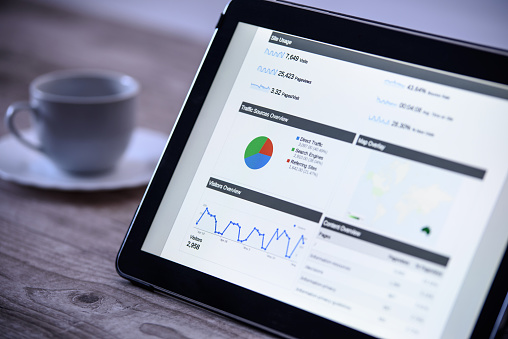
by Felicien | Feb 26, 2018 | Education
Making your website work for you involves much more than a polished design on your dot-com, but will it earn you a profit? Here’s a hint: Google can help you.
You’ve done it; you’ve made the leap. Your idea has become a reality, blossomed into a company, and you’ve designed a website.
Now what?
How effective is your website? More importantly, do you understand what makes your website effective? By “effective”, we do mean profitable. If you were asked what the most popular element of your website is, would you be able to answer? If you aren’t able to answer these questions, why haven’t you added Google Analytics to your website yet? You can’t afford to wait any longer!
Google, the most trusted name AND the de facto authority in all things search engine-related, offers its Google Analytics service to help you understand just how your website is working for you – and where it’s not. Google Analytics gives you unbelievable insights into ways to make your website working smarter AND harder. Did we mention this fantastic tool is free?
What are you waiting for?
To start, you add a snippet of code text to your website’s source code and begin tracking everything you could ever want to know about anyone who comes to your website. We understand the phrase “source code” might sound like a foreign language to a lot of readers, but we promise this is painless – and Google makes sure to provide easy-to-follow video tutorials that aid anyone in getting started.
Getting started is simple:
Set up a Google account. If you already have one, just sign in
https://www.google.com/analytics/
Set up a web property:
Click “Admin”, then choose the account if you have more than one
In the “Property” column, click “Create new property”, and select “Website”.
Enter the full URL, including the “http://”.
Choose your Industry category, Time Zone, and click “Get Tracking ID”.
That’s it – you’ve now created a Google Analytics account and retrieved your Tracking ID snippet! How do you add this to your website? Your tracking code snippet will look something like this, but ‘GA_TRACKING_ID’ will be your tracking ID, and often looks like ‘UA-XXXXXX-1‘:
<!– Global Site Tag (gtag.js) – Google Analytics –>
<script async src=”https://www.googletagmanager.com/gtag/js?id=GA_TRACKING_ID”></script>
<script>
window.dataLayer = window.dataLayer || [];
function gtag(){dataLayer.push(arguments);}
gtag(‘js’, new Date());
gtag(‘config’, ‘GA_TRACKING_ID’);
</script>
You’ll add this code snippet to each page of your site you want to track right after the opening <head> tag on each page. Once this is in place, Google Analytics typically takes about 24 hours to being reporting traffic, though a quick visit to your website in a new browser tab will register your visit in Real-Time reports, thus eliminating your need to wait 24 hours and potentially waste an entire day (of profits).
A few items to remember as you start using Google Analytics:
Reports are unable to show website traffic history prior to set-up on your website.
Brand new websites will take time to “ramp up” in search rankings, and may limit search traffic coming to your site immediately. New sites can take up to 30 days for Google to index, but there are ways to expedite this if you’re willing to take a few quick steps. The fastest and easiest is a simple request form submitted to Google.
Take Google Analytics for a Spin
We recommend paying attention to a few key areas at first.
How is your traffic finding you? Google Analytics labels this “Acquisition”, and the main ways are:
Referring sites: These are sites that have sent visitors to your site from another site.
This is the full list of your new best friends.
Organic: This is traffic that has discovered your website through search terms, “keywords”, that visitors are typing into search engines and clicking links that bring them to your site – your favorite “freebie”.
Direct: This traffic is entirely made up of people that come straight to your website as if they clicked on a shortcut or typed your URL into their browser bar.
What do visitors do once they find you? This is “Behavior” in Google Analytics terminology:
See the entire visitor journey.
A key metric here is the Bounce rate; when a visitor lands on your site but then immediately closes the browser tab or window, or clicks the “back” button, this is registered as a “bounce”. The lower the bounce rate of your page or website, the better your site engages with your audience
Do you have a social media profile? While this is a critical marketing channel, it’s also a great opportunity to take Google Analytics for a test drive. Using a social media post that includes a link to your website, you can see the corresponding traffic within GA and determine the effectiveness of post content, and correlate Facebook reach to website visitors.
New Traffic Pattern Ahead
Over time, you’ll begin to see patterns, and note traffic spikes and dips as well as begin to predict traffic. Leave the visitor wanting more from your site with each page. The desire to see more will earn another click.
Which pages of your site are most popular? Go to Behavior -> Site Content -> All Pages, and see every page of your site and its corresponding traffic metrics. These can be sorted however you choose.
Want to see visitors resulting from social media but only those based in England? Want to see referral traffic AND their corresponding top destination pages? Add the Secondary Dimension to this view and see how visitors landed on each page or by which channel for an even clearer picture of your site’s performance.
Pay close attention to pages with high bounce rates, and the landing pages and exit pages. A bounce rate, as described above, is a wasted opportunity because the visitor isn’t engaged. A landing page is where traffic enters your site; adversely, exit pages are where traffic exits the site. Landing pages can be an indicator of external links that point to your site, and optimized accordingly, can attract visitors to continue to additional pages.
Google knows they have an incredible tool for websites, and won’t give everything away for free. At some point, you’ll encounter the most dreaded words for any Google Analytics user: “not provided”. Typically, these are enclosed in parentheses, “(not provided)”, and will come to represent the largest chunk of your traffic. These are visitors who are logged into their Google account while visiting, and Google restricts information shown to protect the privacy of Google account users. The good news is that Google will share more details with you – if you upgrade to a paid Adwords package or premium analytics account. A closer look at keywords will help with organic traffic, and perhaps a paid boost on your most effective keywords will “up the ante”.
A few more key features in Google Analytics we recommend trying out:
Behavior Flow – Flow charts that give you a high-level overview of popular patterns
Events – If your end goal is driving traffic to another site, like Facebook or Etsy, where you have limited reporting, Events will let you see how many times a set clickthrough is utilized, like a button to take a visitor to the Facebook page.
Conversion Goals – You establish a set of criteria that you define as a “conversion”, like signing up for an email newsletter or following the sales funnel completely through the checkout process for a purchase, and the conversion goal will give you insights about the transaction.
Audience details are best “guesstimations”, based on generalizations and cookies. Never assume that this information is 100% accurate, but it will be a good indicator.
Understanding your audience is the key to knowing what makes them “tick” – and what makes them open their wallet. Once you start actively using Google Analytics and tailor your site for search engine optimization, it’s amazing what doors may open for you.

by Felicien | Feb 23, 2018 | Education
Although the latest version of Windows 10 isn’t a “game changer” you should appreciate some of its newer options and enhancements like the new Start Menu, OneDrive, Action Center, Cortana and ability for it to adjust its interface according to the device you use. Read on to get up to speed with Windows 10.
Before we begin, it’s important to note a few things: Be sure to sign in with your Microsoft ID when you first set up Windows 10. This way you can sync settings across all your devices.
You’ll also see a change in terminology from Windows 8. All applications are now referred to as Windows apps as opposed to Metro, Modern or Windows Store apps. However, the term Universal app is still used to designate the ability to use an application across all your devices (desktop, tablet or smartphone).
Let’s Start with the Start Menu:
Windows retired the cumbersome Charms Bar and brought back the much-loved Start Menu. The Start Menu is where you go to operate everything in Windows 10. You remember how to do this, right? Go to the lower left of your screen to bring up the Start Menu. You’ll see that it’s now separated into sections. Plus, it’s more customizable than ever before – change from partial view to full view, customize the color, pin and unpin tiles and more.
Put your cursor over the top edge of the Start Menu and drag it up or down to enlarge or reduce it. You can also click “Resize” and select the options for Small, Medium or Large. Rename a group by clicking it and keying in the name you prefer. You can also do this with your unnamed groups. Try combining groups, dragging one to another, or creating a new group by dragging a tile to a blank area.
If you want to remove a tile, select “Unpin from Start,” and the tile will disappear. To expand the start menu from three to four columns, go to Settings>Personalization>Start, click “Show more Tiles” and set this to “On”.
The Settings page offers you other options to personalize your Start Menu. Here are a few more popular ones:
“Pin to Start” to move an app from the “Most Used” list to the Start Menu.
“Open File Location” to open File Explorer.
“Run as an Administrator” to run an application as an admin.
“Run as a Different User” to change the current user.
As you can see, there are many ways to customize the Start Menu.
All Apps:
With this option, you can view all the applications that you use the most. When you “right click” on it, Windows 10 brings up the files you’ve recently opened. Go to the top left of your screen to open the three horizontal lines (the “hamburger” menu). Here you’ll see all the Windows apps in alphabetical order. Some may appear as a folder with a down arrow showing that there are a number of options for this particular app. Simply click on what you want to use. To uninstall an app, open the Start Menu, go to Settings>System, select the app, and click the “Uninstall” button that pops up. Note: Some Windows apps like Weather and Mail can’t be uninstalled.
Account:
Go to this set of stacked icons at the bottom left of your screen. Here you can access your user account to sign in and out of Windows, change your account settings or lock your computer.
File Explorer, Settings, Power:
At the bottom left of your screen, you’ll find File Explorer, the file-browsing app previously referred to as Windows Explorer. Here you’ll also find the Windows Settings app with your System, Devices, Network & Internet, Personalization, Accounts, Time & Language, Ease of Access, Privacy, and Update & Security settings. Located here as well is the Power app where you can shut down, restart or put your computer to sleep.
Life at a Glance, Play and Explore, Unnamed and Live Apps:
The tiles for your Windows desktop applications are grouped into these categories. As you install new apps, they will go into the unnamed group. If you use the Enterprise Edition of Windows 10, your IT professional may have configured other groupings that appear on the right side of the Start Menu. Live apps are the ones where you’ll find real-time data like Mail, Weather, and News. Live tiles contain Windows apps but not desktop applications. Go to “Turn live tile off” if you want to stop real-time information from streaming into the tile. If it’s already off, you can choose “Turn live tile on”.
OneDrive:
Windows 10 automatically comes with OneDrive cloud storage. The setup is easy, and you should definitely take advantage of it. If you’re using the Windows 10 Fall Creators Update, OneDrive Files On-Demand allows you to access your OneDrive files from all your devices.
Windows Apps:
Previously, Windows apps could only be run from the Start Menu and not from the desktop. You could use multiple Windows apps in separate windows on your desktop along with your desktop applications, but this was very limiting. Now you can minimize, close or resize your Windows apps just like you do with your desktop applications, and you can more easily access all the features in your Windows apps. On the bottom or left of the app are icons you can choose from, and you can customize these to your liking. For example, you’ll probably want to customize your Mail app to add accounts, select a type of mail account, combine mail from different accounts into one inbox, and much more.
Using a Tablet or 2-in-1:
A new feature called Continuum detects the type of device you’re using and automatically adjusts the interface to suit it. For example, if you’re using a tablet with an attached keyboard, Continuum uses the desktop interface. When you disconnect the keyboard, it will ask you if you want to use Tablet Mode. Just click “yes” or click “Remember my response and don’t ask again” and Continuum will automatically switch to the right interface.
The Tablet mode in Windows 10 utilizes the touch and swipe gestures you’re familiar with. In the Start screen containing your apps, you’ll see six icons – three at the top and three at the bottom. The three at the bottom contains your user account, the Settings App, and the Power Icon. If you want, use the hamburger menu at the top to turn the screen black so the six icons contain text tables. Below this, you can tap the “Pinned Tiles” icon to fill your screen with tiles (the default interface). Or tap the “All Apps” to get a full-screen view of your Windows apps and desktop applications to quickly view and scroll to the ones you want. Interestingly, you will now need to scroll vertically rather than horizontally as you did before, but this is a minor inconvenience.
The Action Center:
The Action Center displays notifications such as new emails, maintenance and security reminders, and news settings. You can launch it in one of three ways:
Swiping from the right,
Clicking the icon in the taskbar, or
Selecting the Windows key + A.
The notifications will appear on the lower right and disappear on their own. You can adjust how many notifications are visible at once by going to the Action Center for any app. Three is the default Microsoft sets.
Many people find them useful, but if they bother or distract you, simply turn them off. Tap the notification and it will take you to the Task Manager where you can turn it off. (They will still be in the Action Center if you want to refer to them later.) You may want to keep the security and maintenance notifications on, so you remember to take necessary actions. Visit the Action Center – it’s pretty self-explanatory.
My People:
This was introduced in the Windows 10 Fall Creators Update. With My People, you can you pin your preferred contacts in the Windows taskbar, and quickly communicate with them without opening another application. To get going, click the My People button on the right side of the taskbar, and a Get Started button will pop up. Click this and the people you contact the most will appear. Pin them to the taskbar, or to add others, click “Find and Pin Contacts”. You can also scroll through communications and see all the messages you’ve exchanged, even your Skype video chats and instant messages.
The Edge Browser:
Internet Explorer has been replaced as the default with the Edge Browser. Why? Because it’s considerably faster, safer, cleaner-looking and easier to use. In “Reading View”, everything you don’t need is stripped off the page, including advertisements, sidebars, and other distractions. You can use the annotation tool (it looks like a pencil and paper) and note anything you want to share. Simply select how you want to share it and follow the instructions – the Edge Browser will handle the rest. Even better, when using the Edge Browser, Cortana can pop up and alert you with details you’re looking for.
Speaking of Cortana:
Cortana is a digital assistant that can search and help you find whatever you need on the Internet or on your computer. It’s set to turn on automatically when you start Windows 10. When you need help, type your question in the box to the lower left of your screen next to the Start button and Cortana will get to work for you. If you want to use Cortana’s voice assistant, go to your Settings menu to “Talk to Cortana” and in the section marked “Hey Cortana” turn the switch to “On”. After you do this, just say “Hey Cortana” and ask your question. You can use Cortana to browse, find files in your PC, and to locate various apps and settings.
Remember – technology works at its best when you know how to use it. The more you know about Windows 10, the better it’ll serve you on a daily basis. Be sure to put these 12 tips into practice the next time you start up your PC.
