by Felicien | Mar 19, 2018 | Education
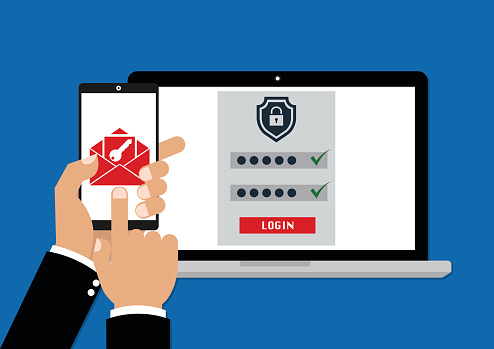
We noticed that some people are having problems using Microsoft Office 365 with two-factor authentication (2FA) (also known as multi-factor authentication).
We have a few tips for you here.
First: It’s important to know that when your admin sets up 2FA for your Office 365 users, they must enable Modern Authentication (MA) for Exchange Online if users are accessing Exchange using Outlook 2016. (The versions of Microsoft Outlook before 2013 don’t support Modern Authentication.) For details on how to enable MA for Exchange Online tenants, see Enable Modern Authentication in Exchange Online.
Second: You shouldn’t have any problem using 2FA with Microsoft’s mobile Office apps, Outlook Groups, Office 2016 desktop apps, and OneDrive for Business in Windows 10. However, other applications may be incompatible, so make sure you test all the apps in your organization before enabling 2FA.
How to Connect to Office 365 Security & Compliance Center PowerShell Using 2FA.
If you set up 2FA for tenant administrator accounts, they can’t sign in to Office 365 using PowerShell. Instead, you must set up a specialized account for administrators. To do this, you must install the Exchange Online Remote PowerShell Module and use the Connect-IPPSSession cmdlet to connect to Security & Compliance Center PowerShell.
Important note from Microsoft: You can’t use the Exchange Online Remote PowerShell Module to connect to Exchange Online PowerShell and Security & Compliance Center PowerShell in the same session (window). You need to use separate sessions of the Exchange Online Remote PowerShell Module.
This is what Microsoft recommends you do:
Open the Exchange admin center (EAC) for your Exchange Online. See Exchange admin center in Exchange Online.
In the EAC, go to Hybrid> Setup and click the appropriate Configure button to download the Exchange Online Remote PowerShell Module for multi-factor authentication.
In the Application Install window that opens, click Install.
Windows Remote Management (WinRM) on your computer should allow authentication by default. If basic authentication is disabled, you’ll get an error message. Now you should be able to sign into the Security & Compliance Center PowerShell by using 2FA.
After you sign in, the Security & Compliance Center cmdlets will be imported into your Exchange Online Remote PowerShell Module session and tracked by a progress bar. If you don’t receive any errors, you’ve done this successfully.
If not, and you receive errors, check the following requirements:
Limit your open remote PowerShell connections to three. This prevents denial-of-service (DoS) attacks.
Make sure the account you connect to the Security & Compliance Center is enabled for remote PowerShell. For more information, see Enable or disable access to Exchange Online PowerShell.
The TCP port 80 traffic must be open between your local computer and Office 365. It may not be if your organization has a restrictive Internet access policy.
How to Enable 2FA in the Office 365 Admin Portal
Two-factor authentication (multi-factor authentication) can be enabled for individual users or in bulk. Before continuing, be sure to install Microsoft Authenticator on your user’s mobile devices, (not Authenticator, a similar app from Microsoft but without support for push notifications). Here’s what Microsoft says to do to enable 2FA one user at a time:
Log in to the Office 365 admin portal using an administrator account.
In the menu on the left of the portal, expand Users and Active users.
In the list of users, click the user for which you want to enable 2FA. Note that only licensed users can use 2FA.
In the user’s pane, click Manage multi-factor authentication under More settings.
On the multi-factor authentication screen, select the user account to enable, and then click Enable under quick steps on the right.
In the About enabling multi-factor auth dialog box, click enable multi-factor auth.
The MULTI-FACTOR AUTH STATUS should change to Enabled. Close the browser window and sign out of the admin portal.
How to Enroll an Account for 2FA
Once the feature is enabled, the user must now enroll for 2FA, and sign into Office 365 with their username and password, and then click Set it up now on the sign in screen and follow Microsoft’s instructions below:
On the Additional security verification screen, select Mobile app
Select Receive notifications for verification
Click Set up
Open the Microsoft Authenticator app on your phone and click Scan Barcode.
Use the camera on your phone to scan the barcode in the Configure mobile app You’ll then need to wait a couple of seconds while the app activates the new account.
Click Finished in the browser window.
Back on the Additional security verification screen, click Contact me.
The user will receive a notification on their phone. They should open it, and they’ll be taken to the Microsoft Authenticator app.
Click Verify to complete the sign-in process.
Click Close in the Microsoft Authentication app.
In the browser window, they must enter a number to receive verification codes in case they lose access to the Microsoft Authenticator app and click Next.
Web-based and mobile apps can use Microsoft Authenticator app verifications for 2FA logins, but Office desktop apps require an app password.
This final step provides the user with an app password for these apps.
They should copy the app password by clicking the copy icon to the right of the password and paste it somewhere safe. Click Finished.
They’ll be prompted to sign in again, this time by verifying the login using the Microsoft Authenticator app.
Important note from Microsoft: If you want to use only Multi-Factor Authentication for Office 365, don’t create a Multi-Factor Authentication provider in the Azure Management Portal and link it to a directory. Doing so will take you from Multi-Factor Authentication for Office 365 to the paid version of Multi-Factor Authentication.
We hope this helps. It can be complicated to implement the proper settings for two-factor authentication in Microsoft Office 365. If you have any problems doing this, feel free to contact the Microsoft Experts at Alltek Services in Central Florida at http://www.alltekservices.com or call 863.709.0709.

by Felicien | Mar 19, 2018 | Education
We all know that Optical Coherence Tomography was a gamechanger. It has allowed us to see the structures of the eye in a level of definition thought impossible earlier. As a result, we can diagnose pathologies like glaucoma, macular degeneration, and diabetic retinopathy years earlier than we could previously. This level of reliance on technology has led to a higher level of patient care and better patient outcomes.
But along with that exceptional patient care has come a challenge that optometrists were not expecting – care of technology.
Optometry has not been immune to the tectonic shift that has impacted nearly every industry and every other branch of medicine. Technology is changing the entire process of practicing medicine, from the front office and scheduling to diagnosis and treatment.
Take a look around your office. Nearly every piece of equipment is connected to a computer, and the instruments that aren’t now will likely be replaced with newer technology within the next few years.
With all this technology in your office, you have a choice.
You Can Run Your Practice, Or You Can Run Your Technology – But You Can’t-Do Both.
So, what do you do?
There’s no upside in going back to manual diagnosis equipment, so something has to be done.
Here’s the answer.
Partner with an IT support company that specializes in the diagnostic instruments, software, and front office needs of the optometry practice.
By turning over the maintenance, management, and monitoring of your in-house technology to a competent, IT support professional you will remove the burden from your shoulders and give yourself and your staff the seamless, safe IT experience you are seeking.
An IT Support Team That Specializes In The Technology Utilized By Optometry Offices Will Provide Your Business With These Significant Advantages.
A single point of contact for any technical question or issue
An individual to deal with technology vendors, equipment purchases, and third-party integrations
A fast-response team for any technology-related workflow disruption
An IT consultant that will help you squeeze all the efficiency possible from your technology
An easily-budgeted monthly payment for comprehensive, proactive IT support
A secure IT environment that works well for your employees and protects your patient data
A HIPAA IT advisor that will help you keep your technology strategy in line with legislation
Setting Up a New Practice?
There may be no time that is more daunting than the setup of a new optometry office. On day #1, you’re sitting there on cardboard boxes eating pizza, talking with co-workers, and staring at empty shelves that will – within days – be filled with glasses and other product.
The computers, monitors, and servers show up on day #2 or #3, and you stare at those boxes thinking, “What have I gotten myself into?”
For a fleeting moment, you want to take your old, manual Phoropter into a testing room and hide forever from technology.
But you know that’s not terribly realistic.
By day #5 you’ve hired someone to come in and get your front-office computer system set up. But then a truck pulls up with the OCT, Keratometer, Slit Lamp, Binocular Indirect Ophthalmoscope, and your Retinal Camera – and you know that you are in way over your head.
Sure, each of those pieces of equipment has manufacturer reps that will come and get them set up, that’s not the problem.
The problem is getting it all working together and keeping all the moving parts from “bumping” into each other along the technology highway on your way to top-notch patient care.
That’s when you realize that the guy who set up your front office likely isn’t up to the job of keeping all this technology running flawlessly and secure against cyber-intrusion. So, you pick up the phone and call a company with years of optometry IT experience – a company like NOVA Computer Solutions.
So, on day #6 you put in the phone call to learn more about NOVA Computer Solutions, and on day #7 they are there to take IT management off your shoulders and to coordinate with your instrument and software vendors to ensure that everything works perfectly for your launch date.
Have An Existing Practice And Wondering If Your Current IT Support People Can Handle The Move To AI And Machine Learning?
If you’ve been to the trade shows you know that the next step in technology for optometrists is going to come in the form of artificial intelligence and machine learning. Is your current IT services team preparing your business to leverage this shift for your competitive advantage and to enhance patient care?
If not, it’s likely time for a change.
In the next year or two, Artificial Intelligence (AI) will be harnessed to assist optometrists in clinical decision-making. How?
Enabling high-volume practices to move patients through the process with more efficiency
Reducing the risk of misdiagnosis
Providing you with the information to make higher level, specialized opinions regarding diagnosis and treatment
Enabling you to make better, faster diagnosis
Analyzing big data for patterns – image data, blood test data, field of vision data
Take better imaging to see indications of pathologies much earlier than previously possible
The combination of AI and machine learning will be powerful for your patients as wearable tech begins to emerge on the marketplace, augmenting the sight of your patients through optic recognition of objects and auditory information. This technology will learn objects and faces enabling your patients to have a better quality of life – much like the hearing aid did for patients with auditory deficits.
In the end, AI and machine learning will not replace what you are already doing to help your patients, but they will be the tools that will be leveraged in the next few years to assist you in your office to make more accurate decisions in shorter timeframes and to provide revolutionary options to your patients.
If your current IT support personnel in the Northern Virginia area aren’t up to the challenge of the complex technology of your office – now and down the road – make the switch to NOVA Computer Solutions. We have a deep background in serving offices like yours in the healthcare field.
Want to read more about NOVA Computer Solutions? We have more for you here.

by Felicien | Mar 19, 2018 | Education
Modern professional relationships require digital processes, like email, collaborative software, and file sharing. The cloud has opened up incredible possibilities beyond imagination a mere decade ago, but which is the right choice?
The competition is seriously fierce in cloud storage. The Internet of Things has fueled a data addiction for which traditional storage can’t physically support. We love our devices – I mean, we are straight-up addicted to our smartphones, our iPads, our Kindle Fire tablets, all of them. And there’s a reason we back up our smartphone content: we’d be absolutely lost if we lost it. Our contacts, our notes, our apps, our calendars, and everything we depend on for day-to-day use is on that tiny computer. Where do you back up your data? It’s probably safe to assume there is a cloud location you connect to that saves your backed-up data. It’s safe to assume because we would overwhelm traditional storage options.
Traditional storage hasn’t been able to meet expectations and needs for performance, availability, management, or the cost impact in comparison to growing demand. Everyone has an opinion on who their favorite cloud storage solution is, and it’s usually one of the Big Three players in the cloud game: Dropbox, OneDrive, or Google Drive – and not in that order.
Technically speaking, the first cloud storage solutions launched well before today’s modern providers. Consumers had access in the early 1980’s through CompuServe, and AT&T launched a platform in the 1990’s to support small business solutions. Amazon Web Services introduced AWS S3, their cloud storage offering, in 2006 and functions as the storage provider for Dropbox, Pinterest, and many other large digital enterprises. The only thing that has changed is file size, file type – but mainly adoption.
Cloud storage is increasing in adoption for every professional environment – and is the only solution for distributed workforces! Managing resources for storage needs to be agile, and limited solutions also limit agility. The cloud is merely an accessible extension of your data storage center. Review your full data storage needs, and consider the advantages the cloud offers your business and daily operations.
When reviewing your cloud storage priorities, there are many issues that deserve a deeper consideration. Here is the “Top Ten” List we suggest using as a checklist, and in no particular order:
Cost
The financial impact of cloud storage is usually the first factor any business considers, but we disagree with this position. While your bottom line is critical to your overall operational budget, there is a multitude of factors that could have a greater impact on your day-to-day needs.
It’s surprising just how many decision-makers are surprised – and unprepared for – the expenses required to utilize cloud providers.
Sync Simplicity
If storing or backing up your data to a cloud solution is cumbersome, the likelihood of full adoption by your staff – and your clients, if applicable – will be a struggle, and result in decreased productivity and decreased reliability. You don’t have time for that!
Sync Speed
Just as with simplicity, speed is a factor with the ability to sync data quickly. As with any downtime, no one can afford reduced productivity due to Internet connection issues, and it’s an even larger issue if it’s due to your cloud storage provider.
Location
As they say in real estate, “Location, location, location”! Anyone who thinks it doesn’t matter where your data is stored physically is wrong. Wrong! Though there are too many reasons this matters to list, here are just a few:
Data stored in the U.S. is both protected by and susceptible to U.S. laws, like the Patriot Act and the Cyber Intelligence Sharing and Protection Act. Data stored in – or containing the information of – European Union nations are subject to protection by legislation passed by European Parliament enacting strict consumer data protection rules.
Facilities that physically house servers for cloud storage providers are just as open to impacts of weather and natural disasters as any other structure in that locale – and accessing your data will be subject to these conditions.
Is the physical security of the location a concern under any other circumstances?
Reliability and Access
Is the vendor reliable? The key players in the cloud storage game tend to be the best for valid reasons, but appropriate considerations, in this case, would be hardware failures, power disruptions, or even vendor disputes. Crazier things have happened.
Storage Capacity
How much data do you anticipate storing in the cloud? This is like trying to choose your favorite song. The answer changes on a regular basis, and most of the time there is no one singular answer. Obviously, you’ll want to choose a provider that is capable of offering you more storage than you think you’ll ever need, but you also don’t want to pay for storage you’re not using nor will you ever. It’s a delicate balance, and many providers allow for variable usage.
File Sharing
How many times have you attached a document to an email message, and tried to send it only to get the dreaded error message “File exceeds the maximum size of 25MB. Try removing an attachment and send again”? You are then faced with trying to reduce the file size (Word document into a PDF, etc.) or uploading the file into a cloud solution like Dropbox, Google Drive, or OneNote, and sharing the access URL instead.
Application Integrations
The number one request made by anyone accessing cloud storage and utilizing an application is to offer an intuitive user experience. Statistics show half of all users that abandon a cloud app do so due to integration issues, citing missed deadlines.
Support
If any issues arise, it’s critical that users achieve the needed help immediately from an adequately trained member of support team equipped with the right knowledge to resolve the situation.
Data Security
The cloud and data stored in cloud environments face risks, just like any other professional endeavor. A cloud storage provider that can guarantee against cybersecurity vulnerability and takes the greatest care in safeguarding your data is an excellent vendor and partner.
We’ve talked about what you need – now let’s talk about who can help you. Here is a fantastic detailed resource when comparing many of the cloud vendors at once, but let’s talk about the Big Three. The key players in the Cloud Storage Wars are Dropbox, Google Drive, and OneNote – and any one of these providers would valiantly battle to the bloody end for your business! There is a reason that these three are the best in the biz: they’ve earned their reputation with quality service, support, and every other item in the checklist.
Dropbox
Offers a free basic storage plan (2GB)
Paid plans and features cater to business customers
Google Drive
Offers a free basic storage plan: clarification, Google users have 15GB of free cloud storage – shared between Gmail, Google Photos, and Google Drive. If you get a ton of emails and don’t clean out your inbox often, that eats up your 15GB
Paid plans and features cater to business customers
OneNote
Offers a free basic storage plan (5GB)
Paid plans and features cater to business customers: Here is where it truly pays to use OneNote and be an Office 365 customer, as the paid plans are included with Office 365 subscriptions, either Personal or Home.
The ability to sync, share files and speed are all a focus of these teams, and the competition is pretty ruthless. In fact, Dropbox and Microsoft have formed a partnership to allow easier integration by making Office Online available to Dropbox users at no cost. Keep your friends close, and your enemies closer!
So, which provider is right for you? Only you can make that decision. Armed with this information and reviewing our checklist will hopefully help you make the right choice!

by Felicien | Mar 16, 2018 | Education
Hint: It Will If Your IT Network Goes Down.
You’re lying in bed, almost asleep when, “Oh no! Another lightning strike -that means the power probably went out in the office!”
Does the sound of thunder keep you awake at night wondering if your IT network will be up and running the next morning? It can happen to the most successful of businesses. That is unless you’ve planned to ensure it doesn’t.
IT downtime is a reoccurring nightmare for small and midsize businesses (SMBs) today.
Technology is Great – Until It Stops Working
This is the “Catch-22” of today’s technology dependence. With a reliable, secure and stable IT network, your small business can compete with the “Goliaths” of the world. You can reach across oceans, mountains, and continents to serve customers almost anywhere, 24/7. You couldn’t do this 10 years ago, but with today’s technology, the opportunities are endless. You can really make some money now – unless your network goes down.
The “big guys” you compete with can absorb a few IT failures, but you can’t. They have the resources and backup IT infrastructures to keep operating and profiting. For you, an IT failure could result in a real drain on your bank account, and ultimately, the end of your business.
Some Alarming Statistics:
The National Archives & Records Administration reports that 93% of small and midsize businesses file for bankruptcy within 12 months of experiencing data loss and prolonged downtime for 10 or more days.
The Aberdeen Group revealed that the annual cost of downtime for a small business with fewer than 100 employees amounts to $25,806. Furthermore, midsize businesses with 100 to 1,000 employees lose $880,600 annually due to IT failures.
Most IT Downtime Can Be Prevented.
That is if you’re prepared. So, what should you do? Ask a professional IT company (a Managed Services Provider) to conduct a Risk Analysis, Vulnerability Assessment, develop a Disaster Recovery Plan, and implement Next-Generation Firewalls and Defense-in-Depth Cybersecurity for your business.
Unfortunately, many SMB managers and owners prefer to put this off until a disaster hits, or when the “hiccups” in their IT system become unbearable. In the meantime, every “hiccup” costs them money, and the major downtime events cost them more than they can afford.
50% of SMBs don’t have a Disaster Recovery Plan in place, and 41% haven’t even thought about it.
This is like gambling with your livelihood every day- and you know that when you gamble, the odds are usually against you. Maybe you know that this could eventually prove to be a costly mistake, but do you know that if you aren’t properly prepared that it’s already costing you money every day? If you’re relying on break/fix IT services, you aren’t properly prepared. These companies don’t provide the proactive, preventive service your business requires today.
Many businesses just like yours are hemorrhaging money by relying on high hourly rates, extra charges and long wait times for IT support.
Greater Dependence on Technology = Greater Risk
It’s a paradox – technology serves you well, and your business probably wouldn’t be here today without it. However, the more you depend on it, the greater your risk of failure.
If your small dental practice has to pay $25K to recover from a phishing scam, and you had to cancel appointments for the next 10 business days, would you be able to afford to open your doors in two weeks? Or if your legal practice has to shell out $45K for data recovery and IT repairs, could you make payroll next week? Not to mention the fines and litigation you could face for HIPAA and other regulatory infractions. This could put you out of business entirely when your patients and clients find out.
Did you know that nearly 40% of SMBs will have their network compromised by a hacker? Most won’t even know their IT system fails.
How Much Can You Afford to Lose?
It’s time for a reality check – the fact is that unless you’re properly prepared, your data can be compromised, your IT system can fail, or both. Take the time to ask a few questions to determine if you can afford this risk.
Based on the statistics we’ve revealed, how much downtime do you think your business can afford to put up with?
How much time in productivity do you lose each day due to IT interruptions or unreliable Internet access?
How fast can your current IT company respond to emergencies?
Is your critical data backed up every day both onsite and in a secure cloud?
Can you quickly access your data in the event of a theft, flood, fire or other damage to your IT system?
Do you know if your backups are truly reliable?
Is the data on your mobile devices backed up every day?
Is your network safe from hackers?
Are your employees fully informed about cybersecurity tactics?
Do you have IT professionals conduct Vulnerability Audits on a regular basis?
Downtime Can Be Prevented, But Disasters Can’t
Here’s another question for you: Are you taking advantage of today’s managed cloud solutions? Smart business owners and managers know that cloud-based and virtualized backup solutions mitigate damage from downtime. It allows them to access their data quickly and securely from wherever they have an Internet connection. It’s a cost-effective method that provides business continuity capabilities in the event of an IT disaster. Virtualization allows for business servers to be grouped into one software bundle. This means all your operating systems, applications and data are safely stored in the cloud for quick restoration if required.
Server virtualization involves the partitioning of your physical server into smaller virtual machines (VMs), so you can also maximize your IT resources. With Cloud and Virtualization Services, you can migrate your data to another server during repairs or other required tasks. You’ll no longer need to shut down your servers and deal with downtime. Your data will always be available, and your capacity for business continuity will be greatly enhanced.
Important! Migrating your infrastructure to the cloud takes preparation and expertise. Only a certified IT provider should be trusted to handle this.
With the right cloud solution and virtualization, you’ll no longer need to shut down your servers and deal with downtime. Your data will always be available, and your business continuity will be greatly enhanced. By heeding the advice we’ve imparted here, your business can thrive and your bank account can grow.
by Felicien | Mar 16, 2018 | Education
With the 2016 version of Excel, Microsoft has really upped the game for people who aren’t great with numbers. You can now easily use one-click access that can be customized to provide the functionality you need.
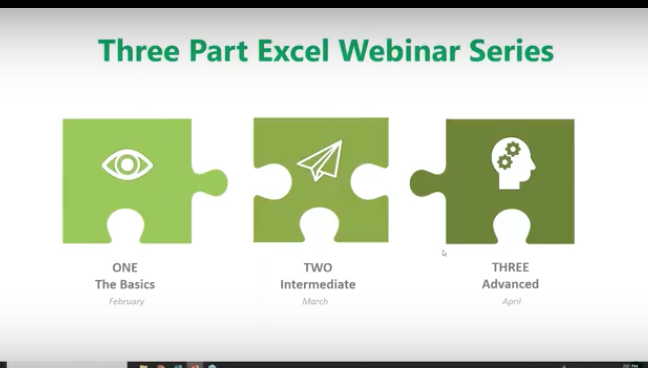
This is the first of a three-part series about using Microsoft Excel 2016 to help you identify trends, construct helpful charts, and organize information to maximize the value of your data.
You can use Excel Worksheets and Workbooks in conjunction with programs like Microsoft Access and PowerPoint. Excel 2016 possesses many capabilities that aren’t readily apparent. That’s why we’re providing this three-part series for you.
What is Excel and how is it organized?
Excel is an electronic spreadsheet program that’s used to store, organize and manipulate data. You enter data into Workbooks that are made up of individual Worksheets. In the Worksheets, you enter data into cells that are organized into rows and columns. Excel data can consist of text, numbers, dates, times and formulas.
Why would you want to use Excel?
If you or your employees work with financial data, it’s a great tool to use for:
Basic mathematical operations like adding, dividing, and multiplying.
Finding values like profits or losses.
Calculations like averages, percentages and number counts.
Performing calculations in Excel is only the tip of the iceberg. There’s much more you can do like creating charts and graphical layouts to make it easier to recognize trends and more easily analyze data.
Navigation
What’s great about Excel is that it has the same set up as other Microsoft products you’re familiar with. You have tabs across the top, where each tab has a corresponding ribbon with many functionalities to choose from.
The Quick Access Toolbar
The Quick Access Toolbar is a drop-down menu where you’ll find functions that you commonly use like Print and Save. You can also customize the Quick Access menu with other functions you use on a regular basis.
The Formula Bar
This is located underneath the ribbon next to the Name Box that shows you where your cursor is located on your Worksheet. The Formula Bar is important because it’s what calculates the math for you. Excel does the calculation and displays the answer in the cell you choose. The Formula Bar also shows you the contents of the particular cell you’re in.
Adding Data
There are three ways you can add data to your Excel Worksheet. You can:
Type in the data,
Copy and Paste data, or
Import data from other sources.
This is great if you have a large amount of data. For example, if you have customer lists in a database, you can even pull this into Excel.
You can enter data into only one cell, into several cells at the same time, or even on more than one Worksheet at once. And, as mentioned, the data can be numbers text, formulas, dates, or times.
On your Worksheet, simply click a cell and type in the information that you want to enter. Then hit ENTER or TAB. If you typed in a date, Excel will recognize this and format it the way you’ve specified in your default settings.
Formulas
Excel computes the correct answer when you enter a formula into a cell. Once you’ve done this, it recalculates whenever you change any of the values. The way Excel knows that you’re entering a formula is by starting with an equal sign. Then you follow the equal sign with a SUM or AVERAGE.
For example, C2: =A2+B2 means that the number in C2 is what occurs when you add the numbers in A2 and B2.
You can type this in manually, but now Excel has great functionalities to help you do this. The simple way is to put your cursor in cell C2, hit = and type in A2+B2. The numbers in A2 and B2 will be added, and the SUM will be entered in cell C2.
Note: You always want to calculate using the actual cells rather than typing in numbers like 1 + 2, etc. The reason for this is so you can go back at any time and change the values in cells and the formula will calculate with the new numbers.
Let’s say you want to add a bunch of numbers together in your Worksheet. You can type = sum (a1:a5) in the cell where you want the answer to appear. Or you can do this and drag your mouse across the cells you want to add. Type =sum ( and drag your mouse across the cells and hit ENTER. The sum will appear in the cell without you having to typing in all the numbers! When you put your cursor on the cell, you will see the actual formula you just created.
There are many ways to do the same thing in Excel. It’s like this across all Microsoft products. You can go to the Ribbon at the top to “Auto Sum” to do the same calculation. Select a cell next to the numbers you want to add, click AutoSum on the Home tab and press Enter. Do what works best for you.
Once you create a formula, you can copy and paste it into another cell. You can also copy and paste formulas into different Worksheets as well. This can save you a lot of time.
Formatting Worksheets
With Excel 2016, you can format your Worksheets much more easily than you could before. You can use document themes throughout the Worksheets in your Workbook to present a professional and consistent appearance. You can also apply predesigned formats as well.
Let’s say you have a Worksheet with many rows that are hard to read. You can go in and create fill colors and more to differentiate the rows, columns, and headers to make reading much easier.
You have options to create borders around cells, rows or columns from the drop-down menu. You can also shade cells with a solid background. Don’t forget that you can change the style and types of fonts. Right-click the text, and a drop-down menu will appear where you can make these and other selections easily.
Creating Charts
If the data isn’t complex, you can easily read it, but if you have a lot of data, creating a chart will help you better analyze it. You can select specific cells, rows, and columns for your chart. One way to do this is to highlight the data and go to the top ribbon to select the type of chart you want to create.
With Excel 2016, you have a “recommended charts” option. Excel will help you choose the chart that best suits your data.
You can then go in and further customize your chart in the “Chart Tools”. You can change the color scheme, 3D effects, shading and more. If you change the data in the cells in your Worksheet, your chart will reflect the changes.
Some of the new charts in 2016 include:
Waterfall
Tree Map
Box and Whiskers
Sunburst
Creating Tables
You may be used to creating tables in Word or PowerPoint. Some people think the format in Excel is already in a table, but it’s not; at least until you tell it to do so. If you want to do this, select your data, go to “Insert” and select “Table.”
Similar to other Microsoft products, tabs will appear to help you format your table.
Viewing Worksheets
When dealing with lots of information, it can get unruly trying to work around various rows and columns. This is where Viewing Worksheets can be helpful. You can freeze a portion of your worksheet with “Freeze Panes” to more easily view it.
You also have the ability to “split” the data to view different parts of your Worksheet. You can compare two Worksheets in the same Workbook or even in different Workbooks by viewing them side by side.
Saving and Printing
If you have Worksheets that are so large they won’t fit on one page, go to “Save As” and decide on the name, where it gets saved, and go to “Print” where you can save the file to a pdf that you can send.
You can select options for printing the entire sheet, part of it, resizing it, and more to suit your needs. Going to “Page Setup” will allow you to shrink the entire Worksheet down to a size that’s more manageable for printing.
Sharing & Security
In Excel 2016 you can share Workbooks and Worksheets with others and password-protect them. The people you send them to need to know your password to open them, whether you send them via email, share them on your network, or via the cloud. From within Excel, you can designate who can access your Worksheets and Workbooks, and also whether they can edit them or not. There are a variety of parameters you can set within a Worksheet.
For example, if you want to hide employees’ salaries, you can hide this section when you share it. Or, you can let people see your data but lock it down, so they can’t change it. You can also protect your Worksheets and Workbooks to keep them secure from non-authorized users.
The Quick Analysis Tool
When highlighting data, click on the Quick Analysis button to create a chart, highlight specific cells, and much more. It doesn’t give you the functionality you’ll find in the Ribbon, but you can get things done quickly and easily with this tool.
3D Power Maps
This is another new tool in Excel 2016 that lets you look at information in ways you might not have seen in the two-dimensional format. This helps you strategically create your data on a 3D map. You need latitude and longitude data to do this. You can also import your own maps into 3D Power Maps.
PivotTables
PivotTables help you analyze your Worksheet data. You can summarize, analyze, explore and present your data in just a few clicks. They are very flexible and can be adjusted to your unique needs. Note: Your data should be organized without blank rows or columns for this to work properly.
The good news is that Excel 2016 will also help you pick the best format for your PivotTables!
PivotCharts
PivotCharts are another great way to add visualizations to your data. You will first need a PivotTable to create a chart. Now, your PivotTable will behave like a PivotChart. When you change the information in your PivotTable, the PivotChart will also reflect this change. The PivotTable is connected to the PivotChart.
That’s it for now! For more information on using Excel 2016 like a Pro, feel free to contact the Microsoft Experts at {company}! {phone} {email}
