
by Felicien | Apr 13, 2018 | Education
Here’s Some Up-to-Date Info That Should Be of “Interest”!
Accounting software is much-needed tool today. Gone are the days of manually writing down copious amounts of figures in heavy, dusty logbooks, or using calculators to add up debits and credits. Our computers do this for us now. Accounting software makes the process of bookkeeping more efficient and accurate.
What else is different than in years past? Today’s newest accounting solutions are now cloud-based, and they provide many advantages.
No more shelling out a large amount of cash to purchase expensive business accounting software. Instead, you can pay for a web-based accounting service via a convenient subscription.
Online accounting services are used via the Internet rather than being installed on your organization’s computers. They allow you to access the information you need through an Internet browser like Internet Explorer, Firefox, Chrome or Safari. You can access the service from anywhere you have an internet connection, and it will always look like the same wherever you use it.
Plus, you won’t have to worry about technology requirements, if you have the right operating system, backing up your accounting data, installing updates or dealing with maintenance issues. You get all this and more handled for you–And all for a convenient monthly or annual fee.
Just like any accounting software, cloud-based accounting services allow you to perform all the accounting tasks your business needs, and they include features you’re familiar with like an online general ledger, invoicing and accounts receivable capabilities, purchase histories, business inventories and much more.
And, because upgrades and data backup are managed by the accounting service vendor, cloud-based accounting services are an attractive option for small businesses.
Although these new solutions are cloud-based, you can still buy desktop accounting software if you wish. But due to their popularity, most small businesses are now using online accounting services. Because of their anywhere availability via the Internet, crunching numbers is now much easier than ever before.
What Do Online the Different Accounting Services Have in Common?
Each solution is different, but they all have the following features in common.
They are available via a subscription. Accounting software has always been expensive and needs to be updated every year. With the online version, you pay for only as many users as you need, and you can pay on a monthly or annual basis. Many offer a free trial that converts when you sign up for a service. They cost anywhere from $5 to $70 a month depending on what you require. You won’t be locked into a contract, and all the upgrades are provided. Another plus is that your data will automatically be backed up to a secure cloud.
They’re easy to navigate. Online accounting services try to make your job less taxing with intuitive, easy-to-navigate platforms where you can easily find the features you want. Toolbars, drop-down lists, fill-in-the-blank fields, buttons and icons, all help you enter the numbers for whatever calculations and financial forms you require.
They use language that you’re familiar with. Although we still refer to terms like credits, debits, and chart of accounts, online accounting solutions only use arcane financial language when absolutely needed. The developers are trying to use every-day language whenever possible. However, although centuries old, double-entry accounting is a process we all need to use, and it’s here to stay, the developers let the “wizards” handle the complex processes behind the scenes.
They provide mobile versions. If you’re on the road, traveling for business meetings, or even need to do a little work when you’re on vacation, you can access your web-based accounting services securely from your mobile devices.
You have the choice of different levels of service. Some of the best cloud-based accounting solutions provide more than one level of service at different prices. This way you can purchase just what you need and nothing more. If you need to switch to a different level, most allow you to do this easily.
You can integrate them with other solutions. As your business grows, you may find that you need to use a variety of cloud-based financial management solutions. In this case, many of the best cloud-based accounting solutions allow you to connect to other services that you may already be using.
Dashboards. Interactive home pages or dashboards will help you keep track of your finances by flagging tasks that need attention and providing visuals like graphs and charts to give you a high-level view of where you stand. They summarize data like income, expenses and cash flow in easy-to-read images, so you and your team can more easily comprehend data and can make decisions about what to do.
Which Solution is the Best for Your Business?
So, how do you decide which online accounting solution is best for your small business? You might not be able to find a perfect match, but because they are flexible and provided on a monthly basis, you can find the best one for you and tweak it along the way.
As mentioned, many offer a free trial, so you can “road test” them. Give them a try and consider the following questions when you do:
Can you import your existing data?
Are the tasks you perform most often supported? (recordkeeping, billing, purchasing, etc.)
Do you like the interface? Is it easy to navigate?
Will it support the number of users you need?
Are there any restrictions on actions you’ll need to take?
Is it customizable?
Is it scalable?
What is the quality of the mobile application?
Are add-ons supported?
Do they provide a help desk or support solutions?
Is the subscription fee something that your budget will allow?
While you’re at it, we did some homework for you. Below are some of the top online accounting services for small businesses.
Consider these and take advantage of the free trials they offer. Don’t worry if these might not work for you five years from now. Assess them based on your needs for the upcoming year.
Remember, you aren’t purchasing the product. Instead, you’re signing up for a subscription that you can change or upgrade/downgrade as you need. In other words, you aren’t stuck with these like you are with regular accounting software programs.
Freshbooks
Zoho
Intuit
Xero
GoDaddy
Wave
QuickBooks
Oneup
Kashoo
Sage
MYOB
Alignbooks
Kashflow
CloudbusinessLLC
Panhandle
No matter which online accounting solution you choose, you’ll have peace of mind because you won’t have to worry about security. Online accounting services have stringent security requirements to ensure that your data is safely protected from hackers and any kind of loss. Even if your physical office is destroyed, or an employee accidentally deletes information, your online accounting service will be able to retrieve your data for you.

by Felicien | Apr 13, 2018 | Education
In this age of information, it’s challenging to maintain compliance with so much data stored on many different devices. Most companies these days have remote workers, employees in various departments, third-party vendors, management, employees working in other countries, and more. These people have laptops at home and at work, smartphones, and tablet computers. All this information must be structured in a way that it can be stored or accessed successfully whenever needed. This is a massive task that seems impossible, yet with enterprise content management programs, it’s suddenly doable.
Information Overload
Americans are now overwhelmed with the massive amounts of data that exist in their world. But it’s not enough to have a world full of information available; you must know how to use it to achieve your business goals while adhering to compliance regulations. Though there are many ways to handle these tasks, the key is creating a system that’s user-friendly but safe from hackers. Compliance is all about protecting everyone’s data from the world’s cyber thieves.
Losing Control of Compliance
With so many different methods of storing and maintaining data, it’s easy to lose control of compliance issues. This is a problem for every business owner, large and small. Enterprise organizations are easily the most vulnerable simply for the sheer volume of data they must maintain. Our age of information can loom out of control with the simple act of one employee losing a computer. Suddenly, hundreds of records are at risk and the company is struggling to find out what information has been lost. These types of events occur much more often than most CEOs want to admit.
How ECMs Help
Enterprise content management systems can create a safe method of handling and control all this important data. A few of the solutions include:
Optimizing workflows using multifunction devices to reduce the number of machines and interfaces
Improving the security of all documentation
Ensuring ongoing compliance with industry requirements
Ensuring the best performance of hardware and software
Minimizing downtime to cut overall costs
Implementing green strategies with rules-based printing and cartridge recycling
The latest ECMs utilize additional resources to better manage conference rooms, mail rooms, help desks, procurement and many other areas where productivity can be radically affected. There’s much more to managing content than meets the eye.
Controlling the Data Flow
If you’re running a large business with hundreds or even thousands of employees, these types of issues can be extremely hard to control. Every company needs to achieve an optimal level of productivity. However, a healthy level of compliance has become an important factor in this mix. There’s just too much at stake these days if the personal information of millions of consumers is compromised.
In addition to your company’s internal rules and requirements, you may be forced to observe regulations from:
The Health Insurance Portability and Accountability Act (HIPAA)
The Affordable Care Act (ACA)
The Sarbanes-Oxley Act (SOX)
The Occupational Safety and Health Act (OSHA)
Audits Can Be Stressful and Expensive
Imagine the IRS showing up at your door and demanding your documentation to prove compliance in some or all of these areas. Where do you even begin? Your employees might have to sort through several data systems, search file cabinets, and reign in multiple records from dozens of computers and other devices. This scenario can be a nightmare that no one wants to endure. Missing paperwork and costly errors are just the beginning.
That’s why so many large companies are moving over to enterprise content management systems. These systems provide an efficient method of storing, tracking and managing large volumes of data. Everything is located in a single repository. This makes it far easier to locate important documents that prove compliance. Plus, important documents are protected from intrusion.
Easing the burden of complying with today’s wide range of regulations can give your company leaders peace of mind. It’s a real confidence boost for the stockholders as well. Using advanced robust technology, your organization can move forward more efficiently with a higher level of security.
Easy Search & Collaboration
The best enterprise content management systems are cost-effective, secure and easy for everyone to use. They support all common platforms and databases. Information should be easy to search with programs that seamlessly send a document to the scanner or printer. Most teams need to be able to collaborate in real and virtual meeting rooms. It can be very helpful to be able to find a document, then edit it live together with other teams. This helps everyone stay informed and up-to-date. Transparency in document editing is also important, especially in the event of an audit.
Maintenance & Certification
Another important element, various filters can determine when regular maintenance on the equipment or data is necessary. Alerts are sent out to the correct employees when they need new certifications. These seemingly small tasks keep things flowing and people on track. Once new certifications are obtained, copies are stored with their expiration dates. These documents are fairly easy for auditors to check and this makes everyone’s life a little simpler.
Greater Security
In the past few years, everyone has been shaken by the enormous number of identities stolen in various data breaches. Security is paramount on everyone’s mind. Rules-based settings can be employed to allow access only to those with proper authorization. When you’re dealing with financial data and health records, you simply can’t be too careful. This data should be available whenever needed but safe from hackers. Many enterprise customers are moving to ECMs simply to improve their security. This has rapidly become an important part of doing business.
Proper Archival Procedures
The government requires certain tax forms to be on file for specific lengths of time. However, most documents will eventually need to be archived. The Department of Labor and IRS have many such requirements. Employees can become confused about the requirements resulting in significant fines. A good enterprise content management system eliminates these worries with automatic purge and archive features. Settings can be altered to meet any specific or preferred criteria.
Growing for the Future
With all these things in mind, search for an enterprise content management system that will grow with your company. In the future, compliance may become even more critical. Companies will certainly continue to expand all over the globe, making compliance even more difficult. If your company incorporates a good ECM from the beginning, these issues can be dealt with as you go along, avoiding any abrupt changes to your daily operations.
by Felicien | Apr 13, 2018 | Education
Microsoft Outlook is a professional email and calendar program that’s been used by businesses for over 15 years. It’s had many iterations over the years, but with 2016, and its integration with Office 365, Microsoft has taken Outlook to the next level. Today, small and medium-sized businesses that couldn’t afford the enterprise-level application can now benefit from Outlook 2016.
The following are 3 ways to help you use Outlook 2016 more efficiently.
1. Keyboard Shortcuts
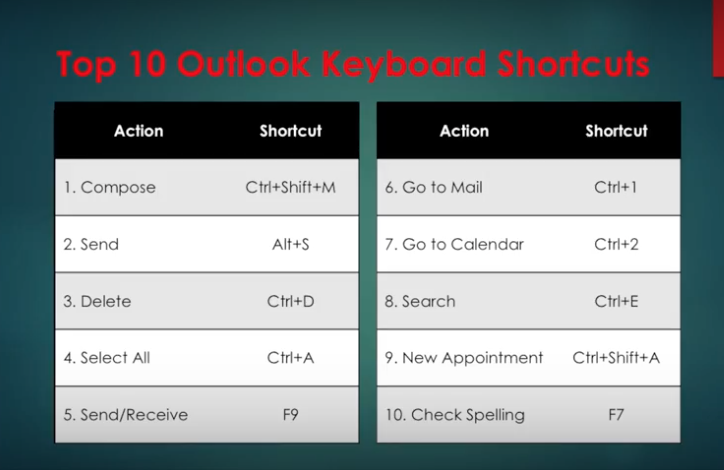
Using keyboard shortcuts in Outlook on Windows will help you work more efficiently. It’s also handy for those who have mobility or vision disabilities because using keyboard shortcuts can often be easier than using a touchscreen or mouse. Here are some popular keyboard shortcuts you should try.
And there are more. Here are popular keyboard shortcuts for NAVIGATION:
When searching, try these handy keyboard shortcuts:
To create an item or a file keep these shortcuts in mind.
Shortcuts in Mail.
To see more Outlook 2016 Shortcuts go here.
2. Use Quick Steps
Right-click any email, choose Quick Steps and choose from the list.
We’re going to choose Team Email. The first time we use this, Outlook asks you to name your team and enter their email addresses.
Then create a Keyboard Shortcut for this. So, the next time you hit Control Shift 1, an email to your entire team can be composed.
You can also create new Quick Step. Simply choose Create New Quick Step.
Here are some other Quick Steps to try: 1
Move to Folder: This is essentially the same as Move To.
Categorize & Move: This moves the selected message to a specific folder, marks the message as read, and assigns a category color and name to the message.
Flag & Move: This moves the selected message to a specific folder, marks the message as read, and assigns a flag to the message.
New Email To: This opens a New Message form with the To field already filled out with a particular recipient.
Forward To: This is essentially the same as To Manager.
New Meeting: If you often send meeting invites to the same group of people, use this Quick Step to open a New Meeting form with the To field already filled in with the invitees.
Custom: This opens the Edit Quick Step dialog box so that you can create your own custom Quick Step.
3. Use Conditional Formatting
This is used to change the look of a particular email. You do this in the View Menu.
Here, we just click on Conditional Formatting and create an email called Microsoft.
Next, we choose a condition, where the word Microsoft appears anywhere in an email.
Then, we ask it to appear in a bold red font.
Now, any new email we receive with the word Microsoft in it will show up in red. This is a great way for us to recognize the importance of an email. You may want to do this for any email with your boss’s name in it!
And, there are more ways you can get the most from Outlook 2016. Here are a few ideas:
EMAIL
Change the color and contrast of Outlook: You can also use a picture or color as the background, add a text watermark to your emails.
Customize emails with the fonts you prefer: Change the default font for various email messages you send, or a particular font for messages that you forward or reply to.
Create signatures for your different email accounts: Create personalized signatures for your email messages: include text, images, your electronic business card, a logo, or even an image of your handwritten signature. Signatures can be added automatically to all outgoing messages, or you can choose which messages should use a particular signature.
Setup sound alerts when new emails come in: A sound can play when a new email message arrives. The default sound is a short .wav audio file, but you can change it to any .wav file of your choice.
Establish tracking options with delivery receipts: A delivery receipt confirms delivery of your email message to the recipient’s mailbox.
Use Outlook’s templates for your messages or create your own: Use email templates to send messages that include information that rarely changes from message to message. You can also insert icons, photos, and tables into your messages.
Embed voting buttons in your email to survey your recipients about a particular topic (such as, “When’s the best date and time for a meeting?”): Voting buttons are an excellent way to poll people, especially when communicating with large groups.
Use Quickparts to insert a standard set of words you often use: Use the Quick Parts Gallery to create, store, and locate content, including AutoText, document properties such as title and author, and fields.
Clutter: This is where you can place low priority emails you want to read later. Clutter helps you filter these low-priority emails saving time for your most important messages. Office 2016 remembers “Clutter” emails if you want. If Clutter isn’t for you, you can TURN IT OFF.
Create folders and subfolders: You can base these on topics, senders, organizations, projects, etc.—Whatever works for you and organize your emails under the subjects you choose. Use folders in Outlook to move email messages, add a folder to your Favorites, and set a rule to move specific emails out of your inbox.
CALENDAR
Outlook 2016 calendars have all the tools and functionality you’ve relied on in the past, with improved features to help you manage your time.
Set up multiple calendars (e.g., personal, business, health, etc.).
Create appointments quickly and share them with your contacts.
Scheduling assistant lets you access others’ calendars that you’re authorized to view (and vice versa).
Set reminders, reoccurring appointments/meetings, alerts, and more.
View your calendar by day, week, month, and year.
CONTACTS
You can also import contacts to Outlook from other email providers using the Outlook Import/Export wizard. Import a CSV file, Excel spreadsheet, or vCard.
Your contacts are linked to your email accounts, so you can simply key a name in the “To” field, and your contact’s email address will appear.
Set permission for a particular contact (delegate) to view your emails while you’re on vacation. Plus, you can give this person access to your calendar, tasks, and so on, as appropriate. One delegate can take care of your email, another your tasks, etc.
TOOLS
Always know how much space is left in your account.
Notify those emailing you that you aren’t available during a particular period with Out of Office. You set up a special message you want others to see.
Even set up different messages for people inside or outside your organization. (Outlook will remind you that the “Out of Office” message is turned on, so you don’t forget when you return.)
As mentioned above, similar to having an assistant help you manage your incoming paper mail, you can use Microsoft Outlook to allow a delegate, to receive and respond to e-mail messages and meeting requests and responses on your behalf.
You can also grant additional permissions that allow your delegate to read, create, or have more control over items in your Microsoft Exchange Server mailbox—And, set more than one delegate and permissions for various tasks.
TASKS
Outlook 2016’s task management helps you accomplish to-dos faster and easier.
Categorize your tasks with color codes.
Ping reminders for tasks.
Check-off tasks when complete.
Create tasks for others as well. Outlook integrates tasks with your emails so that you can assign a task to a recipient. The task will show up on their task list.
To learn more about how you can get the most from Outlook 2016 contact us.

by Felicien | Apr 12, 2018 | Education
If You Want to Be First on Google Searches, Be Sure to Employ Best Practices for Mobile-First Indexing
On March 26th, 2018, Google announced that after over 18 months of testing they will now begin migrating sites that follow best practices for their mobile-first indexing. This means that Google will now use the mobile version of content to index and rank all websites. Before now, they used the desktop version of a webpage’s content to evaluate how relevant it is to users’ Google searches.
NOTE: You won’t have to change anything if you have a responsive site or a dynamic serving site where the main content and markup is the same in both. However, if your site configurations are different on your mobile and desktop site, you should make some changes to your site. You can check the structured markup across your desktop and mobile versions by typing their URLs into the Structured Data Testing Tool and comparing them.
We’ve been getting a lot of questions about this, so we’re providing some answers for you below.
Why is Google doing this?
Today, most of us search on Google using our mobile devices. Yet, their ranking system is still based on the desktop versions of websites. This creates issues if the mobile pages contain less data than the desktop pages. In this case, the Google algorithms can’t properly evaluate the actual page that’s seen by the mobile device user.
So, to make their results more accurate, Google started experimenting with their index mobile first initiative. And now that it’s been launched, it will be the primary way Google will search for content, show snippets and rank pages.
How does this work?
Google’s Googlebots (or crawlers) search and index web pages. Crawlers are robots or spiders that automatically locate and read websites by “crawling” from one link to another.
Last summer (June 2017) Google advised website owners to switch their m-dot domains to “responsive” before the Mobile-First Indexing launch. If you didn’t do this, then Google will fully index your m-dot content and URLs. This means that the migration for your site will take longer than it should because Google will have to update the content on your pages.
If you have separate desktop and mobile content for your website, this means that you have a dynamic-serving or separate m-dot site specifically designed for mobile devices.
It’s good to have an m-dot site because you can use it to enhance the mobile experience on your site without compromising your desktop or mobile experience.
Ensure you follow Google’s best practices if you want your sites to rank well now with their mobile-first indexing.
Should our mobile content be different than our desktop content? No. It should be the same. And don’t limit it either. This could cause your ranking to decline. If your mobile site contains less content than your desktop site, it’s time to update it. Plus, be sure you include all of your photos, images, and videos in their original indexable and crawlable formats.
What about the structured data? Should we include it on both of our mobile and desktop versions? Yes. The URLs in the structured data on the mobile versions should be updated to the mobile URLs. If you use Data Highlighter for this be sure to check your dashboard regularly for any extraction errors.
How about the metadata? Do we need it on both versions? Definitely. Make sure that titles and meta descriptions are identical across both versions of your site.
Things that you should verify to meet Google’s new Mobile-First Indexing:
Verify both your mobile and desktop sites in Google’s Search Console. Now that Google has switched over to mobile-first indexing your sites may have experienced a data shift.
Make sure your mobile site’s hreflang points to the mobile URL and the desktop hreflang points to the desktop URL.
Make sure your website server has enough capacity for the potential increased crawl rate on your mobile version.
Use the robots.txt testing tool to be sure that the Googlebot can access your mobile version.
Be sure that your robots.txt directives work properly on both your mobile and desktop sites.
Ensure that you have the correct rel=canonical and rel=link elements between your mobile and desktop versions. However, Google says that you shouldn’t have to make changes to your canonical links because they will continue to use them as guides for users who search on either on desktop or mobile sites.
If you add structured data to your mobile site, don’t add a lot of markups that aren’t relevant to the information.
The Finer Details
To allow or block Google’s crawlers from accessing any of your content, be sure to specify Googlebot as the user-agent.
To block pages from Google, blocking the user-agent Googlebot will also block all Google’s other user-agents.
You can also get more fine-grained control, like having all of your pages show up in Google Search, but not the images in your personal directory. You can use robots.txt to disallow the user-agent Googlebot-image from crawling the files in your personal directory (while allowing Googlebot to crawl all files). Go here for more details on how to do this and for other examples.
Three important points to remember:
If you only verified your desktop site in Search Console, you must do so for your mobile version as well.
If you only have a desktop site, Google will continue to index your desktop site but use the mobile agent to do so. This should be fine.
If you are still in the process of constructing your mobile version, it’s better to keep using the functional desktop site rather than trusting an incomplete mobile version of the site until it’s ready to launch.
To Summarize:
Google’s ranking, indexing and crawling systems used to use desktop versions of a page’s content. Now, because this may cause problems for mobile searchers they’ll be using the mobile version of a page instead. Google will be showing the mobile version of pages in their Search results and Google cached pages. You should also expect to see increased crawl rates from the Smartphone Googlebot.
You don’t have to worry too much because Google will always present the URL that is most appropriate no matter if it’s a mobile or desktop URL. While their index will be built from mobile documents, they say they will continue to build a great search experience for all users, whether they come from mobile or desktop devices.
If you have any questions, feel free to contact us. Or you can always contact Google via their Webmaster Forum.

by Felicien | Apr 12, 2018 | Education
The wildly popular subscription-based Microsoft Office 365 offers an ever-expanding application gallery. The latest additions to the line-up are sure to excite professional users.
The professional landscape today appears quite different from photos of workspaces and desktops 30 years ago. For one, shoulder pads are no longer as common! At one point, smoking and the occasional cocktail were quite acceptable in the workplace. Naps, too! But seriously, aside from the differences in the grainy photos – and the interesting hairstyles and wardrobe choices – you’ll notice major differences in staff count, communication style, office environment, and most importantly, technology.
The giant boxes that used to adorn desktops with the black screens and the giant white cursors that resembled a game of Pong. The ornately-framed diplomas and certificates on the walls of each office. Maybe a set of golf clubs in the corner? None of these are commonplace today. Why? First, let’s address the “office”. Gone are the days when a new college graduate receives an offer of employment and is escorted down a hallway to their own office on the first day – not since the explosive use of cubicles (we don’t mean that literally). Wall space in an office is nil because offices tend to be reserved for senior management in more modern set-ups. Pre-fab cubicles are the trend, being more flexible in design and layout, more economical in cost than construction of walls, and still offering the general guise of privacy in a professional workspace.
This type of environment is far from conducive to productivity – for some. Individuals have no control over noise level since there is no door that can be shut to block sound. While the cubicle was intended to also promote a more collaborative setting, the result is often disruptive. With the pressure on to maintain or increase productivity, professionals often resort to wearing headphones in an attempt to customize their environment to their needs – or just work remotely. In fact, a reliable Internet connection is all that is needed for a completely personalized work environment. Crank loud music or have silent surroundings, whichever is more helpful. Dim the lights or open every window, depending on the lighting that works best. It’s never too hot or too cold, and there’s never a wait for the bathroom. Lunches are never stolen out of the breakroom fridge if the fridge isn’t shared by a dozen other people!
Some organizations even maintain an entirely remote – or, distributed – workforce, where all employees work remotely. Staff may be in the same city and meet for the occasional coffee or brainstorming session, or be across the globe and only see each other via video conference. The number of distributed organizations in the United States continues to grow, including organizations like Automattic. The 400-strong staff are spread across more than 40 nations and are able to collaborate effectively, considering the company is valued at over $1 billion. The current count of companies with distributed workforces varies, but it’s estimated that as many as 200 U.S.-based brands are run entirely remotely. That means someone is potentially promoting a brand while wearing pajamas!
The professional landscape has evolved due to the modern technology. Boy, that’s an understatement! Thinking back to that giant boxy desktop computer in that grainy photo and comparing it to the sleek laptop or tablet today is a clear indicator of just how far we’ve come. We won’t lose our Internet connection when someone picks up the telephone, nor do we have to pay by the hour for dial-up service – in fact, high-speed connectivity is the standard in metropolitan areas. With high-speed Internet, remote staff have the connectivity to send or access shared files, send emails or instant messages, or have audio or video conferencing sessions with clients, customers, or colleagues.
The availability of productivity apps is astounding. Basic word processors that were the desktop staple haven’t been replaced, but have evolved from requiring installation from a CD-ROM to not even requiring a downloaded program file anymore! Yes, Microsoft Word, the workplace word processing darling, is accessible online through subscription-based Microsoft Office 365, which has a multitude of integrated apps designed for the flexible workforce. Create documents in Microsoft Word or spreadsheets in Microsoft Excel and save them to SharePoint or OneDrive, send emails through Microsoft Outlook, design innovative and edge presentations with PowerPoint, and the list goes on.
The list of apps that integrate with Office 365 expands every day! Considering Microsoft Office 365 now includes Microsoft Teams and Microsoft Flow, the possibilities are incredible. If you’ve not yet experienced either of these apps, you’re truly missing out.
Microsoft Teams
Microsoft was rumored to be interested in acquiring the techie-favorite collaborative platform Slack in 2016, but instead, release Microsoft Teams in 2017 as an updated and improved alternative to its Skype for Business. Microsoft viewed its Teams release as everything users loved about Slack and a “fix” to those areas where Slack wasn’t sufficient. Was Slack for sale? Probably not. But it didn’t matter – Microsoft decided to invest in a proprietary solution rather than re-do someone else’s established product. The even better news with this decision? Complete compatibility with the full family of Microsoft products is guaranteed, and integration with productivity apps!
Microsoft Flow
Do you love rules in Microsoft Outlook? If a new email comes in, is from a specific sender, includes a group of words in the subject line, or is from a specified domain, then treat the email with a certain process – the same way, every time. Whether this is forwarding to someone else, deleting the email, or moving to a folder to organize messages, the process will remain the same until the user changes the rule. Microsoft Outlook users love rules. Well, Microsoft Outlook users will love Microsoft Flow. Microsoft Flow is basically one big “if, then, then” rule app – but don’t let us oversimplify this for you – it’s so much better! Why? Glad you asked! It’s much better because these rules aren’t restricted to Outlook. Microsoft Flow is one giant automation machine. Rules in Microsoft Outlook are essentially automated processes the user defines, and Microsoft Flow helps users turn repetitive tasks into specific step-by-step workflows – hence the name – and automate these multistep workflows into templated processes to increase productivity and efficiency. Plus, don’t you get tired of doing the same things over and over again? Users can set up a plethora of cool processes – Flows:
If an email from your biggest customer comes in, get a push notification on your smartphone
Save any attachments that come in through an email in Microsoft Outlook to Microsoft OneDrive or SharePoint.
Track items like working hours or social media posts or responses in an Excel spreadsheet
Microsoft Project
If your Microsoft Office 365 subscription is an Enterprise, Government, or Academic account, Microsoft Project is available to use. Microsoft Project is a fantastic project management solution, facilitating in keeping projects, teams, and resources on track and centralized in one organized location. As with other Microsoft Office 365 products, Microsoft Project is easily integrated with Microsoft productivity apps.
There you have it! Microsoft Office 365 just keeps adding to its arsenal of productivity apps for professionals, and we love it. Whether you work remotely or not, Microsoft caters to the needs of busy professionals with modern apps – no shoulder pads required!
