
by Felicien | Jul 19, 2018 | Education
Are You Prepared for Windows 2008 Server End of Life?
Windows Server 2008 has been a sensation and many people have had a positive experience utilizing it, but what does its end of life mean?
There’s a lot to it. First, Windows Server 2008 end of life infers that the manufacturer, Microsoft, will no longer update this product unless a warranty compels them to do so.
However, Microsoft mainstream support will still be under obligation to provide bug fixes and vital improvements through extended support. This implies that you can still enjoy using Windows Server 2008 as long as you don’t need any further updates currently offered by the mainstream support.
How much time do you have to change out your equipment?
You need to change over from the Windows 2008 Server to a supported server by January 14, 2020. To keep your data safe, experts recommend making the switch six months earlier than the set date. That’s how much time users have till Microsoft stops offering bug fixes and security updates through the extended security support.
Will 2020 be the real “End” of Windows Server 2008?
An end to bug fixes and those all-important security updates may be the ultimate deal breaker for users. Data managers will tell you that not having these fixes makes your data vulnerable to access by unauthorized parties and nobody wants to take chances with sensitive data.
After January 14, 2020, Microsoft will no longer offer security updates and bug fixes for this server and that will create loopholes in data security which prying hackers would be interested in exploiting. These security breaches can be avoided by installing a newer generation server with supported security updates. So, yes, 2020 will be the real end of life for Windows Server 2008, especially for data management centers.
What you need to do before Windows Server 2008 End of Life
The most logical action would be to update all equipment. There are many Microsoft products available on the market with more convenience, efficiency, and better virtualization attributes than Windows Server 2008. Do some research to ensure that you get a proper replacement that will address all the functions needed for your organization.
These servers come at a high cost (especially for large data centers) and installing them can be challenging, so the sooner you start the better. Upgrading a server system will definitely take some planning and precious time. Ample time should be devoted to installing the system. Unexpected delays are common; things don’t always go as planned with today’s sophisticated hardware and software. Don’t take chances with such important technology. With six months leeway, you can ensure that your new server is fully functional and your data is safe before the end of the Windows Server 2008.
Is it the end of life for all Windows Server 2008 versions?
No, it’s not. There are 16 Windows Server 2008 versions and this is not the end of life for all sixteen. However, mainstream security support for all Windows Server 2008 products ended on January, 13th 2015. But newer products like the Windows Server 2012 still have many years ahead.
More recent products like the Windows Server 2016/R2 offer users immense improvements in performance and may make it worth your time and money to switch.
Will I still be able to use Windows Server 2008 after End of Life?
While Microsoft will terminate the extended support service after the end of life, these servers will still run smoothly. The obvious drawback is that your data will be vulnerable and you will be missing out on many newer virtualization features. Even if it wasn’t the End of Life for these servers, newer features alone would warrant a server upgrade.
It’s not the End of Life for mainstream support
There are many data centers that will find themselves in a situation where they need help with a few issues after Windows Server 2008 End of Life. If you find yourself in this situation, Microsoft’s mainstream support may come in handy.
Get ready for the move
To plan for an infrastructure upgrade, rewrite and migrate all applications based on SQL Server 2008 to a safe storage place. The new server may need extensive troubleshooting, which can affect your timeline and efforts. SQL databases can be hosted on the Windows Server 2008 hardware as you install the new system.
During the transition, put a data protection infrastructure in place that will eliminate the risks of data vulnerability during a server upgrade. This will protect the data from the fragility of the old server and risks associated with the new system. While this may be costly, the fines associated with a data breach are often far more expensive.
To undergo this transition smoothly, work closely with organizations tasked with planning for Windows Server 2008 End of Life. These IT professionals can offer a great deal of assistance. They know what types of issues to look for and how to make the switch successful.

by Felicien | Jul 19, 2018 | Education
New Scam Exploits Visitors to Canada’s Wonderland Theme Park
Canada’s Wonderland theme park in Toronto has issued a warning about a social media scam appearing on Facebook and other sites. This new scheme targets people who enjoy the park’s many thrilling rides, including radical roller coasters, but can’t afford the high price of a ticket. Ticket prices for one day start at $41.99 with season passes starting at $89.99.
How the Scam Works
An ad is displayed that says you can win 5 free tickets to Wonderland Park simply by completing a survey, then sharing the link to get free tickets with friends. A link in the ad sends people to a landing page that contains the survey. The additional instructions say that the link must be shared online with friends before the tickets will be released.
A spokeswoman for Wonderland, Grace Peacock, confirmed that the Facebook scheme is fraudulent. Ms. Peacock advised consumers to purchase tickets only from the authentic Wonderland website or other authorized ticket sellers.
“Canada’s Wonderland takes ticket fraud very seriously. If anyone has any concerns about the validity of their ticket or a dealer, please call guest services,” said Ms. Peacock. “We caution people to be wary of discounted ticket deals from individuals, third-party websites, apps or social media,” she added.
She reminded people that these offers are not sponsored by Canada’s Wonderland Park, confirming that a similar scheme was spreading on WhatsApp. She also said that York regional police have been notified about the ticket scam and cautioned consumers to be wary about responding to ads that seem too good to be true.
Park officials are advising everyone to purchase tickets from Wonderland’s official website or at the front gate. Tickets can also be purchased from authorized ticket dealers including Perkopolis, Costco, and Venngo.
Contents of the Ad:
The ad reads: “Canada’s Wonderland providing 5 Free tickets Per family to celebrate its 51st year of quality service!”
Next, consumers are taken to a landing page that says:
“You have been selected to take part in our short survey to get 5 Free Canada’s Wonderland Tickets! We only have 212 tickets remaining so hurry up!”
Once the survey has been completed, consumers are instructed to share the page and click on the like button. Afterwards, they’re told they will receive five tickets valued at over $100. Wonderland Park officials advised people to call guest services at 905-832-8131 if they believe they’ve been sold fraudulent tickets.
by Felicien | Jul 19, 2018 | Education
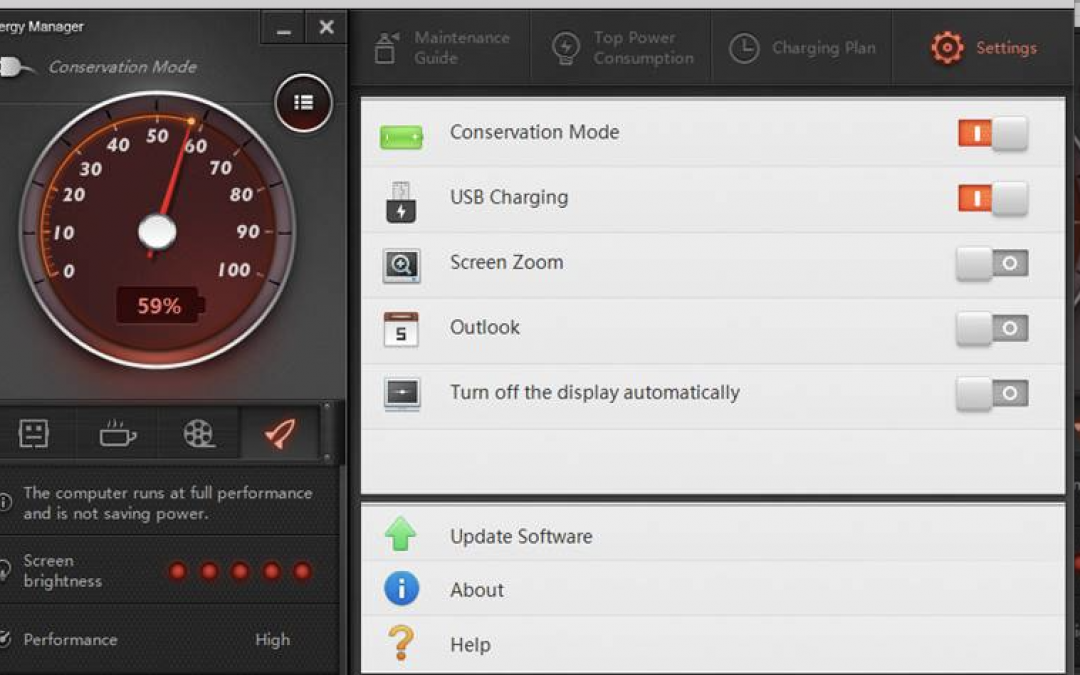
How Can You Keep Your Laptop Running Longer?
Getting work done in the airport or other remote location where you can’t find a spare plug to recharge your “dying” laptop can be tricky. Battery power only lasts so long on any device, and once it’s used up, you’re stuck hunting down a spare outlet (along with other travelers in the airport lounge).
Luckily, there are some fast and simple solutions to help you gain a bit more battery life. Here are 8 handy tips to try:
1. Turn On The Battery Saver In Your Laptop
Your PC or Mac laptop comes equipped with a way to lengthen your battery life. Adjusting a few settings can gain you some extra juice when you need it. Your laptop can automatically lower the power state for a number of components so you can ration your battery power more effectively. You can change settings to turn off applications you don’t need, shut down processes that aren’t required and adjust specific activities so your laptop consumes less power.
2. Turn Off The Keyboard Light
Do you really need to have the keyboard backlit? This is a power drain you can quickly fix.
On your PC, go to the Control Center. Next, click the Keyboard and Mouse, then Backlit Keyboard to adjust the lighting. Turn off the Backlit Keyboard.
Unfortunately, there’s no built-in setting in Windows 10 to adjust the backlit keyboard settings. However, some original equipment manufacturers like Dell offer their own software for this. They have settings to turn the backlit keyboard on or off, adjust the keyboard brightness, and automatically turn off the backlight after a number of seconds of inactivity. Do some research for your device to learn what options you have. While you’re at it, why not assign a hotkey for this? You may need to do this again in a pinch, and you’ll save some time.
3. Lower Your Screen Brightness
You certainly can’t turn this off, but you can adjust the brightness setting and resolution. Reducing the level of brightness to 50 percent will save you quite a bit of power when you’re running low.
4. Turn Down The Volume
Doing this will save you a bit more power. If you’re desperate for more time, this is worth doing. Lower the sound as much as you can. You can also switch from listening via the laptop’s speakers to a set of earbuds. If you don’t need the sound, turn it off altogether.
5. Disable Ports And Devices
This is an easy way to reduce your laptop’s power consumption. Close down anything you don’t need. Disconnect peripherals you aren’t using like external hard drives or a USB mouse. Some other things that hog power are your Bluetooth, graphics processors, optical drives, and Wi-Fi. Turn these off if you don’t need them.
For Mac users, disable your Wi-Fi and Bluetooth in the Menu Bar. If you use a PC, go to the Device Manager in your desktop and disable ports you don’t need. This won’t provide a lot of extra juice, but if you’re really lacking power, this is something to try. Also turn off any USB ports that aren’t being used.
To turn off devices on your PC in Windows, go to your Control Panel and look for the Device Manager. All of the devices will be organized according to their category. All you have to do is right-click what you want to disable and choose “Disable” from the drop-down. If you want to turn off your Wi-Fi, you’ll find this in the Network Adapters category. The graphics card will be under Display Adapters, and the optical drive under the DVD/CD-ROM Drives category.
6. Can You Spare Some Apps?
When the power is running low, it’s best to use just one application at a time. If you keep multiple applications and processes running on your laptop, you can say “bye-bye” to your juice. They can really eat up battery life. Turn off anything you aren’t using. On your Windows-based laptop in the System Tray, click the icon that displays hidden icons. Here, you can see what apps might be running in the background. Then go to the Task Manager in the menu, and you can see apps that are open. Turn off what you don’t need.
7. What About Turning Off Certain Computing Processes?
Just like you don’t need all those apps running, you should turn off processes that you don’t require. Anything that’s used to run video players or music can probably be disabled and won’t be missed. Also, turn off your cloud storage services, for now, to get back some precious battery life. You can turn them back on when you can find a plug.
For MacBook users, go to Login Items in System Preferences and Users & Groups. Disable anything you don’t need right now. If you want to see what’s running, hold down the Option key and click on the battery indicator in the Menu or open the Activity Monitor in settings to see what’s running. Select and turn off anything you don t need. Apple OS X has a Power Nap feature that you can turn on. This will switch off email and Twitter feeds so you can maximize your remaining battery power.
8. Finally – Always Keep A Plug Splitter Handy
If you can find someone who’ll share a plug, this is when you need that handy plug splitter. It converts one grounded outlet into three. A 3-outlet splitter is usually rated at 15 amps. You can plug three different devices into it. Just make sure their combined load is less than 15 amps or 1,875 watts. If the people using the plug aren’t so sure they want to share, maybe a free cup of coffee will change their minds. They can recharge from their coffee while you recharge your laptop battery!
No matter how great your remote setup, getting work done in the airport where you can’t find a spare plug to recharge your laptop is a little tricky. I hope these tips helped.

by Felicien | Jul 18, 2018 | Education
Making the Most of Email Marketing Service Providers
Email marketing provides businesses with the most direct line of communication for connecting with customers and turning leads into sales. It is also one of the most cost-effective marketing methods available.
While you can use any number of methods and a suitable tool to easily acquire subscribers and build your email list, the actual email delivery part comes down to your choice of email marketing services.
An email marketing service provider, or ESP, is simply a web-based service that can help you organize, manage, automate, and track your marketing emails.
Your choice of ESP can make or break your overall marketing campaign. You don’t want to end up shelling out a lot more money for fewer features and perhaps an inefficient delivery system, which could translate into losing money and subscribers.
So, if you’re looking to start using an email marketing service, or if you’re switching from your current provider, here are some helpful facts to jumpstart your research.
What To Expect From Your ESP
Any email marketing service provider will normally offer you a number of essential features. Of course, the level of service varies from one ESP to another depending on the cost.
Spam test – to gauge the score of an email against a known factor or set of factors that would place the email at risk of being flagged or blocked.
Ability to import, create, and manage subscriber lists – these management features usually include list segmentation and customizable fields.
The ability to use templates for sending an email – this often includes testing of the templates for compatibility with emailing apps.
The ability to track and review statistics of emails sent – usually as a way to measure and test the success rate of campaigns.
The ability to send both HTML and plain text emails – these format varieties help to improve delivery success rates.
The ability to dynamically customize the content of emails that are sent out – helps with tailoring personalized and relevant email communication.
Why You’ll Want To Include An ESP In Your Email Marketing Strategy
Using an email marketing service comes with a number of benefits that may be a great boon to your overall marketing strategy. Let’s have a look at some of them.
Preventing intentional (or unintentional) email marketing abuse
These web-based emailing services provide methods that are within legal boundaries, thereby creating natural constraints for marketers to work within the acceptable limits. This can go a long way in ensuring that email marketing campaigns are successful – often by keeping marketers from overwhelming recipients with their emails and risk getting flagged as spam.
Saving time and money
With ready-to-use email templates available in multiple formats, you won’t have to spend time creating emails from scratch each time you want to send one. This, added to the fact that ESPs provide list management and organization, automation, testing, and targeting, as well as tracking and analyzing of emails. These tasks would be very time consuming to perform yourself. An ESP can ensure that you shave tremendous amounts of time off your campaign management duties.
Which Way To Go: ESPs Compared
Often, you’ll have to choose from the long list of email marketing service providers available in this industry. The popular ones today include MailChimp, AWeber, ActiveCampaign, ConvertKit, GetResponse, and ConstantContact. There are many others.
All these ESPs have their various appeals and relative differences that will determine the best option for your needs. It will help to know what to look for, in order to choose the right one.
Cost and your budget
How much are you willing to pay and what number of subscribers are you targeting with your email marketing campaign? What you need is a pricing structure that fits within your budget and will fit into your email strategy. Charges and pricing terms vary from one ESP to the next, so be sure to analyze the pricing plans and terms from various vendors before settling on one.
Age of the ESP
If you are all about industry experience, then you’ll want to think about the level of experience that an ESP has gained from being in the market for longer. Of the six ESPs listed here, ConstantContact is the oldest, having been founded in 1995. AWeber comes in as second oldest, having been founded in 1998.
List of features and user experience
Various ESPs offer hundreds of different features. More importantly, pay attention to the IP (do they provide a dedicated IP or will you share with other users), email types (automated daily emails, real-time ‘triggered’ emails, one-off marketing newsletters), API database integration, dynamic merge fields, A/B testing capabilities, analytics, and any other feature(s) that you find essential for your business.
Wrap up
With a clear knowledge of what to look for, you can profile your ideal choice of vendor based on your simple list of requirements and go to market assured of getting the best ESP for your email marketing needs. It takes a bit of research but should pay off with better results for every campaign.

by Felicien | Jul 17, 2018 | Education
New Consumer Privacy Act to Take Privacy Protection in California a Notch Higher
No consumer really knows the exact amount of data that companies collect about them online at any particular time. It is nearly impossible to determine exactly what information is collected and how it will be used. This has always been a sore spot with consumers. Everyone enjoys the convenience of shopping online. Up to now, there has never been a way to control how your personal information is collected, stored, or used.
In California, this is about to change. With the recent passing of the California Consumer Privacy Act (CCPA), consumers will now have some control over this.
The law, which goes into effect January 1, 2020, is designed to empower consumers with knowledge about how their personal information will be collected, used, and stored.
To break it down, here are the rights that the California Consumer Privacy Act, also known as AB-375, gives the residents of California:
Knowledge about the kind of personal information that companies are collecting about them.
Knowledge about whether the information collected about them is getting sold or disclosed to some other entity. The law entitles Californians to know the identity of the party obtaining their data from the original collector.
Consumers can refuse the sale or disclosure of their personal information.
They can gain unrestricted access to their personal information in its “readily useable format” that makes it viable for transfer to third parties.
They can still enjoy equal services and prices even when they exercise their privacy rights. Companies can’t charge more or decline services to a consumer who wants to obtain information about how their information will be used.
Working Toward Stronger Consumer Privacy Protections
The creation of the California Consumer Privacy Act is the culmination of a move to address growing user privacy concerns and the continued rise in data breaches in many parts of the country.
In particular, the law explicitly attributes its genesis to the major privacy scandals witnessed in recent months, including the incident where Cambridge Analytica misappropriated Facebook user data of at least 87 million people. It is against this backdrop and other similar news that the law gained much of the political impetus that drove its successful passage.
The passage of this law comes on the heels of episodes of intense negotiation especially from US tech giants and leading internet service providers. The discussions also brought to the table various privacy advocates, a number of technology startups, and other concerned parties.
Many have described this new piece of legislation as a landmark policy that constitutes the most rigorous consumer data protection regime in the US. It is joining the likes of the Canadian Anti-Spam Law (CASL) and Europe’s General Data Protection Regulation (GDPR) which constitute part of a global movement toward greater data transparency and stronger protections around consumer privacy.
What Sets CCPA Apart?
First, compared to the GDPR, which continues to have an extensive influence across the globe, the California law exclusively applies to the State of California and its residents, not the entire United States of America. But considering that California boasts a population of 40 million, it’s only likely that every company involved in collecting user data in the U.S. will be affected by this law.
While GDPR requires that by default, businesses opt out of collecting consumer data unless the consumer gives them the explicit rights to do so, the California Consumer Privacy Act does not impose such a requirement. It doesn’t require companies to seek people’s permission to collect their personal information from the get-go. The legislation is rather focused on empowering consumers to have a say over their privacy and the collection of their personal information.
For the rest of the US, there is a separate bill in the pipeline, AB-2546, that is set to amend California’s anti-spam law in a bid to strengthen its provisions. As it is, this law will not be limited to the State of California, but rather, will have a sweeping effect throughout the United States of America.
Who Is Affected By This Law?
According to the text of the California Consumer Privacy Act, companies that fit the following criteria will have to abide by the provisions of the new law:
Businesses that are involved in brokering data, as well as those that buy the data, sell, or share the personal information of approximately 50,000 or more individuals, devices or households.
Companies whose annual revenue mostly comes from the sale of consumer personal information.
Businesses that have at least $25 million in annual gross revenues.
Failure to abide by these provisions would attract legal action against the errant companies – with the cost of damages stipulated to be anywhere from $100 to $750 or higher. With California law in effect, citizens have the right to bring a civil action against any business that operates in violation of the law.
The law also allows the state of California to bring charges against errant companies directly. In such a case, the fines levied will be $7,500 for every violation that remains unaddressed within a 30-day window.
Wrap up
The cost of violating the California Consumer Privacy Act can be significant. Companies that are bound by this piece of legislation must obey it or run the risk of paying huge fines. Both government and consumers will be on the look-out to see whether companies will adhere to these new regulations or run the risk of being fined. An even greater penalty, companies that refuse to abide by these regulations may damage their reputation and lose the confidence of consumers.
